Cisco 4331 Router Setup and Configuration Guide
Learn how to set up, configure, and troubleshoot the Cisco 4331 router. This step-by-step guide covers initial setup, CLI basics, and essential networking tasks.


You will learn how to set up and secure the cisco 4331 router for a small-to-medium home or office network. This quick guide covers essential startup steps, basic CLI configuration, and core security practices to get you online quickly. You’ll need a computer with a terminal emulator, a console cable, and a power source to begin.
What is the Cisco 4331?
The cisco 4331 is a member of Cisco's ISR 4000 series, designed for branch offices and small-to-medium networks that need integrated routing, security, and services. The 4331 blends modular hardware with software features that support voice, video, and data traffic. It is not a consumer router; it targets professional networks, offering flexible interfaces, security features, and licensing options. Although exact throughput figures vary by software package and modules, the device scales its performance with the right configuration. You can run basic routing, NAT, firewall services, and VPN capabilities, all within a single device. For home labs and small offices, it provides a compact footprint with robust reliability, remote management, and centralized policy enforcement. As with any enterprise-grade router, proper initial configuration and ongoing maintenance are essential to realize its benefits.
Planning your deployment
A successful deployment starts with a clear network plan that matches your expected traffic and growth. Identify your WAN connection type (fiber, copper, or cellular) and decide which internal networks you will support (LAN, DMZ, guest networks). Consider the kinds of services you need—VoIP, VPN, guest access, firewall rules, and QoS—and how they will be segmented. Prepare a topology diagram that shows where the cisco 4331 sits in the path between your ISP and internal networks, and note any existing devices that will peer with it. Think about security from day one: what devices require management access, what kind of encryption you will implement, and how you will monitor the router’s health. This planning phase minimizes surprises during actual setup and helps you tailor licenses and features to your environment.
Preparing the hardware and initial connect
Before powering up, gather your hardware and confirm you have the right physical interfaces for your network. Use a console cable to connect the router to a management PC for initial access, then power the device and wait for the system to boot. As soon as you can access the CLI, you will enter the initial configuration mode and begin setting up fundamental management credentials. Keep your documentation handy: note serial numbers, port mappings, and any pre-installed modules. If you are integrating the 4331 into an already protected network, plan to isolate it briefly during initial setup to prevent accidental exposure. Finally, verify that you have a stable power source and a clean workspace to avoid accidental power loss during configuration.
Basic CLI configuration essentials
The CLI is the primary way to configure the Cisco 4331. Start with access controls: set a strong hostname and an encrypted enable password so privileged access is protected. Enable local usernames and AAA as you grow, even if you start with simple access. Use the configuration terminal to apply changes and save them to memory. Common initial tasks include enabling interface descriptions, configuring a management interface, and setting up a default route to direct traffic toward the internet or your upstream router. Remember to enable basic security features and to commit changes after each major step. This approach keeps your configuration readable and maintainable as your network evolves.
Interface and routing basics
Interfaces are the building blocks of connectivity on the cisco 4331. Configure the management interface for device administration and assign a stable IP address. For internal networks, configure the LAN interfaces with appropriate IP addresses and subnet masks. Establish a default route that points to your ISP or upstream router, and enable basic dynamic routing if your topology requires it. Where applicable, implement NAT to translate private addresses to a public address space. Use ACLs to constrain traffic to only what is necessary and to protect sensitive management paths. Documentation of every change is essential for future troubleshooting and audits.
Security best practices for the 4331
Security should be baked into every step of the setup. Disable unused services and secure remote access with SSH, not Telnet. Enforce strong authentication by using enable secrets and local or AAA-based accounts. Enable password encryption and consider configuring a management SSH key pair for added protection. Keep the device firmware up to date and apply security patches promptly. Implement access control lists to restrict management interfaces to trusted subnets, enable NTP for time synchronization, and monitor events with logging and alerts to catch anomalies early. A disciplined security posture reduces risk and helps you maintain a compliant network.
Licensing, maintenance, and backups
Understand that licensing is a core aspect of feature availability on the Cisco 4331. Plan for the licenses you will need for VPN, security services, or advanced routing features, and activate them via the CLI or vendor portal as required. Regularly back up your configuration after each meaningful change and maintain a documented change log so you can revert if needed. Schedule routine maintenance windows to apply updates and review device health metrics. Establish a backup strategy that includes both local and offsite copies of configurations and, where feasible, a configuration archive that captures historical states of your router. This approach supports stability and smoother future upgrades.
Troubleshooting checklist
If services aren’t functioning as expected, start with a simple checklist: verify interface status, check for IP address conflicts, and confirm the default route is reachable. Use show commands to review the running configuration, routing tables, and interface statistics. Validate SSH access and ensure firewall rules aren’t blocking legitimate traffic. If you encounter persistent problems, capture the current configuration, compare it with a known-good baseline, and test connectivity with ping and traceroute. Finally, consult vendor documentation for known issues and recommended mitigations, and don’t hesitate to seek expert assistance if the issue is critical to business operations.
Tools & Materials
- Laptop or PC with terminal emulator(PuTTY, Tera Term, or macOS/Linux Terminal; ready for serial or SSH access)
- Console cable (RJ-45 to DB-9 or USB-serial adaptor)(Connects PC to router console for initial setup)
- Power supply(Stable power source; keep device powered during configuration)
- Ethernet cables(Test and connect devices to LAN/WAN interfaces)
- Documentation for network plan(Current topology, IP schemes, and credentials)
Steps
Estimated time: 60-90 minutes
- 1
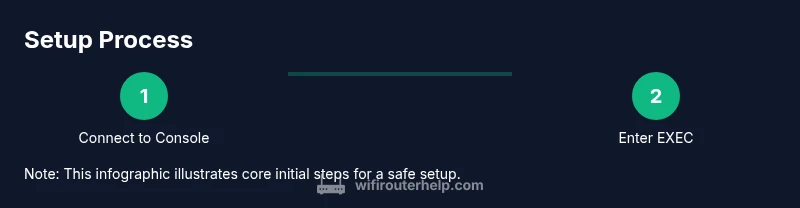
Connect to the console and power up
Attach the console cable from your PC to the router's console port. Power on the device and press Enter to access the boot firmware and the CLI prompt. Ensure your terminal emulator settings (typically 9600 baud, 8N1) are correct so you can see the startup messages clearly.
Tip: Have the correct console cable or adapter handy before you power the device to avoid missteps. - 2
Enter privileged EXEC mode and set initial credentials
At the CLI, enter enable mode and set a strong enable secret password. Create a local user account for management access and consider enabling AAA once your baseline setup is complete.
Tip: Use a complex, unique password and avoid default credentials. - 3
Configure management hostname and basic access
In global configuration mode, set a memorable hostname for device identification and configure basic access controls. Enable password encryption to protect stored credentials and establish a login policy for future changes.
Tip: Document the hostname and initial credentials in a secure password manager. - 4
Set up interfaces and a default route
Configure the management interface with a stable IP and netmask. Assign IPs to LAN interfaces as needed and create a default route toward your upstream device or ISP gateway.
Tip: Prefer static addressing for predictable management access until you finalize your DHCP setup. - 5
Enable secure remote management and save your config
Enable SSH, generate crypto keys, and disable insecure services. Save your configuration to startup-config so changes persist after reboot.
Tip: Test SSH connectivity from an admin workstation before removing console access. - 6
Test connectivity and verify security posture
Ping internal and external targets, check interface statuses, and verify ACLs are permitting intended traffic. Review the running configuration to ensure password encryption and secure services are active.
Tip: Keep a rollback plan and verify changes against your network plan.
People Also Ask
What is the purpose of the Cisco 4331 router?
The Cisco 4331 router is a member of the Cisco ISR 4000 series designed for enterprise branch deployments, combining routing, security, and services in a compact form factor.
The 4331 is an ISR router for small to medium networks that need integrated services.
How do I connect to the console port?
Use a console cable to connect the router’s console port to your computer and access the CLI via a terminal emulator.
Connect your PC to the router’s console port and open your terminal app.
What are the basic steps to configure the router?
Set a hostname and secure passwords, configure interfaces with IP addresses, create a default route, and enable secure remote management (SSH).
Set the hostname, secure the router, assign IPs, and enable SSH for remote access.
How can I secure the 4331 effectively?
Disable unused services, enable SSH, implement ACLs, keep firmware updated, and use strong authentication methods for management access.
Turn off unnecessary services, enable secure access, and keep software current.
Can the 4331 support VPNs and remote access?
Yes, the router supports VPN features; licensing may apply depending on features, and you should consult the official docs for specifics.
VPN options exist and may require licenses.
Where can I find licensing information?
Licensing details are in Cisco’s documentation; activation is typically done via the CLI or Cisco’s portal, depending on the feature set.
Check the official Cisco docs for license types and activation steps.
Watch Video
What to Remember
- Prepare hardware and cables before starting
- Configure basic CLI settings with a secure baseline
- Secure access with SSH and strong passwords
- Save config and test connectivity before deployment
- Plan licensing and maintenance for long-term stability