Can You Get a Router? A Step-by-Step Guide
Learn how to get a router, what to consider, where to buy, and how to set it up for reliable home Wi‑Fi. Step-by-step guidance, tips, and common questions for homeowners.


Yes. You can get a router from multiple sources—ISP bundles, electronics retailers, or refurbished markets. A router is the device that creates your home network by distributing internet access to your devices. This guide walks you through where to buy, what to consider, and how to set it up for reliable Wi‑Fi, so you can make an informed choice and start wiring your home.
Can You Get a Router? What it Means in 2026
Getting a router today means you own a device that creates and manages your home network, or you rely on an ISP-provided gateway. According to WiFi Router Help, the landscape has expanded from simple in-store purchases to bundles with internet service, refurbished units, and even “rent-to-own” options. This flexibility lets you choose based on how you use the network, not just the price tag. If you’re asking can you get a router, the short answer is yes—ownership, access, and costs vary, but most households can secure a suitable model within a few hours of research and a quick setup. The WiFi Router Help team notes that understanding your internet plan, space, and device needs will steer you toward the right choice rather than rushing into a single option.
wordCountPlaceholder
Tools & Materials
- Reliable internet service (ISP or gateway),(If you already have a modem/gateway, you may only need to add a separate router.)
- Router device (standalone, gateway, or mesh),(Choose based on coverage needs and features.)
- Power outlet(Keep router away from heat sources and moisture.)
- Ethernet cable (Cat 5e/Cat 6)(Use for reliable initial setup and optional wired devices.)
- Computer or mobile device to configure the router(Ensure you can access the router’s admin interface.)
- User manuals or online guides(Helpful for advanced features (guest networks, parental controls).)
Steps
Estimated time: 30-60 minutes
- 1
Decide ownership path
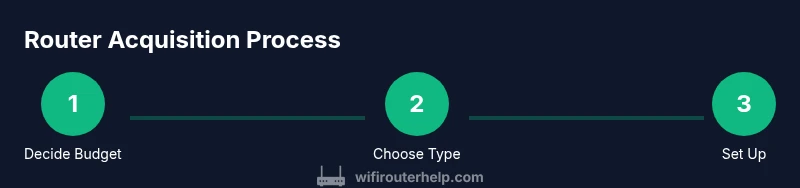
Choose between purchasing a router, using an ISP-provided gateway, or renting a device. Your choice impacts long-term costs, control over settings, and software updates. Think about your budget, how often you upgrade, and whether you want features like guest networks or mesh compatibility.
Tip: If you expect frequent upgrades, buying a standalone router can be cheaper in the long run, especially with promotions. - 2
Check compatibility with your internet plan
Confirm that the device supports your internet speed and connection type (fiber, cable, DSL). Some ISPs require a specific modem or gateway, and certain routers support features like IPTV or VOIP passthrough. Verify if a modem is provided or must be purchased separately.
Tip: Call your ISP or check their site to confirm approved devices and any activation steps. - 3
Select the right router type
Decide between a traditional router, a modem-router combo, or a mesh system for larger homes. Mesh systems offer wider coverage with multiple nodes, while a single router suffices for small apartments. Consider future-proofing with Wi‑Fi 6/6E and configurable security.
Tip: If you have thick walls or multiple floors, a mesh system reduces dead zones more effectively than a single unit. - 4
Place the router optimally
Position the main unit in a central, elevated spot away from thick walls, microwaves, or cordless phones to minimize interference. Avoid hiding it in cabinets or closets. For mesh setups, place nodes at recommended intervals to maximize coverage.
Tip: A higher elevation and central location often yield better signal distribution than a point-blank placement. - 5
Connect hardware and power up
Connect the router to the modem with an Ethernet cable. Plug into power, turn on the device, and wait a few minutes for boot and initialization. If you’re using a mesh system, power on all nodes in sequence as directed by the manufacturer.
Tip: If the device doesn’t boot, check the power adapter and ensure the modem is online. - 6
Access the admin interface and configure basics
Use a computer or tablet to access the router’s admin page via its default IP (often 192.168.0.1 or 192.168.1.1). Change the default admin password, create a unique Wi‑Fi name (SSID), and set a strong WPA3 password if available. Enable essential features like guest networks if you have visitors.
Tip: Write down the new password and SSID in a secure place; do not reuse factory credentials on multiple devices. - 7
Test connectivity and secure the network
Run speed tests from a wired and a wireless device to verify performance. Update firmware to the latest version and review firewall settings. Disable WPS if supported, and enable automatic firmware updates to keep security current.
Tip: Document your network name and password for future reference and share access only with trusted devices.
People Also Ask
Can I get a router if I don’t have internet service yet?
Yes. You can buy or rent a router even before your service is connected, then activate it once your ISP provisioning is complete. This lets you test the hardware and plan ahead.
You can get a router before service activation, then set it up once your internet is live.
Should I buy or rent from my ISP?
Buying gives you ownership, flexibility, and often better long-term value, while renting offers convenience and maintenance. Compare monthly costs, upgrade options, and any equipment fees from your provider.
Buying is usually more cost-effective long-term, but renting can be simpler and includes support.
What is the difference between a router and a gateway?
A router manages local devices and traffic, while a gateway combines routing with modem functionality. If you already have a separate modem, a standalone router can often improve flexibility and control.
A router directs your network; a gateway includes modem features.
Do I need a mesh system for a large home?
If your home has dead zones or multiple stories, a mesh system can provide seamless coverage. For smaller spaces, a high-quality single router may suffice.
Large homes often benefit from mesh, but assess coverage with a quick test first.
Is a new router worth it if my plan is slow?
A modern router with current Wi‑Fi standards can improve wireless efficiency and range, even on slower plans. It won’t increase your internet speed, but it can maximize what you pay for.
Upgrading may improve reliability and range, even if your speed stays the same.
Can I use an old router with a new plan?
Older routers may still work but could lack newer security and performance features. If you plan to upgrade service, ensure the device supports current standards like Wi‑Fi 5/6.
An older router can work, but older standards mean slower performance and fewer features.
Watch Video
What to Remember
- Identify your ownership path before buying.
- Check compatibility with your ISP and plan.
- Choose the right router type for home size and needs.
- Position and secure the router for best performance.
- Keep firmware updated and monitor network security.