How to Get Your Own Router: A Practical Guide
Learn how to choose, buy, and set up your own home router with practical steps, budgeting tips, and essential security checks for a stronger, private network.


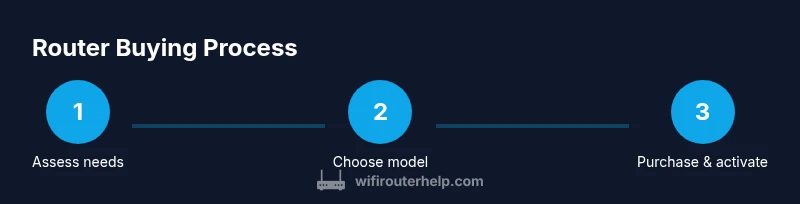
You can get your own router by assessing your home needs, budget, and ISP compatibility, then selecting a model that fits. This ultra-concise answer points you to the full step-by-step guide for buying, installing, and securing your network.
Why owning your own router is worth it
Owning your own router gives you direct control over your home network, better privacy, and more predictable performance than relying on a provided gateway. When you buy a router, you aren't tied to your ISP's firmware schedule or feature lock-ins; you can choose hardware with robust security updates and lasting support. This is especially important for households with multiple devices, smart home gadgets, or gaming setups that demand consistent latency. According to WiFi Router Help, the big win is cost predictability and customization. Instead of renting a gateway with recurring monthly fees, a one-time purchase lets you decide how long to use the gear and when to upgrade. You'll also benefit from superior feature sets, such as guest networks, parental controls, Quality of Service (QoS), and advanced firewall options. Of course, there's some upfront cost and learning curve, but the long-term payoff is a more resilient home network with fewer provider-imposed limitations. In this guide we cover how to evaluate needs, choose the right class of router (standalone vs mesh), and execute a purchase that aligns with your budget and your ISP's requirements.
What types of routers are available
There are several approaches to owning your network: a traditional standalone router, a router with a built-in modem, and multi-device mesh systems that work together to deliver consistent coverage across hallways, basements, and backyards. Standalone routers are typically compact and cost-effective; they fit most households that already have a separate modem. Mesh systems combine multiple units that work together to deliver stable coverage across a large home. If you live in a two-story home or have multiple devices streaming video, a mesh system may provide steadier throughput than a single unit.
When evaluating features, consider WiFi standards (prefer at least WiFi 5/802.11ac or newer), number of bands (2.4 GHz and 5 GHz; tri-band adds a dedicated 5 GHz channel for backhaul), CPU/RAM for handling multiple devices, and security features like automatic updates and a built-in firewall. Budget options exist that still offer essential controls, such as guest networks and basic QoS. For gaming or heavy use, look for MU-MIMO and Quality of Service prioritization, which can help reduce latency for important traffic. Finally, think about future-proofing: a router with a robust feature set and good firmware support can stay relevant longer.
How to determine budget and needs
Before buying, translate your household realities into a router spec list. Consider how many devices will connect concurrently (phones, laptops, smart TVs, tablets, security cameras, and IoT gadgets). If your home has thick walls or multiple levels, plan for stronger signal coverage—this might push you toward a mesh solution or a high-powered standalone router with a good antenna array. Think about your typical activities: streaming, online gaming, video conferencing, remote work, or smart-home automation. Each activity benefits from different features: QoS to prioritize gaming or video, robust security to protect smart devices, and easy guest networking for visitors. Your budget matters, but so does the long-term value of firmware updates, warranty terms, and ease of administration. Create a short list of must-haves (e.g., WPA3, 4+ LAN ports, USB connectivity) and a nice-to-have list (e.g., USB printer sharing, VPN support). A clear needs analysis reduces decision fatigue and helps you compare models on meaningful criteria.
Check ISP compatibility and modem considerations
Compatibility with your internet service is a critical hurdle to clear before purchase. Some ISPs require a specific gateway or restrict bridging modes, while others support using your own router with a separate modem. Start by checking your current plan’s terms and any rental charges for a gateway. If you rent a gateway and want to switch, contact ISP support to confirm whether you can place the gateway in bridge mode or whether they offer a compatible modem-provisioning option. For fiber or cable services, confirm DOCSIS compatibility (for cable) or fiber ONT support (for fiber) and IPv6 readiness. If you have a modem you plan to continue using, ensure the router you pick can operate in bridge mode and doesn’t double-translate NAT in ways that complicate gaming or VPNs. Finally, verify the router’s performance in your environment by reading ISP-specific setup guides or forums for real-world experiences.
How to compare models and read reviews
Start with the essential specs: WiFi standard (WiFi 6/6E or newer preferred), dual-band vs tri-band, number of streams, and processor/RAM for multi-device handling. Look for features that matter to your use case: QoS for prioritizing work applications or gaming, MU-MIMO for simultaneous device connections, and robust parental controls. Review firmware quality and update cadence—routers that receive frequent security updates tend to offer longer lifespans. Read real-world performance tests in reviews focusing on range, throughput, and interference handling in typical homes. Pay attention to warranty terms and customer support reputation. Consider the total cost of ownership, not just the sticker price; a slightly pricier model with longer support can be cheaper over five years. As you narrow down, compare retailer offers, return windows, and bundled accessories (like extra antennas or USB peripherals).
Where to buy and how to get the best deal
You have multiple shopping avenues: online marketplaces, manufacturer-direct stores, big-box retailers, and local electronics shops. Each has trade-offs: online vendors often offer faster price-comparison, but in-store staff can help with hands-on demos. Look for models that include a reasonable warranty, straightforward setup, and a clear upgrade path. Watch for promotions and bundles (e.g., routers paired with security subscriptions) that actually add value. Read the return policy carefully and keep the original packaging. If you are upgrading from an ISP-provided gateway, consider the total monthly savings from not renting equipment versus the upfront cost of the router. Sign up for price-drop alerts and consider manufacturer rebates or student discounts where applicable. For added assurance, verify if the retailer offers price protection, extended warranties, or reliable after-sales support.
What to expect after purchase and activation
Unbox your new router and place it in a central, elevated location away from thick walls and metal appliances. Connect the WAN/Internet port to your modem if you’re using one, or place the unit where your ISP’s gateway will be bridged to it. Use a computer or phone to access the router’s admin page, usually via an address like http://192.168.1.1. Update firmware to the latest version, then change the default admin credentials and set a strong Wi‑Fi password with a unique SSID. Enable WPA3 (or WPA2 at minimum) and consider enabling a guest network to keep visitors isolated. Configure automatic security updates if available, and disable remote management unless you need it. The WiFi Router Help team recommends keeping firmware updated and regularly reviewing security settings to protect all devices on your network. Finally, document your network details (SSID, password, admin login) and store them securely for future troubleshooting or expansion.
Authority sources
- https://www.fcc.gov
- https://www.nist.gov/topics/cybersecurity
- https://www.consumer.ftc.gov
Tools & Materials
- Web-enabled device(Phone, tablet, or computer to browse stores and compare models)
- Payment method(Credit card, debit card, or PayPal for online purchases)
- Budget and needs list(Optional but helpful to narrow options)
Steps
Estimated time: 1-2 hours
- 1
Define your needs
Identify how many devices will connect, whether you need mesh for coverage, and any must-have features like guest networks or QoS.
Tip: Write down your top three network priorities before you start shopping. - 2
Check compatibility with your ISP
Review whether your ISP requires a gateway or supports standalone routers with bridge mode. Confirm if you currently rent a gateway and what the monthly cost is.
Tip: Call or chat with your provider to confirm bridge mode availability if you plan to use your own router. - 3
Decide between standalone vs mesh
Decide whether a single robust router meets your needs or if a mesh system would better cover a large home with dead zones.
Tip: For multi-story homes, plan for at least two nodes if you choose a mesh system. - 4
Compare models and read reviews
Filter by WiFi standard (prefer WiFi 6/6E or newer), number of bands, CPU/RAM, and firmware update reliability. Read real-world user reviews for reliability and support.
Tip: Prioritize firmware update frequency and ease of setup. - 5
Purchase and confirm warranty
Buy from reputable retailers with a solid return policy and at least a 1-year warranty. Save the receipt and model details.
Tip: Check for extended warranty options if available. - 6
Plan for setup and activation
Unbox, connect to your existing modem if needed, access the admin page, update firmware, and configure security basics.
Tip: Change default admin credentials and enable automatic firmware updates.
People Also Ask
What does it mean to own your own router?
Owning your own router means you purchase the device rather than renting one from your ISP. You control firmware updates, security settings, and network features.
Owning a router means you buy the device instead of renting it, giving you full control over updates and security.
Can I use any router with my internet service?
Most services work with standard routers, but some providers require compatible modems or bridge mode; always check your service terms and compatibility lists.
Most services work with standard routers, but confirm compatibility with your modem and provider.
Do I need a modem to use a router?
Yes, in most homes a modem is needed to connect to the internet; some providers supply a gateway that combines both modem and router.
Usually you need a modem; a combined gateway is also common with some providers.
How do I verify router compatibility with my ISP?
Check your ISP's official support pages for modem/router compatibility lists and supported standards (DOCSIS version, IPv6, etc.).
Look up your provider's compatibility list for modems and routers.
Is it cheaper to buy a router than rent one?
Buying a router typically saves ongoing rental fees over time, but the break-even point depends on your plan and device cost.
Buying can save you money in the long run, though upfront costs vary.
What are essential security steps after buying a router?
Change default credentials, enable WPA3/WPA2, update firmware, and disable remote management when not needed.
Change defaults, keep firmware updated, and enable strong encryption.
What to Remember
- Define your needs before shopping
- Check ISP compatibility and modem requirements
- Compare features, not just price
- Plan for setup and firmware updates