How Router Setup: A Practical Step-by-Step Guide for Home Networks
Learn how to set up, optimize, and troubleshoot your home router with a clear, step-by-step approach. This WiFi Router Help guide covers security, performance, and common issues for 2026.


You will learn how to set up your home router, secure the wireless network, update firmware, and optimize coverage. This guide covers prerequisites, a step-by-step setup process, and quick troubleshooting to boost reliability. You’ll understand common pitfalls and how to verify your network performance, so you can keep everything running smoothly as devices grow.
Understanding what a router does
A router sits at the center of your home network, directing traffic between devices and the internet. It creates local networks, assigns IP addresses, handles routing between devices, and provides security boundaries. Understanding how router works helps you troubleshoot slower speeds, fix dead zones, and plan for future upgrades. According to WiFi Router Help, your home network relies on the router to manage traffic efficiently and securely. The WiFi Router Help team found that most home network problems stem from misconfigured settings rather than faulty hardware. When you ask how router functions in practice, think of the router as a traffic manager that translates data requests into routes, negotiates with modems, and enforces access controls. In this guide, we’ll break down the roles into practical steps you can implement today. You’ll learn why placement matters, how DNS, DHCP, NAT, and firewall features interact, and what to adjust first if devices seem slow or unreliable. By the end, you’ll have a concrete action plan for setup, optimization, and ongoing maintenance that you can reuse as your home network grows.
Quick prerequisites for a smooth setup
Before touching any device, gather the required items and know your goals. You’ll need your modem, a router, Ethernet cables, a laptop or phone, and a stable power source. Decide on your network name (SSID) and a strong password, and consider enabling WPA3 if supported. Write down your current ISP details, IP scheme (router-local address, such as 192.168.1.1), and any existing port mappings you plan to preserve. This preparation reduces back-and-forth and speeds up the process. If you live in a home with thick walls or multiple floors, plan an additional access point or a mesh system; while not strictly necessary, it can dramatically improve coverage. Make sure you have a clean, central location for the router, away from large metal appliances and thick furniture that can block signals. Finally, ensure you’re using a device with a modern browser or a companion app supplied by the router manufacturer. These steps minimize surprises when you begin the actual configuration.
Choosing the right router for your home
Not all routers are created equal, and the best choice depends on your space, the number of connected devices, and your internet speed. For most households, a dual-band or tri-band router with Wi‑Fi 6 (or newer) provides solid performance for streaming, gaming, and video conferencing. If you have many smart devices or a large property, consider higher-end options with stronger antennas, beamforming, and easy guest network features. When evaluating models, look at the real-world speed ratings, the number of simultaneous streams supported, and how the device handles updates and security patches. If you’re unsure about future-proofing, select a model that supports the latest Wi‑Fi standard and a straightforward firmware update process. It’s worth noting that the router’s placement will often have a bigger impact on coverage than a marginal jump in theoretical speeds. A single, well-placed router at center height can outperform a cheaper, more expensive unit placed on a shelf in a corner. Finally, ensure the device supports essential features like DHCP, NAT, UPnP, QoS, and WPA3 for robust security and flexibility.
Step-by-step: Preparing your network layout
Begin by sketching a simple map of your home and noting where you have existing coax or fiber entry points, potential Ethernet drop locations, and typical device clusters. This mental map helps you decide on router placement. If you’re starting with a modem-centered setup, locate the primary coax or fiber drop, then position the router within line-of-sight of your primary devices. Avoid metal cabinets, microwaves, and large appliances that can interfere with radio signals. Collect identifiers for your devices (MAC addresses) if you plan to create access controls or guest networks. You’ll also want to determine whether you’ll use a single router or extend coverage with access points or a mesh system. If you expect heavy traffic in a specific area (home office, living room, or gaming nook), place the router or primary node higher and closer to that zone. This step creates a practical baseline so you can quickly verify coverage later during testing.
Step-by-step: Configuring the basics
Now you’ll connect, access the admin interface, and set the essential network parameters. Start by connecting the modem to the router’s WAN/Internet port with an Ethernet cable, then power both devices. On a computer or phone connected to the router (via Wi‑Fi or a temporary Ethernet connection), open the router’s setup page using the default IP address and credentials printed on the bottom of the device or in the manual. Change the default admin password to a strong, unique one and set your SSID and password for the Wi‑Fi network. Enable WPA3 if the router supports it; if not, WPA2‑AES is acceptable. Disable remote management unless you need it, and turn on the firewall. Create a guest network as an isolated option for visitors. Finally, save your settings and reboot if prompted. After the reboot, reconnect with the new SSID and test basic connectivity to ensure devices can access the internet.
Step-by-step: Firmware, features, and testing
Update firmware to the latest version to patch security vulnerabilities and improve stability. Check the vendor’s site or the router’s administration interface for firmware updates and scheduled checks. While updating, avoid power interruptions; a failure during update can brick a router. After the update completes, re-check your network settings, as sometimes defaults revert or features reset. Re-test your wired and wireless connections and check the performance across both 2.4 GHz and 5 GHz bands. If you enabled QoS, run a quick test with the application that will use the most bandwidth (for example, video conferencing or gaming) to confirm prioritization works as expected. Finally, review security options such as enabling automatic updates, turning on malware protection if available, and verifying that port forwarding rules or UPnP are configured as intended. If you see inconsistent performance, consider adjusting antennas, changing channels to avoid interference, or moving the router to a more central location.
Securing and optimizing your network
Security isn’t a one-and-done task; it’s an ongoing discipline. Use strong, unique passwords for admin access and Wi‑Fi, and disable features you don’t need. Regularly check for firmware updates, and consider enabling automatic updates if supported. Create separate networks for guests and IoT devices to limit the spread of any potential compromise. Enable the router’s firewall and enable WPA3 or WPA2‑AES as a baseline. If you have remote access needs, restrict management to specific IP addresses. For households with smart assistants or printers, ensure that device discovery or UPnP is restricted to minimize exposure. Finally, document any changes so you can reproduce a stable configuration if you reset the device in the future. With disciplined maintenance, your home network becomes more reliable and resilient.
Troubleshooting common issues and quick fixes
When issues arise, a systematic approach saves time. If devices can’t reach the internet, verify the modem is online and the router’s WAN status shows an IP address. If a device can access the network but experiences slow speeds, measure performance on both 2.4 GHz and 5 GHz; interference from neighbors or appliances can be culprits. If some devices can connect but experience spotty coverage, try repositioning the router higher and away from walls, or switch to a different channel with less interference. For devices not obtaining a IP address, refresh the DHCP lease or reboot the router. If you’re unable to sign in to the router’s admin page, reset the device to factory defaults and reconfigure from scratch. Always back up your current settings before making major changes so you can revert quickly. If problems persist, consult the router’s vendor support or your ISP’s technician. Document symptoms, tests, and changes to create a clear history you can share when seeking help.
Verification, maintenance, and next steps
After you’ve completed setup and basic security measures, verify that all devices have stable internet access, measure speed from multiple devices, and check coverage in every room. Consider running a speed test at peak times to ensure you’re getting close to your plan. If your router supports mesh features or additional access points, plan a staged expansion rather than replacing the existing unit. Schedule periodic checks for firmware updates and performance audits; a monthly or quarterly cadence ensures resilience. Keep a small log of changes and test results to reference during future upgrades or resets.
Tools & Materials
- Router(Dual-band with latest Wi-Fi standard (Wi‑Fi 6/6E) preferred)
- Modem(ISP-provided or compatible cable/fiber modem)
- Ethernet cable (Cat5e or better)(At least 6 ft; longer if your modem is far from the router)
- Laptop or smartphone(For accessing the admin interface and testing)
- Power adapter and outlet(Surge-protected preferred)
- Notepad or digital notes(For recording settings and changes)
Steps
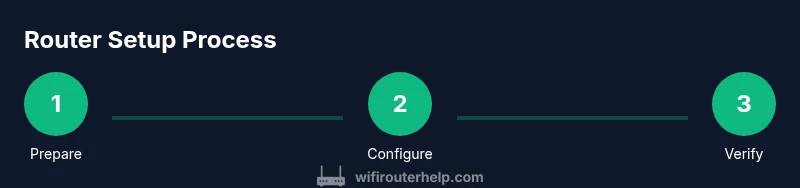
Estimated time: 60-90 minutes
- 1
Prepare your equipment
Unbox devices, verify contents, and ensure a clean workspace. Confirm you have all required cables and that outlets are available. This ensures a smooth, interruption-free setup.
Tip: Take photos of each connection as you go to avoid confusion if you need to redo steps. - 2
Connect modem to the router
Plug the modem into power, connect it to the router’s WAN/Internet port with an Ethernet cable, and power on both devices. Give them 2–3 minutes to fully boot before proceeding.
Tip: Use a wired connection from your laptop during the initial setup to avoid Wi‑Fi interference. - 3
Access the admin interface
On your computer or phone, connect to the router’s default network. Open a browser and enter the default IP address shown in the manual. Log in with the default credentials printed on the device.
Tip: Change the admin password immediately after login to a strong, unique one. - 4
Configure basics
Set a new, unique SSID and strong Wi‑Fi password. Enable WPA3 if available; otherwise WPA2‑AES. Disable remote management unless needed and turn on the firewall. Create a guest network for visitors.
Tip: Use a passphrase with at least 12 characters including numbers and symbols. - 5
Apply security and features
Save settings and reboot if prompted. Confirm you can sign back in with the new SSID. Check essential features like DHCP, NAT, and UPnP status.
Tip: Note any custom port forwards you use and back them up before rebooting. - 6
Verify and test
Reconnect devices and run basic connectivity tests. Check both 2.4 GHz and 5 GHz bands, ensuring reliable speeds across rooms.
Tip: Run a quick speed test from multiple devices and at different distances.
People Also Ask
Do I need a separate router if I already have a modem?
A modem provides internet access while the router creates your home network and manages traffic. If your modem has built‑in routing, you can configure it as a bridge to use a separate router for better features and control.
A modem alone gives internet access; a router builds your home network and controls traffic. Use a separate router for more features and easier management.
What’s the difference between WPA2 and WPA3?
WPA3 offers stronger encryption and better protections against password guessing. If your device supports WPA3, enable it; if not, WPA2‑AES remains secure for most homes.
WPA3 provides stronger security than WPA2; enable WPA3 if available, otherwise WPA2‑AES is acceptable.
How can I improve Wi‑Fi coverage in a large home?
Place the router centrally, avoid obstructions, and consider mesh or additional access points for dead zones. A well‑placed single router can outperform a cheaper, poorly placed unit.
Center the router and minimize obstructions; add mesh nodes or extra access points for large homes.
How often should I update router firmware?
Check for updates monthly or enable automatic updates if supported. Firmware updates fix security issues and improve stability.
Update firmware monthly or enable automatic updates to keep security and performance current.
How do I reset my router safely?
If problems persist, use the reset button to restore factory defaults, then re‑configure from scratch and restore any backups you saved.
Use the reset button only if needed; then re‑set from scratch and restore backups.
Watch Video
What to Remember
- Plan network layout before configuring
- Secure with WPA3 or WPA2‑AES and unique admin password
- Update firmware regularly
- Test coverage across rooms and bands
- Back up configuration after changes