Cable Modem Netgear Router Setup: A Practical How-To
Learn how to install, configure, and optimize a cable modem with a Netgear router. Step-by-step guidance, security best practices, and troubleshooting tips for a fast, reliable home network.


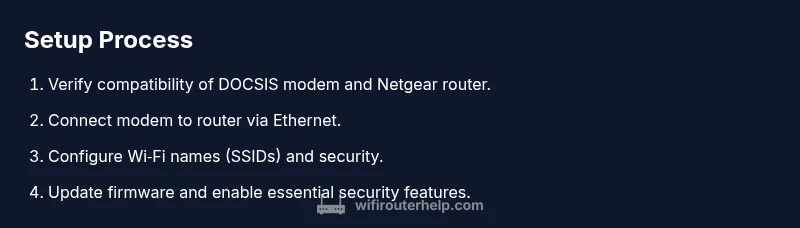
By following these steps, you will successfully install and optimize a cable modem with a Netgear router. You’ll verify compatibility, wire and power the devices, configure Wi‑Fi and security, and fine‑tune settings for stability. According to WiFi Router Help, a clean, correctly set up modem-router environment reduces outages and simplifies maintenance.
Understanding the Cable Modem and Netgear Router Setup
The phrase cable modem netgear router describes a common home network architecture where the cable modem from your ISP connects to a dedicated router, such as a Netgear model, which then broadcasts Wi‑Fi and manages local IP addresses. In this configuration, the modem handles the link to the internet service, while the router provides features such as wireless networking, firewall protection, and network management. This separation typically yields greater flexibility, easier upgrades, and improved troubleshooting compared to using a single gateway device from the ISP. As WiFi Router Help analysis notes in 2026, most households benefit from keeping the modem and router as distinct units, because it simplifies firmware updates and allows independent pacing of speed and security improvements. Before you begin, make sure you understand your ISP’s requirements, your chosen Netgear model’s capabilities, and your home's layout. This foundation helps you avoid common misconfigurations that can lead to double NAT, weak coverage, or inconsistent speeds. In short, a cable modem netgear router setup is powerful when you plan for placement, compatibility, and clear ownership of each device’s role.
Compatibility and Planning: Modem, Router, and Internet Plan
Successful setup starts with thoughtful planning. Verify that your cable service uses the DOCSIS standard supported by your modem (DOCSIS 3.0, 3.1, or newer) and that your Netgear router supports your intended Wi‑Fi standard (Wi‑Fi 5, 6, or newer). Check with your ISP for approved modem models or a compatible list; using an off‑brand or outdated model can cause compatibility issues or limited performance. Consider your internet plan’s speed tier and the devices that will connect most often: smartphones, laptops, streaming boxes, and gaming consoles. In many homes, separating the devices yields the best results, as it allows you to upgrade one component without replacing the other. WiFi Router Help analysis shows that aligning hardware capabilities with your plan minimizes bottlenecks and reduces troubleshooting time. Map out your home’s layout and think about central placement to balance coverage and signal strength. The upfront effort here pays dividends when you later enable features like guest networks, parental controls, and QoS.
Physical Setup: Wiring, Placement, and Power
Physical installation is the foundation of a solid network. Begin by turning off and unplugging both devices to avoid electrostatic damage. Connect the coaxial cable from the wall outlet to the cable modem’s coax port, then run an Ethernet cable from the modem’s Ethernet port to the Netgear router’s WAN/Internet port. Place both devices in a central, elevated location away from thick walls or large metal obstacles to maximize coverage. Ensure cables are secure and not pinched, and keep power supplies separate to avoid interference. After powering up, give the modem a full minute to boot before powering the router. If you notice a green or blue link light on the modem and a solid power light on the router, you’re ready to proceed. This straightforward setup reduces early connectivity issues and makes subsequent configuration smoother.
Configuring the Netgear Router: Basic Setup
Access the Netgear router’s admin interface through a web browser by entering the default IP address (commonly 192.168.1.1) or using the mobile app. Create a strong admin password and, if available, enable two-factor authentication for management access. In the Basic Settings, set a distinct router name (SSID) and a strong passphrase using WPA3 (or WPA2 if WPA3 isn’t available). Disable WPS for security, and ensure the router is operating in router mode rather than bridge mode unless you explicitly plan to use the modem as a bridge. Apply the changes and allow the router to reboot. Next, confirm that the router receives an internet IP from the modem and that devices can connect to the new SSID. If you encounter issues, try rebooting both devices in sequence and clearing browser cache before retrying. This step lays the groundwork for reliable wireless coverage and robust security.
Advanced Network Configuration: DHCP, NAT, and IP Addressing
DHCP, NAT, and IP addressing control how devices obtain addresses and how traffic is routed through your network. On most Netgear models, DHCP is enabled by default, which assigns private IPs to connected devices automatically. Review the LAN settings to ensure the DHCP range is appropriate for your needs and that the gateway IP is stable. NAT translates public IPs to private ones, enabling multiple devices to share a single internet connection. If you experience online gaming lag or streaming hiccups, inspect NAT type, and consider enabling UPnP for seamless device discovery, or configuring Port Forwarding for specific applications. Remember that a simple, well‑documented IP scheme helps future troubleshooting and device additions. If you’ve previously used a gateway modem, you may encounter a double NAT scenario; in that case, bridging the modem or using IP Passthrough can resolve most issues without sacrificing security. As you adjust these settings, take notes so you can reproduce a setup if needed.
Security and Maintenance: Firmware, Passwords, Parental Controls
Security starts with firmware and strong credentials. Before enabling additional features, update the router firmware to the latest version from Netgear’s official site or mobile app. Change the default admin username and password to something unique, and avoid using easily guessable information. Enable a strong Wi‑Fi password, using a mix of upper and lower case letters, numbers, and symbols. Consider enabling a guest network to isolate visitors from your main network and enabling parental controls if needed. Regularly review connected devices to remove unknown or unused nodes. Schedule periodic firmware checks, preferably monthly or quarterly, and back up router configurations when available. If you enable remote management, restrict access by IP and use strong authentication to prevent unauthorized access. WiFi Router Help recommends maintaining a consistent security posture to protect your home network.
Performance Tuning: Channel Selection, QoS, and Band Steering
Performance tuning helps you extract maximum speed and reliability from your cable modem and Netgear router. Run a site survey or use the router’s built‑in tools to identify the least congested channel for 2.4 GHz and 5 GHz bands, then set the appropriate channel widths. Enable QoS to prioritize latency‑sensitive applications like video conferencing, gaming, or voice calls. Consider enabling band steering so devices can move smoothly between bands based on signal quality and network load. If you have multiple devices and heavy traffic, a dedicated QoS profile for gaming or streaming can improve responsiveness. Be mindful of interference from neighboring networks, microwaves, and Bluetooth devices, and adjust placement or channel settings accordingly. Regularly test speeds on different devices to ensure you are meeting expected performance for your ISP plan.
Troubleshooting Common Problems
Troubleshooting starts with a methodical approach. If your internet is slow or unstable, verify physical connections, power cycles, and LED indicators on both devices. If the router isn’t assigning IPs, double‑check DHCP settings and confirm the modem is in a compatible mode with your Netgear router. For problems with Wi‑Fi coverage, move the router to a more central location or add a mesh satellite if your home is large or has many walls. If you cannot access the router’s admin page, ensure you are connected to the correct network and that your computer’s IP settings are set to obtain an IP automatically. In some cases, a factory reset may be necessary, but be sure to back up custom configurations first. For persistent issues, consult your ISP’s service status and Netgear’s official support resources. Remember to document changes so you can revert if needed.
When to Consider a Bridge or a New Router
There are times when bridge mode or replacement is the best path forward. If you repeatedly encounter double NAT after setting up multiple devices, bridging the modem or using IP Passthrough can simplify the network. If you frequently replace hardware to keep up with evolving speeds or features, a newer router that supports your desired Wi‑Fi standard and security protocols is worth considering. Budget and coverage goals also influence the decision: high‑performance routers with advanced features may deliver a stronger return on investment for larger homes or power users. In many cases, keeping your modem and router separate offers a flexible upgrade path and easier troubleshooting down the line. The decision depends on your home layout, ISP requirements, and how you value control versus convenience.
Tools & Materials
- Cable modem(Must support your ISP’s service and DOCSIS version.)
- Netgear router(Model that fits your home size and desired features (Wi‑Fi 6/6E, QoS, guest network).)
- Ethernet cable (Cat5e or better)(One long enough to reach from modem to router.)
- Coaxial cable(Provided by ISP for the modem connection.)
- Power adapters(One for the modem, one for the router.)
- Laptop/phone for setup(Access to admin interface and app.)
- Pen and notepad(Document settings (SSID, passwords, IPs).)
- Optional: Network testing app(For quick speed checks and device discovery.)
Steps
Estimated time: 60-120 minutes
- 1
Power down and disconnect existing gear
Turn off and unplug any existing modem or router. This prevents electrical surges and ensures a clean start. Disconnect all Ethernet cables and power cords from current devices.
Tip: Take a photo of current setup if you need to reference later. - 2
Verify compatibility and gather gear
Check your ISP’s approved modem list and confirm your Netgear router model supports the intended features. Collect all required cables and power supplies before you begin.
Tip: Bookmark the official compatibility page for quick reference. - 3
Connect coaxial cable to modem
Attach the coaxial cable firmly to the wall outlet and the modem’s coax port. Ensure the connector is snug and not loose to prevent signal loss.
Tip: A loose connection is a common cause of unstable service. - 4
Connect modem to router with Ethernet
Run an Ethernet cable from the modem’s Ethernet port to the Netgear router’s WAN/Internet port. Keep cables tidy and away from power cords to reduce interference.
Tip: Use a high-quality CAT5e or better for best results. - 5
Power up in sequence
Plug in the modem first and wait for it to boot completely (status lights stabilize). Then plug in the router and wait for it to boot. This sequence helps devices obtain a proper IP address.
Tip: Allow 1–2 minutes per device to boot fully. - 6
Access the router admin page
Open a web browser and enter the router’s default IP (often 192.168.1.1) or use the Netgear app. Create or sign in to your admin account and prepare to configure settings.
Tip: If the page doesn’t load, clear the browser cache or try a different device. - 7
Run Quick Setup and select router mode
Follow the on-screen prompts to finish the basic configuration. Choose router mode (not bridge) unless you intend to use the modem’s bridge capabilities.
Tip: Keep track of the admin password and the Wi‑Fi credentials you set. - 8
Configure Wi‑Fi name and security
Set a unique SSID for each band (2.4 GHz and 5 GHz) and choose WPA3 if available (or WPA2 otherwise). Use a strong, unique passphrase.
Tip: Avoid common names; use a passphrase with 12+ characters. - 9
Enable security features and update firmware
Update the router’s firmware to the latest version. Enable firewall, disable WPS, and configure a guest network if needed for visitors.
Tip: Firmware updates often fix security vulnerabilities and improve stability. - 10
Test connectivity and optimize
Test wired and wireless devices for internet access and speeds. Run a speed test and adjust channel settings or QoS if performance is not satisfactory.
Tip: Move the router slightly or switch channels to reduce interference. - 11
Set up additional controls
Configure DHCP range, port forwarding as needed, and parental controls. Document all settings for future reference.
Tip: Regularly review connected devices and adjust permissions. - 12
Finalize and document
Record SSIDs, passwords, and admin credentials in a secure place. Confirm that all devices connect reliably and that guests can access the network without compromising security.
Tip: Label devices in your home network for easier troubleshooting.
People Also Ask
Do I need a separate cable modem if I have a Netgear router?
If your ISP provides a combined gateway modem, you can use it with a Netgear router, but many users prefer a separate modem and router for easier upgrades and troubleshooting. Compatibility with your service is key.
If you have a single gateway from your ISP, you can still use it with a Netgear router, but separating the devices often makes upgrades and troubleshooting simpler.
What is double NAT and how do I fix it with a Netgear setup?
Double NAT occurs when both the modem and router perform routing. You can fix it by enabling bridge mode on the modem (or IP passthrough) or by configuring the router to operate in AP mode if you don’t need routing from the router.
Double NAT can cause gaming and streaming issues; bridging the modem is usually the cleanest solution.
How do I update firmware on a Netgear router?
Log in to the router’s admin page, locate the firmware update section, and install the latest version. Keep a backup of your settings in case you need to restore.
Check for updates in the router’s settings, then install the latest firmware for security and performance.
How do I reset the Netgear router to factory settings?
Press and hold the reset button for about 10 seconds (or use the software reset option in the admin page). Back up your current configuration first if possible.
If things go wrong, a factory reset often helps; just remember to back up settings first.
Can I use Wi‑Fi 6 with a cable modem and a Netgear router?
Yes, if both devices support Wi‑Fi 6. If either device is older, you’ll still connect via compatible Wi‑Fi standards, but you won’t get the full speed or features of Wi‑Fi 6.
Wi‑Fi 6 is great when both gear supports it; otherwise you’ll still have a solid connection with older standards.
Watch Video
What to Remember
- Be sure devices are compatible and separated for flexibility
- Use strong credentials and keep firmware updated for security
- Configure DHCP/NAT intentionally to avoid double NAT
- Position the router for best coverage and enable QoS for critical apps
- WiFi Router Help’s verdict: modular modem/router setups offer better long‑term maintenance