AX1500 WiFi 6 Router: Setup, Optimize, and Troubleshoot
A practical, step-by-step guide to choosing, installing, securing, and optimizing an ax1500 wi fi 6 router for reliable home coverage and smooth connectivity.


Goal: set up and optimize an ax1500 wi fi 6 router for reliable home coverage and simple troubleshooting. Key requirements: a compatible modem, power source, Ethernet cable, and a smartphone or laptop for the initial configuration. Then follow the step-by-step guide to place, configure, and test your network before regular use.
What is an ax1500 wi fi 6 router?
The term ax1500 wi fi 6 router describes a mid-range wireless router that supports the Wi‑Fi 6 (802.11ax) standard. It is widely marketed as an affordable entry point into faster home Wi‑Fi, delivering improved efficiency and capacity for households with multiple devices. When you search for ax1500 wi fi 6 router, you’ll see models that emphasize a balance between price, range, and feature set rather than top-tier performance. The WiFi Router Help team notes that this class is popular for typical homes with several users streaming video, video conferencing, and gaming at once. For best results, treat it as a core network anchor rather than a “one size fits all” solution; you may still need to adjust placement and settings after installation to maximize coverage. According to WiFi Router Help, real performance depends on layout, interference, and device mix, so plan for modest improvements rather than dramatic leaps in speed.
Why WiFi 6 matters for homes
Wi‑Fi 6 brings improvements in efficiency and capacity that matter when many devices share a single router. OFDMA and MU‑MIMO help reduce congestion in busy households, while target wake time (TWT) can save battery on smart devices. For an AX1500 class router, expect steady performance for streaming, video calls, and casual gaming across several rooms. The main gains come from better handling of multiple devices at once, rather than a single device hitting extreme download speeds. In real-world terms, WiFi 6 helps your network feel faster and more reliable when your family is online at the same time. The goal is predictable coverage, not just peak numbers, so focus on reliable single-room throughput and consistent performance in edge areas of your home.
Key features to look for in AX1500-class routers
When evaluating AX1500-class routers, several features matter more than the sticker price. Look for support for 802.11ax (Wi‑Fi 6) across both 2.4 GHz and 5 GHz bands, plus MU‑MIMO and OFDMA for efficiency. Ensure a reasonable number of Ethernet ports (at least 4 LAN ports and 1 WAN), and check for a dedicated 2.5 Gbps WAN option only if you need it. A robust firmware update mechanism, a straightforward web UI, and companion mobile apps reduce setup friction. Security features like WPA3 encryption and a guest network are essential for modern home networks. If a router advertises features that require a proprietary ecosystem, test the ecosystem against your actual devices before committing.
Planning your router placement for best coverage
Placement decides more about actual coverage than the size of the router’s antennas. Place the AX1500 wi fi 6 router in a central, elevated location away from thick walls and metal appliances. Avoid placing it in cabinets or closets, where signals bounce or are absorbed. If possible, position the device on an open shelf at least 3–4 feet above the floor. Keep it away from large electronics that create interference, such as microwaves or cordless phones. For larger homes, a single device may not cover every corner; in that case, plan for a mesh extender or a secondary access point to fill gaps. This approach yields a more reliable signal in living rooms, offices, and bedrooms alike.
Quick start: unbox, connect, and boot
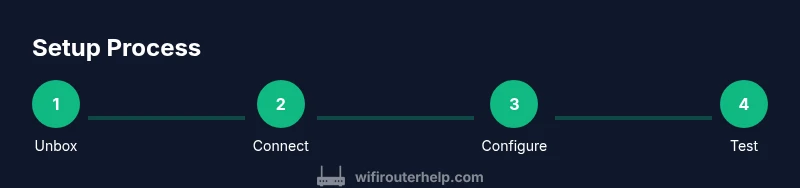
Unbox the AX1500 wi fi 6 router, connect the device to your modem with the included Ethernet cable, and power it on. Use a computer or phone to access the router’s setup page via the default gateway address shown in the manual. Follow the guided setup to choose your admin password and the network (SSID) name. Do not skip firmware updates during this stage; updating the firmware now avoids compatibility issues later. If your ISP requires bridge mode, document your settings before making changes.
Secure setup: configure credentials and encryption
Security starts with a strong admin password and unique Wi‑Fi passwords for 2.4 GHz and 5 GHz networks. Enable WPA3 encryption where available and disable WPS to reduce risk of unauthorized access. Create a guest network to isolate visitors from your main network and enable network isolation settings if supported. Consider disabling remote management unless you need it, and review port forwarding rules periodically. A well‑configured AX1500 router keeps your home data safer while maintaining ease of access for trusted devices.
Firmware updates and ongoing maintenance
Manufacturers release firmware updates to fix bugs and improve security. Set automatic updates if the option is available, but occasionally check for updates if you rely on specific features. Maintain a small inventory of connected devices to simplify management and ensure your home network stays under your control. Keep a backup of important configurations so you can restore quickly after a reset. Regular maintenance reduces risk of outages and keeps your AX1500 wi fi 6 router performing as expected.
Performance optimization tips
Take advantage of band steering and default QoS basics to prioritize video calls and gaming for families with many devices. In AX‑class routers, enabling OFDMA improves how bandwidth is allocated to multiple devices near simultaneously. Experiment with channel selection to reduce interference; auto channel is often effective, but manually choosing a less congested channel can yield noticeable gains. If you have smart home devices or security cameras, dedicate a separate network or VLAN if available. Small changes in channel, security settings, and scheduling can produce noticeable improvements in real life usage.
Security best practices
Security is an ongoing practice, not a one‑time setup. Use a long, unique password for your router’s admin interface and regularly review connected devices. Keep WPA3 enabled if possible, and enable automatic security updates. Turn on firewall features and consider enabling device isolation for IoT gadgets. Periodically audit parental controls to ensure they meet your family’s needs. These steps make your AX1500 wi fi 6 router safer against evolving threats while preserving usability.
Troubleshooting common issues
If wireless signals drop intermittently, first check placement, then reboot both modem and router. Confirm your firmware is up to date, and verify there is no ISP‑level outage affecting connectivity. If speeds feel slow, test wired connections to determine if the bottleneck is wireless or service tier. Interference from neighbors or overlapping channels can degrade performance; try changing the channel or enabling auto channel selection. For devices with poor compatibility, ensure driver updates on client devices and test with a wired connection to isolate problems.
When to upgrade or extend with mesh
Most AX1500 routers perform well for typical families, but homes with many devices or dead zones may benefit from a mesh system. A hybrid approach—one AX1500 router plus a mesh node—offers expanded coverage without sacrificing performance. Evaluate your home’s size, layout, and device count; consider mesh if you frequently see buffering in multiple rooms or experience dropped connections near exterior walls. Always match the mesh nodes to your existing router for best compatibility and to simplify management.
Authority sources
- FCC: https://www.fcc.gov
- Wi‑Fi Alliance: https://www.wi-fi.org
- NIST: https://www.nist.gov
Tools & Materials
- AX1500 WiFi 6 router(Ensure the package includes the router, power adapter, and quick-start guide.)
- Modem with active internet service(Check compatibility with your ISP and required connection type.)
- Power adapter(Official adapter included with the router.)
- Ethernet cable (Cat5e or better)(Used to connect the router to the modem and for wired tests.)
- Smartphone or laptop(For initial setup and ongoing configuration.)
- Optional: extra Ethernet cables(For wired devices or test connections.)
- Notepad or digital vault for credentials(Record SSIDs, passwords, and settings.)
Steps
Estimated time: 25-45 minutes
- 1
Unbox and prep
Open the box, verify all parts are present, and set the router on a clean dry surface. This step ensures you can complete setup without missing components. Inspect the power adapter and cable integrity before connecting.
Tip: Have the modem ready nearby so you can test connectivity immediately. - 2
Connect the router to the modem
Plug the router into a power source, connect the router’s WAN/Internet port to the modem using an Ethernet cable, and wait for the router to boot. A successful boot is indicated by stable LEDs. This establishes the network backbone.
Tip: Use the shortest possible cable run to minimize interference and signal loss. - 3
Access the setup page
On a smartphone or computer, open a browser and enter the router’s default gateway address from the manual. Create a strong admin password and note the address for future access. This step unlocks configuration control.
Tip: If you don’t know the gateway, check the underside label or the manual. - 4
Configure the network name and security
Set a unique SSID for both 2.4 GHz and 5 GHz bands. Enable WPA3 encryption where available and set strong, different passwords for each network. This reduces the risk of unauthorized access.
Tip: Avoid common passwords and reuse of credentials across devices. - 5
Update firmware
Navigate to firmware update in the admin interface and install the latest version. Updates fix bugs and improve security. Plan to recheck after installation to confirm all features work as expected.
Tip: If automatic updates exist, enable them after the initial update. - 6
Configure essential security features
Enable guest networking, disable remote management if not needed, and review port forwarding rules. Enabling device isolation for IoT devices adds an extra layer of protection.
Tip: Only enable features you truly need to minimize exposure. - 7
Fine-tune performance settings
Enable band steering and review channel selection. If interference is high, manually pick a clearer channel or use auto channel. Test from multiple locations to verify improvement.
Tip: Do not over-think; small adjustments yield noticeable gains. - 8
Test coverage and reliability
Run speed tests over Wi‑Fi in several rooms and perform short wired tests to verify consistency. Document weak spots and plan for either relocation or an extender where needed.
Tip: Use a consistent testing method for accurate comparison. - 9
Backup configuration and documentation
Export or copy the router settings, including SSIDs and passwords, to a secure location. This simplifies recovery after a reset or hardware change.
Tip: Keep backups protected and up to date.
People Also Ask
What does AX1500 mean in a router model?
AX1500 is a mid-range Wi‑Fi 6 class label indicating balanced performance and price. It signals support for Wi‑Fi 6 features, but actual speeds vary by environment and device load.
AX1500 denotes a mid-range Wi‑Fi 6 router; performance depends on your home setup.
Is Wi‑Fi 6 backward compatible with older devices?
Yes. Wi‑Fi 6 routers typically support older devices using earlier standards, but those devices won’t benefit from Wi‑Fi 6 features unless they are Wi‑Fi 6 capable.
Yes, it works with older devices, but you’ll gain Wi‑Fi 6 benefits only on compatible gear.
Do I need a new modem for an AX1500 router?
Not always. If your current modem supports your internet service, you can reuse it. If your modem is old or can’t handle your plan’s speed, consider upgrading.
Usually you don’t need a new modem unless your current one is outdated or limited by your service plan.
How do I enable WPA3 on my AX1500 router?
Log into the router’s admin page, go to wireless security, select WPA3-Personal if available, and save. If WPA3 is not available, use WPA2‑Personal with a strong password.
Open settings, pick WPA3, and save.
Should I enable a guest network?
Yes. A guest network keeps visitors from accessing your main devices and data, improving overall security.
Yes—guest networks improve security when guests connect.
What should I do if my devices are slow after setup?
Check placement, test with a wired connection, update firmware, and try a different channel. If problems persist, consider a mesh or range extender.
Try placement, updates, and channel changes; consider mesh if needed.
Watch Video
What to Remember
- Place centrally for best signal coverage
- Enable WPA3 and guest networks for security
- Update firmware regularly for stability
- Back up router configurations after setup
- Consider mesh if you have persistent dead zones