Att Router Login: Access Your AT&T Gateway and Secure Your Network
Learn how to perform att router login, locate the admin page, troubleshoot access issues, and strengthen security on AT&T gateways for a faster, safer home network.


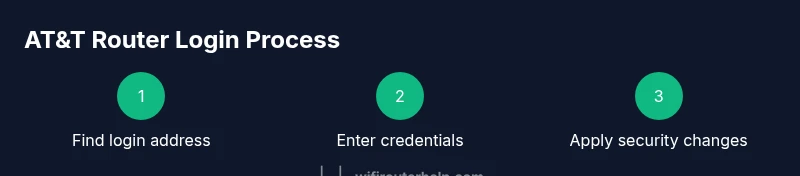
With att router login, you access the AT&T gateway’s admin page to customize Wi‑Fi names, passwords, and security settings. First, connect to the gateway from any device, then open a browser and enter the login address shown on the device label or in the manual (commonly 192.168.1.254 or attlocal.net). If prompted, use the credentials printed on the router, or contact AT&T if you’ve never set them.
Why att router login Matters
According to WiFi Router Help, att router login is the gateway to securing your home network. The WiFi Router Help team found that many households keep their AT&T gateways with default or shared credentials, leaving Wi‑Fi networks exposed. By performing att router login, you gain control to rename networks, set strong admin passwords, enable WPA3 if available, and apply firmware updates. This matters not only for password hygiene but also for features like guest networks, parental controls, and port forwarding. In this guide you’ll see why the login page is worth your time and how it connects to every other step in this guide. Establishing a secure admin page also reduces risk of unauthorized access and helps you monitor connected devices. The login page is your first line of defense against common home-network threats, from weak passwords to misconfigured ports. Understanding att router login lays the groundwork for better performance and safer browsing for every user in your home.
Understanding AT&T Gateway Variants and Login Interfaces
AT&T deploys several gateway models, including Pace 5268AC and newer BGW-series devices like BGW210 and BGW320. Each model presents a slightly different admin interface, but the core login concept remains the same: you access the gateway’s admin console to adjust settings. Some models prioritize a web-based console via a browser, while others offer an attlocal.net URL as an alternative. Regardless of model, you should keep firmware up to date and use strong credentials. Familiarize yourself with your device’s manual or sticker for model-specific details, as a quick mismatch can lead to login errors. In many homes, users notice improved stability after updating firmware and enabling proper security features via att router login.
Locating the Correct Login Address
To begin att router login, identify the gateway’s login address. Most AT&T gateways expose a local IP like 192.168.1.254, which you type into a browser’s address bar. Some models also support a URL such as attlocal.net. If the address isn’t obvious, check the device label on the bottom or back of the gateway; the default gateway address or a URL is often printed there along with the default admin username and password. If you previously changed credentials, use those instead. If you cannot locate the address, refer to the user guide or AT&T support site. Remember that you must be connected to the gateway’s network to access the admin page.
Accessing the Admin Console: Step-by-Step Login
Once you have the correct address, open a web browser and type it in exactly. You may be prompted to enter a username (often admin) and a password (printed on the device label or provided by AT&T). If you’ve changed these before, use your updated credentials. For some models, you can log in through a dedicated app or portal; in those cases, follow the on-screen prompts. If you still can’t access the admin console, verify you’re on the correct network, clear browser cache, or try a different browser. Keeping your device connected via Ethernet can also improve reliability during login.
What to Do If You Can't Login
If att router login fails, recheck the login address and credentials. Confirm you are connected to the gateway’s network rather than a guest or neighbor’s network. If credentials are lost or unknown, you may need to reset the gateway to factory defaults as described in the manual. Before doing a reset, back up any important custom settings, such as port forwards or VPN configurations. After resetting, use the default address and credentials printed on the device label to regain access and reconfigure the router.
Securing Your AT&T Router After Login
After you successfully login, secure your gateway to protect your home network. Change the admin password to a unique, strong credential and avoid using default values. Enable WPA2/WPA3 encryption for the Wi‑Fi network, and consider enabling guest network isolation to keep IoT devices separate from primary devices. Disable remote management unless you specifically need it, and enable the firewall. Check for firmware updates and apply them to close security gaps. If you manage devices for a family, adjust parental controls and ensure devices are kept up to date.
Optimizing Router Settings for Performance
With att router login, you can optimize performance by separating 2.4 GHz and 5 GHz networks with distinct SSIDs and strong passwords. If your device supports it, select the least congested channel for the 2.4 GHz and 5 GHz bands and enable Quality of Service (QoS) for latency-sensitive tasks like gaming or video calls. Enable a guest network for visitors to keep your main network protected. Regularly review connected devices and remove any unknown clients. A well-tuned gateway improves speed, reduces interference, and enhances overall reliability.
Common Mistakes to Avoid During att router login
Avoid using the same password for admin and Wi‑Fi; never share admin credentials broadly. Do not disable important security features without a backup plan, and never expose the admin interface to the internet unless you have a specific need. Avoid performing multiple firmware updates in quick succession and always back up settings before changes. Finally, don’t ignore safety: if you’re unsure about a setting, consult the manual or WiFi Router Help for guidance.
Quick Troubleshooting Checklist for att router login
- Verify you are connected to the gateway’s network.
- Use the correct login address (192.168.1.254 or attlocal.net).
- Check device label for default credentials and model-specific notes.
- Clear browser cache or try another browser.
- If login still fails, reboot the gateway and attempt login again.
- For persistent issues, reset to factory defaults and reconfigure from scratch.
Tools & Materials
- Computer, tablet, or smartphone(A device with a modern web browser)
- Web browser (Chrome, Edge, Safari, Firefox)(No special software required)
- Login credentials for the gateway(Printed on the gateway label or provided by AT&T)
- Ethernet cable(Optional for a stable wired login)
- Pen and paper(Jot down settings and changes)
Steps
Estimated time: 15-30 minutes
- 1
Prepare and connect to the gateway
Power on the gateway and ensure your login device is connected to the same network, preferably via wired Ethernet for reliability. This ensures the login page loads consistently.
Tip: If you experience latency, move closer to the gateway or temporarily disable other devices using the network. - 2
Find the gateway login address
Look on the device label for the login IP (often 192.168.1.254) or a URL such as attlocal.net. If you’ve changed the address, use the new value. If in doubt, consult the model’s manual.
Tip: Common addresses include 192.168.1.254 and attlocal.net; verify with the label on the device. - 3
Open the login page in a browser
Type the address exactly into the browser’s address bar and press Enter. Do not click a search result. You should see the gateway login screen or a portal page.
Tip: Clear browser cache if the page doesn’t load; try another browser if needed. - 4
Enter login credentials
Enter the admin username and password. If you haven’t changed them, check the device label or manual for defaults. If you changed them and forgot, use recovery steps or contact AT&T.
Tip: Keep credentials in a secure password manager; avoid writing them on paper near the router. - 5
Change credentials and enable security features
Immediately set a unique admin password and configure Wi‑Fi encryption (WPA2/WPA3). Disable remote management unless needed, and enable firewall protections.
Tip: Use a long, random password and enable 2FA if available. - 6
Test, save, and exit
Apply changes, reboot if prompted, and verify you can reconnect to Wi‑Fi with the new password. Log back into the admin page to confirm settings are saved.
Tip: Document changes for future troubleshooting; keep a copy of the new admin password in a secure place.
People Also Ask
What is the default att router login address?
AT&T gateways commonly use 192.168.1.254 or attlocal.net as the login page. The exact address depends on your model; check the device label for specifics.
AT&T gateways usually use 192.168.1.254 or attlocal.net for the login page. Check your device label if you’re unsure.
Where can I find my login credentials?
Admin username and password are typically printed on the gateway label or in the manufacturer’s manual. If you changed them and forgot, use the label or manual to recover or reset.
Look on the gateway label or the manual for the admin username and password.
What should I do if login keeps failing?
Double-check the address and your network connection. If it still fails, reboot the gateway and try again. If problems persist, reset to factory defaults per the manual.
Make sure you’re on the right address and network, then retry; if needed, reset per the manual.
Can I login from a device on the guest network?
Admin pages are typically accessed from devices on the same local network. Guest network devices may be restricted from accessing the gateway admin page.
Admin pages are typically accessed from devices on the same local network, not over guest networks.
How do I reset the AT&T gateway to factory defaults?
Find the reset button on the back of the gateway, press and hold for 10-15 seconds with a paperclip until lights flash. This restores defaults and erases custom settings.
To reset, hold the reset button for 10 to 15 seconds until lights flash.
Is it safe to login on public Wi‑Fi?
Avoid admin login over public networks. Use a private, trusted connection or a VPN if you must access it away from home.
Admin pages are best accessed on a private network; use a VPN if you have to login remotely.
Watch Video
What to Remember
- Know the login address and credentials before starting.
- Change default admin passwords to improve security.
- Keep firmware updated for stability and security.
- Use separate, strong Wi‑Fi passwords for each band.
- Document changes for easy future troubleshooting.