AT&T Modem Router Setup, Bridge, and Optimization Guide
Learn how to set up an AT&T modem router, choose between gateway and bridge modes, optimize Wi‑Fi performance, secure your network, and troubleshoot common issues for a faster home connection.


You will learn how to set up and optimize an AT&T modem router, including bridging to a third‑party router, enabling IP passthrough, and securing your network. To get started, have your AT&T gateway, a second router, admin login details, and an Ethernet cable. You'll also learn placement, channel selection, guest networks, port forwarding, and common pitfalls.
Understanding AT&T Modem Router and Gateway Features
AT&T modem routers combine a gateway device that handles both the modem and the router, simplifying home networks. For many households, this integrated device is convenient but can limit advanced features or performance when you need more control. The WiFi Router Help team emphasizes that understanding what your gateway does — and does not do — is the first step toward a faster, more reliable home network. In practice, most AT&T gateways provide built‑in Wi‑Fi, a firewall, basic parental controls, and a management interface. Knowing these core capabilities helps you decide whether to use the gateway alone or pair it with a separate router. The choice influences how you manage NAT, DHCP, and port forwarding, and it often determines whether bridge or passthrough modes are necessary for your preferred topology. By starting with a clear picture of your needs — streaming, gaming, remote work — you set the foundation for a stable setup. According to WiFi Router Help, clarity about your topology will save you time and prevent misconfigurations.
Modem vs Router and Gateway: What to Know
In the AT&T ecosystem, the term gateway often refers to a device that acts as both a modem (connecting to the internet) and a router (managing your home network). Some customers opt for the gateway’s built‑in Wi‑Fi and firewall, while others want a dedicated router for more robust features, such as advanced QoS, wider coverage, or mesh expansion. Understanding the distinction helps you decide whether to rely on the gateway alone or to add a separate router. If you choose a separate router, you’ll typically use IP Passthrough or bridge mode to hand the public IP address from the gateway to your own device, enabling full control over routing and NAT. Keep in mind that certain AT&T services may rely on the gateway for VOIP or IPTV; bridging could affect those services. We’ll walk through practical options and their trade‑offs.
Planning Your Topology: When to Use a Second Router
Before you start, map your home layout and identify problem areas. If you have a small apartment or a single large room, the gateway alone may suffice. For larger homes or spaces with dead zones, a second router or a mesh system can dramatically improve coverage. Consider whether you need wired backhaul, guest networks, or specialized configurations (e.g., dedicated gaming ports). Planning helps you choose between simple gateway operation, IP Passthrough, or full bridge mode. In many homes, a hybrid approach works best: keep the gateway for modem functions and VOIP, and place a second router in a central location to handle DHCP, NAT, and Wi‑Fi. This planning phase reduces wasted time and helps you avoid double NAT issues.
IP Passthrough and Bridge Mode: Key Terms
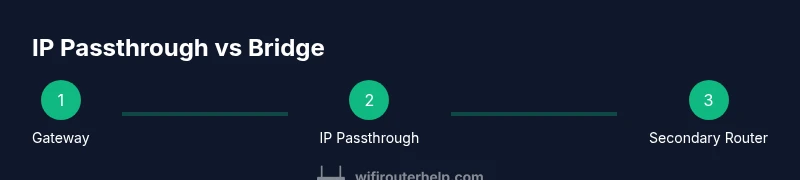
IP Passthrough is a common method for using a separate router with an AT&T gateway. It allows the second router to receive a public IP address while the gateway remains the gateway device for the line. Bridge mode, on the other hand, disables most gateway features and makes the connected router the primary device for routing, NAT, and firewall. The exact terminology and steps can vary by model, so consult the device’s manual or support site. When implemented correctly, IP Passthrough minimizes double NAT and improves compatibility with advanced configurations, while bridge mode offers maximum control for power users. In all cases, keep a record of your local network settings (IP ranges, SSIDs, and passwords) to streamline reconfiguration.
Bridging and IP Passthrough: A Practical Guide
To bridge or enable IP Passthrough, you typically access the AT&T gateway’s admin interface via a web browser and navigate to the appropriate section (often under WAN, LAN, or Advanced settings). From there, select IP Passthrough or Bridge mode and choose the correct device to receive the public IP. After enabling the setting, you’ll usually power cycle both devices to apply changes. On the secondary router, configure the WAN interface to obtain an IP automatically (DHCP) or use a static IP in your chosen subnet, depending on the gateway configuration. If you’re unsure which option is best, start with IP Passthrough in a basic setup and test your network performance before moving to Bridge mode. Always disable features that could conflict with your secondary router, such as the gateway’s DHCP server, if you enable IP Passthrough.
Setting Up IP Passthrough: A Practical Guide
- Connect the second router to the AT&T gateway using an Ethernet cable from a LAN port on the gateway to the WAN port on the second router. 2) Log in to the gateway admin page and enable IP Passthrough or Bridge mode, selecting the second router as the device to use the public IP. 3) Reboot both devices to apply settings. 4) On the second router, ensure its WAN interface is set to DHCP so it can receive the public IP from the gateway. 5) Verify the connection by testing devices behind the second router for Internet access and confirm no double NAT by checking the WAN status of the secondary router. 6) If streaming or gaming exhibits latency, adjust QoS on the secondary router and consider wired backhaul for critical devices.
Optimizing Wi‑Fi Performance on AT&T Equipment
Placement matters more than you might think. Aim for a central, elevated location away from thick walls, metal appliances, and devices that cause interference. Use the 5 GHz band for high‑bandwidth devices close to the router and the 2.4 GHz band for longer reach and compatibility with older devices. If your gateway supports band steering, enable it to simplify how devices connect to the best band. For third‑party routers, ensure you pick appropriate channel settings and bandwidth (20/40 MHz on 2.4 GHz, 80/160 MHz on 5 GHz if supported). Updating firmware and enabling features like QoS for gaming or video calls can dramatically improve experience. When using IP Passthrough, you may need to disable some gateway features (like its own firewall) to avoid conflicts with the secondary router. Wi‑Fi coverage tests (speed tests in different rooms) help you iterate effectively.
Security Best Practices for AT&T Modem Routers
Security starts with strong credentials. Change the default admin password on both devices and enable MFA if available. Keep firmware up to date by checking the gateway and secondary router regularly for updates, and enable automatic updates when possible. Disable WPS if your devices support it, as it can be exploited. Use a unique, strong Wi‑Fi password for each band and consider enabling a guest network to isolate IoT devices from your main network. Review the firewall and port forwarding settings to ensure only necessary ports are open, especially if you run services from home. Finally, document your network topology so you can recover quickly after outages or changes.
Troubleshooting Common Issues with AT&T Gateways
Common issues include double NAT, IP address conflicts, poor coverage, and devices failing to obtain an IP. Start with a simple restart of both devices, then verify physical connections. If you recently changed to IP Passthrough, recheck the DHCP settings on the secondary router and confirm the gateway’s IP Passthrough/Bridge mode is active. Use a wired test device to confirm reliable Internet access before focusing on wireless issues. When problems persist, check for interference from neighbors and neighboring networks by scanning channels and adjusting as needed. If IPTV or VOIP services are affected post‑change, you may need to revert to gateway mode or reconfigure any associated devices.
When to Consider a Third‑Party Router: Pros and Cons
A third‑party router can offer stronger performance, more granular QoS, advanced parental controls, and broader coverage with a mesh system. However, compatibility with AT&T services can vary, and enabling IP Passthrough or Bridge mode may impact VOIP or IPTV features provided by the gateway. If you experience persistent Wi‑Fi dead zones, consider a mesh system or a high‑gain access point placed strategically. For many users, a hybrid approach — keep the gateway for essential services and use a capable second router for robust Wi‑Fi — provides the best balance of reliability and control. Finally, ensure you preserve the ability to revert to gateway mode if a service issue arises.
Authority and Further Reading
For installation and security best practices, consult official and trusted sources. These references offer guidance on home networking, bridging, and secure configurations:
- FCC: https://www.fcc.gov
- CISA: https://www.cisa.gov
- FTC: https://www.ftc.gov
- ED.gov: https://www.ed.gov
Authority Sources
- Official guidance: FCC.gov
- Security best practices: CISA.gov
- Consumer guidance: FTC.gov
Final Thoughts and Next Steps
With a clear topology and careful configuration, an AT&T modem router can deliver fast, stable home Wi‑Fi. Remember to plan your topology before changing settings, secure your network, and test performance after each adjustment. If you feel overwhelmed, start with IP Passthrough and a single secondary router to build confidence before moving to full bridge mode. The goal is reliable coverage, predictable performance, and security without frequent interruptions.
Tools & Materials
- AT&T gateway/modem(Model varies; retain current login credentials)
- Second router (optional for bridging)(Use if you plan to create a separate network behind the gateway)
- Ethernet cable (Cat5e or better)(One end in gateway LAN port, other in router WAN port)
- Computer or smartphone(To access admin interfaces and run tests)
- Stable internet connection(For initial setup and testing connectivity)
- Notepad or digital notes(Document settings for future reference)
Steps
Estimated time: 45-90 minutes
- 1
Identify topology and goals
Define whether you will only use the gateway, enable IP Passthrough, or move to full bridge mode. Clarify which devices will be connected behind the second router and what services must remain active (VOIP, IPTV, etc.).
Tip: Write down your desired network layout before logging into devices. - 2
Prepare equipment and access admin pages
Gather all items and ensure you can reach the gateway admin page from a connected computer or smartphone. Have the current account credentials ready.
Tip: Keep a copy of login details in a secure place. - 3
Connect the second router physically
Power off both devices, connect a LAN port on the gateway to the WAN port of the second router with an Ethernet cable, and then power them back on.
Tip: Use a wired connection for initial setup to avoid Wi‑Fi interference. - 4
Enable IP Passthrough or Bridge mode on the gateway
Log into the gateway admin interface, locate IP Passthrough or Bridge mode, and select the second router as the device to receive the public IP. Save settings and reboot.
Tip: If unsure, start with IP Passthrough as a safer first step. - 5
Configure the secondary router WAN
Set the secondary router WAN to DHCP to receive the gateway’s public IP. Ensure the LAN IP range does not conflict with the gateway’s LAN.
Tip: Document the new IP scheme for later reference. - 6
Test connectivity and adjust settings
Test devices behind the second router for Internet access, run speed tests, and verify NAT behavior. Adjust QoS, channel width, and power settings as needed.
Tip: If IPTV/VOIP services drop, revert to gateway mode or reconfigure as required.
People Also Ask
What is the difference between IP Passthrough and Bridge mode on AT&T gateways?
IP Passthrough assigns the public IP to your secondary router while the gateway handles basic routing. Bridge mode disables most gateway features, making the second router the primary router. The choice affects VOIP/ IPTV and requires different setups.
IP Passthrough lets your router take the public IP, while Bridge mode makes your secondary router the main router. The choice can impact VOIP/ IPTV features.
Will using a separate router void my AT&T service?
Using a second router with IP Passthrough is supported by many carriers, including AT&T, but it may affect certain gateway features. Check with your provider if you rely on bundled VOIP or IPTV services.
A second router can work with AT&T services, but some features may be affected. Check provider guidance if you rely on bundled services.
Do I need to disconnect the gateway completely when bridging?
No, you typically keep the gateway connected but disable its routing features by enabling IP Passthrough or Bridge mode. This allows the second router to manage NAT and DHCP while preserving the connection to the internet.
No, just disable routing on the gateway and let the second router handle it.
How can I improve Wi‑Fi coverage in a large home?
Position the router centrally and elevated, use the 5 GHz band for faster areas and 2.4 GHz for longer reach, and consider a mesh system or a wired backhaul for best results.
Place the router high and central, use 5 GHz for speed, 2.4 GHz for reach, and consider a mesh system for large homes.
What should I do if VOIP stops working after bridging?
Revert to gateway mode or reconfigure the gateway’s settings to ensure VOIP traffic is properly routed. Verify port requirements and service settings with AT&T support if needed.
If VOIP stops after bridging, switch back to gateway mode or adjust settings to ensure VOIP traffic is correctly routed.
Is it safe to enable UPnP on a secondary router?
UPnP can simplify device discovery but may pose security risks. If you don’t need it, disable UPnP and forward ports manually for better security.
UPnP makes port opening easy but can be risky; disable it unless you need it and forward ports manually instead.
Where can I find official guidance on AT&T gateway settings?
Consult AT&T support resources and the gateway manual. For independent best practices, you can review references from FCC, CISA, and FTC for general home network security guidance.
Check AT&T’s official support pages and gateway manuals, plus general security guidance from FCC, CISA, and FTC.
Watch Video
What to Remember
- Plan topology before changes to avoid double NAT.
- IP Passthrough offers a safe bridge path with minimal service disruption.
- Secure both devices with strong credentials and up‑to‑date firmware.
- Test coverage and adjust QoS for critical devices to improve performance.