Router and Modem Combo: Setup, Optimization, and Troubleshooting
Learn to choose, install, and optimize a router and modem combo for your home network. This guide covers setup steps, security basics, troubleshooting tips, and best practices for reliable, simplified Wi‑Fi.


Learn how to set up and optimize a router and modem combo to simplify home networking, reduce clutter, and improve reliability. You’ll need a compatible modem, the device’s power adapter, an Ethernet cable, and your ISP login details. This guide covers installation steps, basic performance tweaks, security best practices, and common troubleshooting tips.
What is a router and modem combo?
A router and modem combo is an all‑in‑one device that integrates the functionality of a standalone modem and a wireless router. It handles the ISP connection through the modem portion and distributes Wi‑Fi via the router portion. For many homes, this single unit reduces clutter, simplifies setup, and provides a centralized point for network management. In practice, the device performs the internet connection, DHCP IP assignment, wireless broadcasting, firewall features, and basic parental controls. If you’re upgrading from separate devices, you’ll notice fewer cables, less space, and a simpler update path. Before buying, verify the model supports your ISP plan and the speeds you receive, and ensure it includes the security features you need.
According to WiFi Router Help, consolidating devices with a router and modem combo can reduce complexity and improve reliability for many homes.
Who benefits from a router and modem combo?
Homes with a single living space or apartment layouts that suffer from weak Wi‑Fi often benefit most. A combo device reduces clutter for users who want straightforward setup and maintenance. It’s also appealing for renters or busy households where quick, reliable Wi‑Fi is a priority. If you have basic streaming needs, online gaming, or video calls, a well‑chosen combo can deliver consistent service without juggling multiple devices. However, power users with specialized networking needs, advanced QoS, or custom firewall rules may prefer separate units to tailor settings more granularly.
Pros and cons of using a combo device
Pros:
- Fewer devices and cables simplify installation and maintenance.
- A single interface makes basic configuration straightforward.
- Integrated firewall and parental controls are convenient for families.
- Often cheaper upfront than buying modem and router separately.
- Regular firmware updates help keep security current.
Cons:
- Less flexibility: upgrading Wi‑Fi or modem components requires replacing the whole unit.
- If the device fails, you lose both modem and router functions at once.
- Some models may lag on advanced features compared with dedicated hardware.
- Compatibility issues can arise with certain ISPs or speed tiers.
How to choose the right router and modem combo
Selecting a good combo hinges on compatibility, speed, and features. First, confirm the device supports your ISP’s plan and the connection type (cable, DSL, or fiber). For cable, check the DOCSIS standard (3.0 vs 3.1) and ensure the unit can handle your maximum anticipated speeds. Look for reliable Wi‑Fi standards (Wi‑Fi 6 or newer) and multiple bands if you have many devices or smart home gadgets. Additional features matter too: a robust firewall, guest networks, parental controls, QoS for prioritizing gaming or calls, and easy firmware updates. Password protection for the admin interface and the ability to disable remote management are also important. Finally, consider the physical footprint and placement needs to cover your living space effectively.
Setup and initial configuration (step-by-step overview)
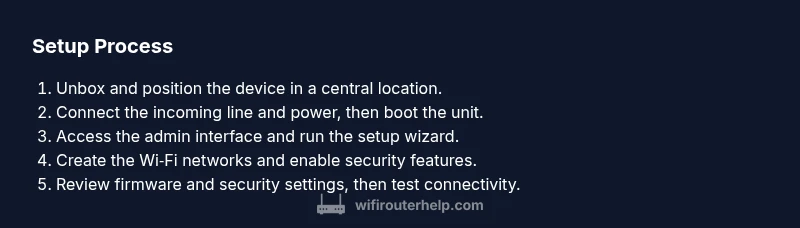
Most setups follow a similar flow: unbox and position the device, connect the incoming line (coax or DSL) to the combo, power it on, and access the admin interface. Use the setup wizard to configure your internet connection type (DHCP for most cable, PPPoE if your ISP requires it), then create your Wi‑Fi network names (SSIDs) and strong passwords. Update firmware if prompted, change the default admin password, enable the firewall, and set up guest or child‑safe networks if desired. Finally, test the connection on wired and wireless devices and optimize settings as needed.
Optimizing performance and coverage
For best coverage, place the device in a central, elevated location away from dense walls and metal appliances. Use separate names for 2.4 GHz and 5 GHz networks to help devices connect to the strongest band. Auto-channel selection usually works well, but you can manually select channels during peak usage times to minimize interference. Enable QoS if you need to prioritize video calls or gaming, and ensure MU‑MIMO support is active for multiple devices to share bandwidth efficiently. Periodically review connected devices to identify bandwidth hogs and adjust priorities as needed.
Security, maintenance, and best practices
Keep security top of mind: change the default admin password to a strong, unique one, enable WPA3 (or at least WPA2) encryption, and disable remote management unless you need it. Turn on automatic firmware updates to receive security patches promptly. Consider setting up a guest network for visitors and IoT devices to isolate them from your main network. Regularly restart the device if you notice slowdowns, and periodically verify that your firewall and parental controls are configured correctly. If you use port forwarding or UPnP, understand the potential risks and disable features you don’t explicitly need.
Troubleshooting common issues
If you lose internet, verify the coax/DLS line is properly connected and the modem’s signal LEDs are stable. Power cycle the device and, if necessary, perform a factory reset and re-run the setup wizard. Check for ISP outages before troubleshooting further. Slow speeds can result from interference, too many devices on the network, or outdated firmware. Use a wired connection to test baseline speeds, then adjust wireless channels or QoS settings to improve performance.
Tools & Materials
- Router and Modem Combo Device(Ensure it supports your ISP plan and connection type (cable/DSL/fiber).)
- Power Adapter(Original or equivalent with correct voltage/current rating.)
- Coaxial Cable(In good condition for cable ISP connections.)
- Ethernet Cable (Cat5e or better)(At least 1 meter; used for initial setup.)
- Computer or smartphone(For accessing the admin interface and setup wizard.)
- ISP Account Details(Username/password or account number needed to activate service.)
- Backup storage (optional)(For saving configuration or notes.)
Steps
Estimated time: 45-60 minutes
- 1
Verify compatibility and gather materials
Before you begin, confirm the model is compatible with your ISP and service plan. Gather the combo device, power adapter, coaxial or DSL line, Ethernet cable, and a setup-capable device. Having everything on hand prevents mid-setup trips and confusion.
Tip: Double-check your ISP’s approved devices list and note the exact connection type you use (cable vs DSL). - 2
Position and connect the device
Place the unit in a central, elevated spot with minimal obstructions. Connect the incoming line (coax or DSL) to the appropriate port, and attach an Ethernet cable from a computer to the device for initial configuration.
Tip: Avoid placing the device behind furniture or inside cabinets where signal can be blocked. - 3
Power up and access the admin interface
Power on the device and wait for it to boot fully. On a connected computer, open a browser and enter the default IP address provided in the manual to access the admin panel.
Tip: If you can’t reach the login page, check the LED indicators and verify you’re connected to the device’s network. - 4
Configure Internet connection in setup wizard
Select the correct internet connection type (usually DHCP for cable; PPPoE if your ISP requires it). Follow prompts to activate the service and ensure you receive a WAN IP.
Tip: If your ISP requires a login, have the credentials ready for the wizard. - 5
Set up Wi‑Fi network and security
Create a unique SSID for 2.4 GHz and 5 GHz bands, set strong passwords, and choose WPA3 (or WPA2) encryption. Disable WPS if possible and set an administrative password distinct from your Wi‑Fi password.
Tip: Use a mix of upper/lowercase letters, numbers, and symbols to maximize password strength. - 6
Update firmware and secure the device
Check for available firmware updates and install them. Change the default admin username/password, enable the firewall, and configure basic security features such as guest networks if needed.
Tip: Enabling automatic updates reduces risk of exposed vulnerabilities. - 7
Test connection and optimize
Run speed tests wired and wireless. If speeds are lower than expected, try changing Wi‑Fi channels, enabling QoS for priority devices, and moving the router to a better location.
Tip: Use a wired test to establish a reliable baseline before tweaking wireless settings.
People Also Ask
What is a router and modem combo?
A router and modem combo combines the functions of a modem and a router into a single device. It handles the ISP connection and distributes Wi‑Fi, plus built‑in features like a firewall and guest networks.
A single device that does both the modem and router jobs. It manages your internet connection and Wi‑Fi in one box.
Can I use a combo device with my existing modem?
Most combos replace separate devices, but some support bridge or pass‑through modes if you want to use your own router. Check your model’s documentation and consult your ISP for compatibility.
Most often you use it as a replace‑all device; some models can bridge to another router if needed.
How long does setup take?
Setup is usually 30–60 minutes depending on your familiarity and any firmware updates required. A straightforward activation with DHCP tends to be quicker.
Typically around 30 to 60 minutes for a full setup and initial optimization.
Is a router and modem combo secure?
Yes, when configured properly. Use a strong admin password, enable WPA3/WPA2, keep firmware up to date, and disable unnecessary remote access.
Yes, with good settings and regular updates, it’s secure.
Do I need a new internet plan to use a combo device?
You don’t necessarily need a new plan. Ensure the device supports your current speed tier and connection type. If activation fails, contact your ISP.
You usually don’t need a new plan; confirm compatibility first.
What should I do if devices won’t connect?
Check that the Wi‑Fi is enabled, the SSID is correct, and the password matches. Reboot the device and test on a wired connection to isolate issues.
Make sure the network is on, the password is right, and try rebooting the device.
Watch Video
What to Remember
- Choose a model compatible with your ISP and plan
- Secure the device with strong credentials and WPA3/WPA2
- Position the unit for optimal coverage and simplify network names
- Keep firmware up to date for security and performance
- Test speeds and adjust settings to maintain reliability