ASUS ROG Rapture GT-AXE16000: Setup and Optimization
Learn how to set up and optimize the ASUS ROG Rapture GT-AXE16000 for peak gaming performance, covering installation, firmware, QoS, security, and troubleshooting.


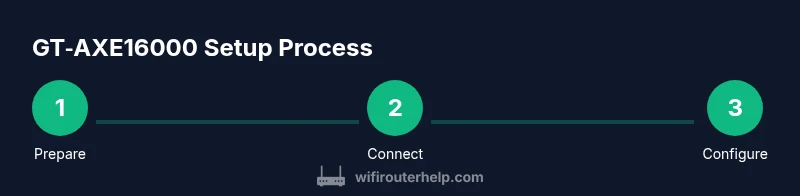
This guide helps you set up and optimize the asus rog rapture gt axe16000 for peak gaming Wi‑Fi performance. You’ll need a modem, a computer with Ethernet, and access to the router’s admin dashboard. This quick guide walks you through a 6-step process: connect, configure WAN/LAN, update firmware, tune wireless settings, enable QoS, and verify coverage.
Overview of the asus rog rapture gt axe16000
According to WiFi Router Help, the asus rog rapture gt axe16000 is designed to deliver high‑bandwidth, low‑latency wireless performance for gaming and smart homes. This tri‑band Wi‑Fi 6E router leverages the 2.4 GHz, 5 GHz, and 6 GHz bands to balance range and speed, while offering a robust set of features like Adaptive QoS, AiProtection Pro, and a 2.5 Gbps WAN/LAN port. In 2026, many homes rely on multi‑device gaming, 4K streaming, and smart devices; choosing a router in this class helps future‑proof your network. The purpose here is to give you a practical, step‑by‑step approach to installation, configuration, and ongoing optimization that actually improves stability and speed across your home.
WiFi Router Help stresses that access to the admin dashboard should be done from a wired computer or laptop for accuracy during initial setup. In this guide you’ll learn to verify your internet connection, map your wireless coverage, and fine‑tune the settings so the GT‑AXE16000 reliably handles competitive gaming traffic while keeping other devices smooth.
This article references common configurations and safe practices rather than brand‑specific claims, focusing on reproducible steps you can apply regardless of your ISP or home layout. The goal is clear: faster, more reliable Wi‑Fi with explicit steps you can follow today.
Prerequisites and Initial Prep
Before you begin, assemble a few essentials to avoid backtracking. You’ll want a modem compatible with your ISP, a computer with an Ethernet port, a CAT6a or better Ethernet cable, and at least one device to test wireless performance. Confirm you have admin access to the GT‑AXE16000, since factory defaults must be changed for security. It’s also wise to write down your current ISP login credentials and your preferred admin password. WiFi Router Help’s guidance emphasizes starting with a clean slate: update firmware first, then configure security and QoS settings for the best results. If you have a fiber connection, ensure the ONT or modem provides a routed connection rather than bridge mode unless you plan to use your own gateway. Finally, consider a room‑by‑room plan for placement and potential mesh extensions to maximize coverage.
Tools: a wired PC or laptop, Ethernet, at least one mobile device for testing, and access to the GT‑AXE16000 admin interface. Safety: keep your router plugged into a surge‑protected outlet and avoid placing it behind thick walls or metal obstacles during the initial test phase.
Network Topology and Placement Strategies
Placement matters as much as raw speed. For the GT‑AXE16000, aim for a central, elevated location away from microwaves, large metal appliances, and dense walls. In practice, this means a living room shelf or a mid‑storey hallway, not the basement or an enclosed cabinet. For multi‑room homes, consider a mesh approach or a wired backhaul for AiMesh nodes. On the 6 GHz band, proximity to devices matters: place gaming devices and workstations within the primary coverage footprint to leverage the fastest 6 GHz channel. After routing and basic setup, run a quick site survey from your testing devices to identify weak pockets and adjust the router’s antenna orientation and channel plan accordingly. WiFi Router Help notes that consistent results benefit from minimizing interference sources such as neighbor networks and Bluetooth devices.
If you’re experimenting with higher channel bandwidths such as 160 MHz, ensure your devices support it and verify that the network remains stable across walls and floors. A practical rule is to bias the GT‑AXE16000 slightly toward the primary living area and use one or two wired backhaul links for back rooms or a dedicated gaming space.
Quick Start: 15‑Minute Setup with GT‑AXE16000
A fast start helps you validate a working network before doing deeper tuning. Start by connecting the GT‑AXE16000 to your modem with a wired Ethernet connection, power it on, and clear the factory settings if you prefer a clean slate. Access the admin dashboard from a wired PC using the default 192.168.50.1 address (check the label on the router). In many cases, you’ll run the Quick Setup wizard to configure WAN, LAN, and basic wireless settings. During this phase, set a strong admin password and enable automatic firmware updates. After the wizard finishes, test internet connectivity on a laptop and a mobile device, confirming both wired and wireless clients can browse and stream. If you see latency during this test, plan targeted adjustments to QoS and channel selection as you proceed.
The first pass should be a stable baseline: internet access, basic Wi‑Fi, and a known good password. You’ll refine this baseline in the next sections.
Wireless Settings: 6 GHz, 5 GHz, and 2.4 GHz Practical Tuning
Here you’ll balance speed and range across three bands. Enable 6 GHz on devices that support Wi‑Fi 6E and assign gaming clients to this fast, low‑latency spectrum when possible. The 5 GHz band can handle most mid‑range devices and streaming, while 2.4 GHz provides the best wall‑penetration for distant rooms. Use Auto Channel Selection initially, then run a site survey to identify the least congested channels in your area. Adjust 160 MHz channel width with caution: some devices only support narrower widths, and excessive width can cause reliability issues in crowded environments. For devices with 2‑3 bands, consider enabling band steering so devices switch to the best band automatically without user intervention. Monitor bandwidth consumption across devices and adjust the QoS rules to protect essential gaming and work traffic.
When tuning 6 GHz specifically, keep expectations realistic: this band adds speed gains primarily within close range and with supported devices. WiFi Router Help analysis shows that real‑world gains depend on device compatibility, interference, and router placement. Regularly check for firmware updates that optimize 6 GHz handling and channel management.
Security, Firmware, and Ongoing Best Practices
Security should be part of every setup, not an afterthought. Change the default admin credentials, enable a strong WPA3 security profile, and disable WPS if supported. Activate the built‑in firewall and consider enabling UPnP only if you need it for specific applications. Regular firmware updates are essential to protect against new threats and to improve stability. The GT‑AXE16000 supports scheduled auto‑updates; enabling this feature reduces the risk of leaving the router exposed. For parental controls and guest networks, define separate SSIDs and apply guest access restrictions to preserve your main network’s integrity. WiFi Router Help emphasizes reviewing security logs occasionally and rotating credentials every few months. If you’re running a lot of devices, consider a separate IoT network to isolate less secure devices from your gaming PC and primary workstation.
Troubleshooting Common Issues and Advanced Tips
Even robust hardware can run into snags. If devices fail to connect, verify the WAN/Internet status in the admin panel and restart affected devices. For intermittent Wi‑Fi drops, recheck cable integrity, inspect power supply, and review QoS rules that might throttle essential traffic. A common pitfall is misconfigured NAT or an overlapping IP range with another router; ensure the GT‑AXE16000 is the primary gateway and double‑check DHCP settings. For gaming, enable Zero‑Configuration QoS and ensure low latency paths for port forwarding or UPnP are properly configured. In some homes, moving the router a few feet can dramatically improve signal quality; small changes can accumulate in their impact. The WiFi Router Help team recommends documenting changes and testing after each adjustment for clarity and repeatability.
QoS and Gaming‑Specific Optimizations
Adaptive QoS is a key feature for gaming routers like the GT‑AXE16000. Prioritize console or PC traffic to reduce jitter and lag, particularly during peak hours. Create separate rules for bursty downloads and real‑time gaming, and consider enabling gaming mode profile if available. For households with streaming or large file transfers, specify bandwidth limits or priority rules to ensure gaming traffic dominates when needed. Always test latency and jitter after adjustments, using a wired client for baseline measurements and a wireless client for end‑to‑end performance. According to WiFi Router Help, iterative tweaks—rather than broad changes—yield the most consistent improvements across varied devices.
Tools & Materials
- GT‑AXE16000 router (ASUS ROG Rapture)(Use the model in the article title; ensure you have access to the admin panel and the latest firmware.)
- Modem compatible with your ISP(Connects to WAN port; ensure it supports your service plan.)
- Cat6a Ethernet cable(For reliable wired connections during setup and testing.)
- Laptop or PC with Ethernet(Used to access the router admin interface for initial setup.)
- Smartphones or tablets for testing(Great for testing Wi‑Fi from multiple locations.)
Steps
Estimated time: 45-60 minutes
- 1
Connect and power on
Plug the GT‑AXE16000 into a surge‑protected outlet and connect the WAN port to your modem with a CAT6a cable. Power on and wait for the status lights to stabilize. This step establishes the base network path and ensures the router boots cleanly.
Tip: Use a wired connection for the initial setup to avoid wireless dropouts during configuration. - 2
Access the admin dashboard
From a wired computer, open a browser and navigate to the router’s default IP (check the label on the device). Log in with the default credentials and immediately set a strong admin password. If you’re using a different IP, note it for future access.
Tip: Change credentials before enabling remote access; never enable admin access from the WAN unless you need it. - 3
Run the Quick Setup wizard
Follow the on‑screen wizard to configure WAN, LAN, and initial wireless settings. Use a unique SSID per band and set WPA3 when available. This gives you a stable baseline without manual tuning.
Tip: For ISP authentication, choose the correct connection type (DHCP, PPPoE, etc.) and save changes after each screen. - 4
Update firmware
Check for firmware updates and apply them. Firmware updates fix bugs, improve stability, and can enhance 6E performance. Reboot if prompted after the update.
Tip: Back up current settings before applying a major update to simplify rollback if needed. - 5
Configure wireless basics
Enable 6 GHz for supported devices, set 5 GHz for general devices, and use 2.4 GHz for long‑range coverage. Apply Auto Channel Selection initially, then fine‑tune based on site surveys.
Tip: Use distinct SSIDs for each band to avoid roaming confusion among devices. - 6
Set up Adaptive QoS and firewall
Turn on Adaptive QoS and create a gaming priority profile. Enable the router’s firewall and review UPnP usage; disable UPnP if not needed to improve security.
Tip: Test latency with and without QoS to confirm the expected improvements. - 7
Test coverage and adjust
Walk through your home to test signal strength, and adjust antenna orientation or add a mesh node if needed. Ensure gaming devices consistently reach 6 GHz where possible.
Tip: If some areas are weak, consider a wired backhaul to an AiMesh node rather than relying solely on wireless backhaul. - 8
Document and optimize
Record the final settings, including SSIDs, password strength, and QoS rules. Schedule periodic checks for firmware updates and review security alerts every few months.
Tip: Keep a simple change log to reproduce the exact configuration later if you replace hardware.
People Also Ask
How do I access the GT‑AXE16000 admin page?
Connect a computer with Ethernet to the router, open a browser, and enter the default IP shown on the router label. Log in with the default credentials, then immediately change the password for security.
Connect via Ethernet, open the router's IP in your browser, sign in, and change the default password for security.
Can I use the 6 GHz band with all devices?
Only devices that support Wi‑Fi 6E can use the 6 GHz band. Use 6 GHz for gaming devices and newer laptops or phones, and rely on 5 GHz and 2.4 GHz for older gear.
6 GHz works only on Wi‑Fi 6E devices; use it for your newest gear and switch older devices to 5 GHz or 2.4 GHz.
How do I enable QoS for gaming?
In the admin UI, locate the QoS or Gaming QoS section and create a high‑priority profile for your gaming PC or console. Apply the profile and test latency.
Open QoS in the UI, set gaming as high priority for the device, and test latency.
What should I do if I lose internet after setup?
First check the modem status and WAN connection in the router dashboard. If needed, power cycle both modem and router. Confirm your ISP login credentials and DHCP settings are correct.
Check the WAN status, reboot modem and router, and verify your ISP settings.
How do I reset the GT‑AXE16000 to factory settings?
Use the reset button on the back of the router for 10 seconds until the LEDs flash. Re‑run the Quick Setup wizard to reconfigure from scratch.
Hold the reset button for 10 seconds until it flashes, then start the setup again.
Watch Video
What to Remember
- Position the GT‑AXE16000 centrally for best coverage.
- Enable 6 GHz where devices support 6E for peak gaming speed.
- Update firmware regularly to maintain security and performance.
- Use Adaptive QoS to prioritize gaming traffic and minimize lag.
- Document settings and test after each major change.