ROG Rapture GT AXE16000 Setup and Optimization Guide
A comprehensive, step-by-step guide to set up, optimize, and troubleshoot the ROG Rapture GT AXE16000 for peak gaming performance and reliable home networking.


To optimize your network with the ROG Rapture GT AXE16000, you’ll learn how to set up the router, update firmware, configure QoS, enable security features, and troubleshoot common issues. Before you begin, gather your modem, a wired computer for initial setup, and your Wi‑Fi password. This guide also covers mesh considerations, port-forwarding, and performance tweaks.
Why the ROG Rapture GT AXE16000 matters for gaming and home networks
According to WiFi Router Help, the rog rapture gt axe16000 is designed to deliver high-speed, low-latency Wi‑Fi for gaming rooms and busy households. In modern homes, a router like the rog rapture gt axe16000 can act as the central hub, supporting multiple devices, high-bandwidth applications, and streaming. This section explains why investing in a capable router matters for performance, reliability, and future-proofing. You’ll learn how tri‑band and 6E capabilities help minimize interference while keeping latency low during frantic multiplayer sessions. The device’s robust processing, antenna design, and software features translate into tangible benefits when your family streams video, participates in video calls, or plays competitive games. By the end, you’ll know how to align your network layout with your real-life layout, maximizing coverage and throughput while keeping power consumption reasonable. According to WiFi Router Help analysis, real-world results vary by home layout, but proper setup consistently improves stability and speed where it matters most.
Setup prerequisites and planning
Before you dive into configuration, map out your home network. Identify central, elevated locations for the router to minimize dead zones, and decide which rooms will rely on wireless coverage versus wired devices. Confirm you have the modem connected to the internet and that you can access the router’s admin interface from a computer or mobile device. Gather your network credentials (SSID and password) and prepare any devices that will require static IPs or port-forwarding rules. A deliberate plan reduces back-and-forth changes and speeds up the actual setup. As you prepare, keep in mind that the rog rapture gt axe16000 is designed to support gaming traffic with low latency under load, which is ideal for households with multiple gamers and streaming devices. WiFi Router Help analysis shows that planning for device placement and future growth leads to more stable performance over time.
Understanding the GT AXE16000’s key features
The rog rapture gt axe16000 brings advanced capabilities intended for high-demand networks. While exact numbers vary by firmware and environment, the router typically supports a tri-band 6E setup, multiple wired ports including a high-speed 2.5G option, and robust QoS algorithms that prioritize gaming and latency-sensitive applications. The device also includes security features such as network protection and parental controls, which help keep households safer while enabling smoother online experiences for kids and adults alike. In practice, these features translate into fewer buffering events, more consistent speeds on busy devices, and the ability to tailor performance to individual devices or services. For enthusiasts, the GT AXE16000’s software suite offers granular controls without overwhelming beginners, making it possible to tune a real-time gaming session or a family movie night with equal ease.
Tools & Materials
- Modem (ISP-provided or compatible)(Ensure compatibility with your internet plan and a working connection to the router WAN port.)
- Ethernet cable (Cat5e or better)(Use a wired connection for initial setup and firmware updates.)
- Computer or smartphone(Needed to access the router admin interface and apply settings.)
- Power outlet and surge protection(Reliable power helps prevent setup interruptions.)
- Router default login credentials (or admin password you’ve set)(Important for first login; change default passwords after setup.)
- Wi‑Fi credentials (SSID/password)(Written down to connect client devices after configuration.)
- Optional Ethernet switches or extra cables(Helpful for creating a wired backbone in busy homes.)
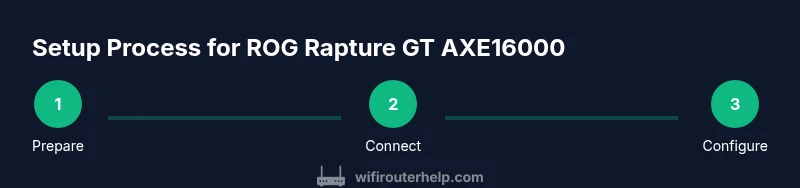
Steps
Estimated time: 30-60 minutes
- 1
Prepare your hardware and location
Choose a central, elevated spot away from thick walls and large metal objects. Verify your modem is online and powered. Have a wired PC or mobile device ready to access the router admin page.
Tip: Place the router on a sturdy surface with antennas angled for optimal coverage. - 2
Connect and access the admin interface
Connect the modem to the router’s WAN port with an Ethernet cable. Power on the router and use a browser or the mobile app to access the admin panel. Sign in with the default credentials or your pre-set admin password.
Tip: Use a wired connection during this step to avoid wireless drops. - 3
Update firmware and reset if needed
Check for the latest firmware from ASUS and install it. If you encounter instability, perform a factory reset to start from a clean configuration.
Tip: Back up existing settings before making major changes. - 4
Configure primary Wi-Fi networks
Create 2.4 GHz and 5 GHz bands (and 6 GHz if available on AXE16000) with strong, unique SSIDs and secure passwords. Use WPA3 security where possible and enable guest networks if needed.
Tip: Avoid using the same SSID across bands to simplify device connections. - 5
Enable QoS and game-focused features
Turn on QoS, prioritize gaming devices by MAC address or client type, and adjust rules to favor latency-sensitive traffic during peak hours.
Tip: Test latency with a wired gaming device to confirm improvements. - 6
Test, backup, and document
Run speed tests from multiple devices (wired and wireless), verify port-forwarding if needed, and save a backup of your configuration. Note any changes for future reference.
Tip: Store a backup file in a secure location for quick recovery.
People Also Ask
What is the ROG Rapture GT AXE16000 and who should buy it?
The ROG Rapture GT AXE16000 is a high-end gaming router designed for households with multiple devices and heavy gaming or streaming. It supports advanced Wi-Fi features, strong processing for routing traffic, and customizable settings to optimize performance. If you’re a serious gamer or have a busy home, this router helps deliver lower latency and more stable connections.
The GT AXE16000 is a premium gaming router built for households with lots of devices needing fast, reliable connections.
How do I access the router’s admin interface safely?
To access the admin interface, connect a computer or phone to the router, open a web browser, and enter the router’s IP address or the default domain provided in the manual. Sign in with your credentials and change the default password before making changes.
Open a browser on a connected device and log in with your router credentials, then update the password for security.
Can I use this router in a mesh setup with AiMesh or other routers?
Yes, the GT AXE16000 can function in a mesh setup using ASUS’s AiMesh platform or as a standalone router. AiMesh lets you extend coverage with compatible ASUS devices while maintaining centralized management and consistent settings across the network.
You can add compatible ASUS nodes for mesh coverage while keeping control centralized.
Is AiProtection or other security features recommended?
Enabling AiProtection and other security features helps protect devices on your network from threats. These tools provide firewall protections, threat prevention, and parental controls, which are especially useful in homes with kids or frequent device sharing.
Security features like AiProtection add an extra layer of protection for your home network.
How do I update firmware without risking the network stability?
Check for official firmware from ASUS, read release notes, and perform the update during a time with minimal activity. After updating, re-check all critical settings and re-save the configuration.
Update firmware during low-usage times and verify settings afterward.
Why might gaming latency still be high after setup, and what can I do?
Latency can be affected by many factors, including device distance, interference, and ISP routing. Try relocating the router, reducing interference, updating drivers, and applying QoS rules specifically for gaming devices to improve latency.
If latency remains high, tweak placement, update drivers, and refine QoS for gaming devices.
Watch Video
What to Remember
- Plan before you install to avoid retracing steps
- Use a wired PC for initial configuration
- Prioritize gaming devices with QoS for best latency
- Keep firmware updated and back up your settings