Asus GT AXE16000 Setup and Optimization Guide
Learn step-by-step how to install, secure, and optimize the Asus GT AXE16000 router for fast, reliable home Wi‑Fi 6E, with practical setup tips and troubleshooting guidance.


Learn how to set up and optimize the Asus GT AXE16000 router for fast, reliable home Wi-Fi. This guide covers planning, installation, firmware updates, security, and troubleshooting, with practical steps and pro tips. From correct placement and channel selection to guest networks and QoS, you’ll have a solid, repeatable setup you can implement today.
Asus GT AXE16000: Core capabilities and what to expect from a high-end Wi‑Fi 6E router (asus gt axe16000)
The Asus GT AXE16000 represents a premium class of home networking hardware designed to handle dense device environments. With tri-band Wi‑Fi 6E, multiple high‑speed ports, and enhanced software features, it enables fast streaming, gaming, and smart-home automation across large homes. In practice, you can expect strong coverage from a central location, reliable throughput on 2.4 GHz and 5 GHz bands, and the ability to dedicate a portion of your network to guests without compromising main network performance. This guide uses asus gt axe16000 as the reference model, and you can apply the same principles to similar high‑end routers.
According to WiFi Router Help, a well-placed router and a future‑proof firmware strategy are the biggest levers for performance in modern homes, especially when supporting multiple devices and bandwidth-heavy activities. The GT AXE16000, like other premium routers, rewards thoughtful placement and disciplined configuration.
If you’re upgrading from an older router, you’ll notice faster boot times, more flexible security options, and clearer separation of networks for work, gaming, and guests. If you’re new to Wi‑Fi 6E, expect to see benefits in the 6 GHz band that reduce congestion and improve latency for compatible devices.
Planning your wireless layout and channel strategy
Effective Wi‑Fi starts with planning. Start by mapping your home’s layout, noting thick walls, floors, and large appliances that can block signals. Place the router at a central height, ideally on a shelf around eye level, away from metal objects and large electronics. For most homes, a single GT AXE16000 placed centrally provides strong coverage, but larger properties or multi‑story layouts may benefit from one or two additional access points or a wired backhaul. When configuring channels, start with a clean slate: enable auto‑channel selection during initial setup, then test two or three manual channels if interference is observed on busy bands.
In households with many smart devices, enabling a clear separation between the main network and guest networks helps protect sensitive devices and reduces broadcast traffic that can bog down the core network. This block, reflecting guidance in WiFi Router Help’s analysis, emphasizes planning as a prerequisite to a smooth setup.
Before you begin: prerequisites and firmware hygiene
Before touching the UI, gather essentials: a computer or phone, a wired Ethernet connection for initial setup, and the router’s documentation handy for defaults and reset instructions. Update the firmware to the latest stable release to ensure you have the newest security patches and performance enhancements. If you’re bringing in a modem, confirm whether you’ll use bridge mode or router mode in advance to avoid double NAT. Back up current configurations beforehand so you can revert if needed. WiFi Router Help recommends keeping a simple naming scheme for SSIDs and strong, unique passwords to minimize compromise risk.
Initial login and quick setup flow
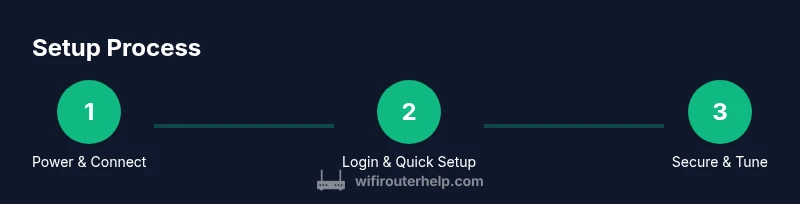
Connect the GT AXE16000 to power and to your modem (or your existing network via Ethernet). Open a browser and navigate to the default UI address (router.asus.com or 192.168.50.1). Sign in with the default credentials (usually found on the device label or in the manual) and follow the Quick Setup wizard. Create two separate networks (2.4 GHz and 5 GHz, and, if available, 6 GHz network). Use strong, unique passwords and enable WPA3 where possible. After the wizard completes, immediately apply a secure administrator password and enable WPA3 where available.
Performance optimization strategies for households
Once basic setup is complete, optimize performance with a few targeted tweaks. Enable QoS to prioritize latency-sensitive activities like gaming and video calls. Use 160/80 MHz channel widths where your devices and spectrum permit, but switch to narrower channels if interference appears. Enable Multi‑User MIMO and beamforming features to maximize throughput for multiple devices simultaneously. If you’re running a mesh or multiple access points, consider wired backhaul for the most stable performance and lowest latency. Regularly review connected devices and disable unknown clients.
Given the GT AXE16000’s strengths, you’ll often see the best results by distributing traffic through dedicated bands and enabling guest networks for visitors, which keeps your primary devices on the fastest paths. WiFi Router Help emphasizes testing different antenna orientations and ensuring the router sits away from mirrors or metal surfaces that can reflect signals.
Security, guest networks, and firewall best practices
Security should never be an afterthought. Change the default admin credentials immediately and enable WPA3 on all networks. Create a separate guest network with a strong password and limited access to your LAN resources. Utilize the built‑in firewall features and keep UPnP disabled if you don’t need it, to reduce exposure to external threats. Regularly check for firmware updates and consider enabling automatic updates to stay protected against new vulnerabilities. If you share devices with guests or smart home devices, isolate them on a dedicated network and maintain a clear password policy for all users.
To maintain reliability, enable automatic reboot schedules during off‑peak hours and monitor the router’s logs for unusual activity. This practice keeps your network resilient and reduces the likelihood of undetected intrusions.
Troubleshooting common issues and recovery steps
Even premium hardware can encounter hiccups. If you notice slow speeds, start by confirming your internet service is delivering baseline performance on a wired test. Check the router’s status page for WAN status and firmware version. A simple power cycle (power off, wait 15 seconds, power on) can resolve many transient issues. If you suspect misconfiguration, use the factory reset option, reapply a clean backup, and re-run the setup wizard. For persistent issues, test with a wired client to rule out wireless interference, and consider temporarily setting a single SSID to isolate problems.
Always document changes you make and test connectivity after each adjustment. This approach helps you pinpoint the exact setting that improved or degraded performance. WiFi Router Help notes that logs and recovery options are your best friends when diagnosing network problems in busy homes.
Authority sources and recommended reading
For deeper context and standards, consult reputable sources on wireless technology and network design. These references offer background on spectrum use, security best practices, and performance considerations that inform practical home network configurations:
- FCC: Wi-Fi and spectrum guidance for consumer devices — https://www.fcc.gov
- Wi‑Fi Alliance: Industry standards and best practices — https://www.wi-fi.org
- CNET Networking Coverage: Practical consumer guidance and product reviews — https://www.cnet.com/topics/networking/
These sources complement the hands-on guidance in this article and help homeowners build robust, future‑proof home networks.
Tools & Materials
- Ethernet cable (Cat5e or better)(Use Cat6 or better for wired backhaul where possible.)
- Computer or smartphone(For accessing the router’s UI and configuring settings.)
- Router placement surface (shelf, table)(Elevated, central location away from obstructions.)
- Power outlet with surge protection(Keep router protected during storms and outages.)
- Printed router manual or label (for default login info)(Helpful if you don’t memorize default credentials.)
Steps
Estimated time: 25-40 minutes
- 1
Prepare the hardware and connections
Unbox the GT AXE16000 and connect the modem to the WAN port using an Ethernet cable. Plug the router into a power source and wait for LEDs to indicate startup. This ensures the device boots cleanly before you begin configuration.
Tip: Have the router placed near a central power outlet and avoid stacking devices that can overheat. - 2
Access the router’s web interface
On a connected computer, open a browser and navigate to the default UI address (router.asus.com or 192.168.50.1). Sign in with the default credentials from the label or manual, then begin the Quick Setup wizard. If you can’t reach the UI, try a wired connection or reset the router.
Tip: If the login page doesn’t appear, clear browser cache or try an incognito window. - 3
Configure internet connection settings
Select the correct connection type (DHCP, PPPoE, or static IP) as provided by your ISP. Enter the necessary credentials if required and run the wizard to apply changes. This step ensures the router obtains internet access through your modem.
Tip: If you’re unsure of your ISP type, contact support before entering credentials to avoid lockouts. - 4
Set up your wireless networks
Create separate SSIDs for 2.4 GHz, 5 GHz, and, if available, 6 GHz. Use strong, unique passwords and enable WPA3 where possible. Consider enabling guest networks for visitors to keep your main network secure.
Tip: Use distinct names to avoid confusion between bands and enable auto-channel if interference is high. - 5
Enable security features and power optimization
Change the admin password and enable essential firewall protections. Turn on automatic firmware updates and disable UPnP if you don’t need it. Configure a reboot schedule to maintain stability.
Tip: Regularly review connected devices and remove unknown clients. - 6
Fine-tune performance settings
Optimize QoS to prioritize latency-sensitive applications like gaming and video calls. If your devices support it, enable beamforming and MU‑MIMO. Test wired backhaul where possible and adjust channel widths based on interference.
Tip: Test performance after each change to see what delivers the best improvement. - 7
Create a restore plan and back up configurations
Back up the configured profile to a secure location. Document changes and keep a note of the current firmware version. This makes future resets or wanders easier to recover from.
Tip: Backups save hours of troubleshooting and can prevent data loss during resets.
People Also Ask
What is the Asus GT AXE16000 best suited for?
The Asus GT AXE16000 is a high‑end router designed to handle many devices with low latency, making it ideal for gaming, 4K streaming, and busy homes with multiple smart devices.
It's a premium router best for gaming and households with many connected devices.
How do I safely update firmware?
Check for updates in the router UI, download the latest release from Asus, and apply it following the prompts. Always back up settings before updating.
Update firmware from the router’s interface and back up your settings first.
Do I need 6 GHz support for my home network?
6 GHz (Wi‑Fi 6E) offers extra spectrum that helps with crowded networks. It’s beneficial if you have many devices or heavy traffic, but not essential for every home.
6 GHz helps with busy networks, especially with many devices.
What’s the difference between 2.4 GHz and 5 GHz bands?
2.4 GHz travels farther but at lower speeds, while 5 GHz provides higher speeds over shorter distances. The GT AXE16000 also adds 6 GHz for even less congestion on supported devices.
2.4 GHz covers more area, 5 GHz is faster up close, and 6 GHz adds room for many devices.
How can I secure guest access without compromising my main network?
Enable a guest network with a separate password and restricted access to your LAN resources. This keeps your primary devices isolated from guest traffic while preserving convenience.
Use a separate guest network to protect your main network.
Is bridge mode recommended when using a separate modem router combo?
Bridge mode is useful if you want to bypass the ISP gateway and use the GT AXE16000 as your primary router. It prevents double NAT and can improve performance.
Bridge mode makes the Asus router the main device, avoiding double NAT.
Watch Video
What to Remember
- Secure admin access with a unique password
- Place the router centrally for even coverage
- Use separate SSIDs and guest networks for security
- Enable WPA3 and automatic firmware updates
- Test and optimize QoS for latency-critical devices