5G Router Guide: Setup, Performance & Troubleshooting
Learn how to choose, install, and optimize a 5G router for reliable home internet. Step-by-step setup, optimization tips, and common troubleshooting to get the best 5G connectivity.


This guide helps you set up a 5G router, optimize coverage, and troubleshoot common issues. You’ll learn how to choose the right 5G router, insert a SIM or eSIM, configure the admin page, and secure your network for reliable performance. Gather a SIM/data plan, a power source, and a device to access the router’s settings to begin.
What is a 5G router and why it matters
A 5G router is a networking device that pairs a built‑in 5G cellular modem with a router’s capabilities to create a Wi‑Fi network for your home or small office. It differs from fixed broadband by relying on the carrier’s cellular network, which can be advantageous where wiring is limited, costly, or unreliable. According to WiFi Router Help, the main value of a 5G router is mobility, quick deployment, and the potential for cost savings when you don’t need to run new cables. When evaluating models, consider 5G support bands, modem technology (sub‑6 vs mmWave), antenna design, and the number of simultaneous connections the device can handle.
In practice, many 5G routers include traditional Wi‑Fi radios that broadcast on 2.4 GHz and 5 GHz, so your existing devices can join without reconfiguring your network. This dual‑band approach also means you can reuse your current SSID for easy roaming, while cellular connectivity provides a resilient option if fixed broadband slows down. The trade‑offs between mmWave and mid‑band 5G are important: mmWave offers higher speeds but shorter range, while mid‑band gives broader coverage with steadier performance. To pick wisely, map your home layout, wall materials, and typical usage (browsing, streaming, gaming) to the router’s capabilities. Start with a device that supports both sub‑6 and mmWave where available, and plan for a half‑hour setup plus time for firmware updates.
Placement matters. Position the router in a central, elevated spot away from thick walls or metal objects to maximize signal capture from the carrier’s tower. Also consider power stability; an uninterrupted power supply helps maintain stable connectivity for busy evenings. Look for a 5G router with strong MU‑MIMO support and beamforming to improve performance for multiple devices at once. A well‑chosen 5G router can provide flexible, robust connectivity and serve as a practical solution when hardwired options aren’t feasible.
How 5G differs from 4G and home Wi‑Fi
5G routers leverage new radio technology to access the fastest available wireless networks, but performance depends on several factors beyond theoretical speed. With 5G, you’ll generally experience three key differences: speed variability based on carrier coverage, latency improvements that support real‑time applications, and improved device capacity that helps more gadgets connect simultaneously. Unlike traditional fixed broadband, 5G networks can fluctuate with network congestion and signal strength indoors. For home usage, this means you may see stellar performance in some rooms and slower speeds in others, especially if you’re near the outer edge of coverage. In addition, many 5G routers include internal or external antennas and may support beamforming to direct signal toward devices, boosting coverage without increasing power usage. When comparing to standard home Wi‑Fi, 5G holds the promise of fast internet without dependence on physical cables, but you’ll want to consider your space, the carrier’s 5G plan, and the router’s ability to optimize handoffs between 5G and Wi‑Fi networks for a smooth experience.
Choosing the right 5G router for your needs
Selecting a 5G router requires aligning hardware with your real‑world usage. First, confirm your carrier’s 5G bands and coverage in your area; a device that supports the required bands will deliver the best performance. Consider whether you need a single‑SIM router or an eSIM option for easier carrier changes. For homes with many devices, prioritize a router with robust MU‑MIMO, beamforming, and high‑quality antennas, as these features improve multi‑device throughput and reliability. If you want wired devices, seek a model with multiple Gigabit Ethernet ports and a reliable WAN/LAN switch. Also assess ancillary features like guest networks, parental controls, VPN support, and QoS to prioritize gaming or video streaming. Battery‑powered or portable models offer mobility, but most home setups benefit from a stable power source and wall outlet placement. Finally, read reviews and check firmware update support to ensure long‑term security and feature gains. After choosing a model, verify compatibility with your existing ecosystem (smart home devices, printers, streaming devices) to avoid compatibility gaps.
Step-by-step overview
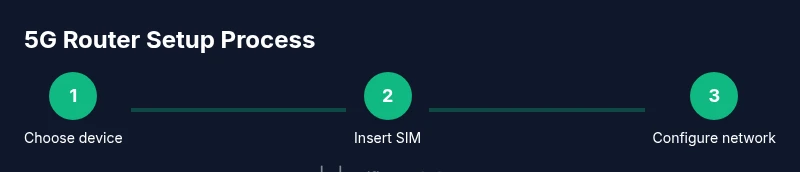
This section provides a high‑level roadmap for getting a 5G router up and running. The detailed, task‑level instructions are in the dedicated STEP‑BY‑STEP section below. Start by identifying your goals (backup internet, primary home service, or portable coverage), then select a router that supports your carrier’s 5G bands and your planned usage. Next, prepare your SIM/eSIM data plan and a device to access the router’s admin interface. When you power on the router, perform the initial configuration to establish your WAN connection, set a strong admin password, and customize your Wi‑Fi SSID and password. Afterward, enable essential security settings, configure a guest network, and decide on any QoS rules to prioritize activities like streaming or gaming. Finally, update the firmware, back up the configuration, and test the network from multiple rooms to ensure coverage is adequate.
Troubleshooting common 5G router issues
If your 5G router isn’t connecting to the network, verify that the SIM is active and correctly inserted, and check the APN settings for your carrier. Slow speeds can result from weak signal, network congestion, or outdated firmware; perform a quick signal test in different rooms and update the firmware if available. If devices disconnect randomly, ensure you aren’t overloading the router with too many concurrent connections and review your QoS rules. A common quality check is to reboot the router and run the built‑in diagnostics if supported. For Wi‑Fi problems, try changing the channel or moving to a less crowded frequency band, and consider enabling beamforming if your device supports it. If security warnings appear, update passwords, review connected devices, and enable a firewall. Consistent outages may indicate a carrier issue or a hardware fault, in which case contact your provider or the router vendor for guidance.
Security, updates, and maintenance
Security should be a core part of your 5G router routine. Change default admin credentials and use a unique, strong password for the Wi‑Fi network. Enable WPA3 or the strongest available encryption, and limit remote administration exposure to minimize risk. Regular firmware updates improve performance, fix bugs, and strengthen defenses against new threats. Schedule periodic reboots and back up your configuration to recover quickly after a failure. Finally, monitor connected devices and enable features like guest networks and parental controls to manage access. Keeping your router updated and configured with sensible defaults helps maintain a secure, reliable home network over 5G.
Tools & Materials
- 5G router with SIM slot or eSIM support(Ensure device supports the 5G NR bands used by your carrier)
- SIM card or eSIM data plan(Active data plan with 5G capability; check coverage in your area)
- Power adapter(Original or compatible power supply; stable outlet)
- Ethernet cable (optional)(For wired devices or a secondary gateway if needed)
- Mobile device for configuring(Phone or tablet to access the router admin page)
Steps
Estimated time: 20-40 minutes
- 1
Unbox and verify hardware
Inspect the package contents and ensure the router, power adapter, SIM tray tool (if included), and documentation are present. Check for any visible damage and confirm the model matches your purchase. This step prevents wasted time on a device that isn’t ready to configure.
Tip: Keep the box and manuals handy in case you need to reference model specifics later. - 2
Insert SIM/eSIM and power on
Power the router and insert the active SIM or configure the eSIM according to the carrier’s instructions. Allow the device to boot fully; initial LEDs should indicate a data connection is being established.
Tip: If your SIM is new, wait a few minutes for the device to register on the network before proceeding. - 3
Connect a device to the router
Using a laptop or mobile device, connect to the router’s default Wi‑Fi network or Ethernet WAN port. Open a web browser and enter the router’s default IP address or a setup URL from the manual to access the admin interface.
Tip: Record the default admin username and password and plan to change them during setup. - 4
Run the initial setup wizard
Follow the on‑screen setup wizard to configure the WAN type as 5G, set the admin credentials, and create a primary Wi‑Fi network. Confirm you can reach the internet from a connected device.
Tip: Choose a strong admin password and enable automatic updates if available. - 5
Configure security and SSID
Set a unique SSID and a strong WPA3 (or best available) password. Enable guest networking if you expect visitors, and adjust firewall settings to balance security with usability.
Tip: Avoid using the same password across all home networks to limit risk. - 6
Tune performance and QoS
Adjust QoS rules to prioritize critical activities (homework, work video calls, gaming). If supported, enable beamforming and MU‑MIMO to enhance multi‑device throughput.
Tip: Start with a moderate QoS profile and refine as you observe network behavior. - 7
Update firmware and backup
Check for firmware updates and apply them. Save the current configuration to a backup file in a secure location for quick restoration if needed.
Tip: Backups speed recovery after a factory reset or replacement.
People Also Ask
What is a 5G router and how does it work?
A 5G router uses a built‑in 5G modem to connect to cellular networks and then shares that connection via Wi‑Fi or Ethernet. It’s useful where fixed broadband isn’t available or where quick deployment matters. The device negotiates with the carrier to obtain data service and then distributes it to connected devices.
A 5G router connects to cellular networks and shares the internet over Wi‑Fi; it’s handy when wired options aren’t available.
Do I need a SIM card to use a 5G router?
Yes. A 5G router typically requires a SIM card or eSIM with an active data plan. Choosing a plan compatible with your deployment goals—backup or primary service—will influence performance.
You’ll need a SIM or eSIM with a data plan.
Can a 5G router replace my fiber connection?
In many homes, a 5G router can serve as primary internet, especially for light to moderate usage. However, fiber or cable may still offer more consistent peak speeds and lower latency in busy households. Assess coverage and plan limits before replacing fixed service.
A 5G router can replace fiber in some cases, but check coverage and plan limits.
Why is my 5G router not connecting to 5G networks?
First, verify the SIM is active and inserted correctly. Check that the router supports the carrier’s 5G bands in your area, and review APN settings. If the issue persists, contact your carrier to verify the plan status and potential outages.
Check SIM status, band support, and APN; contact the carrier if needed.
How can I improve the 5G router’s range inside a large home?
Try central placement, reduce obstacles, and enable beamforming if your model supports it. For larger homes, a secondary access point or a mesh system with compatible backhaul can help maintain consistent coverage.
Move the router centrally and consider a second access point for bigger homes.
What security settings should I enable on a 5G router?
Use a strong admin password, enable WPA3 encryption for Wi‑Fi, and keep firmware updated. Disable remote management if not needed and review connected devices regularly.
Set a strong admin password and enable WPA3; keep firmware updated.
Watch Video
What to Remember
- Choose a 5G router that supports your carrier bands.
- Place the router centrally for best coverage.
- Secure the network with strong passwords and updated firmware.
- Enable QoS to optimize priority traffic like gaming or video calls.
- WiFi Router Help's verdict: a 5G router adds mobility and redundancy when wired options aren’t feasible.