Router vs Switch: Core Differences for Home Networks
Explore the essential differences between routers and switches, why you need each, and how to choose the right setup for your home network in 2026. Learn practical guidance from WiFi Router Help.


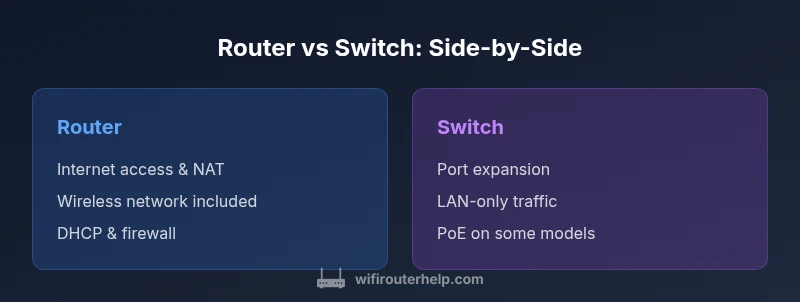
Router vs switch: the router is your gateway to the internet, handling NAT, firewall, and wireless features; a switch simply expands wired port counts on the same network. For most homes, start with a capable router, and add a switch later if you need more Ethernet ports. Use the two-device approach for scalability and reliability.
Router vs Switch: Core Roles in a Home Network
In most households, the router is the central hub that provides internet access, NAT, firewall, and often Wi‑Fi. A switch, by contrast, simply connects more wired devices to the same local network. The distinction matters because it affects how you plan your network, scale Ethernet ports, and secure traffic. According to WiFi Router Help, most home networks rely on a single capable router to deliver core services, while a separate switch can be added later to expand port counts. The WiFi Router Help team found that this two-device approach offers both simplicity and scalability, which is why we frame router vs switch as a complementary pairing rather than a single device solution. Understanding the two roles upfront saves time and money when you design a home network. In practice, you rarely need both devices to handle everyday tasks, but advanced setups—gaming rigs, smart homes, or media centers—gain value from a dedicated switch to avoid bottlenecks on the router’s LAN. Throughout this article you will learn how to decide which device to buy first, how to configure them, and where to add a switch later without disrupting existing connections.
Layered Perspective: OSI Models and Practical Implications
The router and switch operate at different layers of the OSI model, which shapes how they handle traffic. A typical home router is a Layer 3 device that performs IP routing, NAT, DHCP, and often wireless management. A switch is primarily a Layer 2 device, moving Ethernet frames between devices using MAC addresses. In practical terms, this means a router decides where traffic goes beyond your local network, while a switch focuses on fast, local connectivity. For most users, this separation is a design choice with clear outcomes: routing benefits from a robust WAN interface and security features; switching benefits from high port density and predictable Ethernet performance. WiFi Router Help analysis shows that many homes rely on a single router with 4–8 LAN ports, and a separate switch only when more wired devices are needed. Recognizing this helps avoid overbuying a feature-rich router when you could start with a budget-friendly switch and upgrade later.
Core Functions of a Router
A router’s primary job is to connect your local network to external networks and manage traffic between them. Key functions include NAT (to translate private IPs to a public address), DHCP (to assign IPs to devices), firewall rules (to block unwanted traffic), and often Wi‑Fi access. Some routers also integrate VPN support, guest networks, and parental controls. When you buy a router, you’re choosing the gateway, security posture, and the day-to-day management experience for your home network. The emphasis is on intelligent routing decisions, protection against external threats, and convenient features like easy firmware updates. For most homeowners, the router is the single device that handles the internet-facing edge and the core network services, making it the backbone of a reliable home setup.
Core Functions of a Switch
Switches excel at expanding your wired network without adding routing complexity. They connect multiple devices within the same network segment and forward frames based on MAC addresses. Unmanaged switches are plug-and-play, offering simple port expansion with no configuration. Managed switches provide VLANs, QoS, and more granular control—handy in homes with many devices, Smart Home hubs, or dedicated workstations. Some switches provide PoE (Power over Ethernet), which powers IP cameras and other devices directly through the Ethernet cable. The downside is that switches do not perform internet routing or firewall duties; they rely on a router to handle inter-network traffic. A switch, therefore, is best viewed as a scalable port multiplier for the local network rather than a gateway to the internet.
How They Interact: What Happens When You Combine Both
In a typical home network, the router provides WAN access, NAT, and Wi‑Fi, while the switch sits behind the router to multiply available Ethernet ports. You can connect printers, desktop PCs, gaming consoles, NAS devices, and smart hubs without crowding the router’s LAN. In more advanced setups, you might segment traffic with VLANs on a managed switch to improve performance or security. You’ll often see a scenario where the router’s LAN port connects to the switch’s uplink port, and the switch expands to more devices. It’s important to ensure the router’s DHCP scope doesn’t conflict with the switch’s VLAN assignments if you enable advanced features. This modular approach aligns with home growth, letting you upgrade either device without reworking the entire network.
Common Home Scenarios and Recommendations
- Small apartment with limited devices: a modern router alone usually suffices, delivering stable Wi‑Fi and essential security. If you need more ports for occasional wired devices, a compact switch is acceptable.
- Family home with many wired devices: start with a capable router, then add a switch to accommodate desks, consoles, and smart hubs. If you anticipate many wired devices or VLAN needs, choose a managed switch to control traffic more precisely.
- Home office or media center: a robust router with QoS, VPN, and robust guest networks is essential; pair with a managed switch for high-performance workstations and storage devices. For IP cameras or PoE devices, consider PoE-capable switches to simplify cabling.
- Gaming or streaming: prioritize low-latency routing features and a switch that provides stable high-throughput connections to gaming consoles or PCs. A solid router is the core, and a switch ensures there are no bottlenecks on the local network.
Security, Privacy, and Management Considerations
Security is often a deciding factor in router selection. A router’s firewall rules, automatic updates, and ability to create guest networks help isolate devices and reduce risk. Switches rarely include firewall features, unless you’re using a managed switch with VLAN separation and ACLs. Management interfaces, remote access controls, and parental controls are typically richer on modern routers. If privacy is a priority, review how a router handles logging, telemetry, and firmware updates. WiFi Router Help notes that consistent firmware updates from reputable manufacturers significantly reduce vulnerability windows. When you’re wiring a large home network, a managed switch allows you to segment devices for privacy, while still benefiting from the router’s protective perimeter. As you scale, keep firmware current on both devices and disable features you don’t use, such as UPnP, to reduce potential attack surfaces. The WiFi Router Help team emphasizes a layered approach to security: maintain a strong router security posture, implement VLANs on a capable switch when needed, and regularly audit device access controls.
Setup Scenarios and Troubleshooting
Starting from a clean slate, plan your network topology before buying. Decide whether you need a router with Wi‑Fi coverage and enough LAN ports, or if you’ll rely on a separate wireless access point and a switch. When you encounter issues, isolate by device: test connectivity with a direct router connection, then add the switch to see if the problem persists. Common issues include IP conflicts, misconfigured DHCP scopes, and switched-off VLANs on a managed switch. A practical troubleshooting workflow is to verify physical cabling, confirm the router is issuing IPs, and check the switch’s port status. Firmware updates for both devices are essential, as outdated firmware can cause instability or security vulnerabilities. For more complex VLAN configurations, consult the switch’s manual and ensure the router supports the required VLAN tagging. The goal is a stable, secure network that scales with your devices, not a fragile setup that collapses under growth.
How to Decide: A Decision Framework for Your Home Network
Start by listing your needs: internet access, Wi‑Fi coverage, the number of wired devices, and your comfort with network management. If you have a small apartment with a single occupant, a modern router is often enough. For homes with multiple desktops, gaming rigs, storage servers, or IP cameras, a second device—a switch—extends capacity without burdening the router. If security and segmentation matter (for example, a smart home with separate IoT devices), a managed switch with VLANs provides more control. Over time, you can upgrade either device based on performance or feature requirements. The guiding principle is to separate concerns: router for internet access and security, switch for local bandwidth and device organization. This approach minimizes cost and complexity while maximizing future-proofing.
Practical Config Guides and Quick Setups
A practical two-step approach: first, select a router with robust security features, strong Wi‑Fi, and ample LAN ports. Second, choose a switch with an appropriate port count and, if needed, PoE support for cameras or phones. Basic steps include: 1) Update firmware on both devices; 2) Set a strong admin password and disable default credentials; 3) Configure a guest network and enable WPA3 if supported; 4) Create a basic LAN without conflicting DHCP ranges; 5) If you add a managed switch, configure VLANs for IoT vs. admin devices; 6) Label cables and document your topology. With this setup, you’ll have a clean, scalable home network that grows with your needs.
Authority Sources and Further Reading
For foundational concepts and best practices, consult expert sources that cover router basics, switching principles, and home network design. Useful references include FCC guidance on home networks, IEEE standards for Ethernet and routing, and major networking publications that offer practical setup tips.
Authority Sources and Further Reading
This section provides external references to deepen understanding and validate best practices. These sources are commonly cited in technical materials and are suitable for homeowners seeking authoritative context:
- https://www.fcc.gov
- https://www.ieee.org
- https://www.networkworld.com
Comparison
| Feature | Router | Switch |
|---|---|---|
| Primary function | Provides internet access, NAT, firewall, DHCP, and often Wi‑Fi | Expands wired port count and local network connectivity; no internet gateway |
| Layer of operation | Layer 3 (IP routing, NAT) and above | Layer 2 (MAC addressing, frame switching) |
| WAN port availability | 1+ WAN port; built-in router for internet access | No dedicated WAN port; relies on router for external connectivity |
| Port types | Multiple LAN ports; often integrated Wi‑Fi | Multiple Ethernet ports; some models support PoE |
| Security features | NAT firewall, parental controls, VPN support (varies by model) | Limited security features unless paired with a managed switch or security appliance |
| Best for | Internet access, security perimeter, wireless coverage | Expanding wired connectivity and organization on a single network |
| PoE support | Rare on consumer routers; more common on enterprise models | Common on managed PoE switches for cameras/devices |
| Price context | $50–$400 (typical consumer models) | $20–$300 (unmanaged); higher for managed/PoE devices |
| Ideal use case | White-box gateway with Wi‑Fi for home access | Supplementary port expansion and local network control |
Benefits
- Routers consolidate internet access with security and wireless features
- Switches provide scalable, cost-effective port expansion
- Routers often include QoS and guest networks for simple management
- Managed switches enable VLANs for isolation and traffic control
The Bad
- Routers with many features can be price-sensitive and complex
- Unmanaged switches lack VLANs and advanced management
- Relying on a single device can create a single point of failure
- Some home setups require professional configuration for advanced VLANs
Routers are the core gateway; switches are the scalable expansion.
For most homes, start with a capable router to handle internet access and security. Add a switch when you need more wired ports or VLAN-based isolation, keeping a modular, scalable approach in mind.
People Also Ask
What is the main difference between a router and a switch?
The router is the gateway to the internet, providing NAT, firewall, DHCP, and often Wi‑Fi. The switch is a local network connector that expands the number of wired devices and handles internal traffic. Both play distinct roles, and many homes benefit from using both.
A router connects you to the internet and protects your network. A switch simply adds more Ethernet ports inside your network.
Can I replace a router with a switch?
No. A switch cannot connect your entire home to the internet by itself. It lacks the routing, NAT, and wireless capabilities a router provides. You can, however, pair a router with a switch to expand wired ports.
A switch doesn’t connect you to the internet by itself; you’ll still need a router for external access and security.
Do I need a switch if I already have a router with many ports?
If you’re reaching the limit of wired devices, a switch is a practical way to add ports without upgrading the router. For most homes, a router with sufficient ports and Wi‑Fi coverage is enough until you exceed its capacity.
If you’re running out of Ethernet ports, a switch helps you add more devices without replacing your current router.
Is a PoE switch necessary for IP cameras?
PoE switches simplify wiring for IP cameras and select IP devices by delivering power over Ethernet. If your cameras are PoE-capable, a PoE switch can reduce clutter; if not, a separate power source is needed.
Yes, PoE switches are handy for cameras, but check your devices' requirements before buying.
What is unmanaged vs managed switch?
An unmanaged switch is plug-and-play with no configuration, ideal for simple port expansion. A managed switch offers VLANs, QoS, and advanced controls, suitable for more complex networks or dedicated IT setups.
Unmanaged is simple; managed gives you control and segmentation when you need it.
How do I know if I need both devices?
Assess your device count and bandwidth needs. If you’re expanding wired devices or creating isolation between networks, a switch makes sense. If you’re satisfied with current traffic and ports, a router alone may suffice.
If you need more wired ports or network separation, consider adding a switch; otherwise, the router may be enough.
What to Remember
- Define whether you need routing or port expansion first
- Prioritize a strong router with security features
- Add a switch to scale wired devices as needed
- Consider PoE on switches for cameras or IP phones
- Keep firmware updated and leverage VLANs only if you need isolation