Router and Switch: A Clear Side-by-Side Guide for Home
A practical side-by-side comparison of routers and switches for home networks. Learn how each device functions, when to use them together, and setup best practices to optimize performance and security.


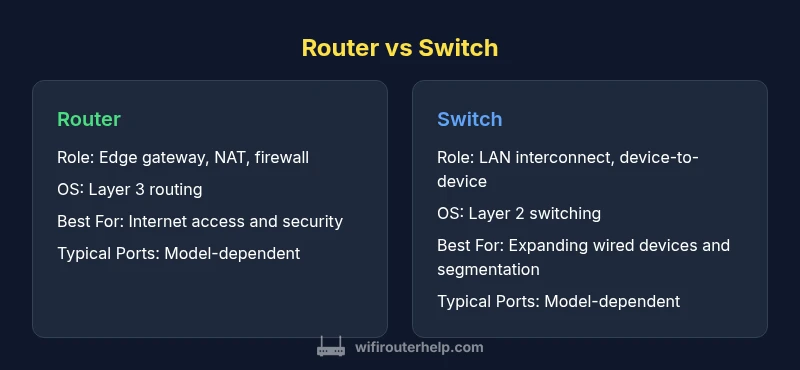
In home networks, a router provides WAN access and IP routing, while a switch expands the number of wired devices inside the LAN. The router handles NAT, DHCP, and firewall duties, whereas a switch simply forwards frames between devices. WiFi Router Help recommends using both for scalable, reliable networks: a capable edge router plus switches to grow wired ports and segmentation. This quick comparison sets expectations for performance and future upgrades.
Why Router and Switch Matter in Home Networks
According to WiFi Router Help, understanding router and switch roles is foundational to a reliable home network. A router connects your local network to the internet, assigns IP addresses, and enforces basic security through NAT and firewall rules. A switch, by contrast, sits inside the LAN to connect multiple devices, expanding wired ports and enabling fast, local data transfer. When you view router and switch as complementary components, you can design a network that is both simple to manage and scalable. The distinction matters because it determines where you invest time and money, how you troubleshoot issues, and how you plan for future growth. In practice, most households benefit from a two-layer approach: a capable edge device that handles WAN access and wireless coverage, plus one or more switches that extend wired reach to desktop PCs, gaming consoles, and network-attached storage. By separating duties, you keep the important security functions at the edge while avoiding bottlenecks inside the LAN. This article uses practical, step-by-step guidance to help homeowners and tech enthusiasts distinguish between these devices, evaluate when to deploy each, and plan for a network that remains fast, stable, and secure even as you add devices over time. The guidance reflects general best practices rather than any single brand, and it emphasizes choices you can implement with consumer gear.
Core Differences at a Glance
- Function: Router handles paths between networks; switch handles local device connections within a LAN.
- Placement: Router at the network edge, switch inside the LAN.
- Security: Router often provides NAT, firewall, and VPN passthrough; switches typically lack built‑in security features unless managed.
- Management: Routers offer edge‑oriented management (cloud/app-based); switches offer basic (unmanaged) or granular control (managed).
- Scalability: Adding a switch is a straightforward way to grow wired ports; upgrading a router addresses WAN performance and Wi‑Fi coverage.
- Typical costs: Routers tend to be higher upfront; switches vary widely by port count and features.
Understanding these differences helps you design a network that is easy to manage now and adaptable later.
Core Functions: Router vs Switch
At the core, a router is a gateway device. It takes traffic from your local network, decides where it should go, and uses network address translation (NAT) to share a single public IP among all devices. It also often provides basic firewall protection and DHCP to assign local IPs. A switch, in contrast, is a data‑link layer device that simply forwards frames to the correct port based on MAC addresses. In essence, a router moves traffic between networks, while a switch moves traffic within a single network. Many consumer routers include an integrated LAN switch, which blurs the line in practical setups, but the underlying principles remain: routing is about inter-network communication; switching is about intra-network communication.
For home networks, the practical takeaway is: start with a capable edge router to manage WAN access and Wi‑Fi, then add switches if you need more wired devices or tighter network segmentation. If you’re planning to apply quality of service (QoS), VLANs, or guest networks, you’ll likely rely on a router with multi‑LAN features and a managed switch to segment traffic effectively.
Use-Case Scenarios: When to Use a Router Alone, When to Add a Switch
Several common home scenarios illustrate how router and switch roles come into play. A small apartment with a single Wi‑Fi router may not require an external switch if the router provides enough Ethernet ports for a modem, a desktop, and a smart TV. In a larger home with multiple desks, gaming consoles, NAS devices, and a home office, you’ll quickly hit the port limit and benefit from adding a switch. A switch is also essential when you want to create a wired backbone for streaming devices or to reduce wireless congestion by moving traffic off the airwaves.
If you rely on VLAN‑aware networking for guest access or trusted devices, a managed switch paired with a router that supports VLANs becomes valuable. In mixed environments, you might place the router at the edge for WAN access and security, and deploy switches to segregate networks and optimize performance between rooms or zones. The key is to map devices to logical groups and ensure your hardware can support the desired segmentation and throughput.
Size, Ports, and Management Considerations
Port density and management features vary widely across models. A compact consumer router might offer 4–8 LAN ports and basic QoS, while a small business router could provide dozens of ports, advanced firewall rules, and VPN support. Switches range from tiny unmanaged units with 4–8 ports to enterprise‑class devices with 24–48 ports and extensive management capabilities. When sizing hardware, consider how many wired devices you plan to attach in the next 2–5 years, whether you need PoE for cameras or access points, and whether you want VLANs or traffic monitoring. If you don’t need advanced segmentation now, a simple unmanaged switch is inexpensive and easy; if you foresee growth and security needs, a managed switch offers more control and visibility.
Security and Network Segmentation
Security considerations start at the edge. A robust router should provide NAT, a firewall, and the ability to apply security policies to all devices on the network. VLANs and traffic segmentation become practical when you pair a router with a managed switch. Segmentation confines broadcast domains, improves privacy for guest networks, and can reduce the spread of malware between devices. For households with smart devices, workstations, and guest devices, lightweight VLANs and separate SSIDs can dramatically improve performance and security. Always keep firmware up to date for both routers and switches, enable automatic updates where available, and change default passwords to strong, unique ones.
Setup Guide: Step-by-Step for a Small Home Network
- Inventory devices: list all wired devices and estimate Wi‑Fi coverage areas.
- Choose a gateway router with enough WAN features and built‑in Wi‑Fi for your space.
- Decide whether you need a switch for extra ports and whether you require VLANs or PoE.
- Plan cabling: run Ethernet cables to central locations to minimize cable clutter and maximize performance.
- Configure the router: set up DHCP, NAT, firewall rules, and SSID naming; create a guest network if needed.
- Add the switch: connect it to a LAN port on the router; configure VLANs on a managed switch if applicable.
- Test thoroughly: measure speed, latency, and Wi‑Fi coverage in key rooms; adjust QoS settings if needed.
Troubleshooting Common Issues
Slow speeds or dropped connections usually originate at the edge device or due to interference. Start by verifying physical connections: ensure cables are intact and ports are enabled. Check the router’s firmware and ensure the latest updates are installed. If devices cannot obtain an IP address, review DHCP settings and ensure there is no IP conflict. For LAN issues, confirm the switch is properly connected to the router and that VLANs (if used) are correctly configured. When in doubt, reset devices to factory settings and reconfigure step by step, avoiding mixed firmware across devices.
Planning for Future Upgrades and Best Practices
Adopt a modular approach: design the network so that you can upgrade the edge router or add switches without rewiring entire layouts. Prioritize devices with clear upgrade paths (multiple LAN ports, integrated QoS, VLAN support) and keep security features current. Regularly review device placement to optimize coverage and reduce interference. Finally, keep a documented network map that shows where each device sits, how it connects, and what services (Wi‑Fi, VPN, guest networks) are in use.
Comparison
| Feature | Router | Switch |
|---|---|---|
| Function | Routes traffic between networks and to the internet (Layer 3) | Connects devices within a LAN (Layer 2) |
| Typical Use Case | Edge gateway for internet access and security | LAN expansion and inter-device communication |
| Port Density | Model-dependent; common consumer routers offer multiple LAN ports | Model-dependent; ranges from small 4‑port to large 24‑port or more switches |
| Security Features | NAT, firewall, VPN passthrough typically built-in | Usually minimal unless managed; security comes from router/management features |
| Management Interface | GUI/APP; often cloud-managed on modern routers | Web GUI or CLI; unmanaged switches lack config options |
| Performance Considerations | Routing throughput depends on processor, WAN interface, and features | Switching capacity depends on backplane and port speeds; high for enterprise models |
| Best For | Providing internet access with basic security and QoS | Expanding wired devices and enabling segmentation (VLANs) |
Benefits
- Clear division of roles improves network performance and security
- Easier to scale by upgrading router or adding switches
- Flexible deployment for mixed wireless and wired environments
- Can enable network segmentation with VLANs on managed devices
The Bad
- Increases equipment and potential points of failure
- Higher upfront cost if both devices are needed
- Configuration complexity grows with managed hardware
Router and switch work best as a complementary pair for most home networks.
For most homes, start with a capable edge router to handle WAN access, NAT, and Wi‑Fi; add a switch to increase wired port count and enable segmentation where needed. In very small or simple setups, a single combined device may suffice but offers less flexibility and future growth.
People Also Ask
What is the fundamental difference between a router and a switch?
A router connects your local network to other networks and the internet, performing IP routing, NAT, and security. A switch connects devices within a single local network, forwarding frames based on MAC addresses.
A router links your network to the internet, while a switch connects devices inside your network.
Do I need a switch if I already have a router?
If you have more wired devices than your router’s built-in ports, a switch increases the number of available connections. For many homes, a router with enough ports and good Wi‑Fi can reduce the need for an external switch.
If you’re running out of wired ports, a switch can help. If not, you may be fine with what you have.
What is the difference between a managed and unmanaged switch?
Unmanaged switches are plug-and-play with no configuration, suitable for simple setups. Managed switches offer VLANs, QoS, and monitoring, which helps when you need traffic control or segmentation.
Unmanaged switches are simple; managed ones give you control over traffic and networks.
Can a router perform switching functions?
Many consumer routers include a built‑in LAN switch, but performance and VLAN options are limited compared to dedicated switches. A separate switch improves scalability for larger home networks.
Some routers have a built‑in switch, but dedicated switches are more capable for bigger setups.
What should I consider when choosing router vs switch for a home network?
Consider your internet plan, the number of wired devices, and whether you need VLANs or QoS. If you need more ports or segmentation, add a switch; if edge security and coverage matter, invest in a capable router.
Think about how many devices you’ll connect and how you’ll manage traffic.
Do I need VLANs for a home network?
VLANs help separate traffic, beneficial for multiple devices and guests. They require a managed switch and a router or firewall that supports VLANs.
VLANs help separate traffic. You’ll need a managed switch and VLAN-capable router.
What to Remember
- Define roles: router for WAN access and security; switch for LAN expansion
- Assess port density and management needs before buying
- Plan for future growth with a scalable, modular network
- Prioritize edge security and firmware updates for all devices
- VLANs offer segmentation but require managed hardware and proper setup