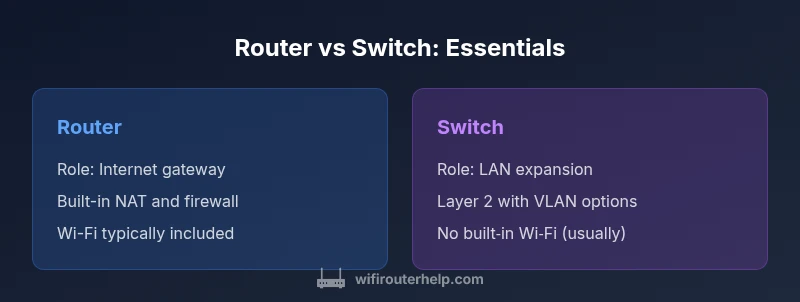
When to Use Router or Switch: A Practical Home Guide
A practical, in-depth comparison of routers vs. switches to help you decide when to use router or switch in a home network. Learn core differences, use cases, and setup tips in a clear guide by WiFi Router Help.


For most home networks, you should start with a router as the gateway to the internet and use a switch only to extend wired ports. A router handles NAT, firewall, and DHCP, while a switch expands LAN reach without introducing routing between networks. The choice depends on where you need segmentation and Wi‑Fi coverage, balancing simplicity with future growth. When to use router or switch becomes clearer as you map devices, plan expansions, and consider security needs.
Why the Router-vs-Switch Question Matters
Understanding whether to deploy a router, a switch, or both is a fundamental design choice in any home or small-office network. The question when to use router or switch appears frequently in forums and guides because the two devices handle different aspects of network traffic. According to WiFi Router Help, most households benefit from a dedicated router as the primary gateway to the internet, with a switch used to extend wired reach inside the LAN. This distinction matters because misplacing functionality can complicate addressing, security, and performance. In practice, your goal is to minimize the number of hops between devices, reduce latency for critical applications, and keep administration straightforward. In the following sections, we’ll unpack the roles, limitations, and practical decision-making criteria that help you choose the right device for each part of your network. We’ll also show how hybrid setups can simplify management without sacrificing control. Today’s networks are dynamic; planning ahead saves time and frustration during future upgrades.
Core Roles: What Each Device Does in a LAN
A router serves as the gateway between your local area network (LAN) and the internet. It performs network address translation (NAT), firewall protection, and often DHCP to assign IP addresses to devices. A router may also provide wireless connectivity, USB ports for storage, and basic cloud management. A switch, by contrast, focuses on interconnecting devices within the LAN. It forwards frames using MAC addresses and can extend port counts without creating new subnets. In larger homes or offices, you’ll often find managed switches that support VLANs, QoS, and more granular control. The key is to recognize that the router creates the network boundary, while the switch expands the internal network.
Key Differences at a Glance: Router vs Switch
- Primary role: Router = gateway between networks; Switch = expands the LAN.
- Network layer: Router typically operates at Layer 3 or higher with NAT; Switch operates mainly at Layer 2, with some VLAN support on managed models.
- NAT/DHCP: Routers usually include NAT and DHCP; switches rarely include NAT and DHCP features.
- Ports: Routers combine WAN and LAN ports with Wi‑Fi in many cases; switches provide multiple LAN ports and can be PoE on some models.
- Wi‑Fi: Routers often include built‑in wireless; switches do not and require separate access points for wireless coverage.
- Management: Routers offer gateway configuration and remote management; switches offer web/CLI management primarily on managed models.
- Best use: Small networks needing a single internet gateway; larger LANs needing port expansion and segmentation.
Use-Case Scenarios: Small Homes
For a typical apartment or small house with a single internet connection, a router with built‑in Wi‑Fi is usually sufficient. It provides a clean, single‑gateway topology, basic firewall protection, and DHCP for hosts. You can add a basic switch if you need more wired ports for desktop PCs, game consoles, or a NAS. The WiFi coverage is governed by the router’s wireless radio and the placement of the device. In this scenario, avoid layering too many devices, as complexity raises configuration overhead and potential points of failure. Always document your network layout so future changes remain manageable. The goal is to maintain a straightforward topology that minimizes bottlenecks and keeps security guards in place.
Use-Case Scenarios: Wired LANs for Small Businesses
Small offices or workspaces frequently require more robust wired connectivity and segmentation. Here the router still acts as the internet gateway, but a managed switch can provide a scalable, predictable wired network. VLANs help separate guest traffic from internal resources, and QoS ensures critical applications receive priority. A dedicated router with firewall rules can isolate WAN traffic, while the switch handles internal distribution. If you anticipate growth to more devices or stricter security requirements, invest in a managed switch with SIEM-friendly logging and remote management. The blended architecture offers both simplicity for end users and precise control for IT staff.
Port Counts and Growth Paths
Port density matters when your LAN grows. Entry-level routers typically provide 4–8 LAN ports plus a WAN uplink and sometimes a USB or Ethernet WAN feature. Switches come in larger port counts, from 8 up to 48+ ports in many business models. For future growth, consider switches that support PoE to power IP phones or cameras, as this reduces clutter from extra adapters. When planning, sketch a simple topology: count devices, designate areas (office, living room, gaming zone), and project 2–3 years of expansion. This helps decide whether you should start with a router that can handle additional features or a switch that is easy to scale.
Wireless Considerations: Do You Need Wi‑Fi Built In?
Wireless coverage is a major decision point. If you need robust Wi‑Fi across multiple rooms, a router with strong radios is often the simplest path. Alternatively, you can place a separate access point (AP) in a strategic location to extend coverage, while using a dedicated switch for wired devices. Some networks adopt a mesh system for seamless roaming; however, mesh adds complexity and cost. If you prefer a traditional setup, pair a good router with a high‑performance unmanaged or managed switch and add APs as needed. The key is to balance coverage, throughput, and ease of maintenance.
Security, Management, and Network Policies
Security starts at the gateway. A router provides NAT, basic firewall, and often parental controls. A managed switch offers VLANs and ACLs to enforce network segmentation, which can help isolate guests, IoT devices, and sensitive workstations. Centralized management tools (either cloud-based or on‑prem) simplify monitoring and configuration, but they require careful planning to avoid misconfigurations. Always update firmware on both devices, enable secure management interfaces, and limit remote administration to trusted IP addresses. If you pursue a hybrid approach, document VLAN IDs, IP ranges, and access rules so everyone stays on the same page.
Budget, Complexity, and Long‑Term Costs
Cost considerations drive many decisions. A router with built‑in Wi‑Fi is typically less expensive than a multi‑port managed switch paired with separate APs. Yet, as LAN size grows, a managed switch with VLANs often becomes a more cost‑effective and scalable solution than repeatedly upgrading a router with increasingly complex firmware. Expect ongoing costs for firmware updates, potential cloud management subscriptions, and the need for professional support if you venture into advanced configurations. Weigh the total cost of ownership against the benefits of centralized control and future flexibility.
Planning a Hybrid Setup: When to Combine Router and Switch
A blended setup is common: a single gateway router handles NAT, firewall, and Wi‑Fi, while one or more switches expand wired capacity. Start with a plan: map device groups (workstations, IoT, guests), assign VLANs or security zones, and decide which devices need dedicated ports, power over Ethernet, or higher throughput. A well‑configured hybrid topology minimizes bottlenecks and simplifies management by keeping routing at the gateway and translation of addresses within the LAN to a minimum. As you add devices, monitor traffic patterns and adjust QoS and VLAN rules accordingly.
Quick Start Checklist: What to Buy and How to Wire It
- Define your network goals (Wi‑Fi performance, wired expansion, security segmentation).
- Choose a router with adequate Wi‑Fi coverage and a spare LAN port for future expansion.
- Pick a switch with enough ports and, if needed, PoE for IP cameras or phones.
- Decide whether you need VLANs and whether you want managed or unmanaged switches.
- Plan the placement of the router for optimal coverage and connect the switch to a stable LAN port.
- Enable security features: firewall rules, UPnP control, and secure remote management.
- Document device names, IP ranges, VLAN IDs, and access policies for maintenance.
- Schedule firmware updates and monitor performance after setup.
Common Pitfalls and Misconceptions
A common misstep is buying legacy equipment without considering future growth. Another is treatingWi‑Fi and wired performance as independent, ignoring how a single gateway can bottleneck traffic if improperly configured. Overloading a router with too many features can create instability; instead, allocate tasks to the device best suited for them. Finally, neglecting proper documentation leads to confusion during future changes. A deliberate, scalable plan avoids these issues and yields a network that remains reliable as needs evolve.
Comparison
| Feature | Router | Switch |
|---|---|---|
| Primary role | Gateway between networks (WAN-LAN) | LAN expansion and interconnectivity |
| Network layer support | Layer 3+ with NAT/firewall; may include DHCP | Layer 2; VLAN options on managed models |
| NAT/DHCP | Typically NAT + DHCP built-in | DHCP possible; NAT not standard on basic switches |
| Ports and expansion | 4-8 LAN + WAN; often includes Wi‑Fi | 8-48 LAN ports; uplinks; PoE on select models |
| Wi‑Fi integration | Usually built-in Wi‑Fi | No built‑in Wi‑Fi on pure switches; APs needed |
| QoS and traffic shaping | Common basic QoS; user-friendly controls | Advanced QoS on managed switches; more granular control |
| Management interface | Unified gateway management; cloud/local options | Managed/unmanaged options; CLI/GUI in managed models |
| Best use case | Home networks with internet and Wi‑Fi | Larger LANs needing segmentation and scalability |
Benefits
- Routers simplify setup for home networks with NAT and firewall
- Built-in Wi-Fi in many models reduces clutter
- Managed switches provide scalable LAN segmentation for advanced users
- QoS features on routers help prioritize traffic
- Unified device management and remote access options
The Bad
- Switches require more separate devices (APs) for wireless coverage
- Routers with many features can be more expensive
- High-end switches add cost and complexity
- Switches lack NAT/firewall by default (depends on model)
Routers are generally the right starting point for most homes; switches shine for expanding wired LANs and supporting advanced segmentation.
If you value simplicity and all-in-one convenience, start with a capable router. If you need more ports, VLANs, and precise traffic control, add a managed switch and plan for scalable LAN growth.
People Also Ask
What is the main difference between a router and a switch?
A router connects different networks (such as your LAN to the internet) and performs NAT and firewalling. A switch connects devices within the same LAN, expanding wired ports and enabling inter-device communication. In many homes, the router provides Wi‑Fi, while a separate switch expands wired capacity when needed.
A router is the gateway between your home and the internet, handling NAT and security. A switch simply extends the number of wired ports inside your LAN.
Do I need a router if I already have a switch?
Yes, if you need internet access and network address translation. A switch cannot connect your entire home to the internet by itself; it requires a gateway device. A typical setup uses a router for internet access and a switch to add more wired ports.
A switch alone won’t give you internet access; you still need a router to connect to the internet and manage addresses.
Can a router function as a switch?
Routers can forward traffic between devices on the same network, but their primary role is to act as a gateway to the internet. A dedicated switch (especially a managed one) provides more scalable, reliable LAN interconnectivity and VLAN support for larger setups.
A router can pass traffic inside your LAN, but switches are better if you need lots of wired ports or VLANs.
What is a managed switch vs an unmanaged switch?
An unmanaged switch is plug-and-play with minimal configuration, suitable for simple expansions. A managed switch offers features like VLANs, QoS, ACLs, and better traffic control, which is important for larger networks or businesses. Choose based on required control and scale.
Managed switches give you more control and features; unmanaged ones are easier but less flexible.
When should I consider a mesh system instead of a router or switch?
A mesh system is best when you need seamless Wi‑Fi coverage across a large home or several floors. It often replaces a single router with multiple access points managed as a single network. For smaller spaces or wired-heavy layouts, a router plus switch may be simpler and cheaper.
Mesh is great for wide, uniform Wi‑Fi; for wired-heavy networks, stick with router plus switch plus APs.
What factors determine whether to buy a router or a switch?
Assess your WAN needs, Wi‑Fi coverage, the number of wired devices, need for VLANs, and future growth. If you need internet access plus basic security in a small space, a router suffices. If you need many wired ports and segmentation, add a managed switch.
Think about coverage, security, number of devices, and future growth to choose wisely.
What to Remember
- Start with a router as the gateway for most homes
- Add a switch only when you need more wired ports
- Consider VLANs and QoS for larger or more complex networks
- Wi‑Fi coverage should drive the choice of gateway or AP placement
- Document topology and keep firmware up to date