Portable WiFi Router: A Step-by-Step Guide
Learn how to choose, set up, and secure a portable wifi router for reliable on-the-go internet. This educational guide covers features, setup steps, tips, and troubleshooting for homeowners and tech enthusiasts.


By the end of this guide you will confidently choose, set up, and secure a portable wifi router for reliable on-the-go internet. You’ll compare key features, install the device, configure security, and test performance across distances and devices. Along the way, you’ll follow practical, step-by-step instructions tailored for homeowners and tech enthusiasts.
What is a portable wifi router and who should use it?
A portable wifi router is a compact, battery-powered device that creates a private wireless network by sharing a cellular data connection or another internet source. It is designed for mobility, so you can have Wi-Fi in places without fixed broadband, such as a car, campsite, hotel room, or a tiny apartment. This tool is ideal for homeowners, remote workers, students, travelers, and anyone who wants reliable internet on the go. When you think portable, consider battery life, the size of the device, and the number of devices you plan to connect. High-quality models can support multiple devices simultaneously and maintain stable speeds in everyday tasks like video calls and browsing.
How portable routers differ from mobile hotspots
While both provide wireless access from cellular networks, a portable wifi router is a dedicated device with its own battery and often features more advanced management settings compared to a simple hotspot. A portable router usually offers more Ethernet ports, better security options, longer battery life, and the ability to host a guest network. A mobile hotspot is convenient but can burn through data quickly and may have limited customization. In short, if you want long-term reliability and flexibility for home and travel, a dedicated portable router is the better choice.
Key features to compare before you buy
- Cellular compatibility: 4G/5G support and SIM card compatibility. Some devices include
How to set up your portable wifi router
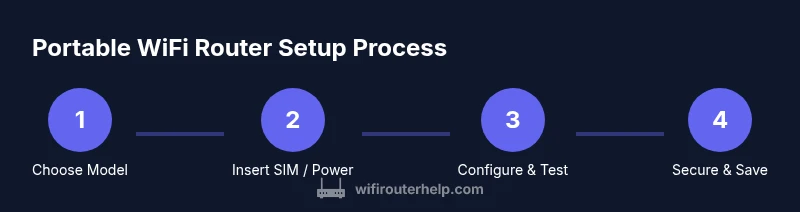
The setup process is straightforward, but following a structured workflow helps prevent misconfigurations. Start by charging the device fully and inserting the SIM (if using cellular). Then power on, connect a computer or phone to the router’s default network, and log in to the admin panel using the default credentials found in the manual. From here, configure the internet connection (APN if cellular), set a strong admin password, choose a unique Wi‑Fi name (SSID), and enable WPA3 if available. Finally, create a guest network and save your settings.
Optimizing performance: placement, interference, and power management
For best performance, place the router in a central location away from metal objects and large appliances. Avoid enclosed spaces like cabinets, which can block signals. If you’re in a car, position the device where it can get stable power and a clear signal, such as near a window. To maximize battery life, disable features you don’t need, reduce beacon intervals, and use a power-saving mode if offered. If you expect heavy use, keep a power bank charged and ready.
Security and privacy basics for portable routers
Bind devices to a strong, unique admin password and enable WPA3 on the Wi‑Fi network. Change the default SSID to something personal but not revealing your identity. Turn off WPS and enable a guest network with restricted access. Keep firmware up to date, and consider enabling a VPN for sensitive tasks. Regularly review connected devices and remove unfamiliar clients.
Real-world use cases and best practices
Idly, a portable wifi router is ideal for a family road trip, a remote worker in a café, or a temporary home office during a move. For travelers, preload maps and offline documents and plan data usage. In a small apartment, combine your portable router with a secondary power source to ensure always-on connectivity. For students, use the guest network to protect personal devices. The key is to tailor settings to your typical environment.
Maintenance and ongoing care
Keep firmware up to date by checking for updates once every month or after a major OS release on your devices. Clean the vents, inspect the battery health, and test the device’s performance regularly. If you notice reduced range, re-position the router or replace it if the battery no longer holds a charge.
Tools & Materials
- Portable wifi router(Choose a model with 4G/5G support if you need cellular connectivity.)
- SIM card with data plan (for cellular models)(Ensure the data plan has adequate coverage for your typical use.)
- USB-C charger or power adapter(Use the original charger or a compatible fast charger.)
- Power bank or car charger (optional)(Useful for on-the-go power.)
- Laptop or smartphone for initial login to admin panel(You’ll configure settings via web UI or app.)
- Ethernet cable (optional)(For initial wired setup or troubleshooting.)
- PIN SIM ejector tool (if needed)(Only if you need to unlock or swap SIM.)
Steps
Estimated time: 60-90 minutes
- 1
Verify prerequisites and choose a model
Identify your primary use case and choose a portable router that supports your needed cellular bands, Wi-Fi standard, and battery life. Check reviews for real-world performance and reliability.
Tip: Match your data needs (video calls, downloads) to the plan and device aging to avoid overpaying. - 2
Charge and insert SIM (if applicable)
Fully charge the device before first use. If using cellular, insert a compatible SIM according to the manual and ensure activation on your data plan.
Tip: If the device won’t recognize the SIM, reseat it and reboot before checking APN settings. - 3
Power on and connect to admin panel
Power up and connect a laptop/phone to the router’s default network. Open the admin URL provided in the manual and log in with the default credentials.
Tip: Change the admin password immediately after first login to prevent unauthorized access. - 4
Configure WAN/Internet settings
Set up the internet connection type (cellular APN or wired if applicable). Ensure you select the correct network bands and enable automatic dialing if supported.
Tip: Save and test connection on a different device to confirm settings propagate. - 5
Set up Wi‑Fi network and security
Create a unique SSID, choose a strong password, and enable WPA3 if available. Consider hiding the SSID only if you have a controlled environment.
Tip: Avoid using personal identifiers in the SSID to protect privacy. - 6
Enable guest network and access controls
Create a guest network with separate credentials and restricted access to local resources. Enable firewall and restrict external admin access if possible.
Tip: Guest networks help isolate devices and reduce risk if a guest device is compromised. - 7
Update firmware and reboot
Check for the latest firmware, apply updates, and reboot the device to finalize changes.
Tip: Enable automatic firmware updates if your device supports it for ongoing security. - 8
Test connectivity and adjust settings
Run speed tests and verify stability across multiple devices. Tweak channel width, sleep modes, and beacon intervals if needed.
Tip: Test under typical load scenarios (video call, streaming, browsing) to gauge real-world performance. - 9
Plan for maintenance and battery care
Schedule periodic checks for battery health, vent cleanliness, and performance, and carry a charged power source for trips.
Tip: Avoid letting the battery fully discharge regularly to extend life.
People Also Ask
What is a portable wifi router and how does it work?
A portable wifi router is a compact device that creates a private wireless network using cellular data or another internet source. It provides internet access to multiple devices on the go.
It's a small device that shares cellular data as Wi-Fi for several devices at once.
Do portable wifi routers require a data plan?
Yes, if you rely on cellular connectivity, you need an active data plan. Some models support wired connections if you have a fixed broadband option.
Usually yes, unless you connect via fixed broadband.
Can I use a portable router at home or in a car?
Yes. At home you can use it with Ethernet or cell data; in a car, power and signal placement matter for stability.
Absolutely, with attention to power and placement.
What security settings should I enable on a portable router?
Enable WPA3, change the default admin password, set a unique SSID, and create a separate guest network. Disable WPS if possible.
Use WPA3, a strong admin password, and a guest network.
How can I extend battery life on a portable router?
Use a power-saving mode, reduce beacon intervals, keep it cool, and carry a charged power bank for extended use.
Power-saving modes and extra battery can help a lot.
What is the difference between a portable wifi router and a hotspot?
A portable router is a dedicated device with broader features and better security; a hotspot is typically a simple sharing option, often mobile and with fewer settings.
A router gives more features; a hotspot is simpler and usually less flexible.
Watch Video
What to Remember
- Define needs before buying to pick the right model.
- Secure the router with WPA3 and a strong admin password.
- Regular firmware updates improve reliability and security.
- Test performance in real-world scenarios and adjust settings.
- Plan for power and maintenance during travel.