Switch vs Router vs Modem: A Practical Home Network Guide
Explore the differences between switches, routers, and modems; learn when to use each device, how they connect, and how to avoid common home-network pitfalls for a reliable Internet.


According to WiFi Router Help, understanding switch vs router vs modem helps you design a simple, scalable home network. A switch expands wired ports, a router directs traffic and provides security, and a modem connects to your ISP. This practical comparison explains roles, placement, and how to combine them for reliable Internet.
What switch, router, and modem do
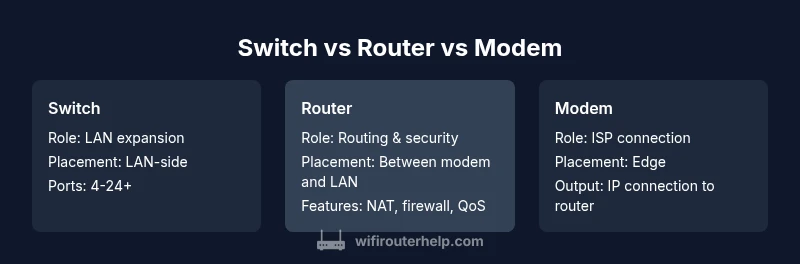
In any home network, three core devices perform distinct jobs, and understanding their roles helps you design a reliable setup. A switch is a hardware device that connects multiple devices within a single local area network (LAN) via Ethernet cables. It operates mainly at Layer 2 of the OSI model, forwarding frames between devices on the same network. Switches can be unmanaged for simplicity or managed for features like VLANs and QoS. A router is the device that links your LAN to other networks—most commonly the Internet. It performs network address translation (NAT), assigns IP addresses via DHCP, and enforces basic security rules and routing decisions. A modem is the bridge between your home network and your Internet Service Provider (ISP); it modulates and demodulates signals to convert between the ISP’s network and your home equipment. Many homes use a combined modem/router, but separating these roles offers flexibility for growth.
In practice, the WiFi Router Help team recommends clarifying each device’s job before you buy or wire anything. This reduces confusion, avoids double NAT, and makes future upgrades smoother.
The data flow in a typical home network
Data flow in a modern home always starts at the ISP edge. A modem establishes the connection to the ISP’s network and provides an IP connection to your router or directly to a device if you’re using a bridge mode. The router then creates a private network, assigns local IPs, and routes traffic between your LAN and the Internet. If you add a switch, it serves as a port multiplier for wired devices without expanding the router’s wireless footprint. If your setup is simple (one modem, one router), the switch is often optional unless you have many wired devices like desktops, printers, or gaming consoles.
The key takeaway is placement matters: place the router at a central location to maximize wireless coverage, keep the modem in a well-ventilated area, and use the switch where you need more wired ports. This layout minimizes latency and reduces cable clutter, which is a frequent source of home-network frustration.
How to choose based on your space and devices
Choosing between a standalone modem, a standalone router, and a switch depends on your home size, number of wired devices, and desired features. For a small apartment with a handful of devices, a gateway device (modem+router in a single unit) may be enough. If you have a home office with multiple wired PCs and printers, a switch becomes valuable for expanding ports. For larger homes or spaces with thick walls, a high-performance router with strong antennas paired with a wired switch for fixed devices balances coverage and reliability. The key to success is matching capacity to demand and avoiding bottlenecks at the edge of your network.
Maximizing security with a router and an optional switch
Security typically lives at the router in most home networks. A modern router provides NAT, firewall rules, guest networks, and basic VPN support. A switch, whether unmanaged or managed, generally does not add security on its own, but a managed switch can segment traffic with VLANs if you need strict separation between devices (for example, IoT devices vs. work devices). If you’re worried about malware or spam reaching devices, enable WPA3, set a strong admin password, and keep firmware current. In many cases, a properly configured router is sufficient; you only need a switch when you require more reliable, wired connectivity for numerous devices.
Common topologies you’ll encounter
There are several common layouts you’ll see in homes. The simplest is a modem connected to a router, which then serves wireless and a handful of wired ports. If more wired devices exist, a switch can be plugged into one of the router’s LAN ports to add ports without altering the router’s core functions. For fiber or high-speed cable connections, you may have a separate ONT or fiber modem; the same principle applies: your router handles routing and security, and a switch handles port expansion. Modern Ethernet switches support 1 Gbps or faster, with 2.5–10 Gbps variants available for high-performance setups.
In all cases, plan for cable management and heat dissipation; crowded, poorly ventilated rooms can degrade performance.
Practical steps to plan a switch, router, and modem setup
- Inventory devices and ports: count wired devices and estimate wireless needs. 2) Define the edge: choose a modem compatible with your ISP and a router with features you’ll actually use (QoS, guest networks, USB sharing). 3) Decide on port expansion: if you have more than 4–6 wired devices, add a switch sized for your needs (e.g., 8-24 ports). 4) Position devices: keep the router central, the modem near service entry, and the switch close to wired equipment. 5) Secure the network: enable encryption, firmware updates, and strong passwords. 6) Test speed and latency: use network testing tools to verify performance across wired and wireless links.
Following these steps helps ensure your network remains reliable as you scale.
Common pitfalls and how to avoid them
A frequent pitfall is placing a router inside a closet or cabinet, which degrades Wi-Fi coverage. Another is double NAT, which can happen if both a modem/router combo and a separate router are in use; bridge mode on the modem or a simple DMZ configuration can fix this. Overloading a single router with too many devices or channels can cause congestion and unstable connections. If you’re unsure about VLANs or advanced QoS, start with a robust router with smart features and upgrade the switch later if needed. Finally, always back up configurations before major changes so you can revert if something breaks.
Keeping firmware current and future-proofing
Regular firmware updates from the router and switch vendors improve stability and security. When planning future-proofing, consider devices that support current Wi‑Fi standards (at least Wi‑Fi 5 or 6), sufficient port counts, and room for growth in connected devices. If you anticipate adding more IoT devices, consider features like guest network isolation and parental controls. A modular approach—modem, then router, then switch—lets you upgrade one component at a time without a full rework.
Feature Comparison
| Feature | switch | router | modem | |
|---|---|---|---|---|
| Primary function | LAN port expansion for wired devices | Routes traffic between networks; security features | Connects to ISP; converts signal to IP | |
| Placement in network | LAN-side device; sits after router | Between LAN and WAN; centerpiece of home network | At the edge; connects ISP to your router | |
| IP routing capability | Zero routing (except managed switches offer VLANs) | Full IP routing and NAT/DHCP | No routing by itself; depends on whether it is a gateway | |
| WAN/Internet access | No direct Internet access; requires router | Provides Internet access via WAN port | Provides no Internet access by itself; connects to router | |
| Security features | Limited security; managed switches offer VLANs | Firewall, NAT, parental controls, VPN options | Basic security features; often relies on the router | |
| Typical price range | Depends on ports and features; $20-$200 for unmanaged to $300+ for managed | Mid to high; depends on features and speed | Depends on ISP equipment; often $0 if included, or rental | |
| Best for | Expanding wired devices in a LAN | Full home network with Internet access and security | Direct connection to ISP; gateway device |
Benefits
- Clear division of roles reduces configuration confusion
- Easily scale wired ports with a switch
- Routers provide security features like NAT and firewall
- Modems simplify ISP connectivity and signal conversion
- Modular setups allow targeted upgrades without reworking the entire network
The Bad
- More devices mean more power consumption and space
- Requires basic networking knowledge for optimal setup
- Managed switches add cost and complexity
- Potential for misconfigurations if not planned
For most homes, a modem + router combo suffices; add a switch only if you need more wired ports.
A modem provides Internet access; a router handles distribution and security; a switch expands wired capacity. This trio covers typical home needs with room to grow.
People Also Ask
What is the difference between a switch, a router, and a modem?
A switch expands wired connections within a LAN, a router manages traffic between networks and provides security features like NAT and DHCP, and a modem connects your home network to your Internet Service Provider. Understanding these roles helps you design a scalable and reliable network.
A switch adds more wired ports; a router routes traffic and shields your network; a modem connects you to the Internet through your provider.
Do I need a modem if I already have a router?
Yes, you typically need a modem to connect to your ISP. A router uses that connection to create your home network. In some cases, a combined modem/router device is provided by the ISP, but using separate devices can offer more control and flexibility.
A modem is required to connect to your ISP, and a router builds your home network on top of that connection.
Is a modem/router combo a good option?
Combo devices are convenient and space-saving, especially in small spaces. However, separate devices can be easier to upgrade and optimize, offering better performance and flexibility for larger homes or specialized needs.
Combo units are simple, but separate devices give you more control and upgrade options when your needs grow.
What is double NAT and how can I avoid it?
Double NAT occurs when two devices perform network address translation, typically a modem/router combo plus a separate router. It can cause connectivity problems with certain applications. Resolve it by placing the modem in bridge mode or by using a single router and a switch for expansion.
Double NAT happens when two devices translate addresses. Put the modem in bridge mode or use one router with a switch for extra ports.
What is a managed switch vs. an unmanaged switch?
An unmanaged switch is plug-and-play and simple. A managed switch provides features like VLANs, QoS, and traffic monitoring, which are useful in more complex networks or when you want to segment IoT devices from work devices.
Unmanaged is simple; managed lets you control traffic and segregate devices with VLANs.
How many wired devices can a typical switch support?
A basic switch commonly offers 4 to 8 ports; larger models provide 16, 24, or more ports. Count all wired devices and leave a couple of ports free for growth.
Most switches come in 4, 8, or 16+ ports; pick a size with room to grow.
What to Remember
- Identify each device’s role to avoid double NAT
- Add a switch when you need more wired ports
- Choose a router with current security features and performance
- Verify ISP compatibility before buying a modem
- Plan for future upgrades with modular components