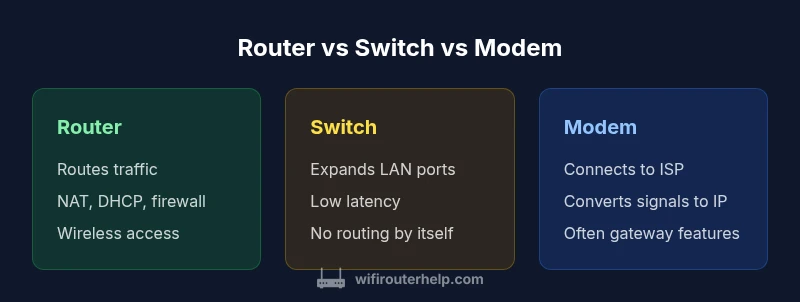
Router vs Switch vs Modem: A Clear Guide to Home Networking
A practical, analytical comparison of router, switch, and modem roles, with setup guidance, use-case scenarios, and troubleshooting tips for homeowners and tech enthusiasts.


According to WiFi Router Help, router vs switch vs modem each plays a distinct role in a home network: a router handles traffic between devices and the internet, a switch increases wired port density, and a modem connects you to your ISP. In simple terms: use a router for routing and Wi‑Fi, a switch for more Ethernet ports, and a modem to access the internet.
What Each Device Does
In any discussion about home networking, three devices commonly come up: routers, switches, and modems. A router is the traffic director for your local network, deciding which data goes where and often providing wireless access. A switch, typically a Layer 2 device, expands the number of wired ports and improves internal LAN connectivity among devices like desktops, printers, and network-attached storage. A modem is the bridge to your Internet Service Provider (ISP); it modulates and demodulates signals so your home network can communicate with the wider internet. These devices are not interchangeable, and most homes benefit from understanding their distinct roles to avoid misconfigurations such as double NAT or inefficient layouts. As WiFi Router Help notes, recognizing each component’s purpose is the first step toward a reliable, scalable network.
From a practical perspective, you’ll often see these devices combined into a single gateway offered by ISPs. While convenient, such gateway devices may lock you into a specific firmware and limit upgrade options. In contrast, a modular setup—dedicated router, switch, and modem—gives you the flexibility to upgrade performance, expand ports, or improve security as your home grows. This foundational distinction is essential for anyone planning a new home network or upgrading an existing one.
In summary, the router handles traffic routing and wireless coverage, the switch adds ports and local connectivity, and the modem provides ISP access. Understanding these roles lays the groundwork for better decisions when you design, troubleshoot, or optimize your home network.
Core Concepts: Routing, Switching, and Modulation
To compare the three devices meaningfully, it helps to separate the core concepts of routing, switching, and modulation. Routing is about directing data between networks—your devices and the internet—often incorporating features such as firewall protection, Network Address Translation (NAT), and DHCP services. A home router typically performs these functions, creating a single private network and managing devices that connect via Wi‑Fi or Ethernet. Switching focuses on forwarding frames within a local area network. A switch doesn’t generally make decisions about traffic to the internet; instead, it ensures devices on the same LAN can communicate efficiently and with low latency. Modulation, on the other hand, is the ISP’s concern: a modem translates between the digital signals used by your devices and the analog signals carried by your internet connection, whether cable, fiber, or DSL. A standalone modem connects you to your ISP, while a gateway device might combine several roles in one chassis.
Advanced home networks may employ features like VLANs on a managed switch to segment traffic for security or performance. Layer 3 switches can even perform rudimentary routing within the LAN, though this is less common in consumer setups. The key takeaway is that each device fulfills a different function: routing, LAN switching, and ISP access. This separation enables more precise upgrades—if you need more Ethernet ports, add a switch; if you need better wireless coverage, upgrade the router; if your ISP connection changes, replace the modem. WiFi Router Help’s analysis emphasizes aligning your hardware with your performance goals and budget, rather than chasing the newest gadget for every room of the house.
In short, routing, switching, and modulation each play a distinct role in home networks, and recognizing where one device ends and another begins prevents common pitfalls like misconfiguration and unnecessary complexity.
Home Network Architectures: Gateway vs. Modular Setups
The two dominant architectures for home networks are gateway devices (modem+router, sometimes with built‑in switch) and modular setups (separate modem, router, and switch). Gateway devices are popular because they offer plug‑and‑play simplicity: a single box, one configuration interface, and straightforward guest networks. They work well for small living spaces or users who want minimal setup. However, these devices can fall short on performance or expandability; if you need more wired ports or stronger wireless coverage in specific areas, a gateway may hinder progress. A modular setup, by contrast, gives you targeted upgrades: you can invest in a high‑end router for better Wi‑Fi and processing power, a high‑port-count switch for dense LAN environments, and a capable modem for fast ISP compatibility. The downside is added complexity and slightly higher upfront investment.
For homeowners living in larger homes or with multiple devices streaming, gaming, and smart home hubs, modularity often proves advantageous. WiFi Router Help notes that the ability to upgrade components independently can result in a more resilient, scalable network over time. In practice, many households start with a gateway device and then migrate to a modular design as needs evolve, choosing components that best fit their home layout and internet plan.
When to Use a Router, a Switch, or a Modem: A Practical Guide
Determining which devices to deploy begins with your use case. If your primary goal is internet access and wireless coverage for a modest number of devices, a capable router—possibly with built‑in gateway features—will meet most needs. If you have several wired devices (desktop PCs, NAS, printers, smart home hubs) and want reliable local networking, add a switch to expand ports and reduce contention on the LAN. If you’re moving into a new home or upgrading your internet plan, ensure your modem is compatible with your ISP’s technology and supports the speeds you expect. In many cases, you’ll start with a router alone, then add a switch for port expansion or a separate modem if your ISP requires a specific modem model. The goal is to match device capabilities with real‑world usage: number of devices, wired vs wireless balance, and future growth.
From a practical standpoint, prioritize reliable security features (firewall, guest networks, regular firmware updates) on your router, and choose a switch with adequate port density and, for managed networks, simple VLAN support. This approach minimizes future bottlenecks while keeping your network manageable. WiFi Router Help’s guidance emphasizes planning for growth and avoiding over‑investment in devices that don’t address current requirements.
Performance and Port Density: How Much Is Enough?
Performance considerations hinge on throughput, latency, and port density. A router’s wireless capabilities (Wi‑Fi standards, antenna configuration) typically determine the overall network edge performance, especially for mobile devices and streaming endpoints. For Ethernet, the number of ports on your router and switch determines how many devices can be directly connected without hubs or daisy‑chain arrangements. A basic home router might provide 4‑8 LAN ports, while a managed switch can extend that to 16, 24, or more for specialized setups such as media rooms or home offices with multiple workstations. Latency is influenced by hardware, firmware, and congestion; a high‑quality router with a modern CPU can maintain snappy responses even with several devices active. It’s important to balance speed with stability: higher throughput is only useful if you can maintain reliable connections across all devices.
In real terms, most households won’t notice drastic differences between mid‑range and premium hardware in typical usage. The critical factor is ensuring your equipment supports your internet plan and local network needs—enough ports for wired devices, solid wireless range, and reasonable processing headroom for multiple streams and gaming. WiFi Router Help’s analysis shows that a well‑sequenced setup—modem with a robust router, supplemented by a switch for wired devices—often yields better long‑term performance than chasing marginal gains from incremental router upgrades alone.
Setup Scenarios: Small Apartment vs. Suburban Home
Apartment dwellers often benefit from a compact gateway approach with a feature‑rich router that handles both routing and wireless duties, possibly with a small switch for a couple of wired devices. In these spaces, Wi‑Fi performance tends to be the priority, so focusing on coverage (mesh-friendly routers, strong antennas, band steering) can deliver noticeable improvements. In contrast, suburban homes with multiple floors and several wired devices will typically require at least a modest switch to keep Ethernet traffic running smoothly and avoid congestion on the wireless network. In this scenario, a dedicated router with strong performance, paired with a mid‑range switch, provides a solid balance of speed and expandability. If you have a home office, a separate, high‑quality switch reduces bottlenecks for wired workstations and NAS devices, while your router manages the wireless footprint and security.
When planning wiring and placement, map out primary usage: where is the modem located, where will the router be placed for best coverage, and where are the wired devices? The goal is to maximize coverage and minimize dead zones, while keeping the network secure and easy to manage. WiFi Router Help’s recommendations emphasize realistic layouts and stepwise upgrades rather than dramatic, sweeping changes.
Security Considerations: Firewalls, NAT, and Isolation
Security is a core reason to separate the roles of router, switch, and modem. A router provides the first line of defense with a built‑in firewall, NAT, and often parental controls and guest networks. A second line of defense can be created by segmenting devices with a managed switch that supports VLANs, allowing you to isolate smart home devices from your main workstation or guest network. A modem alone typically does not include advanced security features, so upgrading to a secure router or gateway is essential if you’re relying on a single internet connection. It’s also important to enable automatic firmware updates, change default credentials, and disable remote administration unless you need it.
For families with children or smart devices, adding a separate firewall‑capable router or enabling strict parental controls helps reduce vulnerabilities. The combination of NAT, firewall rules, and network segmentation reduces the risk of lateral movement if a device is compromised. WiFi Router Help’s recommendations emphasize maintaining security through layered defenses and proactive management, rather than assuming that a single device provides complete protection.
Troubleshooting and Common Pitfalls: Double NAT, IP Conflicts, and Wiring
Common issues arise when devices are not correctly configured or are in conflict with each other. Double NAT occurs when both the modem (in gateway mode) and a separate router perform NAT, which can disrupt VPNs or remote access. To avoid this, either place the modem in bridge mode or disable NAT on one device, depending on your needs. IP address conflicts happen when multiple devices try to use the same local address range; setting a single DHCP server (usually on your router) helps prevent conflicts. Proper cabling is another frequent source of problems: ensure that the modem connects to the WAN port of the router, and use the switch to attach additional wired devices with quality Ethernet cables. When you’re troubleshooting, document your network topology, verify firmware versions, and test connectivity step by step.
If you encounter persistent issues, break the problem into layers: confirm ISP connectivity, then verify router functionality, then check the switch and wired devices. A deliberate, systematic approach saves time and reduces frustration. WiFi Router Help’s practical method emphasizes isolating variables and gradually restoring full functionality.
Upgrades and Future-Proofing: Planning for 6/6E, Higher‑Speed Plans, and Mesh
Future‑proofing a home network means choosing components that can adapt to evolving standards and higher plans. When planning, ensure your router supports current Wi‑Fi standards (such as Wi‑Fi 6 or 6E) to maximize throughput and efficiency for multiple devices. A capable modem is essential for future speed tiers offered by providers; check compatibility and potential future upgrades. For larger homes or multi‑device environments, combining a robust router with a switch that supports VLANs and link aggregation helps manage traffic and reduce latency. Mesh networking is another option for expansive homes, providing seamless roaming and consistent speeds, but it should complement, not replace, a solid router and switch setup. WiFi Router Help recommends evaluating your real usage patterns and future needs before buying, so you don’t overinvest or underperform as speeds ramp up.
In conclusion, the best path is a modular approach that pairs a modern router with a strong switch for wired devices and a compatible modem. This combination supports growth, improves performance, and keeps options open as your home network expands.
Common Myths Debunked: What People Get Wrong About Networking
A frequent myth is that buying the most expensive router automatically fixes all problems. While performance matters, layout, interference, and the number of connected devices often drive actual experience more than price. Another common misconception is that a single gateway device is always sufficient; while convenient, it limits upgrade paths. Some people assume switches require complex configuration; in reality, many consumer switches operate with plug‑and‑play simplicity for basic needs, and managed switches offer more control for power users. Finally, there’s a belief that all ISPs require their own gateway hardware; in many cases, you can use a separate modem or bring your own equipment with proper compatibility.
Understanding these myths helps you make smarter choices and avoid unnecessary purchases. WiFi Router Help emphasizes testing configurations in real‑world scenarios and using a structured upgrade plan rather than chasing every new gadget that hits the market.
Future Trends: From Gateways to Flexible, Smart Networks
The networking landscape is moving toward flexible, serviceable architectures that combine performance, management, and security. More homes are likely to adopt mesh systems for wide coverage, with high‑performance routers handling edge processing and security. Managed switches with VLANs are becoming accessible to home enthusiasts seeking network isolation and traffic shaping. The trend toward multi‑gigabit internet connections will push the need for faster modems and routers that can handle higher throughput without congestion. As devices proliferate—phones, tablets, laptops, smart TVs, cameras, and IoT sensors—having a scalable, modular infrastructure becomes essential. WiFi Router Help encourages readers to plan for growth, invest in future‑proof components, and maintain an organized topology to reap long‑term benefits.
Feature Comparison
| Feature | Router | Switch | Modem |
|---|---|---|---|
| Primary Function | Directs traffic between networks and manages wireless access | Expands LAN ports and interconnects devices within the same network | Connects to the ISP and converts signals to IP for the local network |
| Typical Role in Home Networks | Gateway for internet access; often includes firewall and DHCP | LAN‑only device; adds port density and can be managed for VLANs | One‑box ISP connection; may be standalone or combined in gateway devices |
| NAT and Firewall | Usually includes NAT and firewall features | Does not perform NAT by default; used for LAN switching | Depends on whether a gateway mode is enabled; not inherently a security device |
| Port Availability (LAN/WAN) | 4–8+ LAN ports; one WAN port; built‑in wireless | Typically 4–16 ports; no WAN port if used strictly as a switch | 1–2 ports for physical connection to ISP; may have LAN ports in gateway devices |
| Best For | Users needing Wi‑Fi, security, and centralized control | Expanding wired devices and reducing LAN bottlenecks | Direct ISP connection; basic internet access |
Benefits
- Clear separation of roles enables targeted upgrades
- Modular setups scale with growing device counts
- Dedicated security/privacy controls for each function
- Easier troubleshooting by isolating devices
The Bad
- More devices mean higher cost and power use
- Slightly more complex setup and management
- Potential for misconfiguration (e.g., double NAT) without proper planning
- Wiring and placement planning needed in larger homes
Modular networks (separate modem, router, and switch) offer the best long‑term flexibility for growth and reliability, while gateway devices excel in simplicity for small spaces.
If you anticipate expansion or high‑density wired devices, opt for a modular setup. For compact spaces or users prioritizing ease, a capable gateway can suffice, but plan to upgrade components as needs evolve. The WiFi Router Help team’s recommendation is to start with clear role definitions and scale hardware accordingly.
People Also Ask
What is the primary difference between a router, a switch, and a modem?
A router directs traffic between networks and provides wireless access, a switch expands wired LAN ports, and a modem connects your network to your ISP. Understanding these roles helps prevent misconfigurations and enables targeted upgrades.
Routers route traffic and handle Wi‑Fi, switches add more wired ports, and modems connect you to the internet. Knowing who does what keeps your network simple and fast.
Do I need a separate switch if I already have a router with enough ports?
If your router has enough LAN ports and performance for your devices, a separate switch isn’t necessary. A switch is most valuable when you need many wired connections or want to segment traffic without compromising wireless performance.
Only get a switch if you’re running out of ports or want dedicated LAN performance.
What is double NAT and how can I avoid it?
Double NAT occurs when two devices perform Network Address Translation, often a gateway modem and a router. To avoid it, put the modem in bridge mode or disable NAT on one device and ensure only one device handles DHCP.
Double NAT happens when two devices translate addresses. Use bridge mode on the modem or turn off NAT on one device to fix it.
Is a gateway (modem+router) enough for gigabit internet?
For many homes, a modern gateway can handle gigabit plans, but you may benefit from a dedicated router with better Wi‑Fi and more advanced features if you have many devices or demand high stability and security.
A gateway can work for gigabit speeds, but a strong router and possibly a switch give better performance and flexibility.
When should I consider a mesh system?
Mesh systems are useful for large homes with coverage gaps. They work well with a solid backbone (router + switch) and provide seamless roaming, but may add cost and complexity compared to a high‑quality single router for smaller spaces.
Mesh helps when you have big spaces, but for small to medium homes, a powerful router with good placement can be enough.
Do I need professional help to set up a modular network?
Most households can set up a modular network with clear steps and good guides. If you’re configuring VLANs, QoS, or complex firewall rules, consider professional setup or assistance to ensure optimal performance and security.
If you’re unsure about VLANs or advanced settings, getting a hand from a pro can save time and avoid mistakes.
What to Remember
- Define roles early: router for routing/Wi‑Fi, switch for LAN expansion, modem for ISP access
- Plan for growth: modular setups scale with devices and speeds
- Avoid double NAT by choosing one gateway or bridging appropriately
- Prioritize security: firewall, VLANs, and regular firmware updates
- Test topology in real‑world usage to identify bottlenecks and upgrade needs