Nighthawk Modem Setup Guide: Installation, Bridge Mode & Optimization
Learn how to install, configure, and optimize a Nighthawk modem with or without a router. WiFi Router Help guides you through compatibility, bridge mode, security, and troubleshooting for reliable home networking.


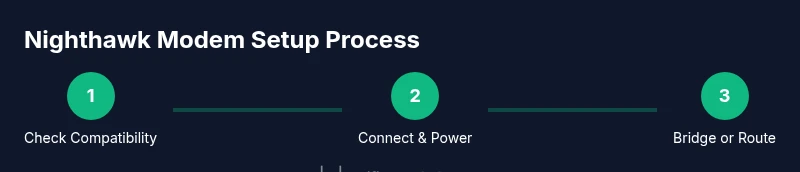
This guide shows how to install, configure, and optimize a Nighthawk modem, whether you use a separate router or not. You’ll verify compatibility, decide on bridge mode, secure Wi‑Fi, tweak channels, update firmware, and monitor performance for reliable home networking and smooth streaming across all devices. In short, this turns a complex setup into a simple, repeatable process you can follow step by step.
Why the Nighthawk modem matters
According to WiFi Router Help, the Nighthawk modem serves as the essential gateway between your ISP and your home network. It handles data from the internet, assigns local IP addresses, and coordinates devices. Choosing the right modem model can reduce latency, improve stability, and simplify future upgrades. In this guide, we emphasize practical steps over marketing claims so homeowners can confidently manage their home network.
Compatibility and planning for your Nighthawk modem
Before buying or upgrading, confirm your ISP uses a compatible connection type (cable, fiber, DSL) and supports the modem. Check activation steps, MAC address requirements, and any rental fees. Plan for placement, surge protection, and a spare Ethernet port if you run a wired PC or console. WiFi Router Help highlights that compatibility is the foundation of a smooth transition.
Quick-start setup: connect and power up
Unpack the Nighthawk modem and connect the coax from your wall outlet. Plug in the power adapter and wait for the status lights to stabilize. Connect a laptop to the modem via Ethernet or Wi‑Fi and access the admin interface to begin configuration. Ensure you have a stable power source and a clean coax connection to minimize reboots.
Bridge mode vs using your own router
If you plan to use your own router, enable bridge mode on the modem to turn off its routing functions. This prevents double NAT and can improve gaming and streaming performance. If you prefer a one-device simple setup, skip bridge mode and configure the modem as an access point. This decision affects how devices obtain IP addresses and how port forwarding works.
Wi‑Fi optimization: placement, channels, and interference
Position the modem or main router in a central, elevated location. Use non-overlapping channels on the 2.4 GHz and 5 GHz bands. If you have a large home, consider a mesh system or a higher‑quality router to extend coverage. Regularly adjust channel selection based on nearby networks to minimize interference.
Security and maintenance basics
Change the default admin password immediately and enable TLS/HTTPS for the admin page. Regularly check for firmware updates and enable automatic updates if available. Create a separate guest network to keep IoT devices isolated. Backup critical settings and note the admin URL in a secure place.
Troubleshooting common issues
If you see no internet, verify coax connections, power cycle the modem, and check activation status with your ISP. For intermittent drops, inspect cables for wear and test with a different Ethernet cord. Review LED indicators for online status and run a speed test to confirm expected performance.
Real-world scenarios and tips
For households with gaming consoles, enable QoS rules to prioritize console traffic. If you own a router, adjust MTU settings only if you know your network needs it. Always back up your configuration before making major changes. Consider scheduling regular maintenance windows to apply updates and verify settings.
Tools & Materials
- Nighthawk modem(Model compatible with your ISP and service plan (check the provider's approved devices list))
- ISP service plan information(Know the type (cable, fiber, DSL) and speeds)
- Coaxial cable(Quality coax with adequate shielding; replace aging cables)
- Ethernet cable (Cat6 or better)(For wired connections between modem and router or PC)
- Computer or smartphone(Web browser for setup; ensure device is on the same network during initial config)
- Web browser(Chrome/Edge/Safari; ensure JavaScript enabled)
- Surge protector(Protects the modem from power spikes)
Steps
Estimated time: 20-40 minutes
- 1
Power up and connect the modem
Unbox the Nighthawk modem and connect the coax cable. Plug it into power and wait for the status lights to stabilize. Then connect a computer via Ethernet or Wi‑Fi to begin the setup.
Tip: Check that the coax is snug and the power supply is stable; unstable power can reboot the device. - 2
Run the initial login
Open a browser and navigate to the modem's default IP address (usually printed on the label). Create or sign in to the admin account and note the admin password in a safe place.
Tip: Change the default password immediately to prevent unauthorized access. - 3
Check ISP compatibility
Confirm that the modem is approved by your internet service provider and that your service plan matches the device capabilities. If needed, contact support for MAC addressing and activation steps.
Tip: Have your account details handy before calling ISP support. - 4
Enable bridge mode if using your own router
If you plan to use a separate router, disable the modem's routing functions by enabling bridge mode. This allows your own router to handle DHCP and NAT.
Tip: Bridge mode usually requires a reboot; ensure your own router is ready to receive a WAN IP. - 5
Configure Wi-Fi and admin security
If you are using the modem's built-in Wi‑Fi, set the SSID, password, and security (WPA3 if available). Use a strong, unique password for each band.
Tip: Better to disable Wi‑Fi on the modem if you plan to use a separate Wi‑Fi router. - 6
Update firmware and secure management
Check for firmware updates and apply them. Enable auto-update if supported and configure auto-restart schedules to keep the device secure.
Tip: Back up current settings before applying firmware updates. - 7
Test connectivity and performance
Run speed tests and verify devices can connect. Check that port forwarding or UPnP works if needed for gaming or VoIP.
Tip: Document baseline speeds for future troubleshooting. - 8
Document and maintain your network
Record your network names, passwords, and IP ranges. Regularly review connected devices and update firmware.
Tip: Set up device monitoring alerts if available.
People Also Ask
Is a Nighthawk modem compatible with my ISP?
Compatibility depends on your ISP's network type. Check whether the modem is listed as approved by your provider and whether your service plan matches the device's capabilities.
Check your provider's approved device list to confirm compatibility, and review your plan requirements.
Do I need a separate router with a Nighthawk modem?
Not always. If you want more features or better range, you can use a separate router and enable bridge mode on the modem.
You can use your own router by enabling bridge mode on the modem.
What is bridge mode and when should I use it?
Bridge mode disables the modem's routing features, letting a third‑party router handle DHCP/NAT for potentially better performance.
Bridge mode turns your modem into a pass-through device for another router.
How do I update firmware on a Nighthawk modem?
Check the admin interface for firmware updates and apply them. Enable auto‑update if available and restart the device after updates.
Go to the modem's admin page, check for updates, and install them. Reboot if prompted.
What steps improve Wi‑Fi performance with a Nighthawk setup?
Optimize placement, select non-overlapping channels, and consider a dedicated router for best coverage. Disable Wi‑Fi on the modem if using a separate router.
Place the router centrally, choose less crowded channels, and consider a separate router for best coverage.
Where should I place the Nighthawk modem for best signal?
Place it in a central, elevated spot away from obstacles and appliances that cause interference.
Keep it up high, near the center of your home, away from walls and metal objects.
What if I still experience dropouts after setup?
Recheck connections, reboot the device, and verify firmware. If problems persist, contact your ISP for line-level diagnostics.
Power cycle, check cables, and if needed contact your provider for line checks.
Watch Video
What to Remember
- Identify ISP compatibility before hardware changes
- Bridge mode isolates your own router from the modem's router
- Securely configure Wi‑Fi and admin access
- Regular firmware updates improve stability and security