Modem vs Router vs Switch: A Practical Comparison for Home Networks
Discover the differences between modem, router, and switch, when each device is required, and how to optimize a home network with practical steps and guidance.


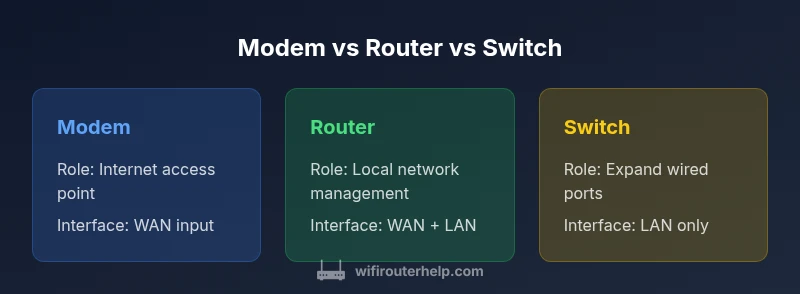
In most home networks, the modem handles the connection to your internet service provider, the router creates and manages the local network (wired and wireless), and a switch expands wired ports when you need more devices. For most homes, use a modem and router, and add a switch only if you run out of Ethernet ports. This separation improves performance and troubleshooting.
Understanding the Core Roles
The trio of devices that commonly appear in home networks are the modem, the router, and the switch. Understanding their distinct roles is the first step to a stable, scalable setup. Modem vs router vs switch is a convenient shorthand for describing how your home network connects to the wider internet and how devices talk to each other. According to WiFi Router Help, recognizing that the modem connects you to your internet service provider while the router builds your local network helps homeowners avoid bottlenecks and misconfigurations. The WiFi Router Help team notes that many households try to substitute one device for all three, which often leads to confusing network behavior and weak security.
When You Need Each Device
Not every home needs every device; the real world often demands a modular approach. You need a modem to access the internet, a router to manage traffic, and a switch only when you need additional wired ports. For small apartments with a single entertainment setup, a standalone modem and router are typically enough. For larger homes or office setups with multiple wired devices, a switch becomes valuable. This section walks through typical scenarios, from minimal to expanded networks, and why each device matters within those contexts.
Modem Basics: How It Connects To Your ISP
A modem is the bridge between your home network and your internet service provider. It translating signals from the ISP into data your devices can use. In many consumer setups, the modem is provided by the ISP or purchased separately. Connecting the modem to the provider’s line (cable, fiber, DSL) is a prerequisite before any local networking steps can occur. WiFi Router Help emphasizes checking compatibility with your service and understanding any firmware requirements that may affect performance or reliability.
Router Essentials: Local Network Management
The router is the central intelligence of a home network. It assigns IP addresses, routes traffic between devices, and often provides wireless access. Modern routers support features like guest networks, parental controls, QoS, and firewall protections. Effective router configuration balances performance with security. When you separate the modem from the router, you gain clearer control over traffic patterns and easier firmware updates, helping to maintain stable performance as devices are added.
Switch: Expanding Your LAN
A switch extends the number of wired ports available in your network. It does not connect directly to the internet by itself, but it can significantly improve reliability and speed for wired devices. Use a switch when you have many desktop PCs, printers, or network storage that require reliable, low-latency connections. Switched networks are common in homes with gaming rigs or home labs where multiple devices demand stable Ethernet links.
Common Setups: Solo Devices vs Hybrid
A minimal setup uses a modem and a router, achieving wireless coverage for most homes. In larger homes or offices, you might add a switch to accommodate more wired devices, placed near the cluster of equipment for minimal cable run. A hybrid setup can include a gateway device that combines modem and router functionality, but this can limit flexibility for upgrades. The key takeaway is to plan the layout before buying: map where devices will live and how cables will run to avoid clutter and interference.
Performance And Security Considerations
Performance begins with ensuring your modem, router, and switch can handle the traffic you expect. Security follows from using a capable router with up-to-date firmware and enabling features such as NAT, firewall, and guest networks where appropriate. Separating roles means a compromised router does not automatically jeopardize the ISP connection, and a faulty switch does not disable internet access for all wireless clients. WiFi Router Help analysis shows that homes that thoughtfully separate duties are easier to troubleshoot and upgrade over time.
Practical Configuration Tips
Start by connecting the modem to the ISP line, then pair it with a router that fits your home size and speed expectations. Place the router centrally to maximize wireless coverage and create a stable backbone for wired devices. If you need more wired ports, add a switch near the devices it will serve, not at the router. Regularly update firmware on all devices and label cables to keep the network legible for future expansion.
Common Pitfalls To Avoid
Avoid deploying a single multifunction device as a substitute for dedicated roles, which can create bottlenecks and obscure where problems originate. Do not neglect security features, especially if you place devices on the network's perimeter. Skipping firmware updates can leave you exposed to vulnerabilities. Lastly, poor cable management can lead to heat buildup and intermittent connections, undermining performance.
Feature Comparison
| Feature | modem | router | switch |
|---|---|---|---|
| Primary role | Connects to ISP and carries signal to your network | Creates a home network and manages IP addressing for devices | Expands wired ports on a LAN; no direct internet connection |
| Typical placement | At the point of entry from the ISP (often near the modem) | Central location in the home, usually near the modem | Near the cluster of wired devices or in a network closet |
| Internet access required | Yes – provides internet access via the ISP | Yes – enables local network and internet access for devices | No – used to add ports; internet comes from upstream device |
| Ports/Interfaces | WAN input + multiple LAN ports; sometimes built-in Wi‑Fi | WAN port + multiple LAN ports; built-in wireless options vary | Multiple LAN ports; no WAN by itself; relies on upstream device |
| Best for | Direct internet connection for all devices | Unified wireless coverage and IP management in one device | Expanding port count for wired devices without new wireless features |
| Security considerations | Firewall/NAT features typically provided by the router or modem | Router features firewall, VPN, and guest networks | N/A; security is managed by the router and gateway in most setups |
Benefits
- Clear division of network duties improves troubleshooting
- Enables targeted upgrades for performance and features
- Makes security management easier through modular control
- Scales more predictably as you add devices
The Bad
- More devices to manage increases setup complexity
- Potential compatibility issues with older hardware
- Need basic network knowledge to plan cabling and placement
- Higher upfront cost if buying multiple dedicated devices
Adopt a dedicated modem, a capable router, and a switch for expansion when you want scalable, reliable home networking.
Separating the roles reduces bottlenecks and simplifies upgrades. Start with a modern modem and router, then add a switch as your wired device count grows, keeping security and firmware up to date.
People Also Ask
What is the basic difference between a modem, a router, and a switch?
A modem connects you to the internet service provider and translates signals for your home network. A router creates and manages your local network, assigns IP addresses, and routes traffic between devices. A switch expands the number of wired ports, enabling more devices to connect, but it does not provide internet access on its own.
A modem links you to the internet, a router builds your home network, and a switch adds more wired ports.
Can I substitute a modem for a router?
No. A modem and a router perform different roles. In most homes you need both (or a gateway device provided by the ISP) to access the internet and manage your network.
No—modems connect you to the internet, routers manage your home network.
Do I need a switch in a small apartment?
Usually not. A single router with enough ports covers most needs, but a switch can help if you have many wired devices or a home office with multiple desktops.
A switch is optional in small spaces; only add one if you need more wired ports.
How should I physically arrange these devices?
Place the modem near the ISP entry point, the router centrally for even wireless coverage, and the switch close to where you have many wired devices. Label cables to simplify future maintenance.
Put the modem at the entry, the router in a central spot, and the switch near your wired devices.
What are common pitfalls to avoid when configuring these devices?
Avoid using a single device to handle all roles, neglecting security updates, or skipping firmware updates. Poor cable management can also cause connectivity issues or heat buildup.
Don’t rely on one device for everything, keep firmware updated, and organize cables.
What is the best setup for a home office?
For a home office, ensure a reliable router with strong coverage and a switch to support multiple wired devices like desktop PCs and NAS. If you require extra security, enable guest networks and QoS for prioritizing work traffic.
A solid router with a switch for wired devices plus QoS for work traffic.
What to Remember
- Plan device roles before purchasing gear
- Choose a strong router to balance speed and security
- Add a switch only when extra wired ports are needed
- Keep firmware updated on all devices