WiFi Router vs Access Point: A Practical Guide
Learn how wifi router vs access point differ, when to use each, setup steps, and a practical guide to optimize home networks for speed, coverage, and security.


wifi router vs access point: A router combines routing, NAT, firewall, and wireless access in one device, while an access point adds wireless coverage to an existing network without handling routing. For most homes, a router with built-in AP suffices; for larger spaces, standalone access points offer better scalability and consistent coverage. The choice hinges on control, scalability, and network size.
What are a WiFi router and an access point?
A WiFi router is a device that bundles routing, NAT, firewall, and wireless access into a single box. An access point (AP) is a dedicated wireless node that extends an existing network by providing additional wireless coverage without performing core routing tasks. When you compare wifi router vs access point, you’re evaluating whether you want one multifunction device or separate components that share the same network backbone. In typical home networks, a router with built-in AP functionality covers many scenarios, but for larger spaces or advanced configurations, standalone APs can deliver more reliable coverage and easier scaling. According to WiFi Router Help, understanding these roles helps you plan for future-proofing, better performance, and simpler troubleshooting.
The anatomy of a home network: routing, switching, and wireless access
In most homes, the router handles four core tasks: NAT (translating private IPs to public IPs), DHCP (assigning IP addresses to devices), firewall protection, and wireless access. An AP focuses on creating wireless coverage and can be deployed in dedicated locations to fill dead spots. When you mix a router with an AP, you’re effectively separating the “control plane” (routing, security, IP management) from the “data plane” (wireless traffic). WiFi Router Help notes that this split can improve performance in larger spaces and reduce contention on a single device during peak usage. Understanding these roles helps you decide how to scale your network over time.
Quick distinctions: built-in AP vs standalone APs
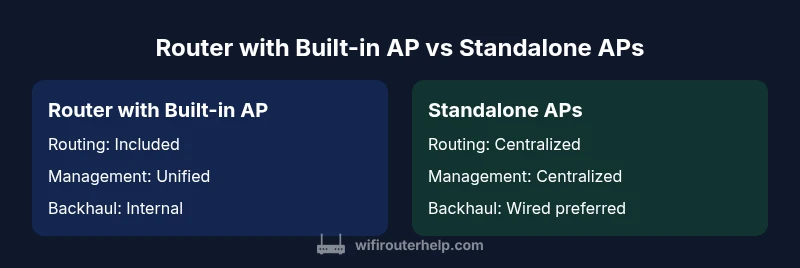
- Router with built-in AP: A single device that handles routing and wireless access. Easy to set up, compact, and cost-effective for small spaces.
- Standalone APs: Separate devices that attach to a central router/controller. Superior for large homes, multi-story layouts, or offices where coverage and capacity matter.
- Bridge mode and AP mode: Bridge mode connects two networks transparently, while AP mode extends the same LAN without routing traffic. The choice affects DHCP, NAT, and firewall behavior.
- Mesh relevance: Mesh systems use multiple nodes managed as a single network; they’re often a middle ground between router-with-AP and multiple APs.
The WiFi Router Help team emphasizes that the right choice depends on coverage goals, backhaul options, and your tolerance for managing multiple devices.
When a router with built-in AP is a good fit
A router with built-in AP is typically ideal for small apartments, single-story homes, or dorm rooms where coverage needs are modest and DIY setup is preferred. It minimizes hardware and simplifies firmware updates, reducing the number of potential points of failure. If your internet plan is modest and you don’t expect dramatic growth in devices, this approach keeps things straightforward while still providing solid wireless performance. WiFi Router Help’s analysis shows that for many households, one well-chosen device can satisfy everyday streaming, gaming, and browsing without added complexity.
When standalone APs (or AP controllers) shine
Standalone APs become advantageous when you’re dealing with larger homes, multi-story layouts, or areas with challenging coverage (basements, thick walls, or external buildings). With multiple APs, you can site nodes strategically for uniform signal strength and rely on a centralized controller to coordinate channels and security policies. Standalone APs also support more flexible backhaul configurations (including wired Ethernet, power-over-Ethernet, or even wireless backhaul in some setups), which can dramatically improve performance in busy networks. WiFi Router Help notes that centralized management simplifies upgrades and policy enforcement across many devices.
Bridge mode, AP mode, and mesh: practical concepts you’ll use
- Bridge mode vs AP mode: Bridge mode minimizes routing on the AP side by extending the same IP space, which can be useful when you want seamless reach across multiple subnets. AP mode keeps the router as the gateway and uses the AP strictly for wireless access, usually with DHCP/NAT handled by the main router.
- Mesh systems: Mesh blends convenience with coverage, automatically steering clients to the best node. They’re excellent for hands-off operation but can come at a premium and may offer less granular control than a router-plus-AP setup.
- Wired backhaul first: If possible, connect APs with wired Ethernet backhaul to preserve bandwidth and minimize interference. WiFi Router Help’s guidance consistently favors wired backhaul for reliability and latency improvements.
Setup steps you can follow today
- Map your space: Identify signal gaps and plan AP placement on each floor for uniform coverage.
- Decide on backhaul: Prefer wired Ethernet backhaul when feasible; reserve wireless backhaul for temporary setups or non-critical zones.
- Configure DHCP and NAT: On an AP, disable DHCP; let the main router handle IP assignment and firewall policies.
- Choose your mode: AP mode for expansion, bridge mode only if you need the same IP space across networks, or a mesh system if you want minimal management.
- Secure it: Set a strong admin password, enable WPA3 if available, and create a separate guest network for visitors.
Following these steps aligns with best practices for maintaining a stable and secure home network.
Performance considerations: speed, channels, and interference
With two devices (router plus AP), you can tune channel selection to minimize overlap and interference. 2.4 GHz provides better range but lower speeds, while 5 GHz offers higher throughput at short distances. If you have many walls or competing networks, enabling band steering and selecting non-overlapping channels can improve user experience. Wired backhaul remains the top recommendation for consistent performance, especially in houses with complex layouts. WiFi Router Help highlights that real-world speed depends on device capability, backhaul quality, and the distance to each node.
Security, management, and guest networks
Modern router-AP setups support robust features like VLANs, guest networks, QoS, and parental controls. A central controller (or cloud-based management) helps enforce policies across all APs and devices. Security is strongest when firmware is updated regularly and you segment guest traffic from your main LAN. The difference between a router-first approach and multi-AP deployments often shows up in how cleanly you can isolate devices and apply consistent security rules across the network.
Practical selection guide and roadmaps: how to decide and where to start
- Small space (studio to 2 bedrooms): A single router with built-in AP or a compact AP-capable router often suffices. This setup minimizes cost and complexity while delivering solid coverage.
- Medium to large homes: Consider a router with built-in AP if you value simplicity, or deploy 2–3 standalone APs for even coverage and better fault tolerance. WiFi Router Help notes that wired backhaul between APs yields noticeable improvements in speed and reliability.
- Multi-story homes or offices: Standalone APs with centralized management tend to offer the best balance of coverage, performance, and scalability. Plan for wired backhaul between APs and a capable controller or cloud-based management platform.
- Upgrades and future-proofing: If you anticipate faster internet speeds or more devices, choose hardware that supports the latest Wi‑Fi standard, QoS, and VLAN capabilities. The WiFi Router Help team recommends prioritizing wired backhaul and scalable management options as you grow.
In short, the best choice depends on your space, device count, and desired level of control. The WiFi Router Help team emphasizes balancing ease of use with the ability to scale as your network requirements evolve.
Comparison
| Feature | Router with built-in AP | Standalone Access Point setup (APs) |
|---|---|---|
| Routing capability | Full routing (NAT, DHCP, firewall) | AP-only mode; relies on central router for routing |
| Management interface | Unified web/app for both functions | Separate management via AP controller or cloud dashboard |
| Backhaul requirements | Typically internal backhaul; wired/wireless possible | Requires dedicated backhaul connections to each AP |
| Scalability | Limited by one device; 1–2 APs practical | Highly scalable with multiple APs and controllers |
| Best for | Small to medium homes; simplicity | Large homes/offices; flexible deployment |
| Cost range | $100–$250 (one device) | $60–$150 per AP plus controller if needed |
| Setup complexity | Low to moderate | Moderate to high depending on controller setup |
| Security features | Integrated firewall and VPN options | Security depends on centralized management and controller |
Benefits
- Simplified setup for small networks
- Easier management with a single interface
- Adequate coverage for small to medium homes
- Cost-effective upfront for limited space
- Faster deployment with plug-and-play
The Bad
- Limited scalability for large homes/offices
- Performance bottlenecks if the router is underpowered
- Less flexibility in choosing optimal backhaul
- Potential single point of failure if device dies
Standalone APs generally deliver better coverage for larger homes, while a router with built-in AP suits small spaces.
For most multi-story homes or spaces with challenging layouts, deploy APs with centralized management. For single-story or small apartments, a router with built-in AP is typically sufficient and easier to manage.
People Also Ask
What is the main difference between a wifi router and an access point?
A wifi router handles routing, NAT, DHCP, and firewall, plus wireless access. An access point provides wireless coverage and relies on a separate router for routing functions.
The router does the routing and security, while an access point only extends wireless coverage.
Can I use an access point with my existing router?
Yes. Connect the AP to your router via Ethernet, configure it as AP or bridge mode, and disable DHCP on the AP to avoid conflicts.
Yes—plug the AP into your router and set it to AP mode to extend coverage without extra routing.
What is bridge mode vs AP mode?
Bridge mode connects two networks so devices can share the same IP space; AP mode extends the same LAN while leaving routing to the main router.
Bridge mode merges networks; AP mode adds wireless access while keeping the router as the gateway.
Is mesh networking better than separate APs?
Mesh systems are easy to manage but can be pricier and offer less granular control. Separate APs with wired backhaul can yield higher performance and customization.
Mesh is convenient, but dedicated APs with wired links can outperform meshes on speed and reliability.
How many APs do I need for a two-story home?
Typically 2–3 APs cover a two-story home, depending on layout and wall materials. Place one on each level and consider a third for key dead zones.
Two or three APs usually do the job; adjust based on your house layout.
What should I consider when buying router vs AP hardware?
Look at Wi‑Fi standards (Wi‑Fi 6/6E/7), backhaul options (wired preferred), PoE support, VLANs, QoS, and management features. Prioritize devices that scale and offer centralized control.
Focus on speed, backhaul choices, and how you’ll manage the network as it grows.
What to Remember
- Assess space and backhaul before buying
- Prefer wired backhaul for best performance
- Use APs for scalable coverage; use router+AP for simplicity
- Ensure centralized management and security are in place