Router vs Access Point: Choosing the Right Tool for Your Home Network
Explore when to use a router versus an access point, with setup tips, coverage considerations, and practical guidance to maximize home Wi-Fi reliability. Learn how to choose, place, and manage gear for consistent performance.


When you ask router vs access point, you're choosing between a single device that handles routing and NAT, versus a dedicated device that extends wireless coverage. This guide explains the core differences, practical setups, and decision criteria to help homeowners optimize home Wi-Fi.
Router vs Access Point: Core Difference
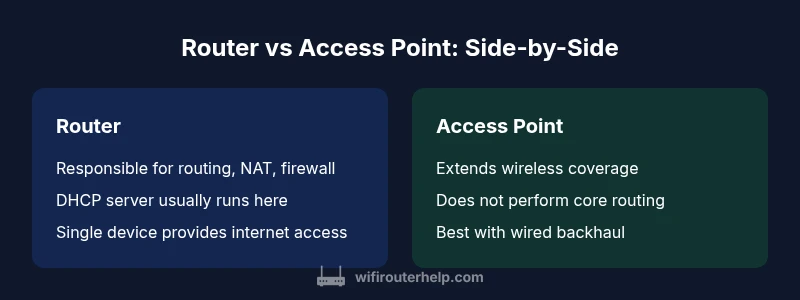
At the most basic level, a router connects your home network to the internet, performs IP routing, NAT, and firewall functions. An access point, by contrast, does not handle routing; it serves as a wireless bridge that extends your existing network to cover dead zones. In practice, most homes use a single device (a router) to manage the internet connection and a set of access points or a mesh system to fill coverage gaps. The distinction matters because it shapes your topology, management approach, and future upgrades. According to WiFi Router Help, clearly separating the roles helps you tailor performance without overcomplicating your setup. The WiFi Router Help team found that many households overbuy when they assume every device must route traffic, leading to unnecessary complexity and cost. Understanding these roles lays the groundwork for making informed choices about backhaul, placement, and firmware updates.
How Each Device Works in a Home Network
A router is the central hub that connects your home to the internet. It handles DHCP, NAT, firewall rules, and often wireless access for your devices. An access point simply provides another wireless radio that links devices to your existing network, typically via Ethernet or a managed backhaul. In practical terms, you place one router at the point where your internet enters the home and add APs where signal strength or dead zones appear. This separation of duties lets you optimize speed, reliability, and security without cluster-bombing your network with features you don’t need. WiFi Router Help notes that when you can clearly differentiate the roles, you reduce misconfigurations and simplify future upgrades.
When to Use a Router Alone
If you have a small apartment or a compact home where a single device can reach every room with strong signal, a capable router might be all you need. Choose a router with robust wireless performance, decent processing power, and a user-friendly interface. Consolidating routing, firewall, and DHCP into one box minimizes management overhead and often provides a smoother user experience for family members who don’t want to fiddle with multiple devices. However, even in smaller spaces, you should evaluate coverage needs around corners, stairwells, and rooms with thick walls, because these can degrade performance more than you expect. The WiFi Router Help team emphasizes starting simple and expanding later if you notice gaps in coverage or device density.
When to Extend with an Access Point
Larger homes, multistory layouts, or properties with inconsistent signal benefit from APs. An AP extends coverage by providing additional wireless radios that connect to the main router via wired or high-quality wireless backhaul. APs are especially useful when concrete walls, long hallways, or garage areas create dead spots. A wired backhaul (Ethernet) is the gold standard for AP placement because it preserves speed and reduces latency. If wiring is impractical, you can still use wireless backhaul, but plan for potential performance trade-offs. WiFi Router Help finds that many setups improve dramatically when APs are placed to cover the most distant rooms rather than clustering around the router.
Wireless Standards and Performance Considerations
Modern networks rely on Wi-Fi standards such as 802.11ac (Wi‑Fi 5) and 802.11ax (Wi‑Fi 6). A router with these capabilities can deliver strong performance for multiple devices, while APs should align with the same standard to avoid bottlenecks. Pay attention to features like MU-MIMO, OFDMA, and beamforming, which can improve capacity and signal quality in busy households. If you’re adding APs, ensure they support seamless roaming (802.11k/v/r) so devices can switch between APs without drops. Remember that the overall performance depends not only on the devices but also on backhaul quality, channel selection, and proper placement. The WiFi Router Help team highlights that coordinated hardware and settings give you the most reliable home network.
Practical Setup Scenarios: Small Apartment vs Large Home
In a small apartment, position a single high-quality router near the center of the living space away from heavy interference (microwaves, Bluetooth devices). For larger homes or multi-story layouts, map signal coverage room by room. Start with a central router and add APs to cover bedrooms, home offices, and basements. Use Ethernet backhaul when possible; if that isn’t feasible, consider wireless backhaul with strong line-of-sight between units. Create a dedicated guest network on the router for visitors, and keep firmware up to date on all devices. The goal is a consistent, fast signal across the living space with minimal dead zones.
Common Pitfalls and Troubleshooting
Avoid double NAT by ensuring only one device handles routing. Misconfigured DHCP or IP address ranges cause devices to fail to obtain connections. If you experience slow speeds, check backhaul quality, channel interference, and firmware versions. Regular reboot cycles, remote management access settings, and monitoring tools can help diagnose issues before they impact daily use. With a thoughtful setup, you can prevent many common problems associated with router/ap configurations.
Security and Management Considerations
Protect your network by using strong, unique passwords for all admin interfaces and activating automatic firmware updates. Enable WPA3 if available and disable insecure services such as WPS on devices where possible. Separate guest networks reduce risk by isolating visitors from your main devices. Centralized management, parental controls, and device-level authentication provide a straightforward way to maintain a secure home network. WiFi Router Help notes that consistent firmware updates and careful feature selection are critical for long-term security and performance.
How to Choose: Factors and a Decision Framework
Begin with a clear list of priorities: coverage area, number of devices, wired backhaul feasibility, and desired management ease. If the space is multi-story with many clients, a mesh system or multiple APs linked by Ethernet often yields the best experience. If simplicity is paramount, a modern router with good wireless performance and a reasonable feature set may suffice. Use backhaul strategy as a guiding criterion: wired backhaul favors APs, while wireless backhaul is acceptable for quick installations. Finally, assess future needs: potential IoT growth, smart-home devices, and streaming demands.
The Role of Modern Mesh Systems
Mesh systems blend routing and AP functionality into a cohesive package designed for seamless roaming and simplified setup. They’re particularly attractive in homes with complex layouts, thick walls, or distant rooms. A mesh network typically provides a single management interface, consistent SSIDs, and automatic handoffs between nodes. While more expensive upfront, mesh systems reduce troubleshooting time and improve user experience for non-technical household members. The WiFi Router Help team observes that many users prefer mesh when upgrading from a single-router setup because it minimizes dead zones and configuration complexity.
Comparison
| Feature | Router | Access Point |
|---|---|---|
| Primary function | Routes traffic to the internet; NAT and firewall handled here | Extends existing network by providing another wireless radio; no routing |
| Network role | Endpoint for internet connectivity; DHCP/NAT typically managed here | Bridge between clients and core network; depends on network design |
| DHCP server | Typically runs on the router | Often disabled on an AP if a central DHCP server exists |
| IP routing | Performs routing for all devices | Does not perform core routing |
| Backhaul requirement | Usually wired or wireless to the internet gateway | Best with wired backhaul to main router |
| Best for | Small homes, simple setups, easy management | Large homes, dead zones, multi-floor layouts |
| Price range (synthetic) | $40-$250 | $30-$180 |
Benefits
- Consolidates routing and security in one device
- APs extend coverage without changing core network
- Mesh-capable routers simplify deployment and roaming
- Scalable setups with multiple APs or nodes
- Clear management with a single dashboard
The Bad
- More devices mean higher upfront cost for large homes
- AP placement matters; poor placement wastes effort
- Non-ideal backhaul can reduce throughput
- Configuration can be complex for mixed gear if not planned
A router with optional APs or a mesh system typically offers the best balance of coverage and simplicity
If you want reliable coverage across multiple rooms with minimal fuss, start with a strong router and expand with APs or a mesh system as your space and devices grow.
People Also Ask
What is the essential difference between a router and an access point?
The router connects your home to the internet and manages routing, NAT, and firewall rules. An access point simply provides additional wireless coverage by linking wireless clients to your existing network, without handling core routing.
A router handles the internet connection and network rules, while an access point merely extends wireless coverage.
Can I convert my existing router into an access point?
Yes, many routers can be configured in AP mode to disable NAT and use the device as a wireless bridge. This requires adjusting LAN settings and disabling DHCP on the AP.
Yes, you can set a router to AP mode to reuse it as an access point.
What should I consider before buying a router or access point?
Consider your space, expected device density, and whether you will use wired backhaul. For larger homes, plan for APs or a mesh system; for smaller spaces, a single capable router may suffice.
Think about space, devices, backhaul, and future expansion before buying.
Is a mesh network always better than a single router?
Not always. Mesh systems shine in large or multi-story homes with uneven signal; for small homes, a strong single router may be easier and cheaper.
Mesh helps in big spaces, but a single good router can be enough in small homes.
What is DHCP and should it run on the router?
DHCP assigns IP addresses to devices on the network. In most cases it runs on the main router; if you add APs or secondary routers, ensure DHCP assignment is coordinated to avoid conflicts.
DHCP gives devices their IPs; usually stay on the main router unless you have a specific reason to change.
What is backhaul and why does it matter for APs?
Backhaul is the link between APs and the core router. Wired backhaul is typically more reliable and faster; wireless backhaul offers flexibility but may reduce throughput.
Backhaul is the connection that carries data back to the main router; wired backhaul is best for performance.
What to Remember
- Define your space and device count before buying
- Routers handle routing; APs extend coverage
- Wired backhaul improves AP performance
- Mesh systems simplify roaming across large homes
- Keep firmware up to date for security and reliability