Router vs Access Point: A Practical Home-Network Guide
Explore the key differences between routers and access points, when to use each, and a side-by-side comparison to help homeowners optimize a reliable, scalable home network.


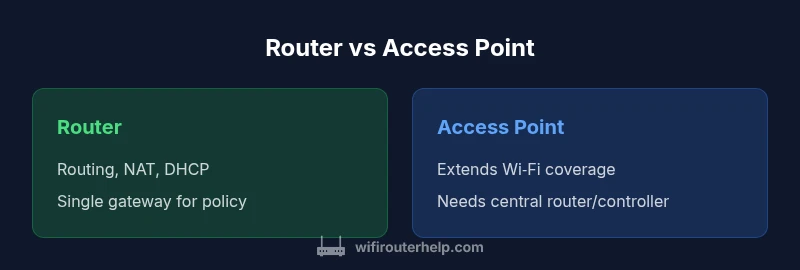
A router is the central gateway that manages traffic between your home network and the internet, handling routing, DHCP, NAT, and security. An access point (AP) is a Wi‑Fi radio that extends wireless coverage by attaching to an existing network. In short, a router provides the core network rules, while an AP expands coverage without adding routing logic. For most households, the router is the base, and APs fill in dead zones.
What defines a router and what defines an access point?
In home networking, a router is the central gateway that links your local network to the internet and manages IP addressing within your house. It combines routing logic, a DHCP server, NAT to translate addresses, and firewall protections. An access point (AP) is a dedicated Wi-Fi radio that attaches to an existing network to extend wireless coverage. When you compare router versus access point, it’s important to separate the device’s core functions from how it is deployed. According to WiFi Router Help, the most common confusion is treating an AP as a second router; in reality an AP should be used to grow coverage while preserving the primary network rules set by your router. Understanding these roles helps you design a network that scales without creating conflicts or double-NAT situations. In practical terms, think of the router as the brain and gatekeeper of the network, while an AP is the friendly extender that reaches further rooms or floors.
How a router handles routing, NAT, DHCP
Routers perform three core duties that shape how devices obtain access to the internet: routing, Network Address Translation (NAT), and DHCP service. The routing table directs traffic between your local devices and the wider internet. NAT lets multiple devices share a single public IP address, which is essential for security and addressing efficiency. DHCP assigns IP addresses to new devices automatically. In a typical home setup these processes are bundled inside one device, which simplifies management but also concentrates risk: if the router fails or is misconfigured, every device connected to the network is affected. The key takeaway in router-versus-AP planning is to understand which features you need on the gateway and which you can delegate to other devices. WiFi Router Help notes that in many configurations, keeping DHCP and NAT on the main router while using APs in bridge mode minimizes complexity and avoids double-NAT.
Understanding the role of an access point
An AP connects to a router or a switch to provide a dedicated wireless broadcast. It does not typically perform routing or NAT; its job is to provide a strong radio signal and a clean backhaul to the rest of the network. In many homes, APs are placed to cover dead zones or to duplicate SSIDs across floors. When you run router vs AP setups, consider backhaul options (ethernet backhaul preferred) and how APs align with your existing SSID, security settings, and guest networks. WiFi Router Help emphasizes ensuring your APs are configured to work with the main router's DHCP scope and firewall rules, so roaming stays seamless and devices don’t end up with conflicting IP addresses.
Core differences you should care about
- Core function: a router is a gateway with NAT and firewall; an AP extends wireless coverage.
- DHCP/NAT: routers usually handle both; APs rely on the main router for IP assignment and NAT.
- Routing vs broadcasting: routers route traffic; APs broadcast Wi‑Fi in a controlled segment.
- Backhaul: routers use built‑in ports; APs need a wired backhaul to the router or a controller.
- Management: a single device vs multiple devices needing coordination.
- Roaming: single‑device networks tend to roam more predictably when using a router‑plus‑AP setup or a mesh system.
- Cost and complexity: single routers are cheaper and simpler for small spaces; APs add coverage but require more planning.
Network design scenarios: small apartment vs large home
In a small apartment, a single modern router often suffices: it provides Wi‑Fi, firewall protections, and integrated DHCP. If you notice dead spots, a single AP or a compact mesh satellite can fill gaps without complicating the network. For larger homes or multi‑story layouts, planners typically deploy one or more APs or switch to a mesh system. Ethernet backhaul between the router and APs yields the most reliable performance, while wireless backhaul can work but may reduce throughput. The goal is stable coverage with consistent policy enforcement from the gateway. Remember, the best approach depends on space, furniture layout, and the number of devices. WiFi Router Help’s guidance emphasizes matching coverage objectives with a scalable design rather than forcing a one‑size‑fits‑all solution.
Practical setup steps: choosing the right device, placement, channel selection
Start with a clear map of your space and determine where wireless dead zones exist. If you’re upgrading from a single router, decide whether you need one AP per floor or a single AP near the middle of the longest corridor. Place APs with a clear line of sight when possible, avoiding thick walls and appliances that cause interference. Ensure Ethernet backhaul if feasible, which minimizes latency and maintains robust throughput. When configuring channels, use 2.4 GHz for broad compatibility and 5 GHz for higher speed in close proximity to the router; tune to avoid crowded channels. Keep firmware updated, enable WPA3 security, and set up a guest network if you share Wi‑Fi with visitors. These steps balance performance with security and future expansion.
Integration: using a router and access point in one network
A router and APs can operate as a unified network, but there are pitfalls to avoid. If you enable APs in bridge mode, you typically disable DHCP on the APs and let the router manage IPs. Mesh systems blur the lines between router and APs by providing seamless roaming through a single management interface. If you must mix gear from different brands, ensure compatibility and check for features like VLAN support and unified SSIDs. In all cases, avoid double NAT by keeping NAT enabled only on the main gateway, and use a dedicated backhaul to maximize reliability. This approach helps you maintain consistent speed and roaming behavior across your home.
Common pitfalls and mistakes
- Assuming more devices automatically equal better coverage without planning backhaul.
- Running multiple routers with conflicting DHCP scopes, creating IP conflicts.
- Placing APs too close to the router or too far apart, which splits coverage.
- Skipping firmware updates, reducing security and stability.
- Ignoring guest networks or QoS settings that affect performance for critical devices.
- Not testing roaming performance after setup, leading to “sticky” connections on the wrong AP.
Performance considerations: speed, latency, interference
Performance hinges on how you deploy routers and APs. A single router can handle basic tasks efficiently, but coverage may falter in larger homes or in areas with many walls. APs improve coverage but add backhaul constraints; Ethernet backhaul remains the gold standard for speed and latency. 5 GHz bands provide higher throughput but shorter range; 2.4 GHz offers broader reach but more interference. If you’re aiming for gaming or 4K streaming, ensure the network design minimizes hops, uses high‑quality backhaul, and supports modern wireless standards. WiFi Router Help recommends testing throughput in each location and adjusting placement to reduce dead zones while preserving stable security policies.
Security implications and features
Security in home networks starts at the gateway. A router typically provides the firewall, NAT, and basic IP filtering; APs must align with that security posture, either by inheriting policies or through centralized management. Modern networks benefit from WPA3, guest networks, and device isolation to protect your primary devices and IoT gear. When expanding with APs, keep the same encryption settings across all access points and ensure SSIDs are configured consistently to avoid insecure handoffs. Regular firmware updates on both the router and APs are essential to guard against new threats. By prioritizing a strong security foundation, you create a network that is both fast and safer for every connected device.
Troubleshooting tips when router and AP don’t cooperate
If devices fail to obtain IP addresses or roam unexpectedly, start with a simple reset of the gateway and APs. Confirm DHCP is enabled only on the main router and that the APs are in bridge mode or managed by the main controller. Check backhaul connections and ensure Ethernet cables are intact. Verify firmware versions and reset credentials if necessary. For roaming issues, ensure APs broadcast the same SSID and security settings, and adjust channel selection to avoid interference. Finally, review QoS configurations to make sure critical devices receive priority during heavy use.
Quick decision framework: when to use a router vs AP
- Small spaces with a single user: router alone is usually enough.
- Medium spaces with some dead zones: add an AP with wired backhaul or a compact mesh unit.
- Large homes with multiple floors: consider a full mesh system or several APs connected by Ethernet.
- Need flexible guest networks or VLANs: use a router with capable APs or a managed wireless solution.
- Concerned about future expansion: plan for scalable hardware and management software that grows with your network.
Growing with hybrid setups and mesh
Hybrid setups combine the reliability of a wired backhaul with the flexibility of wireless APs. Mesh systems simplify roaming by using a single network name and central management, which reduces configuration drift and makes troubleshooting easier. If you live in a multi‑story home with thick walls, investing in a mesh system or multiple APs connected via Ethernet backhaul is often the most practical path. WiFi Router Help recommends starting with a solid gateway and methodically adding APs or mesh nodes as your needs evolve. This approach minimizes dead zones while preserving reliable security and policy enforcement across the entire network.
Final checks before you buy or reconfigure
Before making changes, map your space, identify dead zones, and list all devices with critical connectivity needs. Decide whether you need a single gateway or a scalable architecture. Ensure compatibility across gear brands if mixing, and verify that you can centrally manage security settings and firmware updates. Finally, align the chosen setup with your budget and long‑term network goals to avoid frequent reconfiguration.
Comparison
| Feature | Router | Access Point |
|---|---|---|
| Primary function | Routing, NAT, DHCP + firewall in gateway | Extends wireless coverage by attaching to existing network |
| DHCP server | Yes (on router) | Usually no; relies on router's DHCP |
| NAT | Yes (on router) | Typically not performed by AP |
| Backhaul options | Built-in WAN/LAN ports; integrated routing | Ethernet backhaul to router or controller; some PoE APs |
| Management | Single device management | Requires coordination across devices; may need controller |
| Roaming behavior | Depends on setup; can be smooth with proper config | Aim for seamless roaming when APs share SSID and centralized management |
| Best for | Small homes seeking simplicity | Larger homes needing coverage expansion and scalability |
Benefits
- All-in-one simplicity for small spaces
- Built-in security features on the gateway
- Fewer devices to manage in a basic setup
- Clear single point of control reduces configuration conflict
- Lower upfront hardware count in compact environments
The Bad
- Limited coverage in large or multi‑story homes
- Single point of failure if the gateway goes down
- Less flexibility to scale without new equipment
- Potential bottleneck if many devices compete for the same router resources
A router is the sensible default for small homes; add access points or a mesh system to extend coverage in larger spaces.
For compact homes, stick with a capable router that provides routing, NAT, and firewall. If your area includes dead zones or multi‑story layouts, introduce APs or switch to a mesh setup to maintain strong, uniform coverage while preserving security and network policies.
People Also Ask
What is the main difference between a router and an access point?
A router provides gateway functions such as routing, NAT, and DHCP, plus firewall protection. An access point extends wireless coverage by attaching to the existing network without handling core routing duties. The router sets the rules, the AP broadcasts the Wi‑Fi signal to reach more areas.
The router creates and protects your network, while the access point simply expands wireless coverage.
Can I replace my router with an access point?
Not usually. An access point does not replace routing or NAT; you still need a gateway to manage IP addresses and security policies. You can use a standalone gateway with APs for broader coverage if you disable AP routing functions appropriately.
APs expand coverage, but a router is typically needed to manage the network.
Do I need a separate gateway device if I use an access point?
Yes. The gateway (router) handles DHCP, NAT, and firewall rules. APs work with the gateway to extend Wi‑Fi. Some devices combine these roles, but a separate gateway is common for clarity and reliability.
You’ll usually keep a router as your main gateway and attach APs for better coverage.
Is a mesh system the same as using access points?
A mesh system uses multiple units that coordinate to act as a single network with seamless roaming. It often includes built‑in management for all nodes. Traditional APs require a separate controller or manual setup to achieve similar roaming quality.
Mesh is like a smarter, integrated version of multiple APs.
What is AP mode or bridge mode?
AP mode turns off routing on the AP so it simply extends the existing network. Bridge mode connects two networks over Ethernet. Both prevent double NAT and keep a single routing policy.
AP mode makes the AP behave as an extension of your router.
What factors influence the choice between router and access point?
Space, number of devices, and desired roaming quality determine the setup. If you want simple management, a single gateway may suffice. For large homes or challenging layouts, add APs or switch to a mesh system for reliability.
Space and future growth drive whether you add APs or go with a mesh.
What to Remember
- Assess your space before buying hardware
- Avoid double NAT by using bridge mode for APs
- Choose Ethernet backhaul when possible for best performance
- Prefer a mesh system for seamless roaming in large homes
- Maintain consistent security settings across all devices