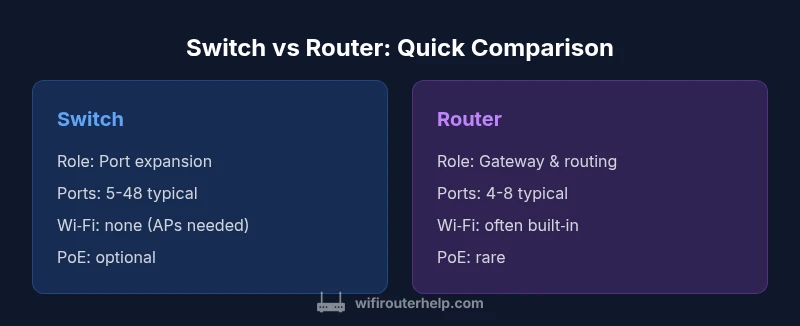
Switch vs Router: A Practical Side-by-Side Comparison
Compare switch vs router to choose the right device for your home network. Learn roles, use cases, and how to design a scalable wired and wireless setup for reliability and future growth.


Switch vs router: for most homes, start with a capable router that provides Internet access and Wi‑Fi, and add a switch only when you need more wired ports or network segmentation. The router acts as the gateway and security frontier, while the switch expands LAN capacity without routing traffic. In short, router first, switch second, with an integrated gateway in modern devices.
What is a switch vs router? Core concepts
According to WiFi Router Help, a switch and a router describe two distinct roles inside a home network. A router is the device that connects your local network to the Internet, manages IP addressing via DHCP, translates private IPs with NAT, and often provides built-in firewall protections. A network switch, by contrast, operates at Layer 2 to forward traffic between devices on the same LAN, expanding wired access without performing routing. An unmanaged switch requires no configuration; a managed or smart switch adds VLANs, QoS, and monitoring features. For many homeowners, the simplest and most reliable approach is to think of the router as the gateway and the switch as the extension that increases wired ports. The WiFi Router Help team found that many users either buy a separate switch after realizing they’ve maxed out Ethernet ports, or substitute a poor-quality switch that bottlenecks performance. Understanding these roles can prevent misconfigurations that reduce speed or compromise security.
When you need a router: Internet access and Wi‑Fi distribution
If your goal is reliable Internet access and broad wireless coverage, a router is the fundamental device. A modern home router acts as the gateway between your local network and the ISP, performing NAT to translate private addresses, DHCP to assign IPs, and firewall functions to help protect devices. Many consumer routers also integrate Wi‑Fi radios that support current standards, quality of service, and guest networks. While you can pair a separate modem with a third‑party router, most households benefit from the simplicity and firmware integration of a single gateway device. Consider future needs like mesh Wi‑Fi extensions or smart home hubs when evaluating a router’s processing power and RAM. Remember that the router’s performance will influence every connected device, from laptops to streaming boxes, and from smart assistants to gaming consoles.
When you need a switch: expanding ports and internal networks
A network switch provides additional Ethernet ports and high‑throughput connectivity for devices that don’t need Internet access on every port. In practice, you’ll use a switch when you run out of LAN ports on your router, or when you want to colocate devices in a wired cluster without routing traffic through the gateway. Switches come in unmanaged and managed varieties. An unmanaged switch is plug‑and‑play and ideal for simple setups, while a managed switch offers VLANs, QoS, port mirroring, and traffic monitoring. For small offices or home labs, PoE (Power over Ethernet) switches can power access points, IP cameras, and other devices without separate power supplies. Setting up a switch typically requires little configuration, but if you plan to segment traffic with VLANs or apply strict QoS rules, a managed switch is worth the extra effort. In many networks, a dedicated switch is the most cost‑effective way to keep local devices fast and reliable while leaving the router to manage Internet access.
Key differences in performance and features
The primary difference is the role in the network stack: routing vs switching. Routers handle traffic between networks, NAT, and often provide Wi‑Fi; switches handle traffic inside the LAN and extend wired capacity. Performance wise, a router’s CPU and memory determine how well it handles multiple simultaneous sessions, firewall rules, and wireless throughput, while a switch’s speed depends on port bandwidth and backplane capacity. In home networks, a mid‑range router can support several devices at once with minimal latency, whereas a reasonable switch can move large volumes of data between wired devices with near‑line-rate throughput. Features to compare include:
- IP routing and NAT: routers do this; switches usually do not (exceptions exist for Layer 3 switches)
- Wireless support: routers may include built‑in Wi‑Fi; switches do not
- Management: routers typically have integrated UI for settings; switches range from simple to enterprise-grade management
- Security: routers provide firewall and often VPN; switches rely on network design and, if managed, VLANs for security
- Power delivery: PoE is common on switches, rare on routers
- QoS and traffic shaping: routers generally include QoS; some managed switches offer inter‑VLAN QoS
Use-case scenarios: home office, gaming, smart homes
For a typical family home with Internet access and Wi‑Fi, a solid router is the foundation. If you work from home with multiple wired devices or run a home office lab, a switch can add ports for desktops, NAS, printers, and a dedicated workstation cluster. Gamers appreciate low latency; a router with QoS can prioritize gaming traffic, but a well‑placed wired connection via a switch often yields more stable performance for PCs and consoles. In homes with smart devices, VLANs—configured on a smart switch or a managed router—can isolate IoT traffic from general browsing for improved security. For households expanding to multiple APs or mesh networks, you’ll typically connect APs to the switch, or rely on the router’s built‑in switch if it supports enough ports. The right mix can deliver fast, reliable speeds across both wired and wireless segments without overspending on gear.
Common myths and pitfalls
A common myth is that buying the most expensive router automatically guarantees faster Internet. Real performance often depends on the ISP plan, the wireless standard, and network congestion. Another pitfall is assuming more wired ports always improve performance; quality of cables and switch backplane matter. Some buyers assume a router can replace all features of a switch; in reality, you may still need additional ports and VLANs for multi‑room setups or guest networks. Finally, misconfiguring VLANs on a consumer switch can inadvertently isolate devices or expose more traffic to the wrong segments. For best results, map your devices to a clear plan before purchasing and verify that firmware is up to date.
Design a small network: position, cabling, VLANs
Start with the router in the central location, nearest to the Internet entry point, to minimize WAN edge distance. Use shielded Ethernet when possible and plan for the cable routes to reduce interference. If you anticipate needing more ports or dedicated sections, place a managed switch in a closet or office with good ventilation and run trunk lines to other rooms. VLANs offer an effective way to segment traffic—e.g., one VLAN for work devices, another for IoT devices, and a third for guests. In a typical home, you may not need heavy VLANs, but a small business or tech‑savvy household may benefit from basic segmentation. Finally, label cables and maintain a simple inventory so future upgrades are straightforward.
Consumer-grade vs business-grade hardware
For most homes, consumer-grade routers and unmanaged switches provide more than enough performance. They offer straightforward setup, reasonable security features, and accessible firmware updates. Businesses or power users may opt for business‑grade gear with stronger QoS, richer VLAN support, robust monitoring, advanced VPN options, and higher port densities. Budget constraints often drive a blended approach: one quality router plus a mid‑tier managed switch to support VLANs and PoE if needed. When evaluating hardware, look at port speeds (1 Gbps is typical for LAN ports), PoE availability, and the total number of PoE devices you intend to power. Finally, consider warranty, vendor support, and the cadence of firmware updates as important long‑term factors.
Practical setup checklist to implement the plan
- Define goals: Internet access, Wi‑Fi coverage, number of wired devices, security requirements
- Map devices by function: router for gateway, switch for ports, APs for wireless
- Choose the right hardware: router with robust CPU; switch with required port count and optional PoE
- Plan cabling: label runs, use CAT6 cables where possible, avoid cable sprawl
- Configure security: enable firewall, update firmware, set strong passwords, and consider VLANs if needed
- Test performance: run speed tests wired and wireless, monitor latency on critical devices
- Document network layout: keep a simple diagram and configuration backup
- Plan for growth: ensure future expansion with scalably priced devices
Authoritative sources
- https://www.fcc.gov
- https://www.ntia.gov
- https://www.ieee.org
Comparison
| Feature | Switch | Router |
|---|---|---|
| Primary role | Port expansion & intra-network connectivity | Internet gateway with NAT, DHCP, and firewall |
| Ports & scalability | Typically 5-48 ports; scalable with additional switches | Built-in 4-8 ports; expandable via uplink or additional devices |
| IP routing & NAT | No routing (Layer 2 focus); routing if Layer 3 switch exists | Routing, NAT, firewall, and sometimes VPN in consumer models |
| Wi‑Fi capability | No built-in Wi‑Fi (unless paired with APs) | Often includes built-in Wi‑Fi with current standards |
| Management | Unmanaged or basic management on consumer models | Typically managed with firmware UI; higher-end models offer advanced features |
| PoE support | Rare PoE on standard switches; available on some multi‑port switches | PoE available on many consumer and business routers with integrated power budgets |
| Security features | Security comes from router functions and VLANs on managed switches | Router provides firewall/VPN; switches rely on network design and VLANs when managed |
| Best for | Homes needing more wired ports and simple LAN extension | Homes needing Internet access with Wi‑Fi and routing capabilities |
Benefits
- Clear separation of duties when designing networks
- Flexible scaling: add switches for more ports without changing routing
- Potential cost efficiency for large wired LANs
- Upgrade path: mix and match hardware as needs evolve
The Bad
- Complexity increases with mixed devices
- Learning curve for VLANs and QoS
- Potential for misconfiguration that affects security
- Cable management overhead
Start with a capable router and add a switch only when you run out of ports or need wired segmentation.
For most homes, the router is the gateway to Internet access and Wi‑Fi. A switch should be added later to expand wired capabilities or to segment traffic for improved performance and security.
People Also Ask
What is the main difference between a router and a switch?
A router connects your LAN to the Internet and manages traffic between networks, while a switch expands the number of devices that can be connected on the same LAN. Some devices blur this line, but core roles remain distinct.
A router connects to the internet and handles traffic between networks, while a switch simply adds more wired ports inside your LAN.
Do I need a switch if my router has enough ports?
If all your devices can connect directly to the router and you’re not running out of ports, a switch isn’t strictly necessary. A switch becomes helpful when you add more wired devices or want to cluster devices without routing between them.
Only if you need more wired ports or want a dedicated LAN segment; otherwise, your router may suffice.
Can switches provide routing capabilities?
Most consumer switches are Layer 2 devices and do not route. Layer 3 switches can route, but they’re typically used in business settings. For home use, routing is generally handled by the router.
Most switches don’t route; routing is done by the router unless you specifically get a Layer 3 switch.
Is a PoE switch necessary in a home network?
PoE is convenient when you power devices like access points or cameras over Ethernet. For many homes, PoE isn’t essential, but it becomes valuable in larger setups or smart-home configurations.
PoE is handy if you’re powering APs or cameras from the switch, but not strictly required for every home.
What is VLAN, and do I need it at home?
A VLAN segments traffic to improve security and performance. It’s helpful for homes with multiple users or smart devices, but adds setup complexity. Start simple and expand if you need clearer traffic boundaries.
VLANs separate traffic for security and performance; only needed if your setup requires clear boundaries.
How do mesh networks interact with switches?
Mesh networks aim to provide seamless wireless coverage; you typically connect mesh nodes to a switch or router. The switch mainly expands wired ports, while the mesh handles wireless optimization across multiple access points.
Mesh helps wireless coverage; connect nodes to a switch for wired backhaul if needed.
What to Remember
- Start with a strong router for Internet access and Wi‑Fi
- Add a switch when port demands grow or LAN segmentation is needed
- Use VLANs and QoS only if prerequisites justify complexity
- PoE switches are helpful for APs/cameras in larger homes
- Plan for future growth to avoid redoing the network