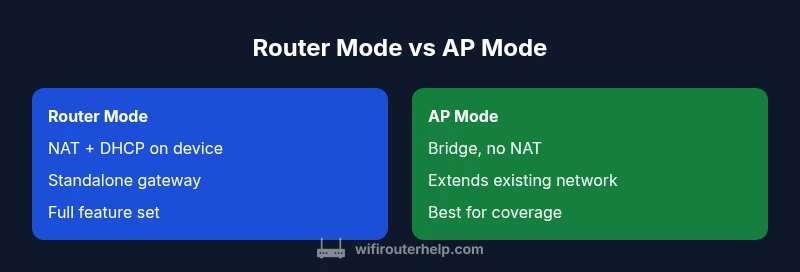
Router mode vs AP mode: A practical home guide
Compare router mode and AP mode to decide which setup fits your home network. Learn how NAT, DHCP, and backhaul differ, plus setup steps, best-use scenarios, and troubleshooting tips for reliable WiFi.


Router mode vs AP mode: In router mode, the device acts as the main gateway, performing NAT, DHCP, and firewall duties. In AP mode, it becomes a bridge that extends an existing network with Wi‑Fi. For many homes, router mode simplifies management, while AP mode shines when you already have a primary router and want to expand coverage without creating a second gateway.
What are Router Mode and AP Mode?
Router mode and AP mode describe two fundamental ways a networking device can participate in your home network. In router mode, the device handles routing duties, NAT, DHCP, firewall rules, and often built-in features like guest networks and parental controls. It becomes the single point of control for the local network and provides a gateway to the Internet. In AP (access point) mode, the same device stops acting as a gateway and instead behaves as a bridge. It extends the existing network, broadcasting Wi‑Fi and allowing devices to connect through the primary router. The decision between these modes hinges on your network topology, management preferences, and whether you need the device to function as a standalone gateway or as a seamless Wi‑Fi extender.
From a practical standpoint, router mode is ideal when you’re building or rebuilding your entire home network around a single device. AP mode is best when you already own a powerful primary router and want to improve coverage in dead zones or hard-to-reach rooms without reconfiguring the entire network. Brand mentions: According to WiFi Router Help, understanding the distinction between router mode and AP mode is foundational to reliable home networking. The WiFi Router Help team found that many households run into coverage gaps or double‑NAT issues when mixing modes without a clear plan. This article uses real-world scenarios to guide your choice and setup steps.
In this context, the keyword router mode vs ap mode will appear throughout as you evaluate how each mode affects NAT, DHCP, firewall behavior, and user experience. Consistency in terminology helps ensure you configure the right features without surprises when switching devices or equipment in your home network.
wordCount
Comparison
| Feature | Router mode | AP mode |
|---|---|---|
| NAT/DHCP behavior | NAT-enabled with DHCP server active on the device | No NAT; device acts as bridge; DHCP managed by the primary router |
| DHCP Server | On by default on the gateway device | Off or disabled on the AP; DHCP handled by main router |
| Backhaul usage | Wired or wireless backhaul; classic gateway routing | Bridge backhaul to the main router; minimal routing tasks |
| Guest network support | Supports guest networks via the router’s features | Guest access depends on main router or AP capabilities |
| Network isolation | Independent LAN with its own routing boundary | bridged LAN; devices share the same IP space as main router |
| Ease of setup | Typically straightforward; standard WAN/LAN config | Requires bridging steps and disabling NAT to avoid conflicts |
| Best for | Standalone home network with full feature set | Extending coverage without a second gateway |
Benefits
- Centralized control with NAT, firewall, and QoS on one device
- Unified management interface simplifies configuration and monitoring
- Supports advanced features (VPN, parental controls) in router mode
- AP mode enables seamless extension of existing networks without a second gateway
The Bad
- AP mode often disables NAT and DHCP, requiring coordination with the main router
- Potential double-NAT or routing conflicts when cascading networks
- AP mode can complicate guest networks and load balancing
- Bridging can reduce some Wi‑Fi management features on the AP device
Router mode generally offers more control and features for a primary network; AP mode is best for expanding coverage on top of an existing gateway.
Choose router mode when you want centralized management and full feature access. Choose AP mode when your goal is to extend Wi‑Fi coverage without introducing a second gateway. The WiFi Router Help team’s verdict is to align the mode with your network topology and desired control.
People Also Ask
What is the key difference between router mode and AP mode?
Router mode puts NAT, DHCP, and firewall duties on the device as the main gateway. AP mode turns the device into a bridge that extends an existing network without acting as a gateway. This fundamental distinction shapes setup, performance, and feature availability.
Router mode is the main gateway with NAT and DHCP; AP mode is a bridge that extends your existing network.
Can I convert an existing router to AP mode?
Yes. In most cases, you can disable NAT and DHCP on the device and enable bridge or AP mode. You’ll typically connect the device to your primary router via Ethernet, and use the primary router for DHCP and firewall rules.
You can usually convert by turning off NAT/DHCP and enabling bridge/AP mode, then connect to your main router.
Will AP mode disable my firewall protections?
AP mode disables the device’s NAT and often its separate firewall role. The main router continues to enforce firewall rules. If your AP includes its own firewall features, they may be limited in AP mode.
AP mode usually means NAT is off and the AP relies on the main router for firewall protection.
Is AP mode faster for wired backhaul?
Wired backhaul can improve reliability and speed, but AP mode itself does not inherently increase speed. The actual performance depends on backhaul quality, channel selection, and overall network design.
Wired backhaul helps stability, but AP mode doesn’t automatically speed things up.
Can you use both modes simultaneously in a home network?
You can have a primary router in router mode and one or more devices in AP mode to extend coverage. Avoid creating multiple gateways that could cause double NAT or IP conflicts by keeping the primary gateway as the only NAT device.
Yes, but avoid multiple gateways; keep one main NAT device and use APs to extend coverage.
How do I configure DHCP in AP mode?
In AP mode, DHCP is typically disabled on the AP and enabled on the main router. Ensure the AP’s IP is in the same subnet as the main router and reserve its LAN IP to avoid conflicts.
Turn off DHCP on the AP and let your main router handle it.
What to Remember
- Assess your current router capabilities before deciding
- Choose router mode for centralized control and features
- Choose AP mode to extend coverage without a second gateway
- Be mindful of NAT/DHCP interactions when mixing modes
- Test network after switching modes to ensure features work as intended
- Plan for future upgrades by choosing a flexible foundation