Difference Between a Router and a Switch in Networking
Explore the difference between a router and a switch in networking, including roles, layers, and practical guidance for home networks. Learn how each device works and where to place them for reliable connectivity.


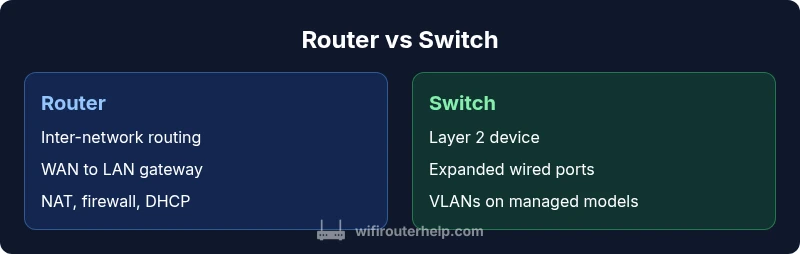
Understanding the difference between a router and a switch in networking is essential for designing a reliable home network. A router connects your local network to the internet and routes data between networks, while a switch links devices inside the LAN to share bandwidth efficiently. In short, routers handle inter-network traffic and network boundaries; switches handle intra-network device communication.
What is a router?
A router is a Layer 3 device that serves as the gateway between your home network and the wider internet. Its primary jobs include routing packets from your local network to external networks, performing Network Address Translation (NAT) so multiple devices can share a single public IP, and enforcing basic security rules via a built-in firewall. Many consumer routers also include DHCP servers to assign local IP addresses, making it easier to manage devices at home. The difference between a router and a switch in networking becomes clear when you think about network boundaries: routers create and manage these boundaries, while switches stay inside them to move traffic efficiently. In modern homes, the router and switch often live in the same box or in a connected gateway device, offering a blend of features.
When you’re selecting a device, consider WAN connectivity, built-in Wi‑Fi, and security features, as these factors largely shape the user experience. A good router with robust security reduces the risk of exposure from external threats and provides a stable edge for your network. WiFi Router Help notes that, in 2026, home users benefit from a device that combines routing with reliable wireless access and sensible parental controls.
What is a switch?
A switch is a Layer 2 device that connects multiple devices on a local area network (LAN). It learns each device’s MAC address and forwards traffic only to the correct port, which reduces unnecessary traffic and helps networks scale. Switches come in two broad categories: unmanaged and managed. Unmanaged switches are plug-and-play and ideal for simple expansions, while managed switches offer features like VLANs, QoS, link aggregation, and more granular control over traffic. The difference between a router and a switch in networking becomes evident here: switches focus on efficient intra-network communication and port expansion, whereas routers manage inter-network traffic and edge security.
Home networks typically gain from having a switch to provide additional Ethernet ports for desktop PCs, game consoles, or network-attached storage. Managed switches are particularly useful if you want to segment traffic or dedicate bandwidth to specific devices. Some switches also support Power over Ethernet (PoE), which powers certain devices directly through Ethernet cables.
Layer 2 vs Layer 3: The technical split
At a high level, Layer 2 devices (switches) operate within a single broadcast domain, moving frames based on MAC addresses. Layer 3 devices (routers) operate across multiple networks and use IP routing to determine the best path for a packet. This distinction affects how devices handle traffic, VLANs, and subnet design. A switch does not inherently route between subnets unless it is a multilayer switch with routing capabilities. When you add a router into the mix, it becomes the traffic broker between your home network and the internet, often performing NAT, firewalling, and DHCP functions. Understanding these layers helps you design networks that minimize latency and maximize security.
Routing features you should expect on a modern router
A contemporary home router typically includes more than just routing. Expect NAT to share a single public IP, a firewall to block unsolicited traffic, and DHCP to assign IPs. Many routers also offer features like VPN support, dynamic DNS, and basic QoS to prioritize gaming or video calls. Some models include guest networks to isolate visitors from your main devices, parental controls for content filtering, and integrated Wi‑Fi. The router’s OS often provides a user-friendly interface for configuring firewall rules, port forwarding, and UPnP settings. If you’re evaluating devices, verify that they support the latest security standards and receive regular firmware updates. WiFi Router Help recommends prioritizing devices with transparent security updates and a clear roadmap for future firmware.
Switch capabilities: VLANs, PoE, and more
Switches, especially managed models, offer a range of capabilities that complement a router. VLAN support lets you segment your internal network for better security and performance. Link aggregation (port bonding) can combine multiple ports for higher throughput to servers or NAS devices. PoE (Power over Ethernet) delivers power to compatible devices like cameras and access points through Ethernet cables, reducing the number of wall adapters needed. Managed switches provide SNMP monitoring, traffic statistics, and configuration backups, which helps with troubleshooting and long-term reliability. Even a basic unmanaged switch can dramatically increase the number of available Ethernet ports, turning a single router into a more versatile home network. The key difference remains: a switch expands local connectivity, while a router defines the network boundary and routes traffic between networks.
Home network topology: where to place each device
In typical home setups, your modem from the internet service provider connects to the router’s WAN port, forming the network edge. A switch can be connected to a router’s LAN port to expand wired connectivity to more devices. For multi‑story homes or spaces with many wired devices, a managed switch placed closer to where devices are located minimizes cable runs and reduces hub‑and‑spoke bottlenecks. If you want better wireless coverage, consider placing a wireless access point or a mesh system in larger homes, connected to the router or the switch as part of a larger LAN topology. Visualizing the topology helps you avoid bottlenecks and ensures smooth streaming and gaming experiences.
Wireless considerations and how routers handle Wi‑Fi
Most modern routers combine routing with Wi‑Fi access, offering dual‑band or tri‑band networks and guest networks. The wireless side adds complexity: channel selection, interference management, and security. A router with robust Wi‑Fi management can automatically optimize channels and provide features such as MU‑MIMO and beamforming for better range. Separate switches do not provide wireless functionality, so if you need wireless coverage in every room, you’ll want a router with strong Wi‑Fi or a dedicated access point strategy. Mesh systems, while technically another form of router, rely on multiple nodes to blanket the home with reliable coverage, often integrating with your router for seamless roaming.
Choosing the right device for your space
Your space size and device density drive the choice between router and switch. For small apartments, a single router with enough LAN ports and solid Wi‑Fi is often sufficient. For larger homes with many wired devices or a need for network segmentation, add a managed switch and potentially an additional access point. Budget also matters: entry‑level routers offer reliable connectivity, but features like VLANs, PoE, and advanced QoS come at a premium. Look for a device family that offers consistent firmware updates, a straightforward management interface, and a clear upgrade path as your network grows.
Common myths debunked about routers and switches
Myth 1: You always need a separate router and switch. In many homes, a single gateway device handles both functions, making a separate switch optional unless you need more ports or VLANs. Myth 2: A switch can route between subnets. Only Layer 3 switches or routers perform inter‑subnet routing; standard Layer 2 switches do not. Myth 3: Wired always beats wireless. While wired connections are typically more stable and faster, a well‑configured router with modern Wi‑Fi can provide reliable wireless performance for most households. Myth 4: Any switch is the same. Managed switches offer features such as VLANs and QoS; unmanaged switches are simpler but less flexible.
Real‑world topology scenarios: apartment vs house
In a small apartment, a single semi‑smart gateway with Wi‑Fi is usually enough, with a switch added only if you need more wired devices. In a two‑story house with multiple desktops, gaming consoles, and a NAS, a router at the edge paired with a managed switch near the devices delivers stable performance and better control. For a three‑to‑four room home with an office, consider a high‑quality router that supports mesh extenders or a separate access point; connect the APs to the switch to centralize management. These scenarios illustrate how routers and switches complement each other rather than compete.
Setup and configuration: quick‑start steps
- Connect the modem to the router’s WAN port and power on both devices. 2) Access the router’s admin interface and run the quick setup wizard to configure the internet connection and Wi‑Fi networks. 3) If you added a switch, connect it to a LAN port on the router. 4) Enable and configure features such as WPA3 security, guest network, and basic QoS. 5) Create VLANs only if you’re sure you need segmenting; document your network plan for future changes. 6) Update firmware and back up configuration settings. This practical approach reduces the risk of misconfigurations and ensures a smoother day‑to‑day experience.
Performance, reliability, and future‑proofing
Performance hinges on how you design the boundary between your network and the wider internet, plus how you expand ports and services inside. Reliability comes from solid hardware, good firmware updates, and sensible cabling that reduces interference and signal loss. Future‑proofing means planning for more devices, higher bandwidth, and new features such as more secure DNS, improved parental controls, and better management interfaces. Choose devices from reputable vendors that offer regular firmware updates and a clear upgrade path rather than short‑lived budget gear. WiFi Router Help emphasizes evaluating both hardware quality and software support to future‑proof a home network effectively.
Practical purchasing guidelines and maintenance tips
- Start with a router that provides sufficient wireless coverage and port count for your space and devices.
- If you plan to add more wired devices or VLANs, consider a managed switch with enough ports and PoE if needed.
- Check for security features like automatic firmware updates, malware protection, and robust firewall rules.
- Prioritize devices with clear documentation, a good user interface, and a reliable support track record.
- Schedule periodic maintenance checks—firmware updates, backup configurations, and a quick audit of connected devices.
Comparison
| Feature | Router | Switch |
|---|---|---|
| Role in a network | Inter-network routing and WAN access | Intra-network device connectivity (L2) |
| Typical layer | layer 3 (network) | layer 2 (data link) |
| NAT & firewall features | Typically includes NAT and firewall | Switches generally lack NAT; routing features require a separate device or multilayer switch |
| VLAN support | Can route between subnets and support basic VLANs on some models | Managed switches support VLAN segmentation; interoperability varies |
| Ports and expansion | Fewer, but include WAN+LAN; often integrated | Many ports; scalable with stacking or uplinks |
| QoS/traffic management | Basic to moderate QoS integrated in many routers | QoS is common on managed switches, more granular control on higher models |
| Best for | Providing internet access at the network edge | Expanding wired capacity and segmenting devices within a LAN |
Benefits
- Clarifies device roles to prevent mispatching or overbuying
- Router features like NAT and firewall improve edge security
- Switches provide scalable port expansion for wired devices
- Managed switches enable VLANs and QoS for better network control
- Combination devices simplify small setups for cost and space
The Bad
- Overemphasis on one device can lead to under‑provisioning for future needs
- Managed switches add complexity and require more configuration knowledge
- Cheap switches may lack necessary features like PoE or QoS
- Router‑only solutions may limit internal network growth if not paired with a switch
Routers and switches serve distinct but complementary roles; for most homes, start with a capable router and add a managed switch only if you need more ports or VLANs.
Prioritize edge routing and Wi‑Fi first; expand with a switch when you need more Ethernet ports or network segmentation. The WiFi Router Help team recommends pairing devices as your needs grow to maintain performance and security.
People Also Ask
What is the main difference between a router and a switch?
The main difference is that a router connects networks (LAN to WAN) and routes traffic between them, while a switch connects devices within the same network and forwards traffic based on MAC addresses. Routers provide NAT and firewalling at the network edge, whereas switches focus on efficient local data transfer. For many homes, both are needed to achieve internet access and scalable wired expansion.
A router connects you to the internet and directs traffic between networks; a switch links devices within your local network.
Can I replace both with a single device?
Some devices combine routing and switching; a gateway can provide both, but they may not offer the same depth of features as using separate, dedicated devices. If you need extensive VLANs, PoE, or advanced QoS, you may benefit from separate components. Evaluate your needs and upgrade path before consolidating hardware.
Yes, some gateways do both jobs, but you might lose some advanced features.
Do I need a managed switch for a home network?
A managed switch is not required for every home, but it becomes valuable if you need VLANs, QoS, or granular traffic control. Unmanaged switches are fine for simply adding ports. The choice depends on your network goals and your comfort with network configuration.
Managed switches help if you want VLANs or traffic control; otherwise, an unmanaged switch works fine.
What is the role of VLANs in a home network?
VLANs segment your network into separate broadcast domains, which can improve security and performance. They’re especially useful when you want to isolate guests, a home office, or a media server from other devices. Routers and some managed switches work together to route between these VLANs when needed.
VLANs split your network into parts for better security and traffic control.
Is it possible to use a router as a switch?
Most routers can function as a basic switch with Ethernet ports, but you miss the dedicated switching features and VLAN options. For more complex needs, add a separate switch or upgrade to a multilayer device.
A router can act like a switch for basic tasks, but you lose advanced switching features.
What to Remember
- Identify the router as the network edge device
- Add a switch to expand wired ports and enable segmentation
- Use VLANs on managed switches for improved security
- Prioritize firmware updates and proper cabling for reliability
- Plan for future growth with scalable hardware