TP-Link AC1200 Mesh: Setup, Optimization, and Troubleshooting
Learn how to set up and optimize a TP-Link AC1200 mesh system for seamless home Wi-Fi coverage with step-by-step guidance, troubleshooting tips, and best practices.


With this guide, you will set up a TP-Link AC1200 mesh system and achieve reliable whole-home Wi‑Fi. It covers basic placement, running the initial setup, updating firmware, and verifying signal strength across rooms. You'll also learn how to tune guest networks, enable QoS, and troubleshoot common coverage gaps. The steps assume a typical home layout and standard ISP modem.
Understanding the TP-Link AC1200 Mesh Architecture
The TP-Link AC1200 mesh system uses a two-band design to unify coverage across multiple rooms. Each node communicates with the others to create a single network name, enabling devices to roam without manual switching. This architecture improves reliability by routing traffic through the strongest link and reducing single-point failures. According to WiFi Router Help, a well-planned mesh setup minimizes dead zones and keeps performance consistent as you move around the house. Understanding how nodes connect—whether in a star topology with a central router or a chained layout—helps you plan placement and avoid interference from walls and electronic obstacles.
Planning Node Placement for Maximum Coverage
Effective node placement starts with a simple floor plan. Place the primary node near the center of the home, elevated on a shelf or stand, and avoid stacking it behind large obstacles like entertainment centers or filing cabinets. Satellites should be spaced so that their signals overlap with the primary unit, creating seamless handoffs as you move through rooms. Keep nodes away from thick walls, mirrored surfaces, and metal appliances, which can block signals. Use the TP-Link app’s heat map to identify weak spots and adjust positions for more even coverage. The goal is to create multiple strong links rather than a single distant connection that bottlenecks traffic across the network.
Quick-Start Setup: Step-By-Step Configuration
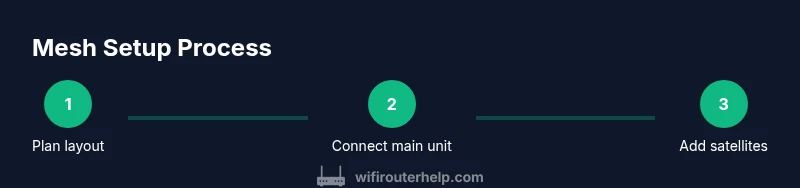
Begin by installing the TP-Link Home app on a phone or tablet, then follow the on-screen prompts to add the main router to your account. Connect the primary unit to your modem using the WAN/Internet port and power everything up. The app will guide you to create a network name and a strong password, then add satellite nodes and pair them with the main unit. For best results, complete the setup in a single uninterrupted session and verify the signal strength map in the app after pairing. If you’re upgrading from an older router, consider a factory reset on existing devices before starting the new configuration.
Optimizing Performance: QoS, Band Steering, and Channels
Once the basic network is in place, enable QoS to prioritize essential devices or services, such as video calls or gaming. If your devices support band steering, enable it so clients switch automatically between 2.4 GHz and 5 GHz bands for optimal performance. In congested environments, manually choosing channels on the router can reduce interference from neighboring networks. Regularly review connected device lists to identify bandwidth hogs and adjust priorities accordingly. For most homes, leaving auto-channel selection on will work well, but a manual tune can help in apartment buildings or dense neighborhoods where interference is common.
Troubleshooting Common Issues and Maintenance
Common issues include dropped connections, slow speeds, and inconsistent coverage. Start with a simple reboot of the main router and satellites, then run a fresh speed test in several rooms. If problems persist, check for firmware updates in the app and apply them. A factory reset should be a last resort if the network behaves erratically, followed by re-running the setup wizard. Regular maintenance, including firmware updates and periodic re-mapping of coverage, keeps the system resilient against evolving home layouts and new devices.
Security Best Practices: Guest Networks and Updates
Security starts with a strong, unique password for your main network and a separate guest network to isolate visitors’ devices. Always enable WPA2 or WPA3 encryption where available and keep firmware up to date to patch vulnerabilities. Disable remote management from the internet unless you specifically configure it for trusted use. Regularly review connected devices and revoke access for any unknown clients. These steps reduce exposure to attackers and help ensure your home Wi-Fi remains private and reliable.
Authority Sources
- FCC: https://www.fcc.gov
- NIST: https://www.nist.gov
- NTIA: https://www.ntia.doc.gov
For further context, this article aligns with best practices outlined by government and major publications to help users optimize wireless home networks and maintain secure, reliable connections across devices.
Tools & Materials
- TP-Link AC1200 mesh kit(Main router and satellites; ensure it matches the model you purchased)
- Smartphone or computer with TP-Link app(Used for setup and ongoing management)
- Ethernet cable(Connect main router to modem during setup if needed)
- Modem(ISP-provided or own modem; ensure compatibility)
- Web browser or TP-Link app(Access the setup wizard and admin interface)
- Power outlets(One near each node for reliable power)
- Ethernet backhaul (optional)(Wired backhaul improves reliability in larger homes)
Steps
Estimated time: 20-45 minutes
- 1
Unbox and plan node placement
Assess your home layout and map potential node locations. Choose central, elevated spots to minimize obstructions and maximize coverage. Avoid placing nodes behind large metal cabinets or inside deep cabinets where signals can be blocked.
Tip: Use a simple room map and label candidate locations before you start. - 2
Connect the primary unit to the modem
Connect the main router’s WAN port to your modem with an Ethernet cable. Power on both devices and wait for them to boot. If you have an existing network, consider a quick reset of the primary unit to ensure a clean slate.
Tip: If you’re replacing an older router, keep the modem in bridge mode if your ISP supports it. - 3
Install the TP-Link app and begin setup
Open the TP-Link app and follow the on-screen prompts to add the primary node to your account. Create your network name and a strong password, then complete the initial configuration.
Tip: Use a password manager to create a unique long password for your network. - 4
Add satellite nodes and sync
Power on satellites one at a time and let them pair with the main unit. Use the app’s guidance to ensure each satellite is connected with a strong link and adjust placement as needed.
Tip: Place satellites where the app shows good signal strength but not directly next to the main unit. - 5
Configure network names and security
Set a single SSID for seamless roaming or split networks if you prefer separation. Enable encryption, set a robust password, and configure a guest network if you have visitors.
Tip: Avoid using the same password for admin access and the Wi-Fi network. - 6
Test coverage and optimize
Run a series of tests in different rooms to verify consistent performance. Use the app’s heat map to identify dead zones and adjust node positions accordingly.
Tip: Make small shifts rather than large relocations to preserve existing good links. - 7
Enable QoS and security features
Turn on QoS to prioritize critical devices or services. If supported, enable band steering and enforce updated firmware for security and stability.
Tip: Review device usage and adjust QoS rules as your household devices evolve. - 8
Document changes and perform maintenance
Keep a simple log of network changes and monitor signal quality over time. Schedule periodic firmware checks and re-run coverage tests after large layout changes or new devices.
Tip: Set firmware update reminders to maintain performance and security.
People Also Ask
Is the TP-Link AC1200 mesh suitable for large homes?
In larger homes, you may need more nodes to ensure even coverage; consider wired backhaul for stable connections.
For large homes, you’ll likely need multiple nodes and possibly wired backhaul to keep speeds consistent.
How many nodes do I need for an average layout?
There is no one-size-fits-all; start with one main unit and add satellites as needed. Use the app heat map to identify gaps.
Start with one main unit and add satellites until you have even coverage; the heat map helps.
Can I use an existing modem with the TP-Link mesh?
Yes, as long as the modem is compatible with your ISP; connect the mesh to the modem and consider bridge mode if available.
Yes, you can use your modem, but you might need to set it to bridge mode for best results.
What should I do if connections drop after a firmware update?
Try rebooting the main unit and satellites, then rerun the setup wizard if needed. If problems persist, reset to factory settings and reconfigure.
If it misbehaves after an update, reboot and reconfigure; resets are a last resort.
How can I secure guest access?
Enable a separate guest network with its own password and limit access to devices on the main network.
Use a separate guest network with a unique password to keep your devices secure.
Should I enable band steering on all devices?
If supported, enable band steering to help devices switch between bands automatically for better performance.
Turn on band steering if your devices support it; it helps them connect to the best band.
Watch Video
What to Remember
- Position the main node centrally for even coverage.
- Use the app heat map to guide satellite placement.
- Enable QoS and a separate guest network for security and control.
- Keep firmware up to date to maintain performance.
- Test coverage in every room after setup.