TP-Link Mesh Setup and Optimization Guide
Learn how to set up, optimize, and troubleshoot tp link mesh networks for reliable home Wi-Fi. This step-by-step guide covers placement, configuration, and common issues with TP-Link mesh systems.


What is TP-Link Mesh and Why It Matters
TP-Link mesh systems are designed to eliminate Wi‑Fi dead zones by using multiple nodes that share a single network name (SSID) and coordinate automatically. With tp link mesh, your home gets broader, more reliable coverage as devices move from room to room without reconnecting. According to WiFi Router Help, this approach simplifies home networking by distributing bandwidth across nodes while maintaining a consistent user experience. In practice, you place a primary router near your modem and add satellites around the house to fill gaps. The result is a seamless network that scales with your home size and device density, from smartphones to smart TVs and laptops. This guide shows how to plan, set up, and optimize a TP-Link mesh system for best results across different home layouts and internet plans.
- Understand what mesh means for your home: a single network with smarter coverage.
- Differentiate between main and satellite units, and how roaming works as you move through rooms.
- Avoid common pitfalls like poor placement or overloading a single node.
The goal is a reliable, simple-to-manage Wi‑Fi system that scales with your home and devices.
Key Principles of TP-Link Mesh Architecture
TP-Link mesh relies on a mesh backhaul where nodes communicate with each other to route data efficiently. This can be wireless or wired (backhaul) connections, with the wired option offering the most stable performance in larger homes. All nodes broadcast the same SSID, which enables seamless roaming as devices shift from one room to another. The TP-Link app handles configuration, firmware updates, and security settings, simplifying ongoing management. Roaming algorithms continuously choose the best path for data, reducing buffering and drops, while band steering helps devices select the optimal 2.4 GHz or 5 GHz band. For homeowners, the architecture translates into straightforward setup and reliable performance when you add more nodes over time.
- Mesh backhaul improves resilience against single-point failures.
- Roaming and band steering optimize user experience without manual tuning.
- Self-healing behavior helps the network recover from node failures automatically.
Planning Your TP-Link Mesh Deployment
Before buying nodes, map your home to identify coverage gaps and high-usage zones. Start with a strong central location near the main router or modem, avoiding metal appliances and thick walls that can block signals. Consider room layout and wall materials; brick, concrete, and metal can attenuate signals more than drywall. Plan for at least two nodes in small-to-medium homes and more for larger layouts or multi-story houses. If possible, choose locations that maximize line-of-sight and minimize interference from microwaves, cordless phones, or dense furniture. Finally, think about future growth: you may want to add nodes for a garage, basement, or balcony area. WiFi Router Help analysis shows that thoughtful placement dramatically improves overall speed and reliability.
- Create a coverage map for each floor and note potential interference sources.
- Prioritize central areas for the main node and mid-house locations for satellites.
- Allow for expansion in stages rather than buying every satellite at once.
Quick-start Checklist for TP-Link Mesh Deployment
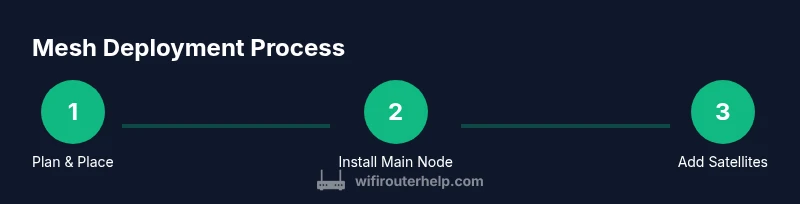
- Install the TP-Link app on a smartphone or tablet and ensure you have a working internet connection.
- Place the main node near the modem in a central, open area.
- Add satellites gradually, testing signal quality in each room before finalizing placements.
- Use the app to configure the network name (SSID), password, and security settings.
- Enable guest networking and parental controls if you need them, and set up QoS for prioritizing essential devices.
With these steps, you’ll have a practical, scalable mesh system that grows with your home and devices.
Optimizing Performance: Channel Selection, QoS, and Bandwidth
Maximize TP-Link mesh performance with attention to backhaul, channel selection, and QoS. If you have wired backhaul between nodes, enable it in the app to lock in a stable path. For wireless backhaul, ensure nodes are within a reasonable distance to avoid excessive hop counts. Enable band steering so devices are directed to the optimal 2.4 GHz or 5 GHz band. Prioritize latency-sensitive devices like video calls or gaming consoles using QoS rules. Avoid overcrowding the same area with too many devices on a single node; distribute traffic across multiple units where possible. Regular firmware updates improve performance and security.
- Prefer wired backhaul when possible for maximum stability.
- Use band steering and QoS to balance traffic.
- Reassess node placement after firmware updates, app changes, or new devices.
Troubleshooting Common TP-Link Mesh Issues
If devices fail to connect to the mesh, first verify the main node is online and that satellites are properly linked. Run a quick speed test in multiple rooms to identify dead zones, and adjust node placement accordingly. If roaming is slow, move satellites closer to the main node or adjust backhaul settings. Firmware updates are essential for security and performance; check the TP-Link app regularly and apply updates. If issues persist, performing a factory reset on all nodes and reconfiguring from scratch often resolves stubborn problems. Always back up settings before major changes.
- Connectivity drops? Recheck node placement and backhaul.
- Slow performance? Test speed on both bands and adjust QoS.
- Firmware updates reduce risk and improve features.
By following these steps, you’ll maintain a robust TP-Link mesh network with steady coverage.
Authority Sources and Next Steps
For more authoritative guidance on wireless networks and home security, consult established sources from government and standards organizations. This helps you understand general best practices that apply to TP-Link mesh as well. Always stay current with firmware and security updates, and consider professional assistance for complex homes or business-grade deployments.