Google Nest Wifi: Setup, Mesh Coverage, and Optimization
Learn how to set up Google Nest Wifi, expand coverage with mesh points, and optimize performance for streaming, gaming, and smart-home devices. Step-by-step instructions, tips, and troubleshooting to ensure a fast, reliable home network.


You will set up Google Nest Wifi to create a fast, reliable home network with whole-home coverage. This guide walks you through the initial hardware setup, app-based configuration, adding Nest Wifi points, and optimizing performance for streaming, gaming, and smart devices. No advanced networking experience required, and you’ll secure your network along the way.
Why Google Nest Wifi stands out in a crowded market
The Google Nest Wifi ecosystem prioritizes ease of use and reliable coverage over pushing raw speed in every room. According to WiFi Router Help, its mesh architecture and app-driven setup reduce the complexity many homeowners face when expanding coverage beyond a single router. The WiFi Router Help team found that Nest Wifi points can seamlessly extend a home network without requiring expert configuration, making it ideal for households juggling multiple streaming devices, video conferencing, and smart-home gadgets. This section explores the balance Nest Wifi strikes between simplicity and performance, and how that balance fits into a modern household where family members rely on reliable Wi‑Fi for work, school, and entertainment.
Core benefits of a mesh approach
• Coverage where you actually live, not just where the router sits
• Simple expansion by adding additional Nest Wifi points
• Consistent signal as you move from room to room
• Centralized management via the Google Home app
The mesh concept means you don’t chase a single strongest signal but create multiple connected nodes that hand off devices as they move. In real homes, this translates to fewer dead zones, smoother video calls, and more reliable gaming sessions. As you plan coverage, think about high-traffic zones (living room, home office, bedrooms) and any areas with thick walls or floors that can attenuate signals. This practical viewpoint mirrors how WiFi Router Help evaluates typical home layouts and device placement.
Nest Wifi reader expectations and typical use cases
Most households benefit from one router and at least one point to cover common living spaces. Nest Wifi excels in multi-device environments—streaming in 4K, conferencing in home offices, and smart devices throughout the house—by distributing access across several nodes rather than relying on a single access point. If you’re upgrading from a traditional router, expect better coverage with modest setup effort, fewer buffering incidents, and an easier path to adding guest networks or parental controls as part of a broader smart-home strategy.
Practical language about real-world performance
In everyday terms, Nest Wifi aims to deliver reliable throughput in common rooms without requiring you to tinker with complicated settings. The system leverages automatic channel selection and optimized backhaul when possible, while offering Ethernet backhaul options for even steadier performance. For many users, this translates to a “just works” experience: you add the devices, name the network, and begin using it across devices and rooms with minimal friction. This approach aligns with the goals of WiFi Router Help’s guidance: practical, repeatable steps that minimize confusion and maximize useful coverage.
Tools & Materials
- Google Nest Wifi router(Main router unit (DHCP server + primary access point).)
- Nest Wifi point(s) (optional for extended coverage)(Adds additional coverage; place strategically in larger homes.)
- Power adapters(Each device requires its own power source.)
- Ethernet cable (Cat 5e/6)(Useful for wired backhaul or initial modem connection if needed.)
- Smartphone or tablet with Google Home app(Needed to install, configure, and manage the network.)
- Stable broadband internet connection(Required for provisioning and ongoing operation.)
Steps
Estimated time: 45-60 minutes
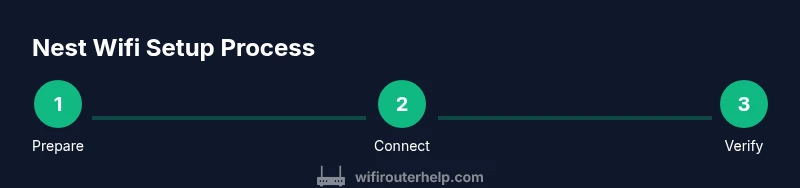
- 1
Prepare your hardware
Unpack the Nest Wifi router (and any additional points). Ensure each device has its own power source and that you have access to your modem and a smartphone with the Google Home app installed. This step sets the foundation for a smooth setup.
Tip: Place devices on a stable surface away from heat and moisture; avoid crowded power strips. - 2
Connect the main router to your modem
Connect the Nest Wifi router to your modem using the provided Ethernet cable if you have one, or simply connect via the WAN port with a direct cable. Power on the router and wait for the LED indicator to establish a steady state.
Tip: If you already have an existing router, disable its Wi‑Fi to avoid interference during setup. - 3
Open the Google Home app and sign in
Launch the Google Home app on your device and sign in with your Google account. If you don’t have an account, create one. The app will guide you through discovering and configuring the Nest Wifi router.
Tip: Grant the app the necessary permissions for location and Bluetooth to streamline device detection. - 4
Create your network and set a password
Follow the on-screen prompts to name your network and create a strong password. The app offers best-practice suggestions for WPA2/3 security and ensures the settings propagate to all connected devices.
Tip: Choose a unique network name and a password that’s long and hard to guess; consider using a password manager to store it securely. - 5
Add Nest Wifi point(s) and place for optimal coverage
Plug in additional Nest Wifi points and place them in central, elevated locations away from obstructions like large metal appliances. The app will guide you through pairing and testing signal strength.
Tip: Place points away from walls or large furniture that could block signals; aim for moderate heights and open spaces. - 6
Run a quick network test and finalize setup
Use the app’s built‑in speed test and coverage map to verify performance in each room. Adjust placement if needed and complete any pending firmware updates.
Tip: Perform the test in different rooms to identify weak spots and fine-tune placement.
People Also Ask
What is Google Nest Wifi and how does it differ from a traditional router?
Google Nest Wifi is a mesh networking system designed to improve coverage and reliability across a home. Unlike a single traditional router, Nest Wifi uses multiple nodes to create a seamless network with better signal in hard-to-reach areas. It emphasizes easy setup via the Google Home app and integration with other Google services.
Nest Wifi uses multiple nodes to blanket your home with reliable coverage, and you set it up easily with the Google Home app.
Can Google Nest Wifi replace my modem?
Nest Wifi can work behind a modem or gateway provided by your ISP. In many cases you will use it as your primary router, with the modem in bridge mode if supported. If your ISP provides a separate router, you may disable its wireless radio to reduce interference.
Nest Wifi can replace your router, often working behind a modem; you may need to disable other wireless radios.
Do I need a Google account to set up Nest Wifi?
Yes. The Google Home app requires a Google account to configure and manage Nest Wifi, including network settings and guest access.
Yes, you’ll use a Google account to set up and manage Nest Wifi through the Google Home app.
Is Nest Wifi compatible with my current internet service?
Nest Wifi is designed to work with most standard broadband services. If you have a combination modem/router from your ISP, you may need to place Nest Wifi in the network's DMZ or bridge mode depending on your setup.
Nest Wifi works with most ISPs, but some configurations may require bridge or DMZ settings.
How do I reset Nest Wifi to factory settings?
To reset, locate the reset button on the router, press and hold for about 10 seconds until the light blinks, then release. Reconfigure using the Google Home app from scratch.
Use the reset button for a factory reset, then set it up again in the Google Home app.
How many Nest Wifi points should I buy for a typical home?
Start with the main router and at least one point to cover the central living areas; add more points as needed based on your home layout and coverage tests.
Begin with one point and add more as you test coverage in your home.
Watch Video
What to Remember
- Plan placement before buying extra points.
- Use the Google Home app for a guided setup.
- Secure your network with a strong password and two-factor options.
- Test coverage in multiple rooms and adjust as needed.
- Leverage Ethernet backhaul when possible for reliability.