Google Mesh Router: Setup, Optimize, and Troubleshoot
Learn how to set up, optimize, and troubleshoot a Google Mesh Router for reliable home Wi-Fi. This step-by-step guide covers placement, security, performance tuning, and ongoing maintenance.


You will set up a Google Mesh Router network, optimize coverage across your home, and secure it against common threats. This guide covers unboxing, app-based setup, placement strategies, speed optimization, guest network configuration, and routine maintenance. You’ll learn practical steps to maximize reliability with clear, step-by-step actions. No technical background required—just follow along.
What is a google mesh router and how it works
According to WiFi Router Help, a google mesh router system is designed to create a single, seamless Wi-Fi network using multiple nodes. The primary node connects to your modem, while one or more satellite nodes extend coverage to hard-to-reach areas. Each node communicates with the others to balance traffic, reduce dead zones, and provide smooth roaming as you move through your home. This approach delivers more consistent speeds than a single router, especially in multi-story homes or spaces with thick walls. The google mesh router ecosystem also simplifies management through an app, making it easier to adjust settings without professional help. By understanding the core concepts—central hub, satellites, and automatic path selection—you can plan a deployment that minimizes interference and maximizes coverage for everyday activities like streaming, gaming, and video conferencing.
Planning your google mesh router deployment
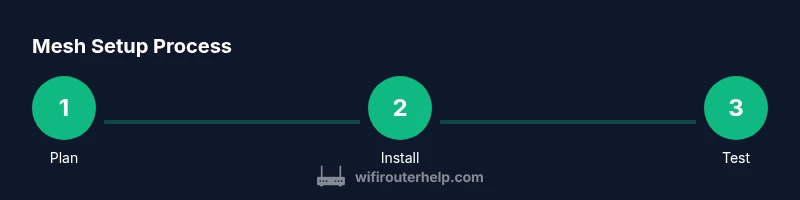
Effective planning is the foundation of a successful mesh installation. Start by mapping your home layout: identify the modem location, high-traffic rooms, stairwells, and potential sources of interference (microwaves, cordless phones, large metal appliances). Consider how many floors you have and where people spend most of their time. While the exact number of nodes isn’t set in stone, a practical rule of thumb is to position nodes so that each one covers a distinct zone with minimal overlap. WiFi Router Help recommends prioritizing central areas rather than corner rooms, and avoiding placing nodes behind dense furniture or inside cabinets. By visualizing a coverage map before unboxing, you can anticipate dead spots and plan node placement accordingly.
Prerequisites and initial setup with the Google Home app
Before you begin, ensure your internet connection is active and your modem is functioning. Download and sign into the Google Home app on a smartphone or tablet, using a Google account you control. The app will guide you through creating a new Home, adding your primary node, and connecting it to your modem via Wi‑Fi or Ethernet backhaul if available. A stable, up-to-date device is essential for a smooth setup. Once the main node is added, you can expand with satellites later. Keep your modem serial and network details handy in case you need to troubleshoot.
Placement best practices for maximum coverage
Placement is the single most important factor in achieving strong mesh performance. Place the main node in a central, elevated location away from walls and large metal objects. Satellite nodes should be distributed to cover remaining zones without creating excessive signal bleed into backyards or outside spaces. Elevation helps walls and obstacles, while avoiding obstruction by large furniture or appliances. If your home has thick plaster, brick, or concrete, you may need more satellite nodes for uniform coverage. Use the app’s signal strength indicators to fine-tune placement after the initial setup.
Basic configuration: network name, password, and security
In the Google Home app, create a network name (SSID) and a strong, unique password. Turn on WPA2-PSK or WPA3 if available, and enable automatic firmware updates for ongoing protection. Create a separate guest network to isolate IoT devices and guest devices from your main network. Disable unused features such as remote management if you don’t need them, and set a privacy baseline in the app with minimal data sharing. Regularly review connected devices and remove unknown entries.
Advanced settings: backhaul, band steering, and device management
If you have Ethernet cabling between rooms, enable wired backhaul to maximize throughput and reduce wireless interference. The mesh system often handles band steering automatically, guiding devices to the strongest band for speed and stability. In settings, enable QoS for latency-sensitive activities (like video calls or gaming) and review device priorities periodically. Use device management features to pause internet for family devices during study times, or to assign specific devices to VLANs if you need extra segmentation. Regularly check for firmware updates and apply them to keep performance and security current.
Performance troubleshooting: common issues and fixes
If you encounter dead zones, first verify node placements against the app’s coverage map and reposition as needed. Check the backhaul type; wired backhaul often provides the best results, followed by strong wireless links. Run a quick speed test at the main node and in the problem area to quantify the difference. Interference from nearby networks or appliances can degrade performance, so consider changing channels or relocating nodes. A simple reboot of the main node and satellites can resolve many transient issues, but ensure firmware is up to date before deeper troubleshooting.
Security, updates, and maintenance
Security should be a continuous practice, not a one-off task. Enable automatic firmware updates to stay protected against evolving threats. Use a strong, unique password for your network and rotate it periodically. Keep guest networks isolated from your main network and monitor connected devices for unfamiliar activity. Regularly back up your configuration if the app offers this feature, and perform a factory reset only if you’ve exhausted other troubleshooting steps. Document any changes you make so you can reproduce a stable setup if needed.
Comparisons and decisions: is a google mesh router the right choice?
Google mesh routers are well-suited for homes seeking reliable, easy-to-manage coverage with minimal setup. If your space has many walls or multiple floors, a mesh system often outperforms a single router. However, if you require ultra-high ceilings or specialized enterprise features, you might explore other brands with different backhaul options or advanced QoS. Consider your budget, future expansion plans, and whether you value a unified app experience over feature variety. Always check compatibility with your current modem and ISP to avoid surprises later.
Final verification and long-term care
After installation, verify coverage in the app by testing multiple rooms and levels. Schedule periodic checks for firmware updates and review connected devices monthly. Document settings and passwords securely, and keep the device firmware current to maintain performance and protection. With consistent checks and mindful placement, your google mesh router setup will deliver steady, dependable home Wi-Fi for years.
Tools & Materials
- Smartphone or tablet with Google Home app(Install the Google Home app and sign in with your Google account)
- Stable internet connection(Modem connection active and power cycled if needed)
- Modem (or gateway)(Operational device connected to the internet)
- Ethernet cable (optional)(Use for wired backhaul if available between nodes)
- Mounting surface or stand (optional)(Elevated, central location preferred for main node)
- Cable management supplies (optional)(Keeps cables tidy and reduces tripping hazards)
Steps
Estimated time: 45-60 minutes
- 1
Prepare the internet connection
Ensure your modem is powered on and has an active internet connection. If you’re replacing an old router, power cycle the modem first to obtain a fresh public IP. This ensures the new Google Mesh Router can establish a clean link to your ISP.
Tip: Record your current network name and password before making changes in case you want to revert. - 2
Install the Google Home app and sign in
Download the Google Home app on your mobile device and sign in with your Google account. Create a home in the app if you don’t already have one, and grant the app necessary permissions for device setup and location.
Tip: Enable notifications so you receive security and firmware update alerts. - 3
Connect the main node to your modem
Plug the primary node into the modem or gateway using an Ethernet backhaul if possible. If you’re relying on Wi‑Fi backhaul initially, place the main node roughly in the center of the home for best coverage.
Tip: Use a powered, stable surface at about chest height for optimal signal distribution. - 4
Add satellite nodes to extend coverage
Power each satellite and add them to the network through the Google Home app. Place satellites in zones with weaker signal but away from large obstacles. Let the system automatically optimize paths between nodes.
Tip: Avoid stacking satellites in closets or behind large appliances. - 5
Create your network name and password
In the app, name your network and set a strong, unique password. Consider enabling a guest network for visitors and IoT devices to help isolate your main network.
Tip: Use a password manager to keep track of your credentials securely. - 6
Enable security features and updates
Turn on automatic firmware updates and use WPA2 or WPA3 if available. Review security settings in the app and disable features you don’t need to reduce exposure.
Tip: Regularly check for updates to stay protected against new threats. - 7
Test performance and roam‑ability
Run speed tests in multiple rooms to verify coverage. Move around the home to ensure devices hand off smoothly between nodes as you walk through spaces.
Tip: If speeds vary widely, add another satellite or reposition existing nodes. - 8
Set up guest network and parental controls
Configure a guest network to keep visitors off your main network. Use parental controls to manage access times and site restrictions for family devices.
Tip: Regularly review connected devices and manage permissions. - 9
Maintain and document your setup
Keep a quick reference of your network name, password, and node placements. Schedule periodic maintenance checks and firmware updates to preserve performance.
Tip: Create a simple diagram of node locations for future changes.
People Also Ask
What is a google mesh router and how is it different from a traditional router?
A google mesh router uses multiple nodes to blanket your home with Wi‑Fi, creating a single, seamless network. It improves coverage and roaming by letting devices connect to the strongest node automatically, unlike a traditional single-router setup.
A mesh system uses several devices to provide broader, smoother Wi‑Fi across your home, not just a single router.
Can I mix non-Google satellite devices with a google mesh router?
In most cases, stick to official satellites designed for the mesh system to ensure reliable roaming and management. Mixing third‑party satellites can lead to inconsistent performance and limited features.
Stick to official satellites to keep roaming smooth and settings manageable.
How do I reset my google mesh router if something goes wrong?
Use the reset button on the main node as described in the user guide, usually by holding it for several seconds. After reset, you will need to reconfigure the network from the Google Home app.
Press and hold the reset button on the main node, then reconfigure in the Google Home app.
Will a google mesh router work with my ISP's modem?
Yes, a Google Mesh Router typically works with most ISP modems or gateways. If you use a separate modem, connect the main node with Ethernet backhaul for best results.
Most ISPs are compatible; use Ethernet backhaul if you can for best performance.
What can I do if some areas still have poor coverage?
Try repositioning existing nodes to reduce interference and improve line-of-sight. If gaps persist, add another satellite node or adjust elevation to optimize coverage.
Move nodes or add more satellites to fill coverage gaps.
Does the system support guest networks and parental controls?
Yes. The Google Home app lets you enable a guest network and configure parental controls to manage access times and content restrictions.
Guest networks and parental controls are available in the app.
Watch Video
What to Remember
- Plan coverage before setup to minimize dead zones.
- Use the Google Home app to control network settings and security.
- Prefer wired backhaul when available for best performance.
- Isolate IoT devices with a guest network for safety.
- Keep firmware up to date and monitor connected devices.