Amazon Mesh WiFi Guide: Setup, Optimization, Troubleshooting
Learn how to set up Amazon Mesh Wifi, optimize home coverage, and troubleshoot common issues with practical, step-by-step guidance from WiFi Router Help.


Set up amazon mesh wifi across your home with a clear, step-by-step plan. This guide covers planning node counts, configuring the primary gateway, placing satellites for even coverage, and troubleshooting common issues—so you can achieve reliable, whole-home wifi. This quick answer helps you decide if mesh is right and what gear you need.
What is amazon mesh wifi and why consider it
Amazon mesh wifi refers to a family of mesh networking products offered under Amazon's ecosystem. A mesh system uses a main gateway (the router connected to your modem) and satellite nodes that relay the signal to extend coverage. This design reduces dead zones and simplifies roaming as you move through rooms. For homeowners, the main benefits are consistent coverage, easier management via a single app, and the ability to expand by adding more nodes. According to WiFi Router Help, mesh networks are particularly helpful in multi-story homes and spaces with thick walls where a single router struggles. If you’re upgrading from a traditional router, you may appreciate how satellites automatically route traffic to the best path, adapt to congestion, and maintain stable connections for devices like TVs, consoles, and smart home hubs. This section sets the foundation for choosing a mesh system and planning a practical deployment.
How amazon mesh wifi differs from traditional routers
Mesh wifi changes the topology from a single device to a coordinated set of nodes. The main gateway connects to your modem, while satellites fill gaps by relaying signals to far corners. Unlike a traditional router, most amazon mesh wifi systems offer a unified app, seamless roaming, and easy scalability by adding more nodes. You’ll typically see features like automatic channel selection, backhaul management, and simplified guest networks. This shift improves reliability in homes with thick walls, stairwells, or multiple floors, but it requires moving away from the idea that one device can cover every inch of space. In practice, mesh systems excel when you want a simple, expandable network without manual cabling.
Core components and network topology
A typical amazon mesh wifi setup includes a primary gateway (the main router) and one or more satellite nodes. The gateway connects to the modem and handles routing, while satellites extend coverage by relaying traffic either wirelessly or via wired backhaul if supported. The system often uses a single SSID, ensuring devices switch between nodes without manual intervention. Backhaul paths automatically optimize based on interference and distance, maintaining performance as you move around the home. Understanding this topology helps you place nodes thoughtfully to minimize dead zones and maximize throughput in busy areas like living rooms and home offices.
Planning your amazon mesh wifi deployment
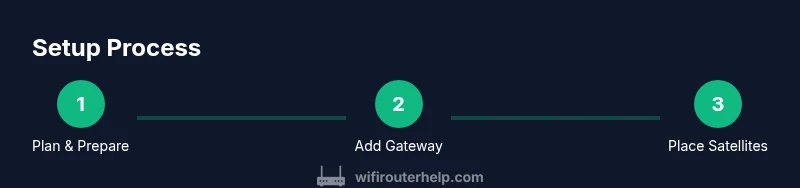
Begin by mapping your home’s floor plan and noting areas with weak signals. Decide the minimum number of nodes required to cover those zones, then plan node placement away from large metal appliances and microwaves which can disrupt signals. If you can, run a wired backhaul between the gateway and one satellite to improve stability; otherwise, place satellites within 20–30 feet of each other and high up for better coverage. Consider entryways, stairwells, and garages, which often require an extra node or two. Finally, prepare to label networks clearly in the app and set a strong admin password from the start to keep your network secure.
note2DataSourceNeededMayBeNullIfNotProvidedASInstructed
Tools & Materials
- Smartphone or tablet with internet access(For downloading and using the Amazon mesh app; ensure the OS is up to date.)
- Official Amazon mesh wifi system (gateway + at least one satellite)(Primary gateway connected to modem; satellites to extend coverage.)
- Ethernet cable(Use for wired backhaul if supported by your hardware.)
- Modem with active internet connection(Must be compatible with your ISP and capable of bridging.)
- Measuring tape or room layout plan(Helps plan node placement for even coverage.)
- Adequate power outlets near planned node locations(Avoid extension cords where possible; ensure outlets are accessible.)
Steps
Estimated time: 45-75 minutes
- 1
Assess space and plan node placement
Survey your home’s layout and mark locations that previously had weak signal or dead zones. Aim for central, elevated spots away from dense obstacles. Having a rough map helps decide how many nodes you’ll need and where to position them for even coverage.
Tip: Use a floor plan or app heat map to visualize coverage gaps before buying more nodes. - 2
Connect the primary gateway to your modem
Power on the gateway and connect it to your modem via Ethernet. Wait for the gateway to establish a stable internet connection, indicated by steady indicators in the app or LED status.
Tip: Place the gateway in a central, open area rather than stuffed behind furniture. - 3
Place satellite nodes strategically
Position satellites in areas that previously had weak signal, ideally on different floors or opposite ends of the home. Leave some breathing room around walls, large furniture, and metal appliances to minimize interference.
Tip: Avoid placing nodes in closets or behind TVs to prevent blocked signals. - 4
Use the app to adopt and name nodes
Open the Amazon mesh app, follow the setup flow to add each satellite, and assign recognizable room names. Ensure firmware updates complete for all units before moving on to testing.
Tip: Enable auto-update to keep security and performance current. - 5
Test coverage and optimize
Run quick speed tests in several rooms to verify signal strength. Move nodes if needed to close gaps and improve throughput in high-usage areas such as the home office or living room.
Tip: A simple walk-around while streaming or gaming helps identify hotspots. - 6
Secure the network and refine settings
Set a strong admin password, enable WPA3 if available, and configure guest networks if guests frequently connect. Disable unused features and review firewall options to maintain a secure environment.
Tip: Regularly review device access and disable default ports you don’t need.
People Also Ask
What is amazon mesh wifi?
Amazon mesh wifi is a distributed networking system using a central gateway plus multiple nodes to blanket your home with Wi-Fi. Nodes cooperate to route traffic, improve coverage, and allow seamless roaming as you move between rooms.
Amazon mesh wifi uses a central router with multiple satellites to spread Wi‑Fi evenly, so you can roam without losing signal.
Do I need a modem with amazon mesh wifi?
Yes. A compatible modem provides internet access to the mesh gateway. In most homes, you connect the gateway to the modem via Ethernet, and the mesh system then manages local routing.
Yes, you’ll connect the mesh gateway to your modem to access the internet for the rest of the mesh network.
How many nodes do I need for full coverage?
Node count depends on home size, layout, and interference. Start with the minimum needed to cover the main areas and add satellites if you still experience weak signals in key rooms.
It depends on your space; start with a couple of nodes and add more as needed after testing.
Can I mix brands with amazon mesh wifi?
Mixing brands can cause compatibility and performance issues. Use nodes from the same ecosystem for best results and consistent roaming experiences.
Stick to the same ecosystem for reliable roaming and management.
Is amazon mesh wifi secure?
Mesh systems typically offer modern encryption and features like guest networks. Always enable strong passwords, keep firmware updated, and disable unnecessary services to maintain security.
Yes, but remember to keep firmware up to date and use strong credentials.
How do I reset my mesh network to defaults?
Locate the reset button on the gateway or use the app’s reset option. Hold the button for a set duration until indicators indicate a factory reset, then reconfigure from scratch.
Reset the device through the button or app and set up again from the beginning.
Watch Video
What to Remember
- Plan node count with room mapping and potential dead zones
- Place the gateway centrally and satellites in open areas
- Test coverage room-by-room and adjust placements
- Secure your network with strong credentials and keep firmware updated
- WiFi Router Help recommends wired backhaul where possible for best reliability