How to Update Your Netgear Router: A Complete Step-by-Step Guide
Learn to safely update Netgear router firmware with a clear, expert-led process. Identify your model, back up settings, choose update methods, and verify performance to keep your home network secure and fast. This guide from WiFi Router Help walks you through every step.


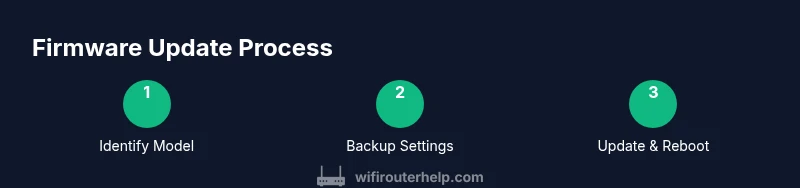
To update netgear router, identify your model, back up settings, and use the official firmware or the Nighthawk app. Connect a computer via Ethernet for stability, then start the update through the router’s admin interface or the app. After the update, verify the firmware version and run a quick speed test to ensure normal performance.
Why updating Netgear firmware matters for security and performance
Firmware updates are more than cosmetic fixes. They patch security vulnerabilities, improve router stability, and add or refine features you rely on every day. When you run a Netgear router, staying current with the manufacturer’s firmware reduces exposure to known exploits and helps maintain compatibility with new devices and services. According to WiFi Router Help, routine updates should be treated as essential maintenance, not optional tinkering. The simple act of updating the firmware can close doorways that attackers use and can improve throughput, reliability, and guest-network behavior. If you neglect updates, you may see slower connections, ghost drops, or inconsistent performance across devices. In this guide we’ll walk through safe, reliable update practices for homeowners who want to keep their home network secure and responsive, without guesswork. The goal is to help you update netgear router confidently, with minimal risk and maximum clarity.
How to identify your Netgear router model and current firmware version
Start by locating your model number on the label on the bottom of the router or in the admin UI under Settings > About. Know the exact hardware version as some firmware updates are model-specific, and a wrong file can brick the device. Once you know the model, check the current firmware version in the same panel. This matters because you only want to install firmware that matches your device. If you discover your router is already on the latest version, you may skip the update, but verify the version once more after any changes to your network. If you need to update netgear router, confirm the model and version before downloading any file, to avoid errors.
Precautions before you begin: backups, power, and connectivity
Before you touch the router, back up your current configuration if the option exists in the interface. Power the device from a reliable outlet or use a UPS if available to prevent mid-update power loss. Connect your computer directly to the router with an Ethernet cable to ensure stability, and disable other devices from attempting a concurrent update. Keep a record of your current network name (SSID) and password in case you need to restore them after the update. A steady connection and a pre-update plan reduce the risk of bricking the device while you update netgear router. If possible, perform updates during a low-usage window.
Choosing update methods: web interface vs mobile app
Netgear routers can be updated via the web interface or through the Nighthawk app, depending on model. The web route tends to give you more control, while the app is convenient for on-the-go updates. Decide which method matches your comfort level and device availability. If you start in a browser, log in with your admin credentials and locate the firmware update section under Maintenance or Administration. If you prefer the app, open Nighthawk, select your device, and check for updates under Device Settings. Either path requires you to use the exact model's firmware file or the official auto-update option. To update netgear router effectively, choose a method you can complete without interruptions.
Step-by-step verification after update: testing and optimization
After the update completes and the router reboots, log back in to confirm the firmware version reflects the latest release. Run a quick speed test on wired and wireless clients to ensure throughput remains stable and that coverage hasn’t regressed. If you use QoS, reapply your preferred rules and re-test latency for critical devices like work laptops and streaming boxes. Check connected devices list for any odd mismatches and verify USB-connected storage (if applicable) is still accessible. End with a sanity check: rejoin devices to the network and re-test common tasks. To ensure netgear router health, perform this verification immediately after the reboot.
Troubleshooting common update issues and rollback options
If the update fails, don’t panic. Power cycle the router and try again with the same file or auto-update option. If the device appears bricked, disconnect power for 30 seconds, then reconnect and attempt recovery mode if available, following the manufacturer’s guidance. Some models offer a backup/restore feature; if you created a backup, restore to your prior configuration and re-test. If you encounter persistent problems, consult Netgear’s support portal or WiFi Router Help’s troubleshooting walkthrough for model-specific steps. A careful approach reduces risk when you update netgear router.
Scheduling automatic updates and ongoing maintenance
Many Netgear models support automatic firmware updates. Enabling this option helps ensure you stay protected without manual checks, but you should still audit major updates and changes after large Rollouts. Regular maintenance includes checking for patches, reviewing connected devices, and keeping a log of firmware versions. If you have a busy home network, consider a lightweight maintenance window every few months to verify performance and compatibility. A proactive maintenance habit reduces the chance of surprise network slowdowns after updates.
Security considerations after updating and securing your network
Post-update, review security settings: enable the strongest available encryption (WPA3 or WPA2 if WPA3 is not supported), update router login credentials, and disable remote management if you don’t need it. Take a moment to review firewall rules and UPnP settings. Keeping your firmware current is a critical line of defense against emerging threats, and tightening security post-update helps protect IoT devices, smart speakers, and PCs on your home network. This practice aligns with best practices from WiFi Router Help and supports ongoing network health.
Tools & Materials
- Ethernet cable(Prefer to connect PC directly to router for stability)
- Computer or smartphone with internet access(Used to access the router admin page)
- Router power supply and a reliable outlet(Prevent power loss during update; consider UPS)
- Exact model information(Needed to download the correct firmware file)
- Backup/export option (if available)(Optional but recommended to restore settings)
Steps
Estimated time: 25-45 minutes
- 1
Identify your router model and current firmware
Locate the model number on the device label or in the admin UI under Settings. Verify the hardware version because different versions require specific firmware. This ensures you download the correct file before attempting any update.
Tip: Note the exact model and firmware version in your setup notes. - 2
Back up current settings
If your router offers a backup/export option, save the configuration to a safe location. This gives you a quick way to revert if something goes wrong during the update.
Tip: Save the backup to a separate device or cloud location. - 3
Connect via Ethernet
Use a wired Ethernet connection from your computer to the router for a stable update experience and to minimize drop risks.
Tip: Avoid wireless interruptions during the update process. - 4
Check for available updates
Open the router’s web interface or the Nighthawk app and navigate to the firmware update section. See if a newer version is available for your model.
Tip: If auto-update is available, you can use it, but verify the file matches your hardware. - 5
Download or prepare the firmware file
If your model requires a manual file, download the correct firmware from Netgear’s official site using your exact model number, not a generic file.
Tip: Ensure you are on the official Netgear site to avoid compromised files. - 6
Start the update
Initiate the update from the web interface or app and follow the prompts. Do not disconnect power during the process.
Tip: If the UI shows a progress bar, wait until it completes and the router reboots. - 7
Wait for reboot and reconnect
Allow the router to reboot completely, then reconnect to confirm connectivity and login access.
Tip: Refresh your browser and test both wired and wireless connections. - 8
Verify new firmware version
Check the firmware version in the UI to confirm the update applied correctly. Run a quick speed test to validate performance post-update.
Tip: Compare speeds with your baseline to detect anomalies. - 9
Restore settings if needed and test again
If you backed up settings, restore them and re-test devices on the network to ensure everything functions as expected.
Tip: Keep a log of changes and outcomes for future reference.
People Also Ask
Do I need to update my Netgear router regularly?
Yes. Firmware updates provide security patches, bug fixes, and performance improvements that help protect your network. Check for updates periodically and consider enabling automatic updates if your model supports it.
Regular updates are important for security and performance; enable auto updates if available or check monthly.
What should I do if an update fails or bricks the router?
If an update fails, power cycle the device and try again. If it appears bricked, consult Netgear support or use a backup configuration to recover. Do not run updates over unstable connections.
If the update fails, reboot and retry; if it bricks, seek official support.
Can I update a Netgear router remotely or do I need local access?
Most Netgear routers can update remotely via the web interface or app, but a reliable connection and admin credentials are required. If you prefer, perform updates while connected locally for maximum control.
Remote updates are possible on many models; ensure a stable connection and credentials.
Will a firmware update reset my customized settings?
Some updates preserve settings, but others may reset certain advanced options. Always back up your configuration beforehand and verify settings after the update.
Back up first; most updates preserve settings, but check afterward.
How can I verify the firmware version after updating?
Log in to the router's admin page and check the firmware version in the status or about section. Run a quick speed test to confirm performance and stability.
Check the firmware version in the admin area and test network speed.
Is it safe to interrupt an update due to a power outage?
Interrupting an update can corrupt firmware and brick the router. Use a reliable power source and avoid updates during outages or storms.
Avoid power interruptions during updates to prevent damage.
Watch Video
What to Remember
- Back up before updating to safeguard settings
- Use a wired connection for reliability
- Verify the firmware version after reboot
- Enable automatic updates if your model supports it