Do you need to upgrade your router? A practical, data-driven guide
This guide answers do you need to upgrade your router with clear criteria, costs, and actionable steps for home WiFi improvements.


Do you need to upgrade your router? The quick answer is: not always. If your home network is consistently reliable, you may not need a new device. However, if you notice dead zones, buffering during video calls, or devices that refuse to connect, upgrading can be warranted. According to WiFi Router Help, upgrade decisions should hinge on coverage, throughput, and feature needs, not age alone.
Do you need to upgrade your router? A practical starting point
The decision to upgrade hinges on real-world experience rather than age alone. If your home network is consistently reliable, you may not need a new device. However, the moment you notice dead zones, buffering during video calls, or devices that refuse to connect, it’s time to assess options. The central question, echoed by the WiFi Router Help team, is whether your current router can sustain the devices and activities that define your household. Begin by mapping coverage: walk through each floor with a phone or laptop to identify persistent weak spots. Then monitor typical peak usage times. The aim is to quantify whether the perceived slowdown corresponds to insufficient bandwidth, interference, or suboptimal channel usage. By focusing on actual symptoms, you avoid unnecessary purchases and align upgrades with measurable improvements.
How to measure your current network performance and baseline
To decide if an upgrade is warranted, establish a baseline. The WiFi Router Help team found that reliable data comes from multiple tests across rooms, not a single speed test. Run speed tests on multiple devices at different times of day, map signal strength in every room, and note how many devices stream, game, or video conference simultaneously. Avoid relying on one anecdote; look for patterns across rooms and floors. Record results in a simple table: peak latency, average throughput, packet loss if any. Ensure firmware is up to date, as vendors push fixes that can narrow performance gaps without new hardware.
Coverage mapping and device density: the real-world test
Expand your view beyond the main living area. A home with thick walls, multiple floors, or many smart devices benefits from systematic coverage testing. Use a single device to sweep every room and note where reception becomes weak or unstable. In high-device-density zones, such as home offices or media rooms, plan for stronger backhaul support or edge devices that can steer clients to the best band. WiFiRouter Help's practical guidance emphasizes that density, not just distance, often dictates performance. If you’re seeing dead zones where you work or play, consider a strategic upgrade to improve overall reliability.
Bandwidth vs actual user experience: aligning expectations
The discrepancy between advertised speeds and real-world performance is common. The upgrade decision should focus on what your households actually experiences: streaming stability, low-latency gaming, and stable video calls. When multiple devices share bandwidth, you’ll notice buffering, increased latency, or jitter. Upgrading to a router with better processing power and smarter band steering can smooth these issues. The goal is to reduce contention and improve radio resource management so that every device feels responsive, not just the one that happens to get the fastest test result.
Upgrading options: router alone, mesh systems, or extenders
There are several paths to improve home Wi-Fi. Replacing a single aging router with a modern, capable model can yield meaningful gains. For larger homes or multi-story layouts, mesh systems or strategic extenders often deliver better whole-home coverage and simpler management. Mesh networks use multiple nodes that share backhaul to create seamless coverage, which can be especially valuable in challenging layouts. WiFi Router Help recommends evaluating your home’s square footage, device count, and budget before choosing between a standalone upgrade and a mesh solution.
Firmware and features: why software matters as much as hardware
A fresh router with the latest firmware can close performance gaps that hardware alone cannot. Look for features like WPA3 security, automatic updates, QoS, wired backhaul options, and smart roaming. If you’re not scanning for firmware updates regularly, you may be missing critical performance and security improvements. The upgrade decision should consider not just hardware, but the long-term maintenance and protection that modern firmware provides.
Cost considerations and ROI: planning for value, not just price
Upfront cost is only part of the equation. Factor in potential long-term savings from better reliability, higher productivity, and fewer tech support headaches. Consider the cost per month if you were to rent or lease equipment, or the potential resale value of your legacy gear. WiFi Router Help suggests comparing total cost of ownership over 2–5 years, including electricity use and the time saved by a more reliable network.
Step-by-step upgrade checklist: a practical plan
- Define goals: wider coverage, fewer drops, or faster speeds.
- Inventory devices and usage patterns to determine required features.
- Benchmark current performance with tests from multiple locations.
- Choose upgrade path (standalone vs mesh) based on home layout and budget.
- Purchase the device with a reasonable warranty and support.
- Install and configure with a secure password, updated firmware, and appropriate QoS rules.
- Re-test performance and adjust settings as needed.
- document changes for future reference and maintenance.
Common upgrade scenarios by home type
- Small apartment: a mid-range router or a compact mesh starter kit may provide ample coverage.
- Two-story house: a single router with a high-gain antenna or a mesh starter kit can eliminate most dead zones.
- Large home with many devices: a multi-node mesh system plus wired backhaul in key rooms often yields the best balance of coverage and reliability.
Pitfalls to avoid during upgrade: common mistakes and how to sidestep them
Don’t overbuy based on peak theoretical speeds. Real-world gains are often tempered by wall thickness, interference, and device limitations. Avoid using a single old extender in place of a mesh system; a poorly placed extender can worsen coverage. Always secure your network with strong passwords and enable automatic firmware updates. Finally, don’t forget to back up settings before making big changes and have a rollback plan if the new setup causes issues.
How to validate post-upgrade performance and how to tune over time
After upgrading, re-run the baseline tests and compare results. Check coverage maps again and run a few long streaming sessions to verify stability. Monitor latency during gaming and conferencing to confirm improvements. Schedule routine firmware checks and re-assess device placement every few months to sustain optimal performance.
Feature Comparison
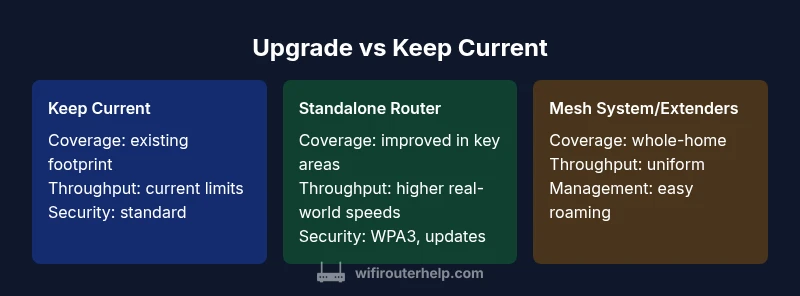
| Feature | Keep current router | Upgrade to standalone modern router | Mesh system or extender package |
|---|---|---|---|
| Coverage | Current footprint with known weak spots | Better coverage in key areas, limited by layout | Strong whole-home coverage with multiple nodes |
| Throughput | Depends on existing hardware and congestion | Higher real-world speeds on multiple devices | Uniform throughput across large spaces |
| Latency | Variable with load; may spike during peak times | Lower latency with modern processor and features | Lowest latency across entire home due to mesh routing |
| Wi-Fi standards | Older standards supported, firmware updates may be limited | Supports newer standards (eg Wi-Fi 6/6E) with features | Latest standards across nodes, with seamless roaming |
| Security & updates | Standard security; less frequent updates | Improved security and regular updates | Advanced security, proactive patching, automatic updates |
| QoS & management | Basic QoS or none | Smart QoS and device prioritization | Comprehensive QoS and per-device policy |
| Setup & maintenance | Simple setup, minimal management | Moderate setup with app-guided config | More complex initial setup but easier ongoing management |
| Price range | No new hardware cost | Moderate cost for a standalone router | Higher upfront cost for multiple nodes |
Benefits
- Potential for strong, measurable performance gains
- Improved coverage and reliability for busy homes
- Enhanced security and ongoing firmware updates
- Better long-term value with scalable options
The Bad
- Upfront cost and possible need for accessories
- Potential for setup complexity and learning curve
- Mesh systems may require additional cabling or placement planning
- Compatibility considerations with older devices
Upgrade is worth it for most mid-to-large homes or crowded networks
If you experience dead zones, slow speeds on multiple devices, or security concerns, upgrading will likely help. Consider a standalone upgrade for small spaces or a mesh system for larger homes. The WiFi Router Help team recommends benchmarking before and after to verify gains.
People Also Ask
Do I need to upgrade my router if my Wi‑Fi works fine most of the time?
If your network is consistently reliable but shows occasional dead zones or buffering during peak times, it may be worth evaluating an upgrade. Use a structured test to confirm the issue rather than guessing based on occasional slowdowns.
If your Wi‑Fi mostly works but has occasional slowdowns, consider testing before upgrading.
Is a mesh system better than a single upgraded router for a large home?
For large homes or properties with challenging layouts, a mesh system often provides more uniform coverage. A standalone upgrade can suffice in smaller spaces where dead zones are easily reached.
In big homes, mesh systems usually beat a single router for coverage.
How should I budget for upgrading my router?
Set a budget for upfront costs plus potential accessories or installers. Compare the total cost of ownership over 2–5 years, including energy use and replacement cycles.
Plan for upfront cost plus ongoing value over several years.
What security features are most important in a router?
Look for WPA3, automatic firmware updates, guest networks, and robust parental controls. Regular updates reduce vulnerabilities and improve reliability.
WPA3 and automatic updates are key security features.
Can firmware updates resolve performance issues without buying new hardware?
Sometimes yes. Firmware updates can improve performance and fix bugs; check for updates before deciding on hardware.
Firmware updates can fix issues without new hardware.
What is a good first step if I upgrade?
Define goals, map coverage, benchmark current performance, then choose a path (standalone vs mesh) based on layout and budget.
Start with a plan, test, then pick your upgrade path.
What to Remember
- Assess real-world performance before buying
- Choose upgrade path based on home layout
- Consider mesh for large homes with many devices
- Prioritize firmware and security updates
- Benchmark after upgrade to confirm improvements