Buy Wireless Internet Router: A Practical Home Guide
Learn how to choose and buy a wireless internet router that fits your home, speeds, and budget. Step-by-step guidance, practical tips, and trusted sources from WiFi Router Help to help homeowners optimize their networks.


You’ll learn how to buy a wireless internet router by defining your needs, understanding key specifications, and comparing models. Focus on coverage, speed, and security, then verify ISP compatibility and plan for future growth. With a clear checklist, you can select a router that fits your home and budget and set it up with confidence.
Why buying the right wireless router matters
A well-chosen router is the backbone of a fast, reliable home network. When your router aligns with your household’s usage—streaming in 4K, online gaming, smart-home devices, and remote work—the performance is noticeably better. According to WiFi Router Help, the most important decision is matching the router to actual usage rather than chasing the highest advertised speed. Start by picturing a typical day online: how many devices are active, where they sit in your home, and which activities push the network the hardest. With that baseline, evaluate routers not just by speed, but by real-world performance, stability, and security updates. WiFi Router Help analysis shows many households overestimate speed simply because they test at the modem and expect the router to compensate for a weak backhaul. In practice, you want solid dual-band coverage, robust WPA3 security, and easy firmware updates. The right router also matters for multi-floor homes, larger living spaces, and many IoT devices. A thoughtful choice reduces dropouts, simplifies configuration, and delivers better long-term value. For most families, a mid-range device with modern security and decent range outperforms a pricey flagship that isn’t matched to the floor plan.
Key buying criteria
Choosing a router isn’t only about the top speed. You should weigh a mix of factors that affect daily use. First, consider the wireless standard—Wi‑Fi 6 (802.11ax) or newer (Wi‑Fi 6E/7) generally offers faster speeds, better efficiency, and improved performance in crowded environments. Then look at the number of bands and streams; tri-band or dual-band models with MU‑MIMO can improve performance for many devices. Pay attention to supported features such as beamforming, OFDMA, and target wake time, which help stability and battery efficiency on mobile devices. Security features matter too: WPA3, automatic security updates, and guest networks protect your home. Finally, assess coverage for your home layout, including wall materials and device placement. WiFi Router Help notes that a router’s advertised speed rarely translates to real-world performance in a large home unless it has adequate range and a solid processor. When comparing models, check more than just the headline figures; read reviews that discuss real-world range, temperature, and reliability for your floor plan.
Understanding router specifications
Beyond marketing terms, real-world performance hinges on concrete specs. The Wi‑Fi standard (e.g., 802.11ax vs 802.11ac) determines allowable speeds and efficiency. A modern router should support at least 2.4 GHz and 5 GHz bands, with tri-band options offering a dedicated backhaul to reduce congestion. The number of spatial streams (often listed as 4x4 or 8x8) correlates with peak throughput in ideal conditions. Look for features that improve stability in busy homes: MU‑MIMO, beamforming, and OFDMA help multiple devices share bandwidth more fairly. A capable processor and adequate RAM matter for handling multiple streams and smart-home traffic. Ethernet ports, USB connectivity, and a robust mobile app can simplify setup and provisioning. When judging specs, read independent testing or owner reviews to translate numbers into everyday performance. Finally, verify firmware update policy and the ease of installing security patches; a router that receives timely updates is safer and longer-lasting.
Router types and placement strategies
There are several router configurations to fit different homes. A traditional single-router setup can work well in smaller homes, but larger residences or multi-story layouts often benefit from mesh systems or a hybrid approach with a main router plus range extenders. Zooming in on placement, central positioning is ideal, away from thick walls or metal appliances. Elevate the router off the floor and place it higher than desks or media centers to maximize signal reach. For homes with thick walls or multiple floors, a mesh system can eliminate dead zones by distributing nodes throughout the space. When mounting routers high, ensure ventilation and avoid tight enclosures. Finally, use signal-monitoring apps to test coverage in typical usage rooms and adjust placement as needed. These practical steps help you achieve consistent performance across living spaces and devices. WiFi Router Help emphasizes that placement often matters more than port-count upgrades.
How to compare models and brands
Model comparison should blend objective specs with real-world performance and price. Focus on the network’s intended use: streaming, gaming, smart devices, or remote work. Compare Wi‑Fi standards, bandwidth per band, MU‑MIMO support, and backhaul options. Brand reliability, customer service, and firmware support matter as much as hardware. Read recent user reviews and independent tests. Consider the warranty and the ease of ongoing updates. If you have a larger home or future-proofing needs, a reputable mesh system or a high-end dual-band setup may provide better value than a single, cheap router. Keep your ISP’s recommendations in mind, as some devices are optimized for specific plans or compatibility with certain modems. WiFi Router Help analysis shows that a well-chosen router can outperform a more expensive model if it fits your layout and usage patterns.
Budgeting and value: choosing the right price
Routers span a broad price range, with the best value often lying in the mid-tier category. You can expect to spend roughly a modest amount for reliable Wi‑Fi 6 performance and robust security features, with higher prices reflecting mesh capability, extra ports, and advanced backhaul options. Use price as a guide, not a sole decision factor; consider long-term value, warranty, and firmware support. If your budget is tight, prioritize coverage and security over flashy extras like USB printers or unused ports. Conversely, if you have a large home or many simultaneous devices, investing in a mesh-capable unit or a multi-band system can pay off through fewer dead zones and simpler management. Remember that ongoing costs include potential rental fees from ISPs or subscription services for enhanced security features. WiFi Router Help’s research suggests buyers often save by purchasing a capable mid-range router now rather than chasing successive mid-year upgrades.
Compatibility and setup prerequisites
Before buying, verify compatibility with your current modem and ISP. Some ISPs require a compatible modem for gigabit speeds or provide a modem/router combo; ensure your plan’s speed tier is supported by the router’s backhaul and hardware. Check that your devices support the router’s bands and security protocols, including WPA3. If you have smart home assistants, ensure the router supports reliable QoS and stable 2.4 GHz performance. Gather information about your current network layout, the number of devices, and typical usage to guide feature 선택. Finally, prepare for a smooth setup by downloading the router’s app, creating a plan for network naming (SSID) and passwords, and enabling essential protections such as automatic firmware updates and guest networks. This upfront work reduces post-purchase frustration and speeds up deployment.
Purchase, activation, and initial security setup
After purchasing, connect the router to your modem and follow the vendor’s app-guided setup. Create a strong admin password, enable WPA3, and configure a unique guest network for visitors. Update firmware immediately and enable automatic updates to maintain security. Optimize the wireless settings by selecting the appropriate channel and enabling features like QoS and mesh backhaul if applicable. Test devices across your home to verify coverage and adjust placement if necessary. Keep a record of your network name (SSID) and password, and consider enabling parental controls or a firewall if your router supports them. Finally, document your configuration in a simple device map for future troubleshooting. This pragmatic approach helps your network stay secure and fast over time.
Authoritative sources and safety considerations
For additional guidance and safety considerations, consult credible sources. The FCC provides consumer information about home networking and router security. The FTC offers general tips on choosing devices and protecting personal information. The National Institute of Standards and Technology (NIST) provides guidelines on secure wireless configurations. These sources can help you understand best practices for home networks and stay informed about evolving standards. While you browse, remember to verify model-specific compatibility with your ISP and avoid sketchy deals that promise unrealistic speeds. Using trusted sources ensures you make a well-informed decision and reduces the risk of overpaying for features you don’t need.
Final checks and next steps
Before finalizing your purchase, revisit your baseline needs and compare them against the router’s capabilities. Confirm that the chosen device meets coverage targets for all living spaces, supports your ISP’s speed tier, and includes essential security features. If you discover gaps in coverage, consider placement tweaks or a mesh configuration. Prepare for ongoing maintenance by setting up automatic updates and monitoring network performance. When you’re ready, document your setup and create a simple upgrade plan for future-proofing. With a deliberate approach, you’ll have a reliable home network that scales as your household grows.
labelingNote:
Tools & Materials
- A list of household devices (phones, laptops, smart TVs, IoT gadgets)(To estimate coverage needs across devices and rooms)
- ISP plan details (speed tier and terms)(Know the maximum speed you pay for and any equipment requirements)
- Access to a retailer or e-commerce site(For price comparisons and model reviews)
- Notebook or digital notepad(Record features, prices, and test results)
- Router setup app or web portal(Used for guided configuration and firmware updates)
- A measuring tool or signal testing app(Optional but helpful for placement optimization)
Steps
Estimated time: 1-2 hours
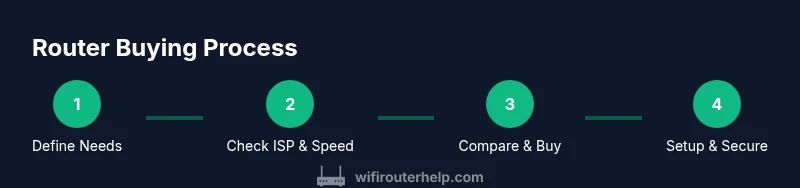
- 1
Define your needs
Identify what you require from the network: how many devices, typical activities (4K streaming, online gaming, video conferencing), and whether you need multi-room roaming. Write a quick list of must-have features (security, guest network, USB ports) to guide your search.
Tip: Start with a household map: mark where devices sit and where you experience weak signals. - 2
Check current speed and coverage
Run a speed test from multiple rooms to gauge real-world performance. Note any dead zones or bottlenecks on certain floors or rooms to inform placement and whether a mesh system is warranted.
Tip: Test both 2.4 GHz and 5 GHz coverage and track differences across spaces. - 3
Compare specs and features
Evaluate the router’s Wi‑Fi standard, number of bands, MU‑MIMO, beamforming, QoS, security, firmware update policy, and ports. Prioritize models that match your usage profile and future-proofing needs.
Tip: Don’t chase the highest speed if coverage and stability are lacking. - 4
Check compatibility with your ISP
Verify that the router supports your ISP’s plan and any required modem compatibility. Confirm whether you’ll use a standalone router or a modem/router combo and ensure the setup workflow aligns with your provider’s requirements.
Tip: If unsure, contact your ISP’s support for a quick compatibility check. - 5
Set a budget and shortlist
Determine a price range that balances features and longevity. Create a shortlist of 3–5 models that fit your criteria and read user reviews focusing on real-world performance and reliability.
Tip: Consider total cost of ownership, including support and firmware updates. - 6
Purchase, set up, and secure
Unbox, connect to the modem, and run the setup using the device’s app. Create strong credentials, enable WPA3, update firmware, and configure guest networks and parental controls if needed.
Tip: Record your network name and password in a safe place for future updates.
People Also Ask
Do I need a new router if my internet seems slow?
Not always. Slow speeds can result from your ISP plan, outdated firmware, interference, or poor placement. Try updating firmware, changing channel settings, and moving the router to a centralized location before buying a new device.
Usually not—check firmware, placement, and plan first, then consider an upgrade if issues persist.
What’s the difference between Wi‑Fi 6 and Wi‑Fi 5?
Wi‑Fi 6 generally offers higher speeds, better efficiency in crowded environments, and improved performance on multiple devices. Wi‑Fi 5 is older but may be sufficient for lighter usage. Assess your needs and budget when deciding.
Wi‑Fi 6 is faster and more efficient in busy homes; 5 is older and cheaper, good for light use.
Is a mesh network worth it for a large home?
If you have dead zones or multi-floor layouts, mesh systems distribute coverage evenly. They’re typically more expensive but provide seamless roaming and easier setup for many devices.
For big homes with dead spots, a mesh system is often a good investment.
Can I use an old router with my new service?
You can, if it supports your speed tier and has current security features. However, older models may struggle with modern devices and lack WPA3. Consider upgrading if performance is lacking.
An old router can work, but you may miss modern security and speed benefits.
What’s a reasonable budget for a router today?
A practical budget range is broad, typically mid-range devices offering solid security and coverage. Prices vary with features like mesh capability and advanced backhaul, but long-term value matters more than initial price.
For reliability and features, plan for a mid-range router and upgrade later if needed.
Do I need a router with a USB port?
USB ports are useful for printers or storage sharing but are not essential for Wi‑Fi performance. Prioritize wireless specs and security first, then consider USB if you have specific needs.
USB ports are handy but not necessary for everyone.
Watch Video
What to Remember
- Define needs and floor-plan before shopping
- Prioritize coverage and security features over raw speed
- Verify ISP compatibility and update firmware after setup
- Consider mesh systems for larger homes or complex layouts
- Budget wisely for long-term value and firmware support