Xfinity Router Restart: A Step-by-Step Guide
Learn how to safely restart your Xfinity router to fix slow speeds, dropped connections, and device problems. This guide covers soft resets, hard reboots, and when to contact support for lasting reliability.


Restarting your Xfinity router is a quick, effective first step to fix common connectivity issues like slow speeds or intermittent drops. Ensure you have admin login access and a stable connection to perform a reboot. This guide walks you through a safe, step-by-step restart to minimize downtime and maximize post-restart stability.
Why Restarting Your Xfinity Router Can Help
According to WiFi Router Help, a simple restart can clear temporary glitches that slow traffic, assign new IPs, and refresh network caches. The WiFi Router Help team found that many everyday issues—devices failing to obtain an IP, slow page loading, or intermittent drops—disappear after a clean restart. Before you begin, ensure you know your Xfinity login credentials so you can access the admin interface if you need to reboot from there. If you are using a combined modem-router device from Xfinity, the restart process is basically a power cycle; if you have a separate modem and router, restart both devices in sequence. Prepare for a few minutes of downtime and plan to test a few devices afterward. While you wait, take note of any LEDs or lights that indicate status; these cues help you decide the next steps if issues persist.
When a Restart Solves Common Issues
Most home-network snags—pages loading slowly, video stuttering, or a device failing to connect—can be traced to temporary routing glitches that a restart clears. WiFi Router Help analysis shows that rebooting the gateway resolves many of these symptoms without changing any settings. Use a power cycle as the first diagnostic step before you dive into more involved troubleshooting. After the restart, re-test a few devices: a streaming device, a phone, and a laptop. If problems persist, move on to the next section for deeper checks, such as verifying cabling and firmware status.
Different Restart Methods: Soft vs Hard Reboot
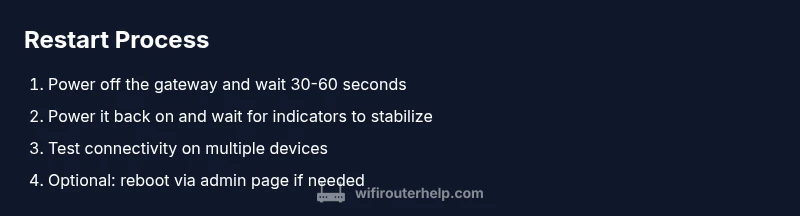
A soft reboot uses the router’s admin interface to restart while preserving current configurations; it’s best when you can access the admin page and don’t need to change anything. A hard reboot, or power cycle, involves unplugging the device, waiting 30–60 seconds, and plugging it back in to clear low-level caches and force a full reset of the running software. If you manage a multi-device setup, restart the modem first, then the router to ensure proper re-sync. Soft reboots are quick and low-risk; hard reboots take longer but can resolve stubborn issues that a soft reboot cannot.
Minimizing Disruptions During a Restart
Plan restart windows around household activity to minimize disruption. If you rely on live calls, online teaching, or security cameras, schedule a brief downtime and inform household members. Use a wired Ethernet backhaul for post-restart testing if Wi-Fi performance remains unstable. After the device comes back online, perform a quick speed test, load multiple websites, and verify that streaming services resume normally. If your network uses a guest network or parental controls, re-enable them after testing connectivity to ensure coverage and safety.
Advanced Troubleshooting If Restart Fails
If the restart does not fix the issue, inspect the physical setup: ensure the coaxial cable is securely connected and that there are no visible signs of damage or wear. Check for firmware updates in the admin interface and apply them if available, since updates can address performance issues and bug fixes. Consider temporarily changing DNS settings to a reliable public DNS to rule out DNS-related delays on affected devices. If problems persist after hardware checks and firmware updates, contact Xfinity support. Have your device model, firmware version, and any LED patterns ready to speed up diagnostics. Document any service outages from your provider to avoid unnecessary visits.
Authoritative References
For additional guidance, you can consult authoritative sources such as:
- FCC: https://www.fcc.gov
- NIST: https://www.nist.gov/topics/wireless-networking
- CISA: https://www.cisa.gov
Tools & Materials
- Xfinity gateway/modem (or separate modem + router)(Identify the exact device you are restarting (gateway or separate devices).)
- Power outlet near the router(Use a surge-protected outlet; avoid daisy-chaining through power strips during the restart.)
- Web browser or Xfinity app(You may need admin credentials to perform a soft reboot from the interface.)
- Admin credentials (username/password for the router(Have these handy in case you need to reboot from the web interface.)
- Ethernet cable (optional for testing)(Use to test a wired connection if wireless remains unstable after restart.)
Steps
Estimated time: 5-15 minutes
- 1
Identify device and credentials
Locate your Xfinity gateway or modem/router combo. Gather the admin username and password, and confirm whether you will perform a soft reboot via the admin interface or a full power cycle.
Tip: Having the correct credentials on hand saves time and avoids repeated attempts. - 2
Prepare the restart environment
If possible, close active sessions and inform others in the home of a short downtime. Ensure you have reliable internet for testing after the restart.
Tip: A quiet, predictable window reduces the chance of interrupted updates. - 3
Power cycle the gateway
Unplug the gateway’s power cord, wait 30–60 seconds, then plug it back in. This clears caches and forces a clean boot.
Tip: Do not unplug from the power strip if other devices are connected; unplug only the gateway or the power cord directly. - 4
Wait for reboot and initial reconnection
Wait 2–4 minutes for the device to boot and lights to stabilize. Avoid turning devices on/off during this window to ensure proper re-sync.
Tip: Watch the status lights: a steady white/green typically indicates a healthy reboot. - 5
Test connectivity on multiple devices
Open a browser on a phone, tablet, or computer and load several websites. Run a quick speed test on both wired and wireless devices if possible.
Tip: If wired devices connect but wireless devices do not, the issue may lie with the Wi‑Fi settings or interference. - 6
Optional soft reboot via admin interface
If issues persist, log in to the router’s admin page and perform a soft reboot. This preserves settings while refreshing the software.
Tip: If login fails, verify the router URL (often 192.168.0.1 or 10.0.0.1) and retry with updated credentials. - 7
Evaluate results and plan next steps
If performance remains inconsistent, verify cabling, check for firmware updates, and consider contacting support with LED patterns and test results.
Tip: Document the steps you took and the observed lights to speed up support calls.
People Also Ask
What is the quickest way to restart my Xfinity router?
The quickest method is to unplug the gateway’s power, wait about 30 seconds, and plug it back in. This power cycle clears minor glitches and re-establishes connections.
Unplug the gateway, wait a moment, and plug it back in to quickly refresh your connection.
Will restarting reset my Wi‑Fi name (SSID) or password?
A standard restart does not reset your SSID or password. Only a factory reset would change those settings.
Restarting normally won’t change your Wi‑Fi name or password.
How long should I wait after power cycling before testing?
Allow 2–5 minutes for the gateway to fully reboot and re-establish connections on all devices.
Give it a couple of minutes to boot up and re-connect.
What should I do if devices still can’t connect after a restart?
Check physical connections, test a wired device, and verify service status. If the issue persists, check for outages and contact support.
If still not working, verify cables and test both wired and wireless devices, then contact support if needed.
Should I restart both the modem and router if I have separate devices?
Yes—restart the modem first to re-sync with the network, then restart the router to refresh local routing. Allow a full re-sync.
Restart the modem first, then the router, and give them time to re-sync.
When is it appropriate to contact Xfinity support?
If issues persist after multiple restarts and testing, contact Xfinity support with device models, firmware versions, and observed LED patterns.
If it still fails after testing, reach out to Xfinity support with details.
Watch Video
What to Remember
- Restarting fixes many issues without changing settings.
- Power cycling is the simplest first step for reliability.
- If problems persist, inspect connections and test both wired and wireless devices.
- Follow this guide for consistent home Wi‑Fi performance.