Why Your Router Has No Internet: A Practical Troubleshooting Guide
Struggling with why your router has no internet? This urgent, step-by-step guide helps homeowners diagnose and fix common no-internet issues fast, with safe tips and a clear diagnostic flow.


Most cases of 'why router has no internet' come from a local network problem rather than a failed modem. Start by powering off/on devices in the right order, verify all cables are tight, and confirm the modem is online. Then check the router’s WAN status and run through the diagnostic flow. If nothing changes, continue with step-by-step fixes and safety tips.
Why the Internet Vanishes Even When the Router Appears Connected
If you're asking 'why router has no internet', you're not alone. According to WiFi Router Help, most no-internet scenarios begin with problems inside your home network rather than a failed modem. When a router seems connected but can't reach websites, it's usually a local issue: the modem might be offline, the WAN link could be down, or there could be a misconfiguration in the router settings. In this section, we cover the most common causes of a non-working internet connection and how to spot them with fast checks you can perform without calling a technician. The goal is to get you back online with confidence.
Common symptoms include a missing SSID, devices that show 'connected' but lack DNS, or intermittent downtime. Start by inspecting the physical layer: ensure the coax or fiber is securely attached, the Ethernet cable from the modem to the router's WAN port is snug, and the router's indicator lights look normal. If the modem shows an 'online' or 'PPP' light with no connectivity, the problem may be upstream (either the modem or the ISP). If you notice amber lights on the router, that often indicates an IP/DNS issue rather than a hardware fault. This block lays the groundwork for the diagnostic path and emphasizes a structured, calm approach to the problem.
Quick Hardware Check: Cables, Modem, and Router
An effective first pass is to inspect hardware. Check power adapters and power cycles; ensure the modem and router are plugged into a working outlet. Verify all cables: coax/DSL line to the modem, Ethernet cable from modem to the router's WAN port, and any backup cables to devices. Look at the status LEDs: the online light on the modem should be solid; red or blinking lights indicate connectivity problems. If you recently moved equipment, reseat connections and re-secure any loose plugs. Once the hardware looks sound, reboot in the correct order (modem first, then router) to refresh the connection and clear minor glitches. Small, careful checks like these often resolve the issue without deeper changes.
Confirm Modem and ISP Status Before Reboot
Sometimes the issue isn't your router but the service from your internet provider. Check if the modem shows online status and verify whether your service is listed as active on the ISP outage map. If you can, test a connection using a mobile device with cellular data to verify external websites are reachable. If mobile data works but wired devices do not, the problem likely lies inside your home network rather than the ISP. If the outage map confirms a service interruption, you may simply need to wait and retry later; otherwise proceed with the diagnostic flow to confirm your gear's behavior.
Run Through the Diagnostic Flow (Symptom → Diagnosis → Solutions)
Use a simple flow to narrow down causes. Start with the symptom: no internet on wired and wireless devices. Check basic causes (power, cables, lights), then analyze potential sources: is the WAN light on the modem active? Does the router have a valid WAN IP? Are DHCP settings correct? If the router shows a stale DNS or gateway, you’re likely dealing with DNS/gateway issues. For each branch, apply the corresponding fix and re-test. If you hit a dead end, escalate to professional support or your ISP. This flow keeps you organized and avoids guessing.
Step-by-Step Fixes for the Most Likely Causes
-
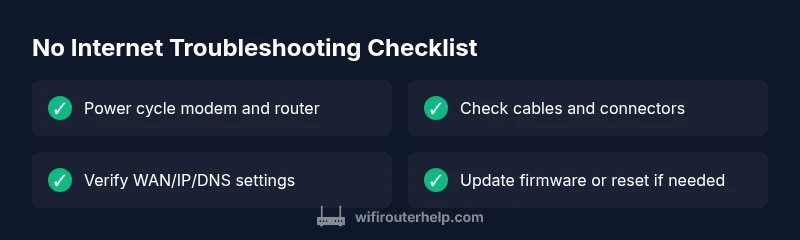
Power cycle in the correct order. Unplug the modem, wait 30 seconds, plug the modem back in, wait for all lights to stabilize, then power the router. Test for internet access on a wired device. Tip: Label cables to avoid misconnection during reboots.
-
Check cables and lights. Tighten all connections and verify there are no damaged cords. If you see amber LEDs or no online light on the modem, the problem might be upstream or with the line.
-
Verify WAN status in the router admin page. Access the admin interface and confirm it has a valid WAN IP and DNS. If the status shows 'cable unplugged' or 'no Internet', correct the port assignment or re-run setup.
-
Renew DHCP lease or test with a static IP. If devices fail to obtain an IP, release/renew on Windows or macOS. For testing, temporarily assign a static IP within your network range to see if connectivity improves.
-
Update firmware or reset if necessary. Check for firmware updates; if that doesn’t fix the issue, back up configurations and perform a factory reset, then restore settings. Pro tip: Save your Wi-Fi name/password beforehand. The total fix time is typically 25–40 minutes.
Prevention and Next Steps to Keep Your Network Stable
To reduce future outages, enable automatic firmware updates for your router, use a reliable power backup (UPS) for critical equipment, and keep your modem and router in a well-ventilated, cool location. Regularly review connected devices and passwords, enable DHCP reservations to prevent IP conflicts, and monitor for firmware notices from the manufacturer. A consistent maintenance routine helps you catch issues before they impact your network.
When to Seek Professional Help
If you have completed the diagnostic flow and step-by-step fixes but still experience no internet, or if you suspect hardware failure or persistent outages from the ISP, it's time to contact a professional. A trained tech can run advanced tests, check line quality, and verify provisioning with your provider. Do not delay if you rely on home offices or smart devices that require reliable connectivity.
Steps
Estimated time: 25-40 minutes
- 1
Power cycle devices in order
Unplug the modem, wait 30 seconds, plug it back in and allow it to come online. Then power the router. After both are online, test a wired connection to rule out Wi-Fi issues.
Tip: Label cables to prevent replugging the wrong port during reboots. - 2
Check physical connections
Inspect the coax/fiber line, the Ethernet from modem to router, and any other network cables. Replace damaged cables and ensure plugs are tight.
Tip: Look for physical damage or severe bends in cables that reduce signal quality. - 3
Verify WAN status in admin page
Log into the router, confirm there is a valid WAN IP and DNS. If you see 'cable unplugged' or no Internet signal, address the physical link or re-run setup.
Tip: Document current settings before making changes. - 4
Test and renew DHCP or set a test IP
On a PC, run ipconfig/renew (Windows) or renew DHCP on macOS. If needed for testing, assign a static IP within your network range to verify connectivity.
Tip: Only use static IP temporarily for testing; revert to DHCP for normal use. - 5
Update firmware or reset if needed
Check for and install any firmware updates. If issues persist, perform a factory reset after backing up settings and then reconfigure.
Tip: Back up your Wi-Fi name and password before resetting.
Diagnosis: No internet despite devices showing connected
Possible Causes
- highISP outage or service disruption
- highModem offline or no WAN sync
- mediumIncorrect or conflicting router settings (DHCP, PPPoE, DNS)
- lowLoose or damaged cables (coax, ethernet)
- lowDefective router or outdated firmware
Fixes
- easyPower cycle the modem first, then the router in that order, and test connectivity with a wired device
- easyInspect and reseat all cables; replace damaged cables and verify the modem's online indicators
- easyCheck for an ISP outage using the provider's status page or mobile data; retry after outage resolves
- mediumOpen the router admin page to verify WAN IP and DNS; adjust DHCP/PPPoE settings if needed
- mediumUpdate firmware or perform a factory reset if necessary after backing up settings
People Also Ask
Why does my router show connected but no internet?
This usually means a local issue such as a modem problem, incorrect router settings, or DNS/gateway problems. Start with a power cycle, verify WAN status, and check DNS/Gateway configurations before moving to resets.
Router connected but no internet typically means a local issue. First reboot and check WAN status, then verify DNS settings before resetting.
Should I reset my router or modem first?
Always start with a power cycle of both devices in the correct order. If that fails, back up settings and perform a factory reset on the router only after attempting firmware updates.
Begin with a power cycle. If that doesn’t fix it, back up your settings and reset the router.
How can I tell if the problem is the ISP vs my home network?
Test a wired device and check the ISP outage map. If mobile data can reach sites but your network cannot, the issue is likely inside your home network. If the outage shows, wait for service restoration.
If mobile data works but your home network doesn’t, the issue is likely inside your home. Check outage maps to see if the provider is affected.
What should I do if rebooting and checking cables doesn't help?
Proceed with firmware updates or a factory reset if backups exist. If problems persist after a reset, contact your ISP or a professional technician.
If rebooting and checks fail, update firmware or reset. If it still fails, contact your provider or a tech.
When is it time to call a professional?
If outages persist beyond a reasonable window, or you suspect hardware failure or line issues, a professional can run advanced diagnostics and provisioning checks.
Call a pro if outages persist after basic troubleshooting or if you suspect hardware failure.
Watch Video
What to Remember
- Identify if the problem is local or ISP-based first
- Follow a logical hardware-check flow before changing settings
- Power-cycle in the correct order to refresh connections
- Back up configurations before resets and firmware updates