Why Does My Router Stop Working at Night? A Practical Troubleshooting Guide
Struggling with a router that stops working at night? Our urgent, step-by-step guide helps homeowners diagnose outages, isolate causes, and restore stable Wi‑Fi fast.


Why does my router stop working at night? The quickest fix is a power cycle, checking for overheating, and ensuring the modem is online. According to WiFi Router Help, night-time outages are often caused by automated updates, nightly maintenance, or thermal throttling. If the issue repeats, follow the diagnostic flow below for a step-by-step resolution.
Why Night-Time Outages Happen
Night-time outages are frustrating because they seem to appear after sunset and disappear by sunrise. In many homes, outages at night are caused by a mix of environmental, device, and provider factors. According to WiFi Router Help, a mix of automatic firmware checks, thermal throttling, and power-supply quirks can turn a normally reliable network into a nighttime nuisance. This section breaks down the most common culprits and how to spot them, so you can act quickly rather than guesswork. First, consider overheating: poor ventilation, a cluttered cabinet, or a dusty fan can cause the router to throttle performance or shut down temporarily to protect itself. Next, automatic updates and scheduled reboots can momentarily interrupt traffic. Finally, external factors like ISP maintenance or a waning signal from a distant central office may show up late in the day or overnight.
Quick Checks You Can Perform Now
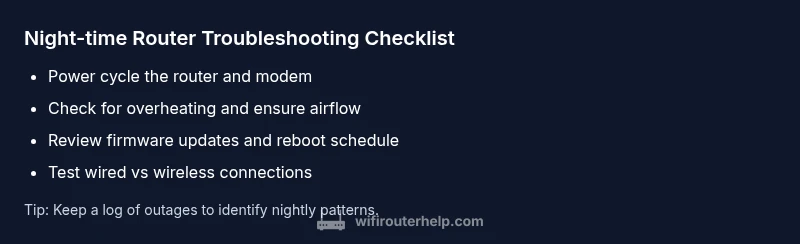
Before diving into deeper diagnostics, run through a swift checklist that covers the most likely culprits. Power cycle the router and modem: unplug both for 30 seconds, then plug back in. Check the LEDs: a red or blinking amber light on the modem or router may indicate a firmware update or hardware fault. Improve ventilation: move devices away from heat sources, clear vents, and ensure they’re not stacked in a closed cabinet. Test wired connections: connect a laptop directly to the router with an Ethernet cable to determine if the issue is wireless or network-wide. Check for scheduled updates: log into the router’s admin page and review any pending firmware updates or reboot tasks set for night hours. Each of these steps is designed to confirm whether the problem is temporary, hardware-related, or software-related. If you identify a specific symptom, skip ahead to the corresponding fix to save time.
Diagnostic Path: Symptom-to-Diagnosis
Use a simple symptom-to-diagnosis path to avoid chasing random causes. Start with a clear symptom like “outages begin after 9 pm and last until the next morning.” If you notice heat, the fix is airflow and cooling. If you see reboot messages in the logs, it’s likely firmware or scheduled maintenance. If the problem aligns with your ISP’s status page, you’re facing a provider-side issue. Document each step and test after every change to verify progress. This approach minimizes guesswork and helps you distinguish between home network issues and external outages.
Step-by-Step Fixes for the Most Likely Cause
- Improve cooling and airflow: place the router in an open, elevated space away from other electronics. 2) Power cycle and reset if necessary, but avoid factory resets unless you’ve exhausted simpler options. 3) Update firmware during daytime hours and enable automatic updates if supported. 4) Check cabling and modem health: swap Ethernet cables with known-good ones and run a forced reconnect to the ISP gateway. 5) Isolate wireless interference: change channel settings, enable 2.4 GHz and 5 GHz bands distinctly, and move devices away from cordless phones or microwaves. 6) If all else fails, perform a narrow factory reset after saving configuration and re-enter essential settings. Tip: back up your router config before any reset.
Safety, Warnings, and Pro Tips
- Never open the router’s power supply or tamper with internal components; this can cause electric shock or void warranties.
- When performing resets, ensure you’re connected to a safe power source and not in a flooded area or near water.
- If you’re uncomfortable performing hardware checks, contact a professional or your ISP’s tech line.
- Document changes so you can revert steps if a fix causes another issue.
Prevention: How to Avoid Future Night Outages
- Schedule firmware updates during daytime hours and enable automatic updates only when you can monitor them.
- Improve ventilation and avoid stacking devices that generate heat.
- Use a quality power strip with surge protection and a stable outlet to reduce power fluctuations.
- Consider a mesh network or stronger router if you regularly see slowdowns at night.
Steps
Estimated time: 15-60 minutes
- 1
Power cycle router and modem
Unplug both devices, wait 30 seconds, plug back in, and allow 2 full boot cycles. Check for any change in connectivity.
Tip: Observe LED behavior during boot to confirm normal startup. - 2
Improve cooling and airflow
Relocate the router to a higher, open space away from heat sources and obstructions. Ensure vents are not blocked.
Tip: Keep at least 2–3 inches of clearance around vents. - 3
Check cables and power supply
Inspect Ethernet and power cables for damage; replace any suspect cables. If possible, test with a different power adapter.
Tip: Use a known-good outlet or surge protector to rule out power dips. - 4
Review firmware updates and reboot schedule
Log into the router’s admin interface, apply any pending updates, and disable non-essential nightly reboots if not needed.
Tip: Back up current settings before updating. - 5
Test wired vs wireless connectivity
Connect a device via Ethernet to verify if the problem is wireless or network-level. If wired works, focus on Wi‑Fi configuration.
Tip: Test both 2.4 GHz and 5 GHz bands separately. - 6
If issues persist, perform a targeted reset
As a last resort, perform a factory reset and reconfigure essential settings. Restore from a backup if available.
Tip: Document SSIDs, passwords, and key QoS rules before reset.
Diagnosis: Router stops routing traffic after night hours
Possible Causes
- highOverheating or poor ventilation
- mediumAutomatic firmware updates or nightly reboots by the router/ISP
- lowPower supply instability or intermittent outages
- lowInterference from night-time household devices (baby monitors, cordless phones, microwaves)
- mediumISP maintenance or upstream outages
Fixes
- easyMove router to a cooler, open location with clear airflow
- easyCheck for and apply pending firmware updates; review scheduled reboot tasks
- easyInspect power cables and outlet stability; test with a different outlet or surge protector
- easyTest wired connection to isolate wireless issues; change Wi‑Fi channels to reduce interference
- mediumIf issues persist, check ISP status pages and request a line test; consider temporary mobile hotspot as a workaround
People Also Ask
Why does my router stop working at night?
Night outages often come from automatic updates, nightly ISP maintenance, or overheating. Use the diagnostic flow to determine whether the problem is inside your home or provider-side.
Night outages are usually due to updates, maintenance, or heat; follow the diagnostic steps to isolate the cause.
Is it safe to reset my router at night?
A factory reset is safe but should be a last resort; back up settings before resetting and reconfigure carefully afterward.
Yes, but back up your settings first and only reset if you’ve tried safer fixes.
How can I tell if the problem is the router or the ISP?
If wired connections fail too, the issue is likely ISP-related. If wired works but Wi‑Fi is unstable, focus on the router settings and wireless channel optimization.
Wired failure points to the ISP; wireless instability points to the router or Wi‑Fi setup.
What does a blinking modem LED mean at night?
Blinking lights can indicate data activity, updates, or a temporary reset. Check the status page or manual for exact codes.
Blinking usually means activity or updates; check the status page for specifics.
Can a UPS prevent night outages?
A UPS helps with power dips or outages, but it won’t fix provider-side issues. It buys you time during a blackout.
Yes, a UPS can protect against power dips, but it won’t fix ISP outages.
Watch Video
What to Remember
- Power cycle as a first step to clear transient faults
- Differentiate local router issues from ISP outages
- Improve cooling to prevent thermal throttling
- Back up settings before updates or resets
- Schedule maintenance during daytime hours