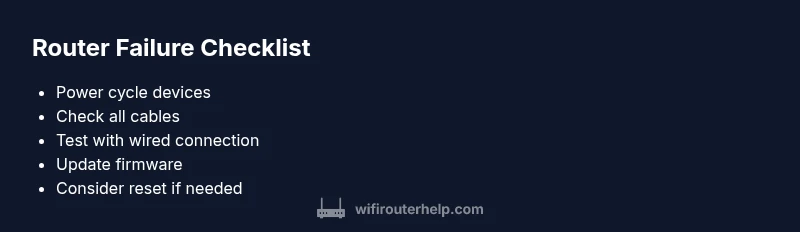
Why do routers fail: an urgent troubleshooting guide
An urgent, step-by-step guide to diagnose and fix router failures, with practical checks, diagnostic flow, and prevention tips to keep your home network reliable.


Most router failures stem from simple, fixable causes rather than a dead device. Start by power cycling, checking all cables, and confirming the modem is online. If the problem persists, isolate the router from the network by testing with another device and updating firmware. Follow these steps for a fast, reliable repair.
Why do routers fail
When people ask why do routers fail, the answer is almost always not a mysterious hardware defect but a chain of small, fixable issues. According to WiFi Router Help, the most common culprits are power problems, loose cables, and outdated firmware. A router can appear to fail when it can't establish a stable link to the modem, when DNS or DHCP settings are misconfigured, or when there is interference from neighboring networks. This section explains the typical failure modes and why they crop up in home networks. By understanding the root cause, you can address the problem quickly and avoid expensive service calls. The goal is to build a reliable network that remains stable under real-world conditions like streaming, gaming, and remote work. Throughout this guide you will see the key checks repeated in a practical sequence so you can reproduce results across devices, cables, and locations. Remember: most failures are not about your specific router brand; they are about setup and environment that you can control.
Core causes and quick checks
Here are the most common causes of router failures and the quick checks you should run before digging deeper:
- Power issue or supply fault – Ensure the router powers up, LEDs light in the expected pattern, and the power adapter is the correct model for your device.
- Loose or damaged cables – Inspect the Ethernet cable to the modem and the power cord for visible damage; replace with a known-good cable if in doubt.
- Modem status and ISP outages – Confirm the modem is online (lights steady). Check with your ISP for outages in your area.
- Firmware and settings – Look for available firmware updates in the router admin page and apply them. If settings were recently changed, double-check the WAN, LAN, DHCP, and DNS assignments.
- Channel interference and radio bands – If you have many nearby networks, change channels or switch to 5 GHz where supported to reduce interference.
- DHCP and IP conflicts – Make sure the router is the DHCP server or that IP ranges don’t clash with a secondary router or access point.
- Overheating and placement – Ensure the router sits in a well-ventilated area; avoid enclosed cabinets and heat sources.
- Hardware age and reliability – If the device is several years old, it may be less reliable than newer models; plan a replacement if issues persist.
WiFi Router Help recommends a methodical check of each element to pinpoint the root cause, so you don’t replace parts unnecessarily.
Isolate the problem: router vs network
To determine whether the issue is the router itself or the broader network, start with simple, isolated tests. Connect a computer directly to the modem with a wired Ethernet cable and see if you get a stable internet connection. If the modem works fine by itself, the problem is likely the router or its configuration. Disable the router’s wireless signal temporarily and attempt a wired connection from a device to confirm whether the issue is wireless-only or affects both wired and wireless connections. Try a different device to rule out device-specific problems. If you still see issues after these tests, the router configuration or hardware is the likely culprit. WiFi Router Help notes that network-level problems (DNS, DHCP, or an upstream outage) can masquerade as router failures, so keep testing with alternate devices and browsers to rule out client-side causes.
Steps
Estimated time: 30-60 minutes
- 1
Power cycle the devices
Unplug both the router and the modem. Wait 30 seconds, then plug the modem back in. After the modem stabilizes, plug in the router and wait for the lights to indicate normal operation. This resets many transient faults and clears memory that could affect performance.
Tip: Label power adapters or use color-coded cables to avoid re-connecting the wrong device. - 2
Check physical connections
Inspect all cables for wear and firmly connect them to the correct ports: WAN on the router to the modem, LAN ports to devices as needed. Avoid using damaged or very old cables. A loose connection is a frequent culprit of connectivity problems.
Tip: If possible, test with a fresh Ethernet cable and a different port on the router. - 3
Test with a wired device
Connect a laptop or desktop directly to the router via Ethernet and see if you can browse the web. If the wired connection works while wireless does not, the issue is likely wireless configuration or interference.
Tip: Temporary disable wireless on devices to confirm if the problem is WiFi-specific. - 4
Update firmware and check settings
Log into the router’s admin interface and check for firmware updates. Apply any available updates, then review WAN, DHCP, DNS, and WiFi settings to ensure they reflect your home network. A corrupted config file can cause intermittent failures.
Tip: Back up current settings before updating or resetting. - 5
Reset to factory defaults if needed
If issues persist after updates and reconfigurations, perform a factory reset. This clears custom settings and restores defaults. Reconfigure from scratch rather than restoring old backups that might reintroduce the problem.
Tip: Only reset when you have the necessary ISP login info and a plan to reconfigure. - 6
Validate results and document
Retest all devices and document the outcomes. Note any patterns (time of day, devices affected, recent changes). If the problem recurs, you’ll have data to support a professional diagnosis.
Tip: Keep a short log of steps and results for future reference.
Diagnosis: Router intermittently loses internet connection or devices can't connect to WiFi
Possible Causes
- highPower issue or power supply fault
- highLoose or damaged Ethernet or power cables
- mediumNetwork equipment misconfiguration (DHCP, DNS, gateway)
- mediumOutdated firmware or corrupted router settings
- lowModem fault or ISP outage
Fixes
- easyCheck power supply, reseat power cables, and swap to a known-good outlet
- easyInspect and replace damaged cables; use correct ports
- easyReboot modem first, then the router; wait for lights to stabilize
- mediumUpdate firmware from the admin interface, then reboot
- hardReset router to factory defaults if misconfigurations persist (backup settings first)
People Also Ask
What is the most common reason a router fails?
Power issues and damaged cables top the list. After checking these, move on to firmware updates and configuration checks.
Power issues and bad cables are the most common causes of router failures.
Should I reset my router to fix issues?
Reset should be a last resort after trying simpler steps. Back up settings before resetting, and reconfigure carefully afterward.
Only reset if nothing else works.
Can a bad modem cause routers to fail?
Yes. If the modem is offline or malfunctioning, the router cannot access the internet, making it seem like a router failure.
A bad modem can mimic router failure.
How can I tell if interference is the problem?
Switch between 2.4 GHz and 5 GHz, and try changing channels. If speeds improve with a different channel, interference was the culprit.
Test by changing channels to see if performance improves.
When should I contact a professional?
If outages persist after all fixes or you cannot access the admin UI, professional diagnosis is warranted.
If problems persist after basic fixes, consider a professional.
How can I prevent future router failures?
Keep firmware updated, place the router well-ventilated, and avoid overload by smart QoS and fewer devices on the network.
Regular maintenance helps prevent future failures.
Watch Video
What to Remember
- Start with the basics: power, cables, and modem status.
- Update firmware to fix many issues.
- Test with wired vs wireless to isolate the problem.
- Factory reset as a last resort after backing up settings.