when to reset wifi router
Learn when to reset wifi router, the difference between reboot and factory reset, and a safe, step-by-step approach to troubleshoot home networks without losing essential settings.


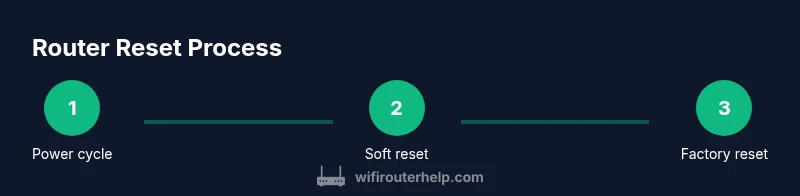
To fix most home-network glitches, reboot first and only perform a factory reset if problems persist or settings become corrupt. A reboot clears temporary caches without deleting your network name or password, while a factory reset returns the router to its default settings and wipes custom configurations. If you back up credentials, you can reconfigure quickly after a reset.
Know when to reset wifi router
Knowing when to reset wifi router is a practical skill for homeowners and tech enthusiasts. The WiFi Router Help team finds that the vast majority of connectivity hiccups stem from temporary glitches, stale DNS caches, or misconfigured but recoverable settings. A measured approach reduces downtime and helps you preserve important network details like your SSID and password. Use reset actions only when simpler fixes fail or after major changes (new modem, firmware updates, or network security concerns). If your goal is stability, establish a routine of occasional, lightweight maintenance rather than reacting to every blip. This guide uses the phrase 'when to reset wifi router' to emphasize timing—resetting at the wrong moment can erase critical configurations or user preferences. Through clear steps and safe backups, you’ll minimize risk while restoring reliable performance and security.
Reboot first: the safe, quick fix
In most cases, a simple reboot solves the majority of issues. Power cycling clears temporary caches and re-establishes a clean link to your modem or ISP gateway. Start by unplugging the router, waiting 60 seconds, and plugging it back in. If your devices reconnect automatically, you’re done. If not, try accessing the admin page via a wired or wireless device. Reboots are non-destructive and preserve your SSID, password, and most custom settings, making them the recommended first step. According to WiFi Router Help, this is often the fastest route to restoring normal speeds and stable connections.
Soft reset vs factory reset: differences and impact
A soft reset, or reboot through the UI or hardware button, restarts the device without changing your saved settings. It is ideal when you see slow speeds, brief dropouts, or devices that fail to obtain an IP address. A factory reset restores the router to its original state, erasing all custom configurations such as SSID, password, port forwards, and parental controls. This is a last-resort option when persistent problems persist after a reboot or when settings have become corrupted. Factory resets can help if a recent change caused instability, but you should back up critical details first to speed up reconfiguration later.
How to prepare before resetting
Preparation reduces risk and speeds up recovery. Before any reset, note your current network name (SSID) and WiFi password, cable up any devices used for setup, and export or screenshot any port-forwarding rules, DHCP reservations, and parental controls. If you rely on a guest network, decide whether to keep or disable it after the reset. Having your ISP credentials handy and a list of connected devices helps you quickly re-create your network after a factory reset. Backup your router’s configuration if the model supports it, and have a plan for firmware updates to apply after the reset.
Step-by-step reset workflow: a safe, repeatable process
A safe reset workflow follows a logical progression: verify symptoms, attempt a reboot, perform a soft reset if needed, and reserve a factory reset for stubborn issues. Document the exact model and current firmware version before starting. For wired setups, a laptop or phone connected via Ethernet makes administration easier. Use a small pin or paperclip to press the reset button only if the device requires a factory reset. Ensure power remains stable during the process to avoid mid-reset failures. The goal is to restore functionality with the least disruptive action possible.
After a reset: reconfigure and test
Once the router restarts, reconfigure your network: set the SSID and password to known values, re-enable security (WPA3 or WPA2), and reconnect devices. Check that your internet connection is active by opening a browser or running a speed test. If you performed a factory reset, re-enter your preferred settings and restore any saved port forwarding rules or QoS configurations. Update firmware if prompted and verify that all connected devices can access the network. Regularly test wired and wireless performance to confirm stability across devices.
Troubleshooting common issues after a reset
If you still experience issues after a reset, investigate common culprits: firmware compatibility, channel interference, or incorrect DNS settings. Try forcing DNS to a reliable public option (like 1.1.1.1 or 8.8.8.8) temporarily to diagnose DNS problems. Confirm the router’s firewall and UPnP settings align with your needs. If problems persist, consult your model’s manual for reset-specific instructions or contact the manufacturer’s support. Keeping logs of resets and results helps identify patterns over time.
Maintenance habits to minimize resets
To reduce the need for resets, implement routine maintenance: schedule firmware updates, monitor device performance, and optimize your wireless channels (2.4 GHz vs. 5 GHz). Create a simple backup of your configuration and document any custom rules. Use a network health checklist weekly or monthly, and avoid applying suspicious third-party firmware without verification. With proactive care, you’ll keep your network stable and avoid disruptive resets.
Authority sources and ongoing learning
For best practices, refer to reputable sources and keep firmware up to date. The WiFi Router Help team recommends cross-checking guidance with official security and networking resources. See sources in our reference list for deeper understanding and updated recommendations.
Tools & Materials
- Power adapter and a stable outlet(Keep router powered during the process; a loss of power can corrupt settings)
- Device to access the router admin page (computer or smartphone)(Ensure you can reach the router IP (usually 192.168.x.1))
- Small reset tool (paperclip or pin)(Needed only for a factory reset or button-based hard reset)
- Backup of Wi‑Fi credentials(Have SSID and password written down or stored securely)
- Ethernet cable (optional)(Useful for a stable wired admin session)
- Router manual or model number(Helpful for model-specific reset steps)
Steps
Estimated time: 20-40 minutes
- 1
Power cycle the router
Unplug the router, wait 60 seconds, then plug it back in. This clears temporary caches and often resolves minor glitches. After reboot, verify if wired or wireless devices reconnect automatically.
Tip: If reboot alone doesn’t fix the issue, proceed to a soft reset from the admin UI. - 2
Access the admin interface
Open a browser on a connected device and enter the router’s IP address (commonly 192.168.0.1 or 192.168.1.1). Log in with your admin credentials. If you’ve forgotten them, use the default credentials in the manual or reset the password via the reset process.
Tip: If you cannot reach the login page, confirm your device is on the correct network and that the router is properly powered. - 3
Perform a soft reset from the UI
Navigate to the Reset or Reboot section and choose Reboot or Soft Reset. This restarts the device without wiping user settings. Wait for the router to come back online and test connectivity.
Tip: Soft reset is typically sufficient for most connectivity issues and preserves your SSID and password. - 4
Back up current settings (if available)
If your router supports exporting configurations, save a backup file before attempting a factory reset. This can include port forwards, QoS, and DHCP reservations.
Tip: Keep the backup in a safe place so you can re-import after a factory reset. - 5
Proceed to a factory reset if needed
If issues persist after a soft reset, perform a factory reset using the reset button or UI option. Hold the reset button for 10-30 seconds, or follow model-specific guidance in the manual. This erases custom settings and returns the device to defaults.
Tip: Only do this if you’ve backed up settings and are prepared to reconfigure the network from scratch. - 6
Reconfigure after reset
Set a fresh admin password, re-enter your SSID and security (prefer WPA3 if supported), and reapply essential settings like DHCP, DNS, and QoS rules. Restore any necessary port forwards from your backup.
Tip: Document your new configuration so future resets are faster and less risky. - 7
Update firmware and test
Check for firmware updates after the reset to ensure you have the latest stability and security fixes. Reconnect devices and run a speed test to validate performance across wired and wireless connections.
Tip: Enable automatic updates if your model supports it, but review updates before applying to avoid compatibility issues.
People Also Ask
What is the difference between rebooting and resetting my router?
Rebooting restarts the router without changing its saved settings, while resetting can restore defaults or wipe custom configurations. Use reboot as the first step for minor issues, and reserve factory reset for persistent problems.
Reboot your router first to fix simple issues; a full reset should be your last resort if problems continue.
When should I consider a factory reset?
Consider a factory reset if issues persist after reboot and soft reset, changes in security settings cannot be resolved, or the device behaves erratically due to corrupted configuration.
Only try a factory reset if softer fixes fail or if the configuration is clearly corrupted.
Will a factory reset erase my Wi-Fi password?
Yes, a factory reset restores defaults, which means you’ll need to re-enter or re-create your Wi‑Fi password. Have a backup of credentials ready.
Yes, you’ll need to set a new Wi‑Fi password after a factory reset.
Can I reset the router without losing internet access?
A reboot usually preserves your credentials and network name, allowing restored access. A factory reset will require reconfiguration, which may temporarily interrupt internet access.
A reboot typically preserves access; a factory reset will interrupt and require setup.
Should I reset after a firmware update?
Not always. If the update completes successfully and your speeds are steady, a reset is usually unnecessary. If you encounter instability after updating, a reboot or soft reset is sensible before a factory reset.
Only reset if you notice issues after updating; start with a reboot.
How can I speed up reconfiguration after a factory reset?
Prepare by exporting or writing down your essential settings, including SSID, password, and port-forward rules. Use backups to restore configurations quickly.
Have your settings handy so you can restore quickly after a factory reset.
Watch Video
What to Remember
- Reboot first for most issues
- Factory reset only if necessary
- Back up settings before reset
- Reconfigure and test after reset