What to Do After Resetting Your Router: Step-by-Step
Learn the essential steps after resetting your router to secure, configure, and optimize your home network. From credentials to firmware, follow a practical, homeowner-friendly plan.


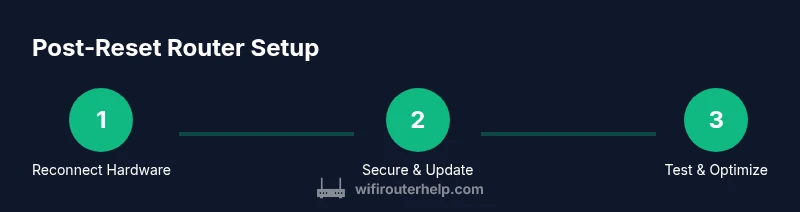
After a router reset, you resecure and reconfigure your home network. Reconnect the modem, access the router’s admin page, update your admin password, set a new Wi‑Fi name and password, and check for firmware updates. Finally, test connectivity and basic performance to confirm everything is working smoothly.
What to do after resetting your router
If you’re wondering what to do after resetting router, you’re not alone. After a reset, the device returns to factory defaults, so you must re-establish security, recreate your network, and verify connectivity. According to WiFi Router Help, this is the moment to build a safer, reliable home network from the ground up. In this section we’ll map out a practical path that homeowners can follow without specialized equipment. You’ll learn how to reclaim control, reconfigure settings, and restore essential protections. The goal is a fast, smooth transition from reset to a stable network you can trust.
This phase emphasizes two pillars: security first and clear network credentials second. As you read, keep in mind that a well-documented setup reduces future headaches and makes it easier to diagnose problems later. You’ll also see how minor adjustments—like renaming your network and enabling stronger encryption—have outsized benefits for daily use and family safety.
Reconnect the hardware: modem and router basics
Reconnecting your hardware after a reset is more than plugging cables back in. Start with the modem (if you have one) and observe the status lights to confirm it’s online. Then connect the router either via Ethernet for a stable first setup or wirelessly if you’re configuring from a device already on the network. This order matters because most ISPs expect the modem to hand a clean connection to the router. If your modem and router are separate devices, ensure you’re in bridge mode only if needed for your setup. The goal is a clean, single path to the internet, with all devices on the same subnet. As you proceed, double-check that you can access the router’s admin interface from a connected device.
Secure your network: change credentials and SSID
Security starts with the admin password and the Wi‑Fi password. Change the router’s default admin credentials to a strong, unique password, and avoid common defaults. Create a memorable but hard-to-guess Admin password and store it securely. Next, set a new SSID (network name) that doesn’t reveal your address or identity. Turn on WPA2‑PSK or WPA3‑PSK if available; avoid WEP or WPA with weak protocols. Disabling WPS can also reduce attack vectors. These steps dramatically reduce the risk of unauthorized access from the moment your network comes back online.
Configure Wi‑Fi settings: name, password, and guest network
Choose a clear, non-identifying SSID for your main network and a separate, clearly labeled guest network. Use a long, strong password for the main network and, if possible, enable a guest network with restricted access to local devices. Consider using a passphrase rather than a simple password to improve memorability and security. If your router supports 2.4 GHz and 5 GHz bands, give them distinct, easy-to-remember names (for example, MyWiFi-2.4 and MyWiFi-5G). Review band steering and channel selection to minimize interference in your home layout.
Update firmware and verify features
Firmware updates bring security fixes and performance improvements. Check the router’s admin interface for a firmware update option and apply any available updates. If your router supports auto-update, enable it to keep defenses current. After updating, verify features you rely on (guest access, parental controls, QoS) are still configured as intended. Remember to re-check any port-forwarding rules or VPN settings that you use regularly, as these can reset during a firmware update.
Test and optimize performance
Run quick speed tests on both 2.4 GHz and 5 GHz networks to ensure you’re getting expected results in typical areas of your home. If coverage is spotty, adjust antenna orientation, reposition the router, or enable mesh extenders if you’re using one. Choose the least congested channel for 2.4 GHz and consider enabling band steering where supported. Enabling Quality of Service (QoS) for latency-sensitive activities like gaming or video calls can improve performance. Regular testing helps you spot issues before they disrupt daily use.
Create a post-reset maintenance checklist
Conclude the process with a simple, repeatable routine. Document changes, save a backup of the configuration file if your router supports it, and set a calendar reminder to check for firmware updates every 2–3 months. Keep a written note of your Wi‑Fi name, password, and guest network settings in a secure place. This checklist acts as a quick-start guide for future resets or troubleshooting and helps you maintain a resilient home network.
Tools & Materials
- Computer, tablet, or smartphone with a web browser(Needed to access the router admin page and configure settings)
- Router admin credentials(Username and password; if you don’t have them, check the label on the router or manual)
- Router manual or access to model-specific support site(Helpful for model-specific steps or default IPs)
- Stable internet connection during setup(Use wired connection when possible for reliability)
- Secure storage for credentials(A password manager is recommended)
Steps
Estimated time: 25-40 minutes
- 1
Open the router admin interface
From a connected device, open a browser and enter the router’s IP address (commonly 192.168.0.1 or 192.168.1.1). Log in with the current credentials or the default if you haven’t changed them yet. If you cannot reach the page, verify your device is on the correct network and try a wired connection.
Tip: If you’re unsure of the IP, check the label on the router or consult the manual. - 2
Change the admin password
In the admin dashboard, locate the management or security section and change the admin password to a strong, unique password. Save the change and log back in with the new password to confirm access works.
Tip: Use a passphrase-like combination of words and numbers; consider a password manager for storage. - 3
Set a new Wi‑Fi name and password
Update your main network’s SSID to something non-identifying and create a robust password. If available, enable separate guest network access with restricted permissions.
Tip: Avoid using your home address or personal details in the SSID. - 4
Configure security and other protections
Choose WPA2‑PSK or WPA3‑PSK as the security protocol. Disable WPS if present and review features like firewall and device filtering. Enable auto-reconnect where offered.
Tip: If security options are unclear, default to the strongest available protocol (prefer WPA3). - 5
Update firmware and verify features
Check for firmware updates, install them, and reboot if required. After updates, verify your guest network, QoS, and any parental controls are functioning as intended.
Tip: Back up current settings before updating when the option exists. - 6
Test connectivity and performance
Run speed tests near the router and in far rooms. Adjust placement or channels if performance drops. Enable QoS for priority devices if needed.
Tip: Document results to compare against future tests. - 7
Create your post-reset maintenance checklist
Save a configuration backup, note down credentials, and set a reminder to check updates quarterly. Maintain a simple log of changes for future resets.
Tip: A buttons-and-logs approach keeps recovery quick if problems arise.
People Also Ask
Is it necessary to reset my router after a security breach?
A reset can help clear unknown configurations, but you should also change all admin passwords, enable strong encryption, and update firmware. Assess whether you need to reconfigure gateway settings or contact your ISP for further guidance.
Yes, a reset helps clear settings, but you should also update passwords and firmware for best security.
What should I do if I can’t access the admin page after a reset?
Verify the device is connected to the router's network, try the default IP, and ensure you’re not connected to a separate guest network. If needed, perform a second reset and retry with a wired connection.
Check your connection and IP, then try again. If needed, reset once more with a wired setup.
Should I change the Wi‑Fi name and password after a reset?
Yes. Changing the SSID and password improves security and helps distinguish your network post-reset. Use a unique name and a strong password, and consider separating guest access.
Absolutely—change the SSID and password to reclaim control and security.
How often should I update router firmware?
Check for firmware updates at least every few months. Enable auto-updates if available, and review release notes to understand new protections or features.
Check regularly for updates and enable auto-updates if you can.
What if I forgot the admin password after reset?
If you can’t recover the password, use the device’s reset button to restore factory defaults again and set new credentials. Note that this will erase any custom settings you had.
If you forget it, you may need to reset again and set a new one.
Can I keep my old Wi‑Fi name after resetting?
It’s possible, but you’ll want to ensure the old network name isn’t paired with insecure settings. A fresh SSID helps indicate a reset and reduces the risk of stale credentials lingering.
You can keep it, but a fresh SSID is usually safer and clearer.
Watch Video
What to Remember
- Secure admin access with a strong, unique password.
- Use WPA3 or WPA2-PSK; disable weak protocols.
- Rename SSID and set strong Wi-Fi credentials.
- Keep firmware up to date and test performance after reset.