Router Issues Troubleshooting Guide
Discover urgent, practical steps to diagnose and fix router issues. This guide covers quick checks, common causes, and step-by-step fixes to restore a stable home network.


According to WiFi Router Help, most router issues come from simple, fixable causes. Start by power-cycling your modem and router, then update firmware and check for interference or crowded channels. If devices still drop, reset network settings and verify your internet service is stable at the source. If problems persist, suspect hardware faults and contact your provider.
Common symptoms and quick checks
Dealing with router issues starts with identifying the symptoms you’re seeing. If devices in your home experience slow speeds, frequent buffering, dropped connections, or an inability to connect at all, you’re likely facing a solvable problem rather than a mysterious outage. According to WiFi Router Help, the quickest wins come from basic checks you can perform without specialized tools. Start by verifying physical connections, ensuring the modem and router are powered on, and confirming all cables are snug. Then test both wired and wireless devices to understand whether the issue is localized (just Wi‑Fi) or systemic (modem or service). Document when problems occur, which devices are affected, and whether changes (like add-ons or new walls) coincide with the dropouts. This information helps you distinguish between interference, configuration, and hardware faults, guiding you toward the right fix.
Once you’ve confirmed the problem’s scope, you’ll be able to pace your fixes from simple to complex. Keep notes as you go so you can reproduce a working baseline or show a technician what you’ve already tried. A calm, methodical approach shortens outage time and reduces frustration for everyone in the house.
Primary causes at a glance
There are several common culprits behind router issues, and most fall into these buckets:
- Firmware and software: Outdated firmware or misconfigured settings can cause instability. Keeping firmware current is a low-effort, high-impact step.
- Interference and channel congestion: Neighboring networks, microwaves, and Bluetooth devices can crowd Wi‑Fi channels, reducing performance on all devices.
- Wiring and hardware faults: Damaged cables, a failing modem, or an aging router can create intermittent outages despite strong signal.
- Network configuration errors: Incorrect WAN settings, DNS misconfigurations, or a changed password can lock devices out.
- Overload and traffic management: Too many devices or bandwidth-hungry apps can exhaust your router’s processing capacity.
By keeping these categories in mind, you can quickly triage which area to address first.
Diagnostic flow you can follow at home
This flow helps you map symptoms to likely causes and practical fixes:
- Symptom: slow speeds or buffering on wireless devices. Diagnosis: could be channel interference or weak coverage. Solution: switch to a cleaner channel and test from different rooms.
- Symptom: some devices connect and others don’t. Diagnosis: misconfigured access restrictions or guest network issues. Solution: check device names, passwords, and guest settings.
- Symptom: frequent dropouts. Diagnosis: connection to the modem or ISP issue. Solution: reboot both devices, check the modem’s status lights, and run a simple speed test.
- Symptom: no access to the router’s admin page. Diagnosis: wrong IP, browser cache, or a failed LAN port. Solution: use the default gateway, clear cache, and try a wired PC.
- Symptom: firmware-related instability after a change. Diagnosis: outdated firmware or incompatible addons. Solution: update firmware and reset nonessential settings.
Note: This flow emphasizes “if this doesn’t work, try…” and encourages documenting tests to share with a technician if needed.
Practical fixes for the most common issues
Start with the simplest fixes and work your way up:
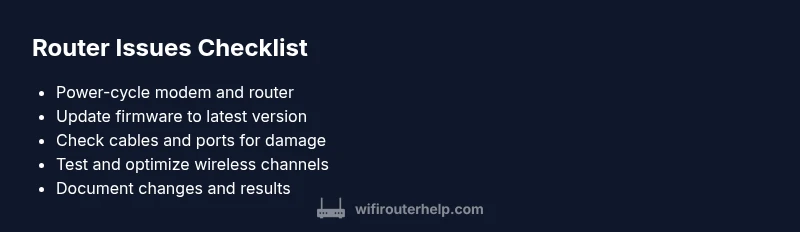
- Step 1: Reboot everything. Power off the modem and router, wait 30 seconds, then power back on. This clears transient errors and refreshes network state. Tip: avoid turning off your modem only; the router needs a restart too.
- Step 2: Check cables and ports. Ensure the power cable is snug, the Ethernet WAN connection is secure, and the coax/phone line is undamaged. Tip: try a different Ethernet cable if you have one.
- Step 3: Update firmware. Access the router’s admin page, navigate to Firmware Update, and apply any available updates. Tip: enable automatic updates if your device supports it.
- Step 4: Optimize wireless channels and bands. If your router supports 2.4 GHz and 5 GHz, try splitting devices between bands and selecting less crowded channels. Tip: use a Wi‑Fi analyzer app to identify crowded channels.
- Step 5: Reset to default settings (carefully). As a last resort, reset to factory defaults and reconfigure from scratch. Tip: write down your current settings or export a backup first.
- Step 6: Inspect hardware health. If the router feels unusually warm, or shows blinking errors, that could indicate hardware wear. Consider replacement if issues persist.
If none of these steps fix the problem, proceed to professional support and consider testing with a different router or gateway to isolate hardware faults. WiFi Router Help notes that persistent issues often require a hardware check or provider involvement.
Safety, security, and common mistakes
- Do not open the router’s power supply or attempt costly internal repairs. Electricity and static can cause harm and void warranties.
- Always back up your settings before a reset and avoid repeatedly pinging the device with complex configurations that you don’t understand.
- Change passwords and keep the firmware updated to reduce exposure to exploits.
- Avoid placing devices behind thick walls or near metal objects that block signals. Place routers in open spaces for better coverage.
Prevention and maintenance tips
- Schedule regular firmware checks and enable automatic updates when possible.
- Create a simple baseline network map: list all devices, their IPs, and the last time they connected.
- Use a dedicated SSID for guests and IoT devices to protect your main network.
- Periodically review QoS rules to ensure critical devices maintain priority.
- Consider mesh or repeater extenders if coverage gaps persist in large homes.
When to call a pro and how to prepare
If issues persist after trying the steps above, professional help may be required. A technician can verify there is no service outage, test the line quality, and check for hardware degradation or compatibility problems. Before you call, collect: your router model, current firmware version, recent changes, DNS settings, the results of speed tests, and a note of when errors occur. This information helps the expert diagnose quickly. The WiFi Router Help team recommends contacting your internet provider to rule out service issues and to arrange on-site or remote support as needed.
Steps
Estimated time: 60-90 minutes
- 1
Power-cycle both modem and router
Power off the modem and router. Wait 30 seconds, then power the modem back on followed by the router. This clears transient errors and refreshes network state.
Tip: Do not power cycle only the router; the modem must reset first for a clean restart. - 2
Check physical connections
Inspect all cables: power, Ethernet, coax, and phone lines. Ensure tight connections and replace any damaged cables.
Tip: A loose Ethernet cable is a common source of intermittent outages. - 3
Update firmware
Log into the router admin page, go to Firmware Update, and install available updates. Reboot if prompted.
Tip: Enable automatic updates if your device supports it. - 4
Optimize wireless channels
If you have both 2.4 GHz and 5 GHz bands, balance devices between bands and choose less crowded channels.
Tip: Use a Wi‑Fi analyzer tool to identify best channels. - 5
Test after changes
Run speed tests and check device connectivity after each change to isolate what fixes work.
Tip: Document results to track what improves performance. - 6
Reset to factory settings (if needed)
As a last resort, reset to factory defaults and reconfigure from scratch. Back up settings first.
Tip: Note current settings or export a backup before resetting.
Diagnosis: Persistent router issues affecting home network performance
Possible Causes
- highOutdated firmware or misconfigured settings
- mediumInterference from neighboring networks or devices
- lowDamaged cables or aging hardware (modem/router)
- lowISP service issues or line faults
Fixes
- easyUpdate router firmware to the latest version and apply any recommended settings
- easyPower-cycle modem and router, then re-test connectivity
- easySwitch to less congested Wi-Fi channels and bands
- mediumReset to factory settings only after backing up configurations
- hardReplace faulty hardware or contact your provider for line testing
People Also Ask
Why is my Wi‑Fi slow on some devices but fine on others?
This pattern is often caused by interference, channel congestion, or device-specific settings. Check nearby networks, test different channels, and ensure affected devices have current firmware. If problems persist, review QoS rules and security settings.
If some devices have slow Wi‑Fi, check for interference and update device settings, then adjust channels or QoS as needed.
How can I tell if my router needs a firmware update?
Most routers show a firmware notification in the admin interface, or you can check the manufacturer’s site for your model. Updating firmware often fixes bugs and improves performance.
Look for a firmware alert in the router’s admin page or check the manufacturer’s site for your exact model.
Should I reset my router to factory settings?
Only after other fixes fail. A factory reset can clear stubborn misconfigurations, but you’ll need to re-enter network details and settings. Back up configurations beforehand.
Resetting is a last resort because you must reconfigure everything afterward.
What should I do if I can’t access the router admin page?
Verify you’re using the correct IP address, clear your browser cache, and try a wired connection. If needed, reset the router to recover admin access.
Make sure you’re on the right IP and try a wired connection if wireless access fails.
Is a new router necessary if I have frequent dropouts?
Not always. Update firmware, check for interference, and optimize placement first. If performance remains poor after these steps, consider upgrading to a newer model with better hardware.
Sometimes a newer model helps, but try all fixes before buying new equipment.
Watch Video
What to Remember
- Start with simple reboots and updates.
- Identify if the issue is wireless vs wired.
- Update firmware to fix stability.
- Call a pro for persistent hardware problems.