Restart Router and Modem: A Step-by-Step Guide for Home Networks
Learn how to safely restart your router and modem to fix slow speeds and outages. This educational, step-by-step guide covers when to restart, how to power-cycle, and key post-restart checks.


You're going to learn how to safely restart your router and modem to resolve common connectivity issues. This quick reset can refresh the network, clear minor glitches, and improve speed. You’ll need a stable power outlet, the two devices, and a brief pause to let them reboot. According to WiFi Router Help, a disciplined restart often fixes many home-network hiccups.
Why Restarting Router and Modem Matters
A full restart of your home network is one of the simplest, most effective troubleshooting steps. When you power cycle the devices, you give the software a chance to reset caches, clear stuck processes, and reinitialize network sessions. This can resolve issues such as pages loading slowly, streaming buffers, or devices failing to obtain an IP address. According to WiFi Router Help, a disciplined restart often resolves many common hiccups without the need for more invasive fixes.
During normal operation, routers and modems accumulate temporary data in memory. Over time, this data can become stale or corrupted, leading to reduced performance. A restart forces the devices to clear that memory and renegotiate connections with your Internet Service Provider (ISP) and local devices. It does not affect your account or your security settings; it simply refreshes the connection state and can re-download updated configuration from the ISP if needed.
If your home network has multiple devices, or you recently added a new device, a restart helps ensure all clients re-establish connections using fresh network settings. Keep in mind: restart is not a cure-all. If problems persist after a restart, you may need to check wired connections, update firmware, or contact your ISP.
What Happens During a Restart
When you power cycle a modem and router, the devices briefly lose power and then reinitialize. The modem re-synchronizes with your ISP, obtaining a new IP lease and DNS settings as needed. The router then establishes its own route table, firewall rules, and wireless network parameters. This sequence ensures that devices on your network can find the correct path to the Internet again. The process is usually quick—most home setups complete within a couple of minutes—and it is safe to perform as a regular maintenance step. Rebooting also refreshes your Wi‑Fi channel assignments and can reduce interference on crowded networks.
A restart helps especially when you have recently changed settings, added a new device, or noticed intermittent drops. If you manage a smart home, the restart can nudge connected devices to renegotiate with the network and clear stale sessions. Be mindful: a restart is different from a factory reset, which wipes custom settings.
When Restart Helps Most
Restarting can resolve several common home-network issues without touching advanced settings. If pages load slowly, video streams buffer, or devices intermittently drop offline, a power-cycle restart is a great first step. It is particularly effective after firmware updates, which may require reinitializing services. For many households, performing this action once a month or after a major device change keeps the network stable. If the problem started after adding a new smart device or changing your ISP plan, a restart often clears the path for devices to reconnect cleanly. Remember, a restart is about refreshing state, not altering the underlying service.
Safety First: Precautions Before You Restart
Before you begin, ensure your hands are dry and you are near a safe, grounded outlet. Do not restart during a thunderstorm if you can avoid power issues or surges. If you use a surge protector, you can unplug from the surge protector or the outlet itself, but avoid repeatedly flipping multiple switches at once. Do not press the router’s reset button unless you intend to perform a factory reset. This could erase settings such as your Wi-Fi name, password, and port forwarding rules. By following these precautions, you reduce the risk of hardware damage or misconfiguration.
How to Distinguish Between Modem and Router Problems
Many issues originate with either the modem or the router, or both. If you can access the internet directly via a wired computer connected to the modem, but wireless devices fail, the router is likely the bottleneck. If nothing reaches the Internet, the problem may be with the modem or the ISP connection itself. In some cases, a simple restart of one device while leaving the other powered can isolate the source of the problem. Recording the status lights before and after a restart can help you diagnose where the failure occurs.
Tools & Materials
- Router(Main wireless device broadcasting your network)
- Modem(Bridges your local network to the ISP)
- Power outlet with surge protection(Use a wall outlet if possible for a clean reset)
- Ethernet cable (optional)(For direct testing with a laptop during troubleshooting)
- Pen and paper for notes(Record restart times and observations)
Steps
Estimated time: 15-25 minutes
- 1
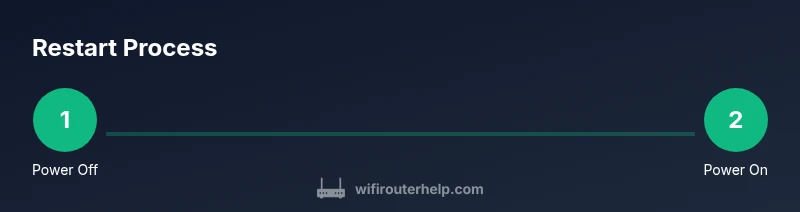
Power off both devices
Use the device power buttons if available. If there is no power switch, unplug from the outlet. This clears in-memory states and ensures a clean restart.
Tip: If you use a surge protector, unplug from the wall outlet directly to ensure a full power cycle. - 2
Unplug the modem and wait
Disconnect the modem from power and wait 30-60 seconds. A short pause allows residual power to drain and helps reset the connection with the ISP.
Tip: Note the modem’s LED behavior; this confirms a proper reset when lights cycle back on. - 3
Unplug the router and wait
Disconnect the router from power and wait another 30-60 seconds. This helps clear routing tables and wireless state.
Tip: If you have multiple power sources, remove all but the main outlet to ensure a complete reset. - 4
Power the modem back on
Plug the modem back in and wait for the connection lights to stabilize (usually 1-3 minutes).
Tip: Start timing here to estimate total restart duration for your network. - 5
Power the router back on
Plug the router back in and wait for its lights to indicate a healthy connection (2-4 minutes).
Tip: Ensure you see your Wi‑Fi SSID broadcasting before testing devices. - 6
Test connectivity
On a connected device, load a page and run a quick speed test to verify the result. If issues persist, proceed to step 7.
Tip: Test both wired and wireless connections to isolate issues. - 7
Document results and next steps
Record observation notes and decide whether further actions are needed, such as firmware updates or contacting your ISP.
Tip: If problems recur, consider scheduling a firmware check or hardware replacement.
People Also Ask
What is the difference between restarting and resetting a router?
Restarting simply reboots the device to refresh software; resetting returns to factory defaults. Restart is safer for everyday fixes.
Restarting reboots the device to refresh software, while resetting returns it to factory defaults. Restart is safer for common issues.
Can I restart my router and modem remotely?
Many modern devices support remote restart via the admin interface or mobile app. Check your device manual.
Some devices let you restart from the admin page or app. Check your manual.
How long should I wait after reboot before testing?
Wait 1-3 minutes after reboot for lights to stabilize and services to reinitialize.
Wait a minute or two after reboot for things to settle.
What should I check if restarting doesn't help?
Verify cables, run a firmware update, test with a wired connection, and contact your ISP if problems persist.
Check cables, update firmware, and consider calling your ISP if issues continue.
Is it safe to unplug during a thunderstorm?
Yes, you can unplug during a storm to protect equipment, but avoid unplugging repeatedly during a power outage.
Unplugging during a storm can protect devices; do it calmly and avoid frequent toggling.
Should I restart both devices every time I have an issue?
Not every issue requires a restart. Try checking cables and device status first, then restart if needed.
Only restart if necessary after checking for obvious issues.
Watch Video
What to Remember
- Restart devices to refresh network state.
- Power-cycle in the correct order for best results.
- Test connectivity after restart to verify success.
- If issues persist, check for firmware updates or contact ISP.