Is It My Router or ISP? A Fast Troubleshooting Guide for Home Networks
Discover how to tell if the fault is your router or your internet provider with a practical, step-by-step guide and quick checks to restore service fast.


Most connectivity issues stem from either a faulty modem/router or an external outage. Start by checking for a solid power LED, reboot both devices, and verify the WAN status in your router admin page. If blinking LEDs persist or you have no internet after a reset, contact your ISP. If problems remain, test with a direct modem connection to isolate the issue.
Is it my router or internet provider? Quick overview
When a home network stalls, the question often boils down to a simple choice: is it my router or internet provider? This quick overview helps you triage quickly. The router can fail due to overheating, firmware bugs, or misconfigurations; the provider might experience outages, line faults, or congestion. The best first move is to observe patterns: does the problem disappear after a reboot, does it happen on multiple devices, and is there a shared symptom like a blank page, slow speeds, or intermittent disconnects? By focusing on symptoms and performing a few safe checks, you can cut through the confusion and reach a solid hypothesis fast. Keep a test log as you go; this makes it easier to share details with a technician or your ISP if needed. This is especially important for homeowners who rely on a stable connection for work, school, or streaming.
Common symptoms and what they imply
Common issues include a completely dead network (no devices see the network), intermittent drops (sporadic outages), or a single device that cannot connect while others work. If all devices lose connectivity, you’re more likely facing ISP or modem problems. If only wireless devices fail while a wired PC remains online, the router or WiFi settings are suspect. Slowdowns without complete outages can indicate congestion, distance from the router, or channel interference. Use these cues to decide whether to test with a direct modem connection or revisit your router configuration. In all cases, recording the exact times of failures helps you and your provider diagnose root causes faster.
Quick checks you can do in 5 minutes
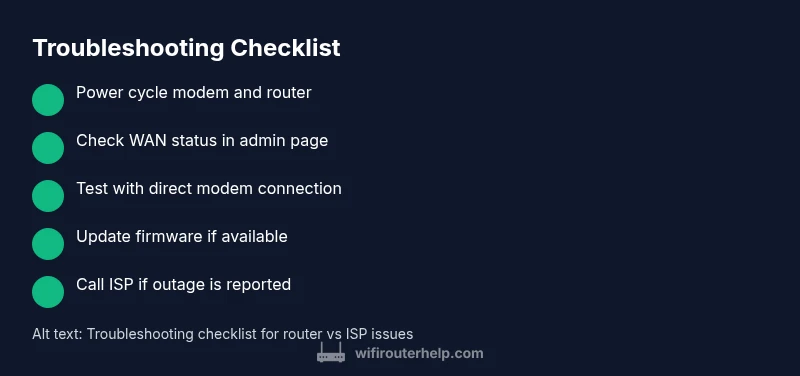
Before diving deeper, perform these rapid checks: – Verify the power light on both modem and router is on and steady. – Confirm the WAN/Internet indicator on the router is active. – Ensure all cables are snug, especially the ethernet cable between modem and router. – Reboot both devices in the correct order: modem first, then the router. – If possible, connect a computer directly to the modem with an Ethernet cable to test whether the internet works without the router. If the service is still unavailable after these steps, proceed to formal isolation tests.
How to isolate the router from the ISP
To pinpoint the fault source, bypass the router temporarily. Connect a computer directly to the modem using an Ethernet cable and try to access the internet. If it works, the router or its settings are likely at fault. If it still doesn’t, the issue probably lies with the ISP or the line. Backup your router configuration before any factory reset, and only reset if you’ve exhausted non-destructive options. After bypass testing, reintroduce the router and recheck. This method is the fastest way to avoid unnecessary repairs or service calls.
Interpreting WAN status, LEDs, and logs
LED indicators give quick hints about connectivity. A steady online WAN light usually means the modem is communicating with the ISP, while a blinking or red LED often signals a problem. Log into the router’s admin page to view the WAN status, connected devices, and recent error messages. If the WAN shows “no link” or a DNS failing state, you might have a cabling issue or require a modem reset. Always save a copy of key settings before making changes. Your router logs can reveal repeated drops, port errors, or authentication failures that point to a misconfiguration or a firmware bug.
When to reset, update, or replace equipment
If tests indicate router misbehavior, first try a soft reset (reboot) and a firmware check for updates. Avoid factory resets unless you have a current backup of your configuration, as this resets all custom settings. Firmware updates can resolve stability bugs but may briefly interrupt service. If problems persist after a reset and firmware update, consider replacing aging hardware or testing with a known-good router to see if the issue resolves. Replacing a faulty modem may also be necessary if the ISP has upgraded service.
Getting the right help: ISP status and service outage checks
Outages can affect entire neighborhoods. Check your provider’s service status page, outage maps, and official social channels for reported issues. If an outage is confirmed, your best course is to wait until service is restored. If there’s no reported problem, contact your ISP with the evidence you collected: device behavior, LED states, test results, and your test log. Sometimes a technician needs to inspect the line or perform a remote reset on your connection to restore service.
Prevention tips to avoid future outages
Preventive habits keep your network reliable. Schedule regular firmware updates for both modem and router, and enable automatic reboots during off-peak hours if supported. Keep cabling tidy and labeled to avoid accidental disconnects. Optimize WiFi by updating passwords, implementing a fixed channel plan, and using a mesh system if you have coverage gaps. Maintain a simple network map so you can replicate setup quickly after an outage or during troubleshooting.
Flow-driven troubleshooting: follow this diagnostic logic
Use a simple decision tree: (1) Is there internet on the modem directly? Yes → router fault suspected; No → ISP/outage suspected. (2) Can you access the router admin page? Yes → check WAN status and logs; No → reset credentials or firmware. (3) Do multiple devices disconnect simultaneously? Yes → ISP or router hardware fault; No → device-specific issues or WiFi interference. Following this logic helps you reach a resolution faster and reduces unnecessary support calls.
Steps
Estimated time: 60-90 minutes
- 1
Power cycle everything
Power off the modem, wait 30 seconds, then power on the modem. After the modem fully boots, power on the router. Give both devices a few minutes to re-establish connections and check for an internet light.
Tip: Label power cycles on a mag-friendly note so you don’t skip steps next time. - 2
Check physical connections
Inspect all cables between the modem, router, and devices. Ensure the coax/line is solid, the Ethernet cable to the WAN port is firmly connected, and there are no damaged connectors.
Tip: Avoid using worn Ethernet cables; replace with a known-good cable if in doubt. - 3
Verify WAN and router status
Log into the router admin page and confirm the WAN/Internet status shows connected. Note any error messages or recent changes to settings that coincide with outages.
Tip: Take a screenshot of the status page to keep track of changes. - 4
Direct modem test
Connect a computer directly to the modem with an Ethernet cable. If you can access the internet, the router likely needs attention; if not, the issue is upstream or the modem.
Tip: Use a wired test for clarity; wireless devices can complicate interpretation. - 5
Update firmware and reboot again
Check for firmware updates for both modem and router. Install any available updates, then reboot to apply changes and recheck connectivity.
Tip: Back up router settings before applying firmware updates. - 6
Consider equipment replacement
If after updates and resets the problem persists, test with a known-good router or newer model to determine if hardware age is the root cause.
Tip: A short-term loaner from a friend or neighbor can help confirm hardware failure.
Diagnosis: Multiple devices report no internet or intermittent drops after power cycling
Possible Causes
- highISP outage or service degradation
- mediumModem or router hardware fault
- lowLoose cables or incorrect WAN settings
- lowFirmware bug affecting connectivity
Fixes
- easyCheck service status with your ISP and wait if outage is reported
- easyPower cycle modem and router; re-seat cables; verify WAN port activity
- mediumReset network settings on devices or factory reset only if necessary; update firmware
People Also Ask
What should I do first when my internet dies at home?
Begin with the basics: check power, cables, and LEDs; reboot both modem and router in the proper order; test a direct modem connection to rule out the router. If service returns with the modem alone, the router is likely the culprit.
First, check power and cables, reboot devices, and test directly with the modem to see if the issue persists.
How can I tell if the problem is the ISP rather than my router?
If a direct modem connection works but devices connected through the router do not, the router is likely at fault. If the modem has no internet even when connected, the ISP or service line is the culprit.
If the modem has internet but the router does not, the router is the likely issue; if the modem itself lacks internet, the ISP is at fault.
What if there’s a service outage in my area?
Check your provider’s outage map or status page. If an outage is reported, your best course is to wait and monitor updates. If there’s no outage reported, proceed with local troubleshooting.
Check the provider’s outage page to confirm; if none is listed, continue with local checks.
Should I update firmware even if everything seems fine?
Yes. Firmware updates can fix bugs that cause drops or slow performance. Schedule updates during a low-demand period and back up current settings first.
Updating firmware can fix hidden issues; do it during a calm window and back up settings first.
When should I call a professional?
If you’ve exhausted basic troubleshooting, bypass tests, and the problem persists across multiple devices, contact your ISP or a qualified tech. Ongoing outages or hardware faults require professional assessment.
If it still fails after trying the steps, call your ISP or a tech for help.
Can I improve WiFi coverage without changing my plan?
Yes. Consider repositioning the router, reducing interference, updating firmware, or adding a mesh system if you have dead zones. These steps improve coverage without changing plans.
Move the router, limit interference, and update firmware; a mesh system helps with coverage.
Watch Video
What to Remember
- Isolate the problem by testing the modem directly.
- Follow a disciplined, symptom-driven diagnostic flow.
- Update firmware before considering replacement hardware.
- Document test results to speed ISP support calls.