How to Tell If Router or Internet Is Bad: Quick Troubleshoot
Urgently diagnose whether your router or the internet is at fault with a clear, step-by-step guide. Learn quick checks, a practical diagnostic flow, and proven fixes to restore reliable home networking.


At a glance, a bad router or local network is the most common culprit when pages stall, videos buffer, or devices can't connect. Start with the simplest checks: verify the modem and router are powered, restart the router, and test a wired connection. If issues persist, follow the diagnostic flow below or contact your ISP.
Quick checks you can do right now
If you’re wondering how to tell if router or internet is bad, start with the easiest tests. First, confirm power cycling: unplug the modem and router for 30 seconds, then plug them back in in the same order. Check the LED indicators on both devices for normal activity (power, downstream, and online). Next, verify all Ethernet cables are firmly seated and undamaged, especially the cable from the modem to the router. If you have wireless-only devices, test a wired connection from a laptop or desktop to confirm the issue isn’t limited to Wi‑Fi. Run a quick speed test from a wired device (for example, to your preferred speed test site) and compare it to your internet plan. If speeds are wildly lower or inconsistent, proceed with the diagnostic flow. According to WiFi Router Help, this baseline check is critical in 2026 to distinguish local network faults from carrier issues.
If you’ve recently changed settings or installed a new device, revert recent changes or remove the device to see if performance improves. Finally, check if other family members report similar issues—this reduces the chance you’re chasing a single, device-specific problem. The goal is to identify whether the problem is isolated (a device or router issue) or broader (ISP or outage).
How to tell if the problem is the router, modem, or the internet
When multiple devices are affected, you’ll gauge where the fault lies by isolating components. If every device, wired or wireless, experiences slow speeds or dropouts, the issue is likely external (ISP outage) or a modem/router misconfiguration. If only wireless devices have problems while wired devices perform normally, you’re likely facing Wi‑Fi interference, channel congestion, or router firmware needs updating. Try a direct Ethernet connection to your router’s LAN port from a computer: if it works reliably, your Wi‑Fi is the bottleneck; if not, the problem may be with the router or modem. If the modem page is unreachable or you see unusual lights, there may be a hardware fault or configuration issue. Always compare results across devices and rooms to map symptoms accurately. WiFi Router Help emphasizes testing in both wired and wireless modes to avoid misdiagnosis, a practice especially relevant in 2026.
The diagnostic flow you should follow
This section outlines a practical, repeatable process you can follow to pinpoint faulty components. Start with the most likely culprits and move toward advanced steps only if needed.
- Confirm power cycling and cable integrity. 2) Test wired vs wireless performance. 3) Check for modem/router firmware updates. 4) Inspect for interference or crowded channels in the 2.4 GHz and 5 GHz bands. 5) Temporarily disable security features like firewall or guest networks to test impact. 6) Reset to factory defaults if prior steps fail and you understand reconfiguration will be required. 7) Contact your ISP to verify outages or line problems. 8) Consider hardware age and potential replacement.
If this flow doesn’t resolve the issue, escalate to professional support. The WiFi Router Help Team notes that persistent problems after a factory reset tend to be hardware-related or carrier-side problems that require specialized diagnostics.
Step-by-step fixes for the most common causes
-
Power cycle and re-test: Power off both devices for 60 seconds, power on the modem first, wait for all lights to stabilize, then turn on the router. Re-run a wired speed test. Tip: Label ports so you don’t mis-connect after resets.
-
Check cables and ports: Inspect the coax/phone line and Ethernet cables for wear or damage. Replace any frayed cables. Tip: Use a solid, shielded Ethernet cable for best results.
-
Update firmware: Log into the router admin page and check for updates. Apply any available updates, then reboot. Tip: Back up current settings before updating.
-
Verify modem compatibility: Ensure your modem supports your plan’s speeds and is on a supported list. If your modem is old, consider upgrading. Tip: Confirm with your ISP which modems are approved for your service tier.
-
Adjust Wi‑Fi settings: Test both bands (2.4 GHz and 5 GHz) and adjust channel selection. If interference is suspected, try channel auto-tuning or a manual channel with less congestion. Tip: Run a quick site survey app to identify crowded channels.
-
Configure quality and access controls: Temporarily disable QoS rules and parental controls to test performance. If you rely on advanced features for devices, re-enable them one by one to identify culprits. Tip: Document current settings before changes.
-
Factory reset and re-setup: If all else fails, perform a factory reset on the router and reconfigure from scratch. Back up settings if possible. Tip: Use a known-good backup or write down key settings like SSID, password, and IP range.
-
If issues persist, contact the ISP or visit a service center: There may be an outage, line fault, or account issue beyond home equipment. Tip: Have your test results handy (speed, latency, and any error messages) when you call.
Estimated total time: 45–75 minutes depending on complexity.
Safety, warnings, and when to call a pro
- Safety first: Always unplug devices before inspecting cables or ports. Avoid pulling on cables at the router or modem end.
- Don’t rush firmware updates: Incomplete or interrupted updates can brick devices. Ensure a stable power supply during updates.
- If you’re uncomfortable with factory resets or network reconfiguration, seek professional help. Replacing a faulty device or diagnosing line issues may require licensed technicians.
- If you notice physical damage, burning smells, or sparking, stop and unplug immediately and call support.
Preventive tips to avoid future outages
- Schedule regular firmware checks and auto-updates where available.
- Place the router in a central, elevated location to reduce dead zones.
- Space out and test devices after adding new equipment to catch misconfigurations early.
- Periodically test your network with wired devices to catch drift between Wi-Fi and wired performance.
- Consider upgrading aging hardware every 5–7 years to keep speeds and reliability aligned with evolving internet plans.
Troubleshooting checklist you can print
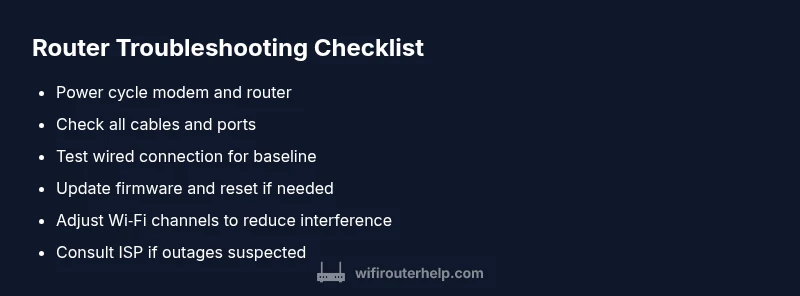
- [ ] Power cycle modem and router.
- [ ] Check all cables and ports.
- [ ] Test wired connection and compare speeds.
- [ ] Update firmware.
- [ ] Check Wi-Fi channel/utilization.
- [ ] Disable and re-enable features to isolate issues.
- [ ] If unresolved, contact ISP with test results.
Steps
Estimated time: 45-75 minutes
- 1
Power cycle the network
Power off the modem and router, wait 60 seconds, then power the modem on first, wait for its lights to stabilize, and then power the router back on. This often clears minor faults.
Tip: Label power cords to avoid misconnection during reboots. - 2
Check physical connections
Inspect all cables between the modem, router, and wall outlet. Make sure the Ethernet cable from the modem to the router is firmly seated and that there are no frayed or damaged cables.
Tip: Replace any suspect cables with shielded Ethernet for reliability. - 3
Test wired performance
Connect a laptop directly to the router with an Ethernet cable. Run a speed test and latency check to verify whether the issue affects both wired and wireless segments.
Tip: If wired speeds are fine but wireless is slow, focus on Wi‑Fi optimization. - 4
Update firmware
Access the router’s admin page and check for firmware updates. Install any available updates and reboot the device afterward.
Tip: Back up your current settings before updating in case you need to revert. - 5
Check for interference
Scan for interference by testing different 2.4 GHz and 5 GHz channels. If congestion is high, switch to a less crowded channel or enable automatic channel selection.
Tip: Turn off or reposition nearby electronics that could cause interference. - 6
Adjust or disable advanced features
Temporarily disable QoS, firewall rules, or guest networks to see if performance improves. Reintroduce features one by one to identify the culprit.
Tip: Document settings so you can re-enable them accurately. - 7
Factory reset if needed
If the issue persists after all steps, perform a factory reset on the router and reconfigure it from scratch. This resolves deep-seated misconfigurations.
Tip: Only reset when you’re prepared to re-enter all network details. - 8
Escalate to professional support
If problems remain, contact your ISP and schedule a technician visit if the line or service is suspected to be at fault.
Tip: Have a summary of tests and results ready for faster diagnosis.
Diagnosis: User reports slow speeds, intermittent drops, or complete loss of connectivity across multiple devices
Possible Causes
- highRouter hardware fault or misconfiguration
- mediumModem issue or outdated firmware
- mediumISP outage or service interruption
- lowBad cabling or loose connections
- lowWi‑Fi interference or channel congestion
Fixes
- easyPower cycle both modem and router; unplug for 60 seconds and plug back in
- easyInspect and reseat Ethernet and coaxial cables; replace damaged cables
- easyUpdate firmware via admin page; reboot after update
- mediumReset router to factory defaults if misconfiguration suspected
- easyTest with a wired connection to isolate Wi‑Fi issues
- easyContact your ISP to check for outages or line problems
- mediumConsider replacing aging hardware if beyond 5–7 years old
People Also Ask
Is a slow connection always my ISP's fault?
Not always. Slow speeds can be caused by router settings, Wi‑Fi interference, or congested channels. Use the diagnostic flow to confirm before blaming the ISP.
Slow speeds aren’t always the ISP’s fault—check your router and Wi‑Fi first, then test with a wired connection to confirm.
Can a new router fix my problem if everything seems fine?
A new router can improve speed and reliability, especially with older hardware. But test current equipment first to ensure the issue is hardware-related, not config or service problems.
A new router might help, but verify it’s the cause before buying one by testing with wired connections and updating firmware.
What does it mean if all devices show different speeds?
This often indicates Wi‑Fi interference or a congested channel, not a single device fault. Check both bands and test with a wired device for a baseline.
If speeds vary across devices, focus on Wi‑Fi settings and channel congestion rather than blaming the service.
Why doesn’t a reboot always fix the issue?
Reboots clear temporary cache but don’t fix underlying misconfigurations or hardware faults. If problems persist after reboot, proceed with firmware updates or a factory reset.
Reboot helps, but persistent issues require deeper checks like firmware or a reset.
What should I do if I can’t access the router admin page?
Ensure you’re connected to the router, try a different browser or device, and confirm you’re using the correct IP address. If blocked, a reset may be necessary, but note you’ll lose custom settings.
If you can’t reach the admin page, check connections, try another device, and consider a reset if needed.
What are common router settings to check first?
Verify DHCP is enabled, confirm the correct LAN IP range, and ensure no MAC filtering is accidentally blocking devices. Check for a conflicting IP address across devices.
Start with DHCP, LAN range, and MAC filters to fix most access problems.
Watch Video
What to Remember
- Identify the fault with quick, methodical checks.
- Differentiate router/Wi‑Fi issues from ISP outages early.
- Follow the diagnostic flow and step-by-step fixes to restore reliability.
- Know when to call your ISP or a pro to avoid wasted time.