How to Remove Devices from Huawei WiFi Router
Learn how to remove devices from your Huawei WiFi router using built-in Access Control, MAC filtering, or the mobile app. This practical guide covers 2026 models, security tips, and common issues.


You will learn how to remove devices from a Huawei WiFi router by identifying active devices and applying targeted controls such as Access Control or MAC filtering to block them. Before you start, locate your router’s login URL and admin credentials. This guide covers web UI, the mobile app, and model variations for 2026.
Understanding the goal of removing devices from your Huawei WiFi router
This guide targets the practical task of removing devices from a Huawei WiFi router. The goal is to prevent unauthorized access, reclaim bandwidth, and keep your home network stable. If you suspect someone is piggybacking on your connection, or you simply want tighter control over who can use your network, learning how to remove devices from huawei wifi router becomes essential. According to WiFi Router Help, starting with an accurate inventory of connected devices is the foundation for effective blocking. The phrase "how to remove devices from huawei wifi router" should remain in mind as you move through the steps, not as a one-off action. The rest of the article walks you through web UI basics, app-based options, and model-specific variations that appear across 2026 Huawei devices. This isn’t just about kicking someone off; it’s about building a resilient network strategy.
Identify the device list on Huawei routers
Before you can remove a device, you must know who is connected. On most Huawei routers, the connected devices list lives in the web UI under Device Management or Connected Devices. It shows hostnames, MAC addresses, and sometimes the current data usage. Start by scanning that list for unfamiliar entries. If you are using the Huawei AI Life app, you will find a similar device list under Network Management. For the command-line-averse, a quick screenshot can help you compare entries against devices in your home. The more accurate your device inventory, the easier it is to remove tabs that shouldn’t be there. You’ll typically want the MAC address of any device you plan to block, not just its name.
Choosing the right method: Access Control, MAC filtering, or app-based controls
Huawei routers offer several control mechanisms. Access Control (sometimes labeled Device Management or Access Policy) lets you deny specific devices without altering your Wi‑Fi password. MAC filtering relies on the hardware address to block or permit devices. Some models also expose simple on/off toggles within the Huawei AI Life or HiLink app. When learning how to remove devices from huawei wifi router, a layered approach often works best: start with Access Control, validate results, then add a MAC filter for added security, and finally confirm via the app if available.
Access Control explained and how to enable it
Access Control is a user-friendly way to enforce network access rules. To enable it, log in via the router’s web interface or the mobile app, go to the Access Control or Device Management section, and toggle the feature on. You can then add devices by selecting them from the current connections list or by manually entering their MAC addresses. Apply or save the changes, and monitor the effect on the next connection attempt. This is particularly helpful if you want to pause a device temporarily, rather than removing it permanently.
MAC filtering: block with precision
MAC filtering uses the unique hardware address of a device to control access. When you know the MAC you want to block, add it to the blacklist, or switch to a whitelist mode and deny all but a few trusted devices. The steps typically involve copying the MAC from the device list, adding it to the block list, saving, and rebooting if required. Be aware that MAC addresses can be spoofed by determined users, so this should be part of a multi-layered security plan.
Using the Huawei AI Life app to manage devices
For many users, the AI Life app provides a straightforward path to remove devices. Open the app, connect to your home network, and locate the Device List or Network Management section. Tap the device you want to block, then choose Remove, Block, or Deny. Some models require confirmation, others apply instantly. App-based removal is especially convenient on mobile devices and works well when you’re away from the desktop.
Quick workflow for removing a device in typical Huawei interfaces
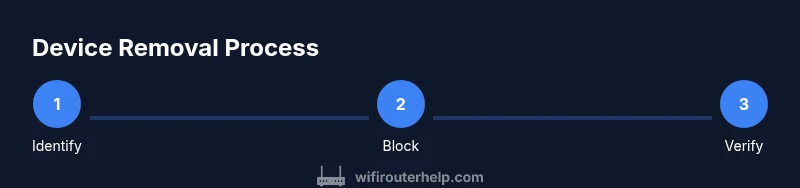
This streamlined workflow covers styles you’ll encounter across HiLink and newer AI Life interfaces. Identify the unwanted device from the list, choose Block or Deny in Access Control, or send the device’s MAC to the blacklist. Click Apply, wait a minute for the router to propagate changes, then revisit the device list to confirm it’s gone. If it reappears, repeat the steps, and consider rebooting the router or updating credentials for stronger security.
Common mistakes and how to avoid them
Common mistakes include blocking the wrong device, forgetting to save changes, or assuming a single method will address all threats. Always verify changes on a separate device to avoid lockouts. Keep a record of MAC addresses you block and maintain a current list of trusted devices. Never disable DHCP without understanding its impact on active clients.
Verifying removal and testing connectivity
After applying a removal, recheck the connected devices page and try reconnecting a device you blocked in a controlled test. In some Huawei models, you may need to reboot the router for changes to take full effect. If the blocked device still connects, check whether it’s using a guest network or a saved profile in another router, and ensure you’re applying changes on the primary device.
Special cases: guest networks, multiple routers, and parental controls
If you have guest networks, changes on the main network may not affect devices stuck on the guest network. For mesh setups, apply rules on the primary router and let the settings propagate. Parental controls can add time-based blocks or usage limits, which complements MAC filtering and Access Control. Document your policy and share it with household members so there’s no confusion about who can connect.
Security considerations after removal
Removal is one part of a broader security plan. Keep firmware up to date, use a strong administrator password, enable WPA3 if available, and audit your device list regularly. If a device keeps reappearing, investigate other access points or saved profiles that allow it back in. Combining these practices helps reduce risk even if a device tries to spoof its MAC.
Troubleshooting: model variations and password recovery
Model differences across Huawei’s firmware and regional builds mean labels and menus can shift. If Access Control or the Device List isn’t visible, consult the model’s manual or Huawei’s support resources for model-specific paths. If you forget the admin password, use the built-in recovery flow or contact your ISP. As a last resort, a factory reset will restore access, but it will erase all custom settings.
Tools & Materials
- Computer or smartphone with browser(Used to access the router’s admin interface.)
- Admin username and password(Credentials on the router label or provided by your ISP.)
- MAC addresses of devices to block(Collect from the device list before blocking.)
- Huawei AI Life app (optional)(For app-based removal on mobile.)
- Ethernet cable (optional)(Helpful if the wireless connection is unstable.)
Steps
Estimated time: 20-30 minutes
- 1
Prepare your admin access
Confirm you know the router’s admin username and password. Gather the MAC addresses of devices you intend to block and decide which method you’ll use first (Access Control, MAC filtering, or app-based removal). This setup reduces the risk of getting locked out during changes.
Tip: Have the admin password ready and ensure you are connected to the router. - 2
Open the management interface
Use a browser to navigate to the router’s login URL. If you’re unsure of the URL, check the router label or your documentation. Log in with admin credentials.
Tip: A wired connection improves stability during the login process. - 3
Find the device list
Navigate to the section showing connected devices (often Device Management, Connected Devices, or Network Map). Identify entries that aren’t familiar or belong to your household.
Tip: Note the exact MAC address of each device you plan to block. - 4
Choose your removal method
Decide whether to use Access Control, MAC filtering, or app-based controls. For stronger results, combine methods when possible.
Tip: Starting with Access Control is usually simplest for beginners. - 5
Add blocking rules
Add the target device(s) to your chosen block list (Access Control deny, MAC blacklist). Double-check the MAC matches exactly.
Tip: Mistyping a MAC can block the wrong device. - 6
Apply and save changes
Click Apply/Save and wait for the router to process the new rules. Some models require a reboot to apply changes fully.
Tip: If prompted, reboot the router to ensure changes take effect. - 7
Verify the removal
Revisit the device list and test by attempting to reconnect the blocked device. Confirm it no longer appears as connected.
Tip: Use a different device to perform the test to avoid self-blocking. - 8
Document and harden settings
Record what you changed and consider a password update for your router. Implement a daily security practice to prevent future issues.
Tip: Keep a secure, dated log of changes for future reference.
People Also Ask
How do I remove a device from my Huawei WiFi router?
Log in to the router’s admin interface, locate the connected devices list, and remove or block the target device by its MAC address. Save changes and reboot if required.
Log in to the router, find the device list, block the device, save, and reboot if needed.
Will removing a device require changing the Wi-Fi password?
Not always. You can block the device without changing the password, but updating the password adds an extra layer of security against re-connection by previously blocked devices.
Blocking the device can be done without changing the password, but updating it enhances security.
What if I can’t find Access Control on my model?
Look for similar names like Device Management, Security, or Parental Controls. If still missing, consult the model’s manual or contact Huawei support for model-specific paths.
If Access Control isn’t visible, check the manual or support for your exact model.
Can I block devices on the guest network separately?
Yes. Some routers manage guest networks with separate device lists. Apply the block on the primary network if the guest network remains active.
Yes, guest networks may require separate blocking steps in the router UI.
How long before changes take effect?
Most changes apply immediately, but some firmware versions require a short wait or a reboot to finalize. Test by reconnecting a blocked device.
Most changes take effect quickly, but reboot if you don’t see the change right away.
Is factory reset a good idea to remove devices?
Factory reset is a last resort; it erases all custom settings. Use it only if you cannot recover access or identify the admin credentials.
Only use a factory reset if you cannot regain access to the router.
Watch Video
What to Remember
- Identify connected devices before blocking to avoid mistakes
- Use Access Control and MAC filtering together for stronger security
- Always save changes and verify removal with a test device
- Reboot after changes if the model requires it
- Update firmware and password after adjustments