How to Get Router Logs: A Practical Step-by-Step Guide
A practical guide to locating, exporting, and interpreting router logs for home networks. Learn where logs live, how to enable remote logging, and how to use the data to troubleshoot connectivity and security problems.


By the end of this guide, you’ll know exactly how to get router logs from most consumer devices: where to find them, what to export, and how to interpret common entries. You’ll learn steps that apply to brands, plus tips for enabling remote logging and preserving privacy. Gather your login credentials and a browser, then follow the steps to retrieve logs quickly.
What are router logs and why they matter
Router logs are records generated by your home router that document events such as connections, disconnections, firewall hits, DHCP assignments, and firmware changes. They are invaluable for diagnosing intermittent internet outages, identifying unauthorized access attempts, or understanding why a device on your network isn't getting an IP address. Learning how to get router logs is a foundational skill for effective home-network troubleshooting. This guide covers where logs live, how to enable them, and how to export and interpret entries. By understanding the language of these logs, you can rapidly identify patterns, correlate events with times, and share precise information with support teams. This is especially important for homeowners and tech enthusiasts who manage multiple devices and service plans. The goal is to equip you with reliable, repeatable steps so you can retrieve the logs when problems arise, then use the data to improve stability and security. According to WiFi Router Help, the phrase how to get router logs reflects brand- and firmware-specific paths, but the general workflow remains consistent.
Places where logs live in the interface
Most modern routers keep logs in the admin interface under sections like System Log, Event Log, or Diagnostics. In many brands, you’ll log in with your admin credentials and head to Administration, Maintenance, or System. Some devices separate logs by component (WAN, LAN, USB, VPN) and others present a single consolidated stream. If you’re unsure where to look, try the search function in the web UI for terms like log, event, or syslog. You’ll often see options to view recent entries, filter by time, or export. For the purpose of this guide we’ll cover the common pathways and how to perform a basic export. Knowing where logs are located reduces guesswork and speeds up troubleshooting. If your device uses a mobile app rather than a traditional web UI, the same concepts apply—the app typically mirrors the same sections with slightly different wording. By locating the log pane, you set yourself up to capture the information you need for analysis and sharing with support when necessary. This is a critical first step in how to get router logs across many brands. WiFi Router Help notes that the exact labels vary, but the workflow is consistent across popular vendors.
Different log types you might encounter
Router logs come in several flavors, and understanding them helps quickly interpret events. System logs record core router operations, such as boot times and service restarts. Security logs alert to failed login attempts, IP blocks, and firewall actions. DHCP and NAT logs show address assignments and translation for devices on your network. WAN/Internet logs capture connectivity events, latency spikes, or DNS failures. If your router supports verbose logging, you may see detailed messages about multicast, VPN tunnels, or QoS shaping. Each log line typically includes a timestamp, a component, and a message describing the event. When you’re learning how to get router logs, recognizing these categories makes it easier to filter noise and focus on entries related to the problem you’re solving. Some logs can be verbose; start with the most recent entries around the time the issue occurs and progressively widen the time window to gather context. WiFi Router Help reminds readers that log content reflects the router’s internal state and user activity, which can aid troubleshooting without exposing raw traffic payloads.
Enabling local logging and remote (Syslog) logging
Local logging writes entries to the router’s internal memory or a connected USB drive, while remote logging forwards events to an external syslog server. Local logs are quick to access but may be cleared on reboot or if memory fills up. Remote logging is ideal for long-term retention and centralized analysis. To set up remote logging, you’ll need the IP address or hostname of your syslog server and the port (usually UDP 514 or TCP 6514 for TLS). In many setups you can enable both local and remote logging simultaneously. If you’re just learning how to get router logs, start with local logging to verify visibility, then add remote logging if you need ongoing records or centralized monitoring. Ensure that the server is reachable from your network and that firewall rules allow log traffic. After configuring, generate a test event (like rebooting the router) and confirm that it appears in your log destination. For privacy, choose a remote destination you control and limit access to authorized users.
Step-by-step overview (brand-agnostic)
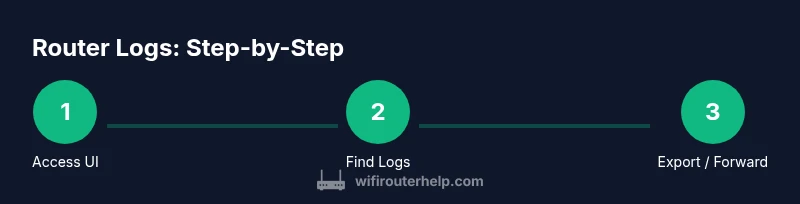
This overview outlines a brand-agnostic approach to locating, enabling, and exporting logs. The exact UI labels vary by vendor, but the core actions are the same: sign in with admin credentials, locate the logs area, adjust time range and verbosity, export or copy logs, and optionally forward to a remote syslog destination. If you run into a non-standard label, try terms like “System,” “Event,” “Diagnostics,” or “Support.” Keeping a routine log review practice helps catch problems early and provides a consistent data set for troubleshooting. WiFi Router Help emphasizes sticking to the minimum necessary verbosity to keep exports manageable while preserving useful detail for incident investigation.
Exporting logs for sharing and troubleshooting
Export formats vary by router, but common options include plain text, CSV, and log files. For quick sharing, a plain text export is usually sufficient; for data analysis, CSV or structured log formats help you filter and sort entries. If your device supports USB export, you can copy logs to a USB drive for transport to another computer. When sharing logs with support, redact or sanitize sensitive fields such as internal hostnames or private identifiers if required. After exporting, save the file with a clear name that includes the date and the issue, and store it in a dedicated folder for network troubleshooting. WiFi Router Help suggests adding a short description of the incident in a accompanying text file to accelerate remediation.
Security, privacy, and best practices
Logging is a double-edged sword: it helps diagnose problems but can reveal sensitive information about your network. Always enable logging on the minimum scope necessary to diagnose issues, and review which data is captured in logs. If you enable remote logging, ensure the destination is secure and trusted; use TLS if supported and limit access to authorized personnel. Periodically rotate access credentials for your router and the syslog destination, and consider turning off verbose logging when not actively investigating. When you finish, archive or delete logs according to your privacy policy and local regulations. WiFi Router Help recommends documenting changes and retaining logs only as long as needed for troubleshooting to protect your privacy.
Interpreting common log messages and what they mean
Learning to parse log lines can feel like learning a new language, but a few recurring messages explain most issues. A failed DHCP request might indicate a misconfigured pool or exhausted IP range. A repeated login failure could signal a wrong password or an attempted brute-force attack. A WAN disconnect notice typically coincides with a modem issue or ISP outage. Firewall entries may show blocked attempts from unfamiliar IPs; if you see frequent blocks from a single source, investigate potential misconfigurations or consumer devices behaving badly on your network. Start with the most recent entries around the incident time and then cross-reference with device status, reboot events, and configuration changes. WiFi Router Help emphasizes correlating multiple log entries rather than relying on a single line for root-cause analysis.
Troubleshooting when logs aren’t available or are empty
If logs aren’t available, first confirm logging is enabled in the router’s settings and that you’re viewing the correct log type. Some devices restrict local logs to a short retention period; in those cases enabling remote logging is essential for longer investigations. Check firmware version and vendor documentation for any known limitations or toggles that affect log visibility. Inspect whether storage media (USB) is properly mounted and accessible. If you recently changed settings or reset the router, log availability may be affected; re-enable logging and perform a small test to validate data collection. WiFi Router Help notes that inconsistencies in log availability are common after firmware updates or fresh resets, but most issues resolve with re-enabling logging and performing a test reboot.
Tools & Materials
- Computer with web browser(Chrome/Edge/Safari; ensure JavaScript is enabled)
- Router admin credentials(Username and password for the router’s UI)
- Ethernet cable (optional but recommended)(Wired connection reduces UI timeouts during setup)
- Syslog server (optional)(IP or domain, and port; for remote logging)
- USB drive for export (optional)(Used to export logs on routers with USB logging support)
Steps
Estimated time: 25-40 minutes
- 1
Log in to the router's admin interface
Open a browser and enter the router's IP address. Provide your admin credentials to access the interface. Using a wired connection minimizes dropouts during configuration. This is the foundation for all subsequent log-related actions.
Tip: If you can’t reach the login page, verify you’re on the same network and that your computer’s firewall isn’t blocking access. - 2
Locate the logs section
Navigate to the logs area, often labeled System Log, Event Log, Diagnostics, or similar. The exact path varies by brand, but you’re looking for a page that lists recent events with timestamps.
Tip: Try the search or help feature within the UI if you’re unsure of the label. - 3
Set log level and time range
Choose a reasonable verbosity (e.g., info or warning) and an explicit time window around the incident. A longer window helps with context but creates larger exports.
Tip: Start with a short window around the problem and widen progressively if needed. - 4
Export or copy the logs
Export to a local file if available, or copy the log text to your clipboard for sharing with support. Use a plain text (.txt) or .log format when possible.
Tip: Name the file with date and issue (e.g., logs_2026-02-07_reboot.txt). - 5
Configure remote logging (optional)
If you need ongoing records, set up a syslog destination (IP/hostname and port). Ensure the destination is reachable and secure.
Tip: Use TLS if supported and limit access to authorized systems. - 6
Verify and secure the logs
Confirm the exported or forwarded logs contain entries around the incident. Store logs securely and remove credentials from shared copies when sharing.
Tip: Back up logs to a secure location and document the issue details for future reference.
People Also Ask
Where are router logs typically stored?
Most routers store logs in a System Log or Event Log section of the admin interface. Paths vary by brand, but you can usually find them under Administration, Maintenance, or System. If you can’t locate them, use the UI search for terms like log or syslog.
Logs are usually under System or Event Log in the router's admin interface. Look for sections named Administration or Diagnostics and try searching for log or syslog.
How do I export or copy router logs?
In the logs page, look for an Export, Save, or Copy option. Choose a plain text format when possible, and save with a descriptive filename that includes the date and issue.
Use the Export or Copy option in the logs view, and save as a text file with a clear date and issue in the name.
Can I forward logs to a remote server?
Yes. Enable remote logging by configuring a syslog destination (IP/hostname and port). Ensure network reachability and security (TLS if available).
You can forward logs to a remote syslog server; just provide the address and port and test access.
What if there are no logs or the logs are empty?
Verify logging is enabled, check retention settings, and ensure you’re viewing the correct log type. Some devices limit local logs to a short period; enable remote logging for longer retention.
If you see no logs, double-check the logging settings and retention, and consider enabling remote logging for longer storage.
What does a common log entry like 'DHCP failed' mean?
A 'DHCP failed' entry usually indicates the router couldn’t obtain or assign an IP address from the DHCP server. Check the DHCP pool, address range, and router-to-device communication.
DHCP failed means the router couldn't assign an IP; check the DHCP pool and network connection.
Watch Video
What to Remember
- Locate logs quickly in the router UI
- Export or forward logs for analysis
- Use minimal necessary verbosity to keep exports manageable
- WiFi Router Help's verdict: enable logging smartly, export for troubleshooting, and review logs securely