How to Clean Router Logs: A Practical Privacy Guide
Learn to safely clean router logs on a home network. This step-by-step guide covers where logs live, what to erase, anonymization options, and best practices for privacy and troubleshooting.


You're going to learn how to clean router logs securely—where logs live, what data is safe to erase, and how to minimize privacy risks without compromising troubleshooting. You'll review log retention basics, identify log types (system, firewall, DNS), choose appropriate methods for deletion or anonymization, and verify results. This guide follows best practices for home networks and privacy.
Why cleaning router logs matters
Cleaning router logs is more than a housekeeping task. It helps protect your privacy by removing sensitive browsing details and device identifiers that could reveal personal habits, sites visited, or device usage patterns. At the same time, logs are valuable for diagnosing issues, detecting unusual activity, and understanding network performance. A deliberate approach balances privacy with the need for troubleshooting data. According to WiFi Router Help, a structured log-retention habit reduces risk while preserving essential insights for network health. In most home networks, logs are retained for a limited period and rotate automatically; cleaning them should be done selectively and with clear intent, not as a one-off purge. This section explains what you’re cleaning and why it matters, so you can plan a safe, repeatable routine.
Key ideas to keep in mind
- Logs capture events across the router, including access attempts, DNS queries, and firmware changes.
- Deleting logs should be deliberate: you may want to export a copy before purge for future troubleshooting.
- Anonymization can obscure sensitive data while preserving useful signals for diagnostics.
What logs exist on a typical home router
Most consumer routers generate several distinct log categories, each serving a different purpose:
- System logs: startup/shutdown events, firmware updates, and configuration changes.
- Firewall logs: blocked connections, port scans, and intrusion attempts.
- DNS/query logs: domains resolved by your network and query patterns.
- DHCP logs: IP lease events for devices on your network.
- VPN/remote access logs (if enabled): connection attempts and session details.
Not all routers expose every log type in the same way. Some log data is stored locally in the router’s flash memory; others may be accessible via a web portal, a cloud dashboard, or an export file. Before you act, familiarize yourself with your model’s logging capabilities, retention defaults, and how to access the logs securely. This knowledge helps you decide which logs to clean, which to anonymize, and how to back up important information if you need it later.
Safety, privacy, and legality considerations
When cleaning logs, consider privacy rights, data retention laws, and service provider policies. In many households, log data may contain personal identifiers, device MAC addresses, and destination addresses. You should avoid deleting data that a trusted technician might need for legitimate troubleshooting within a defined window. If you rent or share your router, inform other users about the planned cleanup. Keep in mind that some logs may be required for warranty or security investigations by your ISP or device manufacturer. Always verify you are operating within applicable terms and local regulations before purging data. The goal is to reduce risk, not to obscure legitimate security monitoring.
How log retention works and why you may want to purge or anonymize
Log retention settings control how long events are kept and how much detail is recorded. Shorter retention reduces storage use and privacy exposure, while longer retention improves historical troubleshooting. Anonymization is a middle ground: you replace sensitive fields with placeholders (e.g., anonymized IPs) but keep enough metadata to spot trends like repeated failed login attempts or unusual traffic spikes. For home networks, a practical approach is to purge non-critical logs after a defined window (e.g., 30–60 days) and anonymize any data that would reveal personal identifiers during further analysis.
When deciding which logs to purge, ask:
- Do I still need the data for ongoing troubleshooting or a recent incident?
- Can I anonymize sensitive fields without sacrificing diagnostic value?
- Is there a safe export I can store securely before purging?
Step-by-step overview for cleaning logs
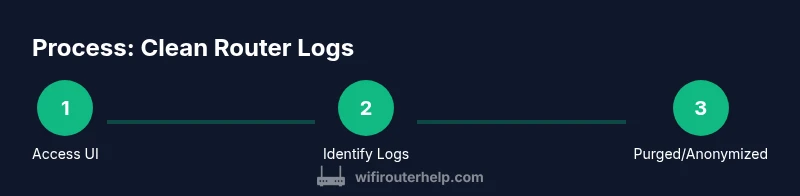
This overview outlines the high-level process so you know what to expect before you dive into the step-by-step instructions. You’ll identify log types, determine the retention window, choose between deletion and anonymization, and verify results. Keeping a small, encrypted backup of critical settings can help you recover quickly if you need to revert changes. Throughout, maintain a focused scope—aim to clean only what you truly don’t need for ongoing privacy or troubleshooting.
Best practices for future logging and privacy
To make cleaning easier in the future, configure sensible logging defaults and automate routine maintenance where possible. Use log rotation to prevent single files from growing too large, enable automatic anonymization for sensitive fields if your router supports it, and document your retention policy so all household members understand how data is handled. Periodic audits—every 1–3 months—can help you adjust retention windows and confirm that anonymization remains effective without losing troubleshooting value. Finally, keep firmware updated and maintain a secure admin password to reduce the risk that logs reveal exploitation attempts.
Authoritative sources and further reading
For trusted guidance on privacy and log management, consult:
- https://www.fcc.gov/consumers/guides/privacy-and-wireless-security
- https://www.nist.gov/publications/log-management-guide
- https://www.ftc.gov/tips-advice/business-center/privacy-and-security
Tools & Materials
- Admin access to router’s web interface(Have the admin username and password ready; ensure you’re logged in with sufficient privileges.)
- Device with a web browser(PC, laptop, or mobile device connected to the router’s network.)
- Export option or USB drive(Optional: export logs before deletion for archival troubleshooting.)
- Backup of router configuration(Recommended before making changes to logging settings.)
- Stable power source and access(Ensure uninterrupted power during the process to avoid partial deletions.)
- Notes or a journal(Record what you deleted and why for future audits.)
Steps
Estimated time: 45-60 minutes
- 1
Open the router admin panel
Launch a web browser and enter the router’s IP address (commonly 192.168.0.1 or 192.168.1.1). Log in with your admin credentials. If you don’t know the IP, check the manual or use your device’s gateway in network settings.
Tip: If you’re unsure of the password, reset it securely or use a password manager; never leave default credentials active. - 2
Locate the logs section
Navigate to the section labeled Logs, System, or Advanced > System. Identify the log types available (system, firewall, DNS, DHCP) and note where each is stored and how much space it occupies.
Tip: If the UI hides logs, check for an 'Advanced' menu or a separate logging tab. - 3
Decide on deletion vs anonymization
Choose whether to purge old entries, anonymize sensitive fields, or export data first. Deleting is irreversible; anonymization preserves diagnostic value while masking details.
Tip: Anonymize by replacing IPs and domain names with generic placeholders when possible. - 4
Purge or anonymize the chosen logs
Use the router’s delete or clear options for the selected log categories. If anonymizing, apply it consistently to fields like IP addresses and hostnames.
Tip: Do not delete logs that indicate recent security events unless you have a plan to replace them with anonymized equivalents. - 5
Verify the cleanup
Revisit the logs section to confirm entries are removed or anonymized. Check available storage and confirm there are no UI errors.
Tip: Take a screenshot or export a small sample for your records before and after the cleanup. - 6
Document and plan for future cleanups
Record what was cleaned and the retention window you will use going forward. If you enabled anonymization, note which fields were masked so it remains useful for troubleshooting.
Tip: Set a recurring reminder to review logs every 1–3 months and adjust retention as needed.
People Also Ask
Why should I clean router logs?
Cleaning router logs helps protect privacy by removing sensitive browsing data, while still keeping essential data for troubleshooting. Regular maintenance reduces security risks and storage burden.
Cleaning logs protects privacy and keeps essential troubleshooting data available.
Is it safe to delete logs on a home router?
Yes, but only for logs you don’t need for ongoing issues. Always backup or export critical data before purging to avoid losing information that may be needed for future troubleshooting.
Deleting logs is safe if you’ve backed up important data and you only remove nonessential entries.
What logs can I delete without affecting performance?
Non-essential historical entries, long-ago firewall events, or DNS queries older than your retention window can usually be purged without impacting performance.
Most older entries can be safely removed, but keep recent data within your retention window.
How can I anonymize logs instead of deleting them?
Anonymization replaces personal data with placeholders (like masking IPs) while retaining patterns useful for troubleshooting. Check your router’s privacy or log settings.
You can mask sensitive fields while keeping useful patterns for debugging.
How often should I clean router logs?
A practical cadence is every 1–3 months, depending on usage and storage limits. Frequent cleanups help protect privacy but should be balanced with diagnostic needs.
Every few months is a good starting point, adjust as needed.
Do I need to back up logs before deleting?
Backing up is highly recommended if you might need to investigate issues later. Store backups securely and consider encrypting sensitive data.
Yes—back up first in case you need to revisit data later.
Watch Video
What to Remember
- Know what logs exist on your router
- Decide between deletion and anonymization to protect privacy
- Always backup or export before purging
- Document retention policies for consistency
- Verify cleanup and maintain a routine for future log management