How to Check Router Logs: A Step-by-Step Guide
Master the process of checking router logs to diagnose connectivity, security events, and device activity. This comprehensive guide covers locating logs, filtering data, exporting for analysis, and interpreting common messages with practical, step-by-step instructions from WiFi Router Help.


How to check router logs helps you spot issues before they escalate. This guide shows you how to access, filter, and interpret your router’s logs to diagnose connectivity problems, security events, and device activity. According to WiFi Router Help, mastering log checks empowers homeowners to troubleshoot fast and reduce downtime.
Understanding Router Logs
Router logs are records created by your network hardware that capture events related to connectivity, device activity, security, and system health. The exact content and terminology vary by brand, but most logs share core components: a timestamp, an event type, and a description of what happened. Logs can be stored on the router itself, sent to a connected storage device, or forwarded to a centralized log server. Knowing what gets logged and where to find it is the first step in effective network troubleshooting. For homeowners, understanding logs translates into quicker isolation of issues, whether it’s a dropped connection, a new device joining the network, or suspicious login attempts. When you know how to check router logs, you gain insight into normal versus abnormal activity and can act with confidence.
Why Logs Matter for Everyday Networking
Logs are your early warning system. They help you spot repeated disconnections after a firmware update, track bandwidth spikes to identify streaming or gaming sessions consuming excessive bandwidth, and detect unauthorized access attempts. For security-minded users, logs reveal failed login attempts, unfamiliar IP addresses, and changes to firewall or QoS settings. Interpreting these events requires context: knowing your household’s typical device footprint, normal load patterns, and expected maintenance tasks. WiFi Router Help emphasizes that routine log checks build a proactive stance, reducing downtime and helping you respond before users notice a problem.
Locating Logs: Where They Live in Your Router
Finding logs starts with your router’s admin interface. Most routers offer a dedicated “Logs,” “System Log,” or “Event Log” page under the Administration or Management section. If you don’t see a logs tab, consult the manual or the manufacturer’s online support page for your model. Some routers push logs to a connected USB drive, a companion mobile app, or a cloud service. If you have a home network with a mesh system, each node may generate its own logs, and you might need to access the primary router to view consolidated events. In all cases, ensure you’re logged in with an account that has administrative rights, as regular guest access often restricts log visibility.
Common Log Formats and What They Mean
Log entries typically include a timestamp, a category (system, security, connectivity), and a short description. Some devices use numeric codes for events; in those cases, glancing at the accompanying description or manufacturer documentation can save time. Common fields you’ll encounter include source/destination IPs, MAC addresses, and port numbers, which help you trace the origin and target of events. For more advanced users, JSON or CSV exports provide structured data that supports filtering and correlation with other datasets. When reviewing logs, prioritize recent entries that align with observed problems and trend lines that show recurring issues.
Step-by-Step: Accessing and Reading Logs (High-Level Overview)
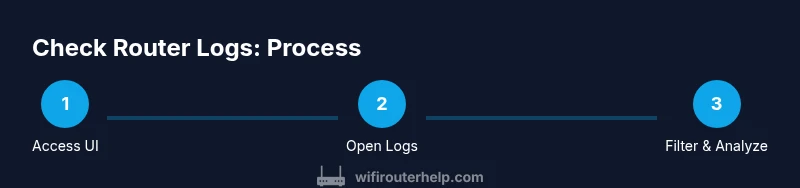
This section provides a guided overview of how to engage with router logs, including what to look for and how to interpret the results. You’ll learn how to identify the right log category for your issue, how to apply meaningful filters, and how to document findings for further analysis. The aim is to build intuition for recognizing patterns—like repeated failed authentications or unexplained bandwidth usage—without getting overwhelmed by raw data.
Filtering Logs for Effective Troubleshooting
Filtering is where logs become actionable. Start by narrowing the date range to the window when you noticed a problem. Filter by event types such as authentication failures, device connections, or firewall events. If your router supports keyword search, use it to flag terms like “blocked,” “denied,” “failed,” or the name of a suspect device. Remember to check both entry timestamps and durations, as a single long-running event can reveal a root cause that a quick glance might miss. In practice, filtering reduces noise and lets you focus on the truly relevant events.
Exporting Logs: Formats, Storage, and Privacy
Most routers allow exporting logs to a file or sending them to a cloud service. Common formats include TXT, CSV, and JSON. Exporting enables offline analysis, easier sharing with support personnel, and long-term retention for audits. When exporting, consider naming conventions that include dates, device IDs, and a short description of the issue. Always review privacy considerations before sharing logs that may contain personally identifiable information (PII) or sensitive network details. If you’re using a shared network, reset credentials after exporting to protect your privacy.
Practical Scenarios: Real-World Examples
Scenario A: A guest device repeatedly connects and disconnects in a short period. Logs may show repeated authentication events followed by timeouts, suggesting a misconfigured client, poor Wi‑Fi signal, or a rogue device attempting access. Scenario B: A spike in traffic after a firmware update. Logs might reveal a scheduled task or burst in streaming activity. Scenario C: An unfamiliar IP address attempting access from the internet side. Logs can help determine if the activity is a genuine attack or a misrouted connection that requires firewall tightening. In each case, correlate logs with time of day, device lists, and recent changes to firmware or settings.
Best Practices for Log Retention and Security
Establish a routine for reviewing logs—weekly or after any major network change. Keep a rolling archive so you can compare current activity with past baselines. If your router supports remote logging, enable it to centralize data for easier analysis, but ensure your log destination is secure. Regularly update firmware to ensure log events reflect up-to-date monitoring capabilities. Finally, be mindful of privacy; log data can reveal sensitive information about your devices and usage patterns.
When Logs Don’t Reveal the Issue
If logs look clean but you’re still experiencing problems, broaden your troubleshooting scope. Check physical connections (cables, power cycles), verify Wi-Fi channel settings, and run speed tests from multiple devices. Consider temporarily disabling nonessential services or features (like QoS rules) to see if performance improves. If you’re comfortable, contact your router’s support line with a brief summary of what you observed and attach log excerpts to speed up the diagnostic process.
Tools & Materials
- Device with a web browser(Smartphone, tablet, or computer; ensure it’s connected to the router network)
- Router admin credentials(Username and password; have paper backup or password manager ready)
- Router model documentation(Manual or online spec sheet to locate the Logs page and terminology)
- Stable power and network connection(Keep the router plugged in during checks to avoid incomplete logs)
- Notepad or digital note-taking tool(Record findings and timestamps for correlation)
Steps
Estimated time: 25-40 minutes
- 1
Open the router admin page
Launch a browser and enter the router’s IP address (commonly 192.168.0.1 or 192.168.1.1). Log in with your administrator credentials. If you can’t reach the login page, check your PC’s connection, disable VPNs, and verify you’re on the home network. This step establishes access to the logs section.
Tip: If you’re unsure of the IP, check the label on the router or look up your model’s default IP in the manual. - 2
Navigate to the Logs section
Once logged in, look for a tab or menu labeled Logs, System Logs, Event Logs, or Diagnostics. Some routers group logs under Security or Administration. If you can’t locate it, use the search function in the web UI or consult the model’s manual.
Tip: Some routers hide logs behind a sub-menu; take a moment to explore both the main and advanced sections. - 3
Choose the appropriate log type
Select the log category that matches your issue: System logs for general health, Security logs for authentication events, or Connectivity logs for network drops. Identifying the right category saves time and prevents chasing irrelevant data.
Tip: If you’re unsure, start with Security and Connectivity logs to catch unauthorized attempts and connection issues. - 4
Set a meaningful date range and filters
Limit the view to the time window when the problem occurred. Apply filters for event types like 'authentication failure', 'connection drop', or 'IP block'. Narrowing scope makes patterns clearer and reduces noise.
Tip: Use a shorter range first to identify a specific event, then widen the window if needed. - 5
Review events and look for patterns
Scan for repeated entries, unusual IPs, multiple devices, or unexpected changes to firewall rules. Pay attention to timestamps, source addresses, and the sequence of events around a problem.
Tip: Note any chrome-colored codes or unfamiliar device names; these often indicate anomalies. - 6
Export logs for deeper analysis
If you need more tools, export the logs in a structured format (CSV/JSON) or copy-paste entries to a document. Exporting enables offline analysis, sharing with support, and long-term retention for audits.
Tip: Name the file with date and issue keywords to keep it organized. - 7
Correlate logs with real network activity
Cross-check log entries against known devices, OS update events, or scheduled tasks. Correlation helps distinguish legitimate activity from potential threats or misconfigurations.
Tip: Create a simple timeline tying events to device activity and internet usage. - 8
Securely store and document findings
Save exported logs in a secure location and document the actions you took. This living record helps future troubleshooting and supports incident response if needed.
Tip: Limit access to logs containing sensitive information and rotate credentials when sharing with others.
People Also Ask
What are router logs and why should I check them?
Router logs record events related to system health, security, and connectivity. Checking them helps you diagnose issues, identify security threats, and understand device activity.
Router logs capture important events like login attempts and connection changes; reviewing them helps you diagnose problems and spot security concerns.
Where can I find router logs on most consumer devices?
Most routers have a Logs or System Log page in the admin interface, typically under Administration or Maintenance. If missing, consult the manual or the manufacturer’s support site.
Look for a Logs or System Log section in the router’s admin page; if you don’t see it, check the manual or online support.
What should I look for in a log when troubleshooting a connectivity issue?
Look for entries indicating disconnections, authentication failures, or IP conflicts. Note timestamps, source devices, and any repeated patterns around the time the issue occurs.
Check for disconnect events, failed logins, or IP clashes, and note the times and devices involved.
Is it safe to export and share router logs?
Export logs only to trusted devices or services. Redact sensitive information if you must share logs with others, and ensure you follow privacy guidelines.
Yes, but be careful with sensitive data; share logs only with trusted people and redact anything private if needed.
How long should I retain router logs?
Retention policies vary by device and need. Keep a recent history for immediate troubleshooting and a longer archive if you’re monitoring security or compliance requirements.
Keep recent logs handy for quick fixes, and store older ones securely if you’re tracking long-term trends.
What if my logs don’t show anything useful?
If logs are sparse, check other indicators like device lists, firmware versions, and throughput graphs. Sometimes, the problem lies outside logs, such as channel interference or hardware faults.
If logs aren’t helpful, check devices, firmware, and signal conditions; problems can be hardware or interference-related.
Watch Video
What to Remember
- Learn where logs live on your router and what they can tell you
- Use targeted filters to isolate issues quickly
- Export and preserve logs for ongoing monitoring
- Correlate log data with actual network activity for accurate diagnosis