How to Fix a Router Blinking Green LED: A Complete Guide
Learn how to diagnose and fix a router blinking green LED. This comprehensive guide covers common causes, safe troubleshooting steps, firmware checks, and when to escalate to support for a stable home network.


By following this guide, you’ll diagnose why your router is blinking green and apply safe fixes. Start with basic checks, then perform a controlled power cycle, verify cables, and use the admin page to check firmware and WAN settings. If needed, reset or update firmware—never interrupt an active update. This approach minimizes risk while restoring connectivity.
Understanding the blinking green LED on consumer routers
The blinking green LED on a consumer router is a signal that something is happening in the device. According to WiFi Router Help, a blinking green light is not inherently a sign of failure; it can indicate normal activity like data transmission, boot sequences, or a firmware update in progress. The exact meaning depends on the model and firmware version, so always consult the manufacturer’s manual for your specific router. In many cases, a slow, regular blink means the router is working through startup tasks or maintaining active network traffic. Fast, irregular, or prolonged blinking often points to more active processes—such as a firmware update, a WAN re-sync, or a temporary fault that requires closer inspection. Knowing the pattern helps you decide which checks to perform first and reduces unnecessary resets. As you troubleshoot, keep notes of observed LED patterns and timestamps to track whether symptoms improve after each step.
Common causes behind a blinking green LED
Many routers use LEDs as tiny status dashboards. A blinking green LED can arise from several common causes, and recognizing the pattern helps you choose the right fix. Typical scenarios include: (1) Firmware updates or post-update reboots; during these times the LED may blink green until the update completes or the router reboots. (2) Normal data activity during devices connecting, streaming, or gaming; a steady network load can cause periodic blinks. (3) Temporary network re-syncs after power changes or WAN interruptions; the LED may blink as the router negotiates a stable internet link. (4) Misconfigured WAN or LAN settings, which can trigger the router to repeatedly attempt to establish a connection. (5) Hardware or heat-related problems in older devices, where the LED may blink irregularly as the hardware self-tests run. Identifying the exact pattern helps you prioritize fixes and avoid unnecessary resets.
Basic checks you can do safely
Before diving into deeper fixes, perform a set of safe, lower-risk checks. Ensure your router and modem are plugged into a stable power outlet and that all cables are firmly connected. Confirm you are on the correct network and that your device is within range; check if your LED behavior changes when you test from a wired connection instead of Wi‑Fi. Inspect the WAN/Internet port for visible damage and replace any frayed cables. If your router supports it, temporarily disable any guest networks to reduce load and avoid configuration conflicts. Finally, note the LED pattern and timing, because consistent behavior after these checks can guide the next steps. These steps reduce the chance of data loss and make subsequent actions more targeted.
How to reset and reconfigure safely
Resetting a router can clear stubborn issues but also wipes network settings. If you decide a reset is needed, first back up your current configuration if the option exists in the admin interface. A soft reset (restarting with a restore of factory defaults) can fix transient faults without losing settings if the feature is available. If a full factory reset is necessary, locate the reset button on the back of the device, press and hold it for the recommended duration (often 10-15 seconds) until the LEDs flash, then release. After reset, you’ll need to reconfigure your Wi‑Fi name and password, ISP settings, and any port forwarding or parental controls. Treat this as a last resort after exhausting power-cycle, cable checks, and firmware updates.
Step-by-step diagnostic and fixes (advanced users)
This section provides a clear, methodical approach to diagnose and fix blinking green LED issues when basic checks don’t help.
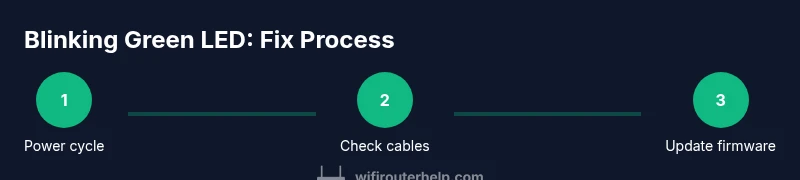
- Power cycle the router: Unplug, wait 60 seconds, plug back in. Why: gives hardware a clean reset and clears transient faults. Pro tip: perform this away from a power strip with other devices.
- Check all physical connections: Re-seat the WAN/Internet cable and other Ethernet cables. Why: loose connections can trigger freak LED patterns. Pro tip: test with a new Ethernet cable to rule out cable failure.
- Access the admin interface: Open a browser and enter the router’s IP (commonly 192.168.0.1 or 192.168.1.1). Why: you can review status, WAN, and firmware info directly. Pro tip: have default credentials handy or check the label on the router.
- Verify WAN/Internet status: Confirm the router can negotiate an internet connection; look for status indicators like “Connected” or “Active.” Why: a faulty WAN handshake is a common cause. Pro tip: take a screenshot of the status page for reference.
- Check for firmware updates: If the router shows an available update, apply it and monitor LED behavior during and after the process. Why: updates fix bugs that can cause abnormal LED activity. Pro tip: ensure uninterrupted power during the update.
- Review configuration settings: Ensure PPPoE/DHCP/PPPoA settings match your ISP requirements; incorrect settings can trigger re-sync loops. Why: misconfigurations lead to repeated connection attempts. Pro tip: snapshot current settings before changing them.
- Test with a wired connection: Temporarily connect a computer via Ethernet to verify if the problem is wireless-related. Why: helps isolate variables between wired and wireless paths. Pro tip: run a quick speed test to establish baseline.
- Consider a factory reset if issues persist: This should rarel y be first but can resolve deep-seated faults. Why: restores default firmware and settings. Pro tip: reconfigure from scratch and monitor LED behavior after each major change.
Estimated total time: 60-75 minutes.
tipbeyondnone_cancelledandnullablehmm?null?null?
Tools & Materials
- Device with a web browser (phone, tablet, or computer)(Same network as the router to access admin pages.)
- Ethernet cable (Cat5e or newer)(For reliable wired testing and diagnosing connectivity.)
- Router power supply and a stable outlet(Keep power uninterrupted during testing and updates.)
- Router credentials (admin username and password)(If you don’t know them, check the label on the router or your ISP documentation.)
- Optional: router manual or quick-start guide(Helpful for model-specific LED patterns and default IPs.)
Steps
Estimated time: 60-75 minutes
- 1
Power cycle the router
Unplug the router from power, wait 60 seconds, then plug it back in. This clears temporary faults and reinitializes the hardware. Observe the LED pattern during boot to see if the green blink stabilizes.
Tip: Perform this step away from other devices on the same power strip to avoid ripple effects. - 2
Check all physical connections
Ensure the WAN/Internet cable and any Ethernet cables are firmly seated and undamaged. If possible, replace the WAN cable with a known-good one to rule out a faulty connector.
Tip: A loose cable is a common cause of repeated re-syncs. - 3
Access the router’s admin interface
Open a web browser and enter the router’s IP address (typical options are 192.168.0.1 or 192.168.1.1). Sign in with your admin credentials to view status, WAN, and firmware sections.
Tip: If you can’t reach the page, check your device’s network settings or try a wired connection. - 4
Check WAN/Internet status
Look at the status page for an active connection. If it shows disconnected or error messages, note the exact wording for troubleshooting.
Tip: Documentation of the exact status helps when you search for model-specific fixes. - 5
Look for available firmware updates
Navigate to the firmware/update section and apply any available updates. Do not interrupt the process; a failed update can worsen LED behavior.
Tip: Back up current settings before updating if your router offers that option. - 6
Review network settings and reconfigure if needed
Verify PPPoE, DHCP, and VLAN settings align with your ISP’s requirements. Incorrect settings can trigger repeated re-syncs and blinking LED patterns.
Tip: If you’re unsure, consult the ISP’s setup guide or take a photo of your current configuration before changing it. - 7
Test with a wired device
Connect a computer directly to the router via Ethernet to see if the blinking green LED persists and whether wired speeds are stable.
Tip: If the LED stops blinking with a wired connection, the issue may be wireless-specific. - 8
Consider a factory reset if the problem persists
As a last resort, perform a factory reset to restore defaults. Reconfigure your network from scratch afterwards.
Tip: Back up settings first, as a reset will erase custom configurations.
People Also Ask
What does a blinking green light mean on my router?
A blinking green LED can indicate normal activity, a firmware update, or a connection negotiation. The exact meaning depends on your model, so consult the manual for precise patterns. If the blink is irregular or persistent during active use, proceed with troubleshooting steps.
A blinking green LED usually signals activity or an update. Check your model’s manual for exact meanings and proceed with the steps in this guide if it seems off.
Should I reset my router if the LED blinks green constantly?
Only reset if basic checks don’t resolve the issue. A factory reset erases custom settings, so back up first. If possible, try a soft reset first or firmware update before a full reset.
Reset only if nothing else works, since it wipes settings. Back up first and reconfigure after reset.
Can a firmware update fix blinking green LED issues?
Yes, firmware updates can resolve glitches causing LED irregularities. Check for updates in the router’s admin page and apply them if available, ensuring the process completes uninterrupted.
Updating the firmware can fix bugs that lead to blinking lights; just don’t interrupt the update.
What should I do if nothing changes after following the steps?
If nothing improves, contact your ISP or the router manufacturer’s support. There may be a hardware fault or warranty-covered issue requiring professional assistance.
If there’s no improvement, reach out to support for further diagnostics and potential hardware repair or replacement.
Are LED indicators the same across brands?
No. LED indicators vary by model and brand. Always refer to your specific device’s manual for accurate meanings and recommended steps.
LED signals aren’t universal; check your model’s manual for what each blink means.
Will a factory reset remove my Wi-Fi settings?
Yes, a factory reset returns the router to factory defaults, including Wi‑Fi name and password. You’ll need to reconfigure the ISP and any custom settings afterward.
A factory reset wipes your settings, so be prepared to set up your Wi-Fi again.
Watch Video
What to Remember
- Power cycle to clear temporary faults
- Verify cables and WAN settings before resets
- Back up configurations before factory resets
- Update firmware when available to fix LED glitches